Set up dialog variants
A dialog variant is a complete version of the dialog: its General settings and the request tabs of every connected instance. UniPortal shows it only to the Jira groups or JSM organizations you choose. Use it when different audiences need different banners, links, or tabs, for example employees and managers. Connections and credentials are shared, so you connect each tool once.
See an Employees and Managers example on Landing Pages & News.
Before you start
- Work on the master instance. You edit variants there, and UniPortal shares them with the secondary instances.
- The Jira groups or JSM organizations you want to target already exist.
- There is no limit on the number of variants.
Steps
In Jira, select the cog icon and go to Marketplace apps > UniPortal > Configuration.
Open the Dialog variant field and select Create new variant.
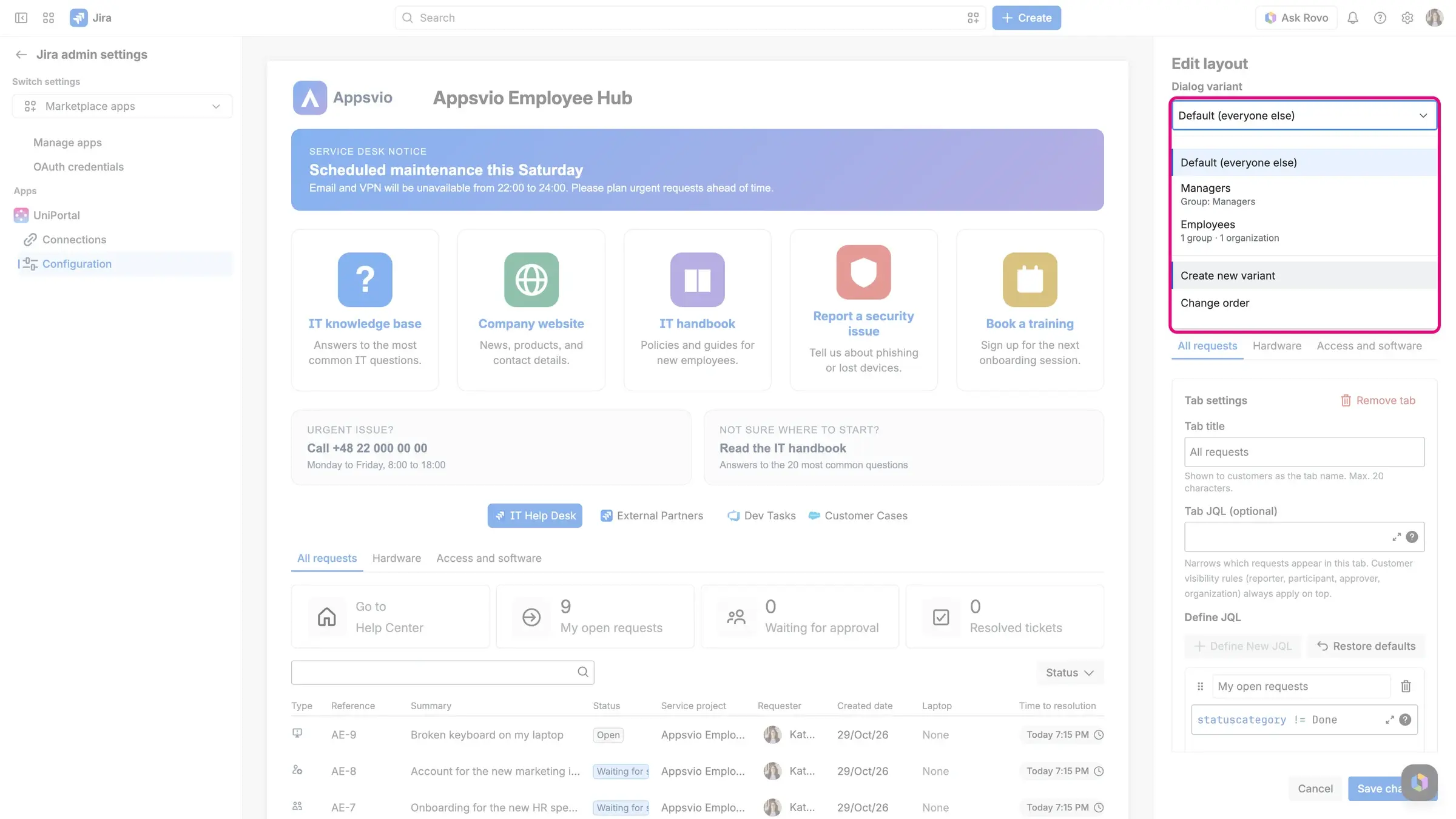
In the New dialog variant window, fill in the details of the variant:
- Name: each variant needs a name that no other variant uses, ignoring capitalization.
- Jira groups and Organizations: search and select one or more groups, one or more organizations, or both. You must select at least one group or organization.
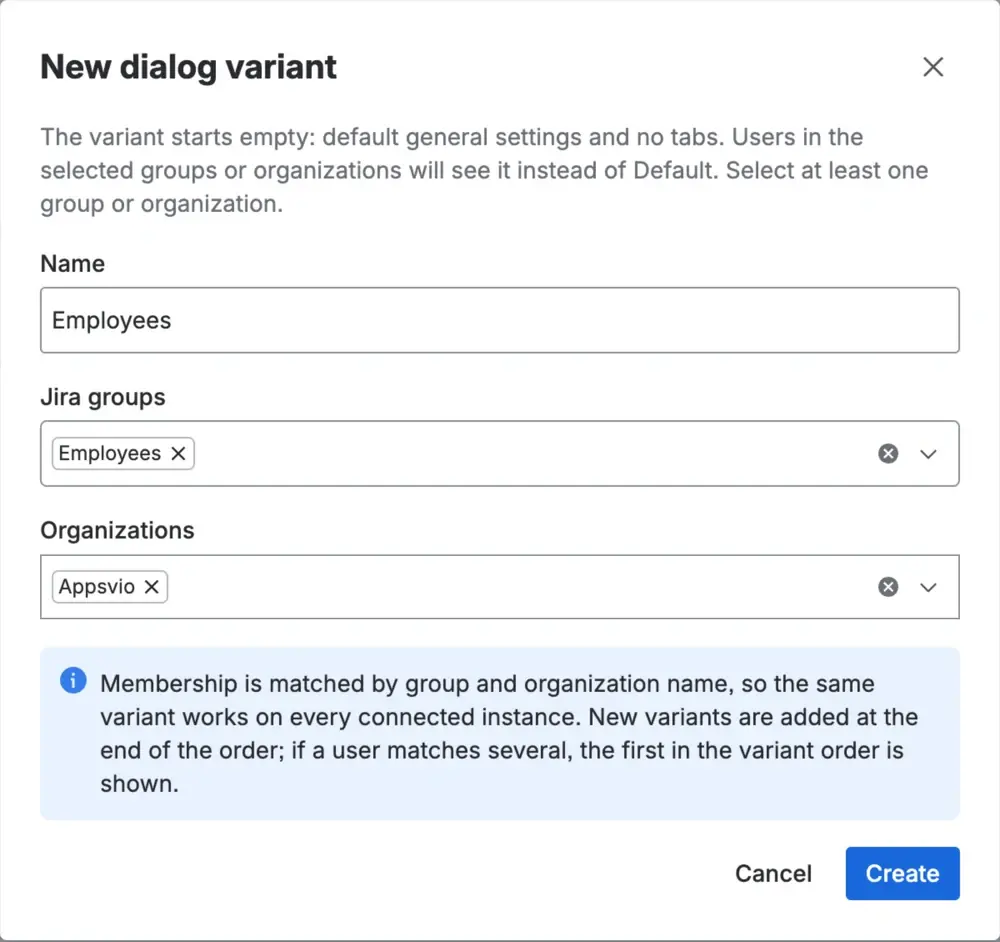
Select Create. UniPortal saves the variant, selects it, and adds it at the end of the variant order.
Configure the variant on the General settings and Configure tabs tabs.
Select Save changes to save the General settings and tabs of the variant.


Creating, editing, reordering, and deleting a variant take effect as soon as you confirm them. Save changes applies only to the variant’s General settings and tabs.
A new variant starts empty: it has the default General settings (the header “All Requests”, no logo, no links, and no HTML) and no request tabs. Until you add at least one tab for at least one instance, matching customers see no request table.
Result
Customers in the selected groups or organizations see the variant instead of the default dialog. Everyone else sees the Default (everyone else) dialog, which you configure from the same field.
How UniPortal picks a variant
Every time a customer opens the dialog, UniPortal checks the variants from the first to the last. The first variant where the customer belongs to at least one of its Jira groups or one of its organizations is the one the customer sees. A customer who matches no variant sees the Default (everyone else) dialog.
Groups and organizations are matched by name, ignoring capitalization and surrounding spaces, so one variant works on every connected instance. A group or organization can belong to only one variant. If you select one that another variant already uses, UniPortal refuses it and names that variant.
Customers without Jira groups
Portal-only customers are not members of Jira groups. To show them a variant, select a JSM organization instead.
UniPortal caches group and organization membership, so a change to a customer’s groups or organizations may not apply immediately.
Change the variant order
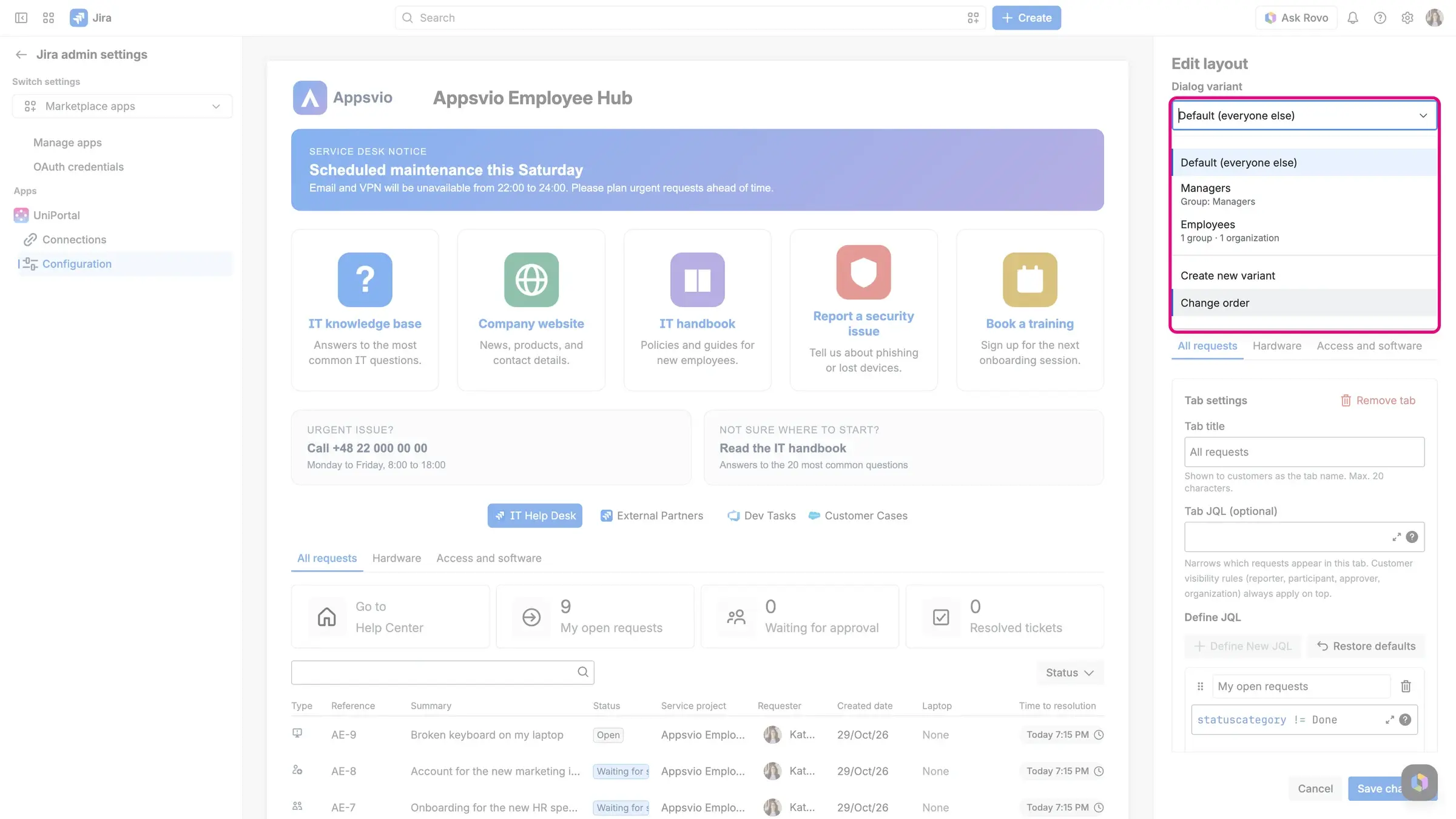
Open the Dialog variant field and select Change order. This option appears when you have at least two variants.
Use Move up and Move down to arrange the variants. Default (everyone else) stays last.
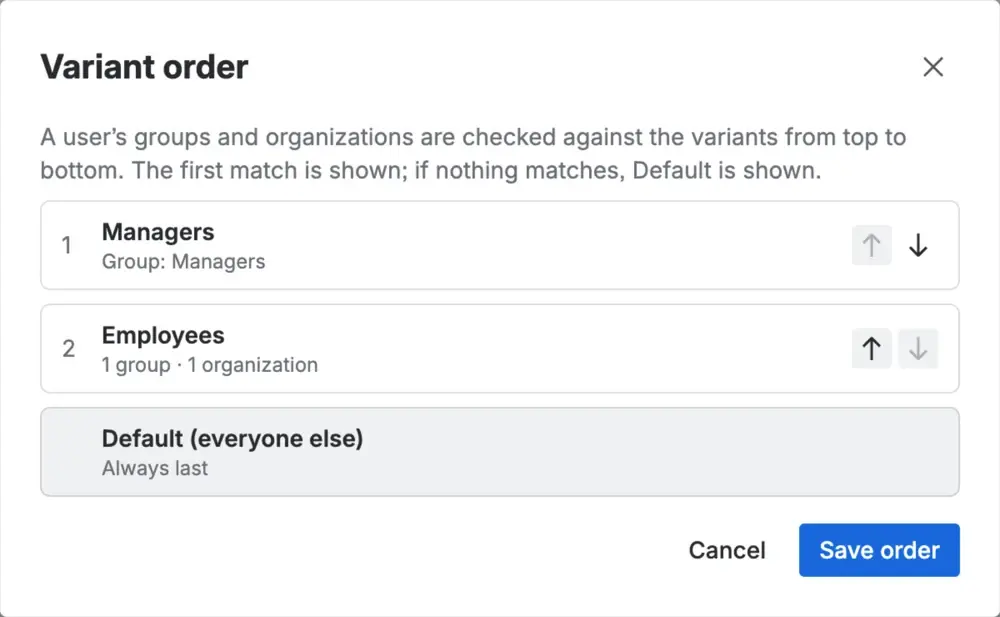
Select Save order.


Edit a variant
- Open the Dialog variant field and select the variant.
- Select Edit.
- Change the Name, Jira groups, or Organizations.
- Select Save.
Delete a variant
- Open the Dialog variant field and select the variant.
- Select Delete.
- Select Delete variant to confirm.
Deleting a variant removes its General settings, the tabs of every instance, and its uploaded files, unless another configuration still uses them. Customers who matched it then see the Default (everyone else) dialog.
If a group or organization no longer exists
A variant gets a warning in the Dialog variant field when one of its groups or organizations was deleted or renamed in Jira: “Some groups or organizations no longer exist on this site”. The Edit window shows which names are missing. The variant keeps working for its remaining members, and UniPortal removes nothing automatically. After a rename, select the new name in the Edit window.
Variants on secondary instances
You create, edit, reorder, and delete variants on the master instance only. On a secondary instance, you can open the Dialog variant field to view each variant, but you can’t change them.