Apply a template on a transition
Before you start
- The template is enabled, assigned to the space and work type of the work item, and has Transition view in its Application scope. See Create a template.
- To add the field to a transition screen, you are a Jira administrator.
Steps
Add the Template field to a transition screen
The app doesn’t add the Template field to transition screens. A Jira administrator does it once for each transition.
In the Jira settings, go to Work items > Screens and select Add screen.
In the Add Screen dialog, enter a name and a description, and select Add.
In the list of screens, select the name of the new screen. In Select Field …, add the Template field. Also add every field that the template fills in. Jira can’t fill in a field that isn’t on the screen.
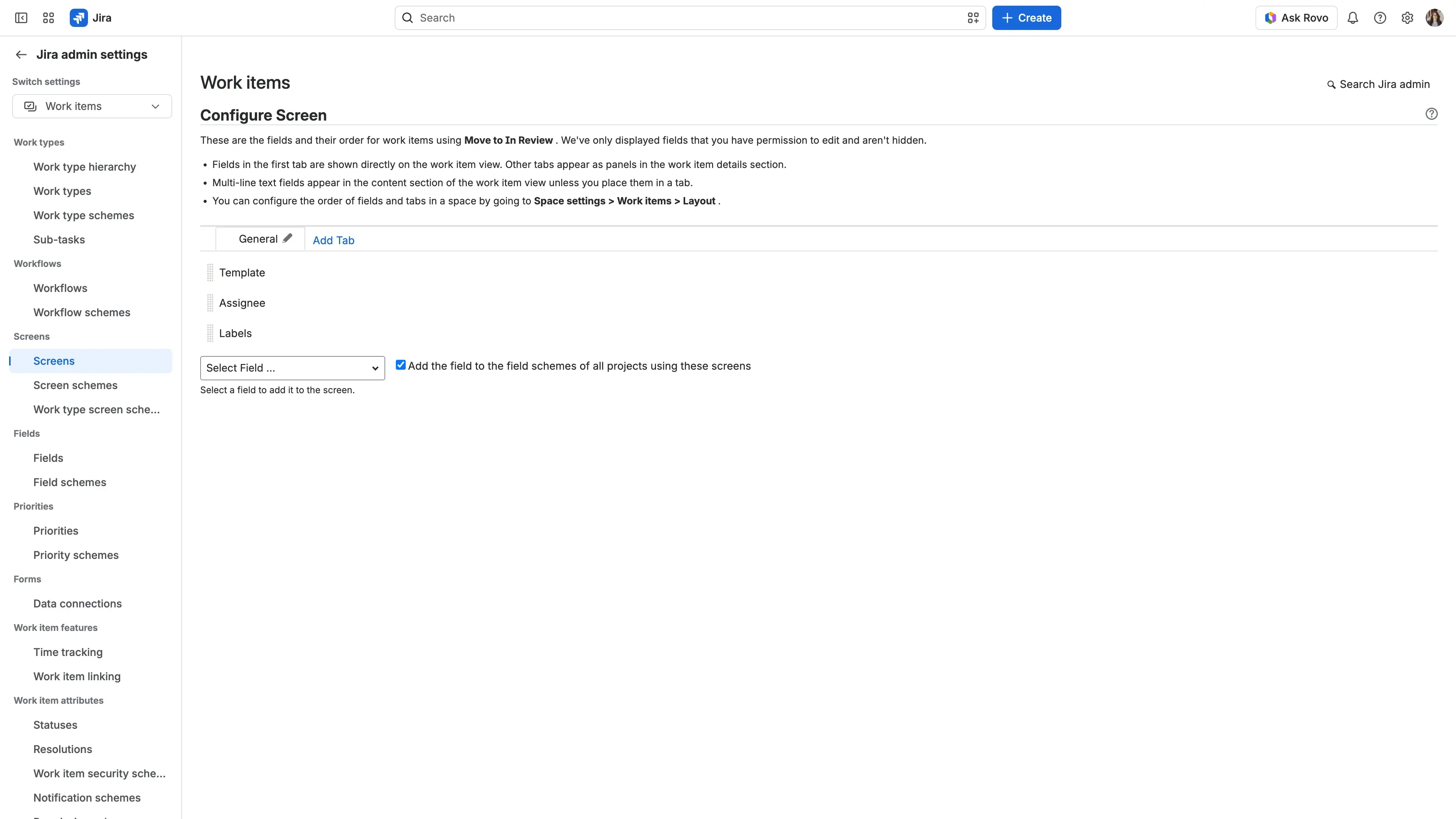
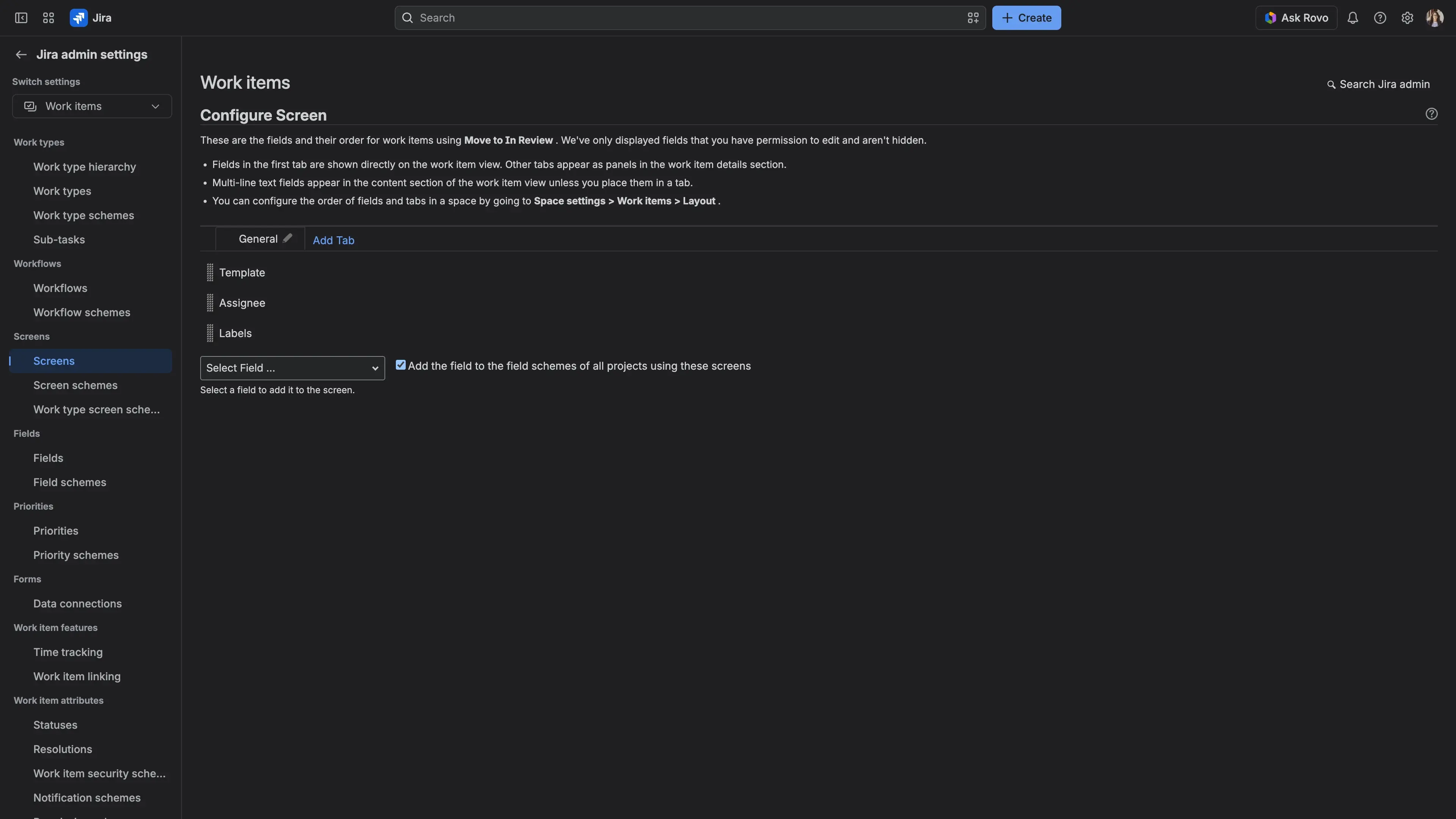
In the Jira settings, go to Work items > Workflows. In the row of the workflow that you use in the space, select the three dots in the Actions column and then Edit. The workflow editor opens.
In the diagram, select the transition. For a transition from any status, select the Any label on the arrow. In the panel on the right, in Request input, select the plus icon (Add request input rule). Choose Show a screen, choose the screen that you created in Select a screen, and select Add.
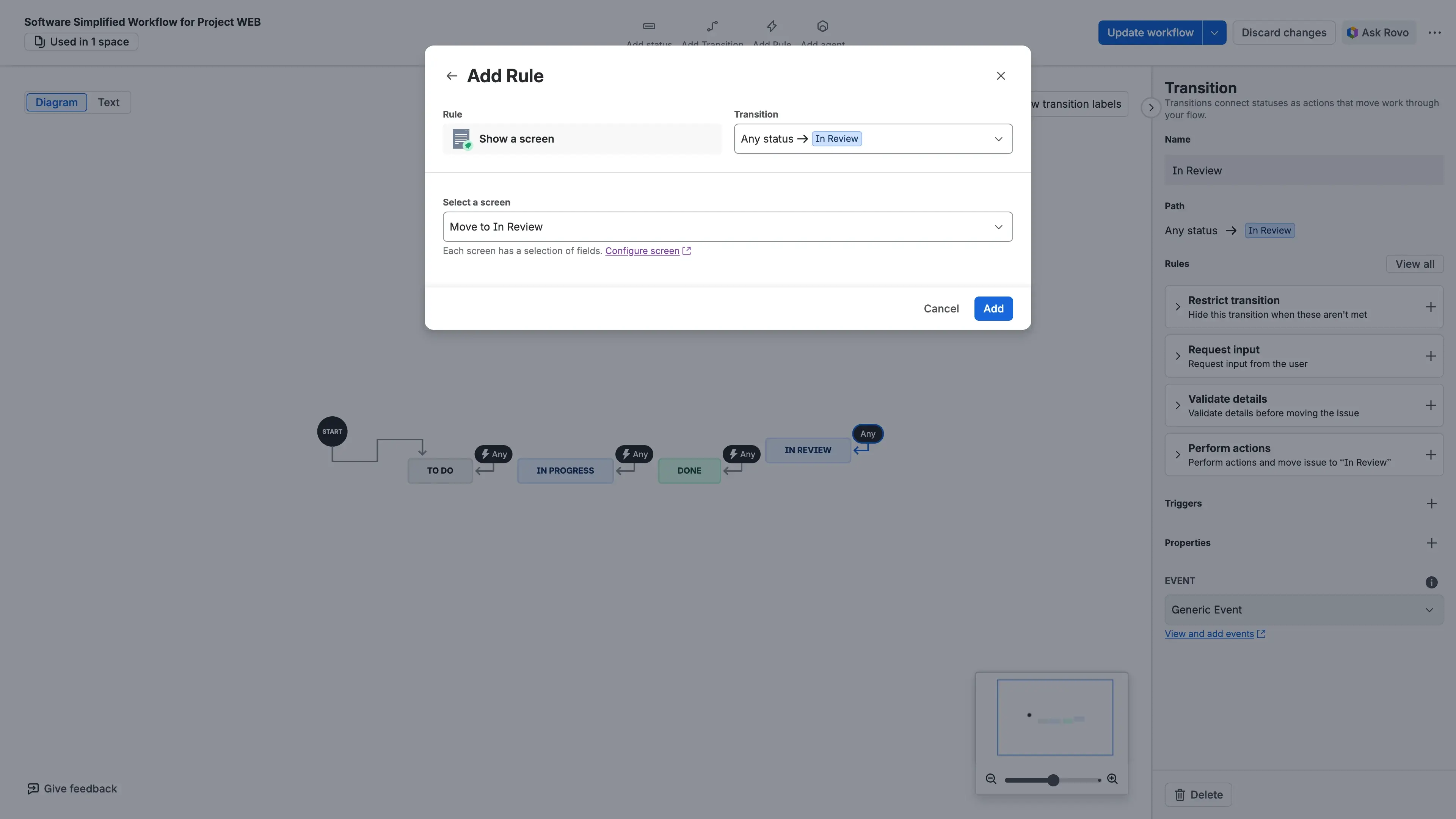
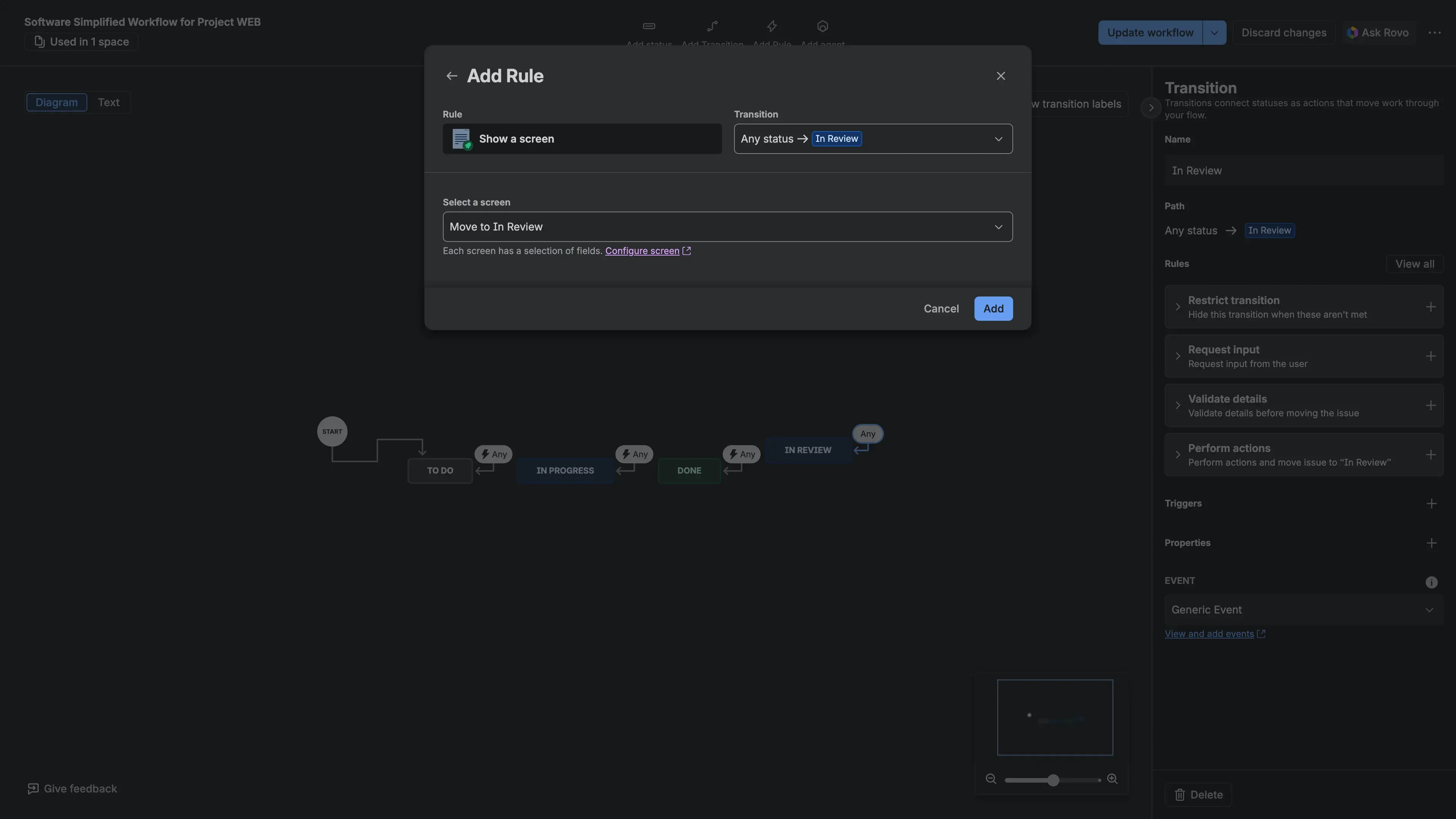
Select Update workflow.


Apply the template
Open a work item and select the status that uses the transition. The transition dialog opens.
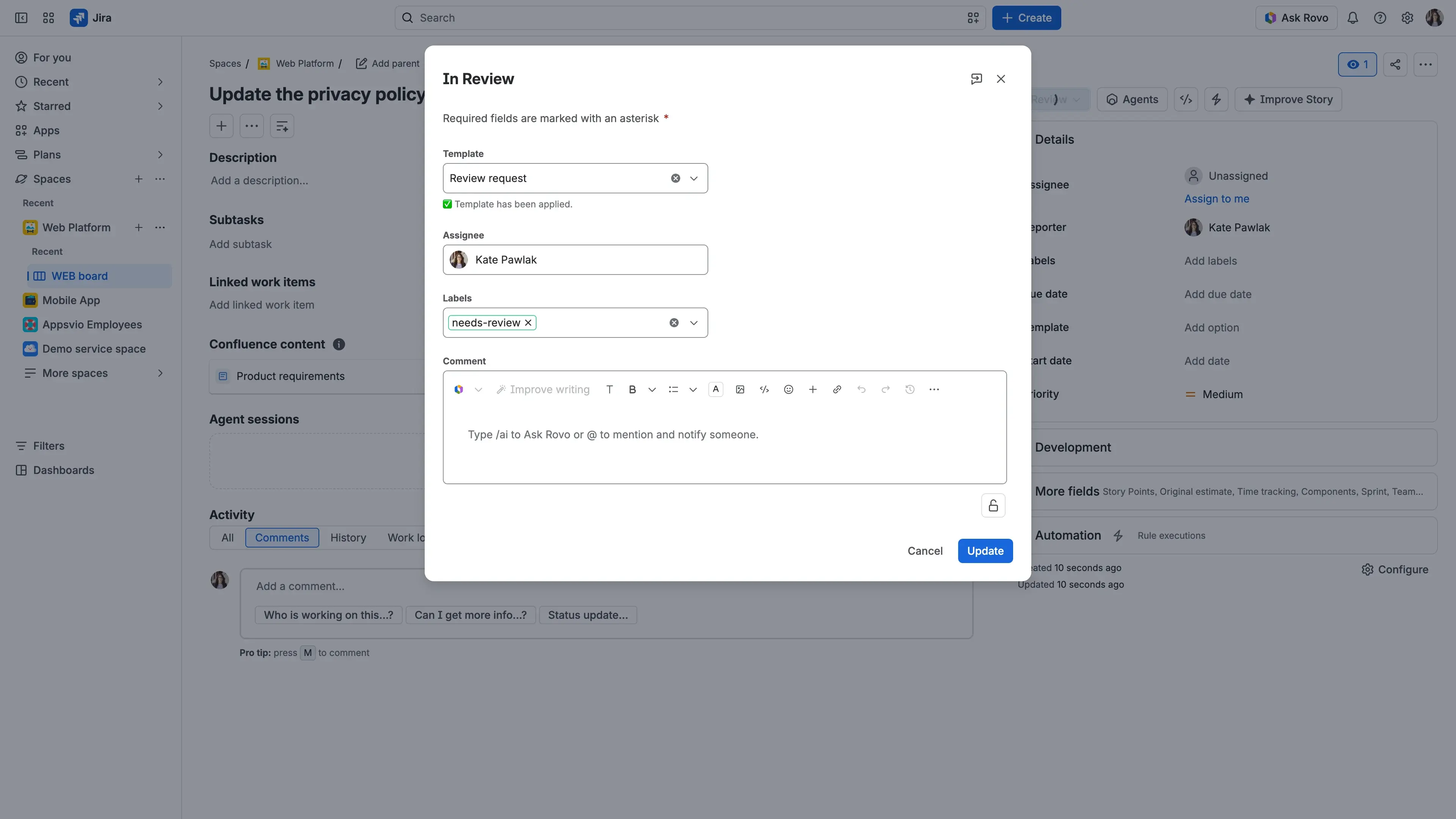
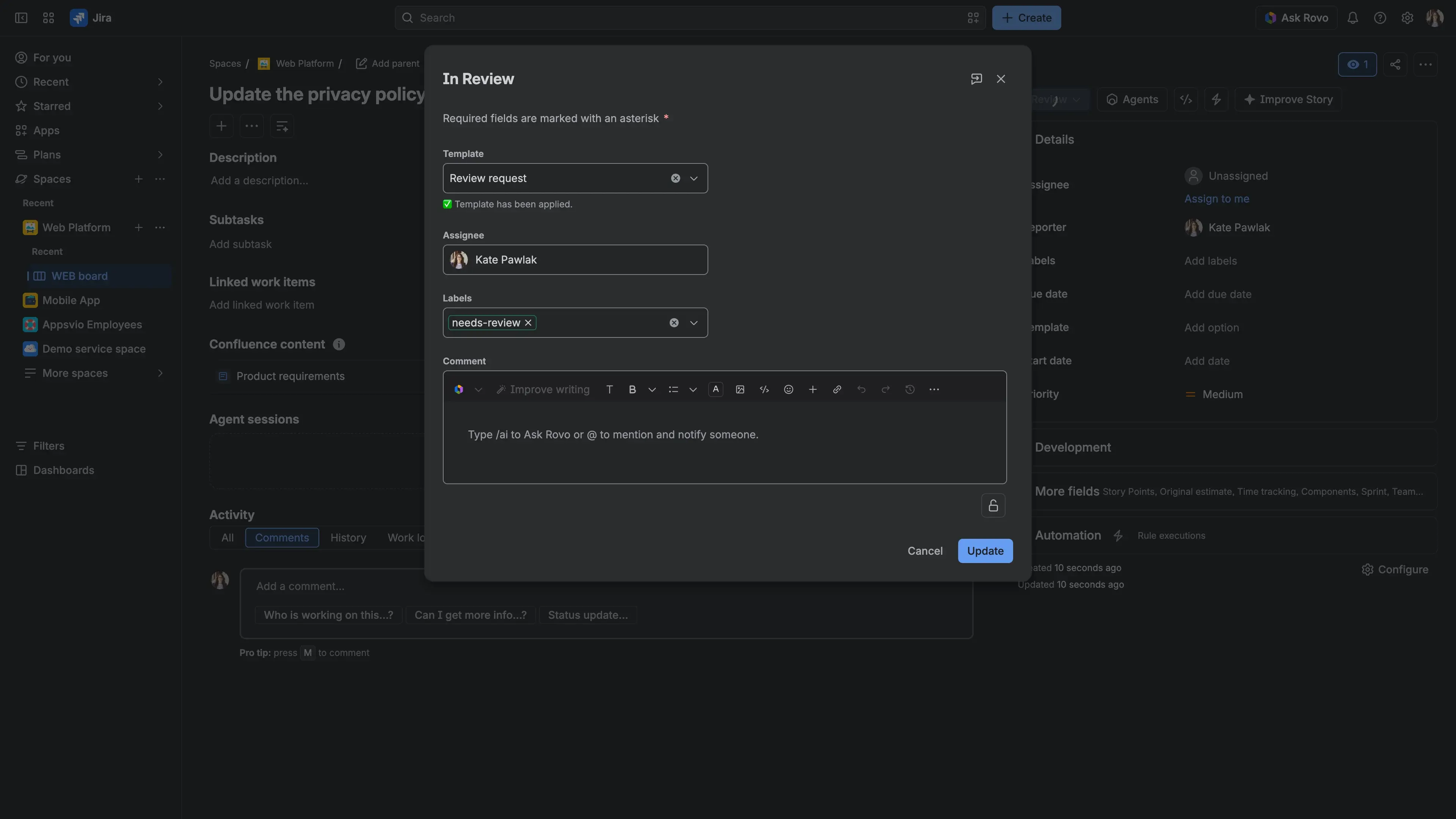
In the Template field, select the template. Jira fills in the fields that the template defines in the dialog, and a message under the field confirms that the template has been applied.
Review the values, and change any of them if you need to. Then complete the transition.


If a default template is set for the space and work type, and its Application scope includes Transition view, Jira selects it when the dialog opens and the Template field is empty. See Default template.
Example
When a work item moves to In Review, the team wants it to go to the reviewer with a label. The template Review request has the Application scope Transition view. It sets the Assignee to the reviewer and adds the label needs-review. The administrator adds the screen Move to In Review with the fields Template, Assignee, and Labels to the transition to In Review.
A team member opens the work item, selects In Review, and selects Review request in the Template field. Jira fills in the Assignee and Labels fields in the dialog. After the team member selects Update, the work item is in In Review, assigned to the reviewer, and has the label needs-review.


Result
The work item moves to the new status with the values from the template. If the template has child templates, the app creates the child work items in the background. See Template structure.