Apply a template to an existing work item
Before you start
- The template is enabled, assigned to the space and work type of the work item, and has Work item view in its Application scope. See Create a template.
- The Template field is on the Edit screen of the work type. In a company-managed space, the app adds it for you. In a team-managed space, an administrator adds it in the space settings.
- You can edit work items in the space.
Steps
Open the work item.
In the Template field, select the template. Jira fills in the fields that the template defines and saves them right away. There is no Save button. The information icon next to the field label shows the message Template has been applied.
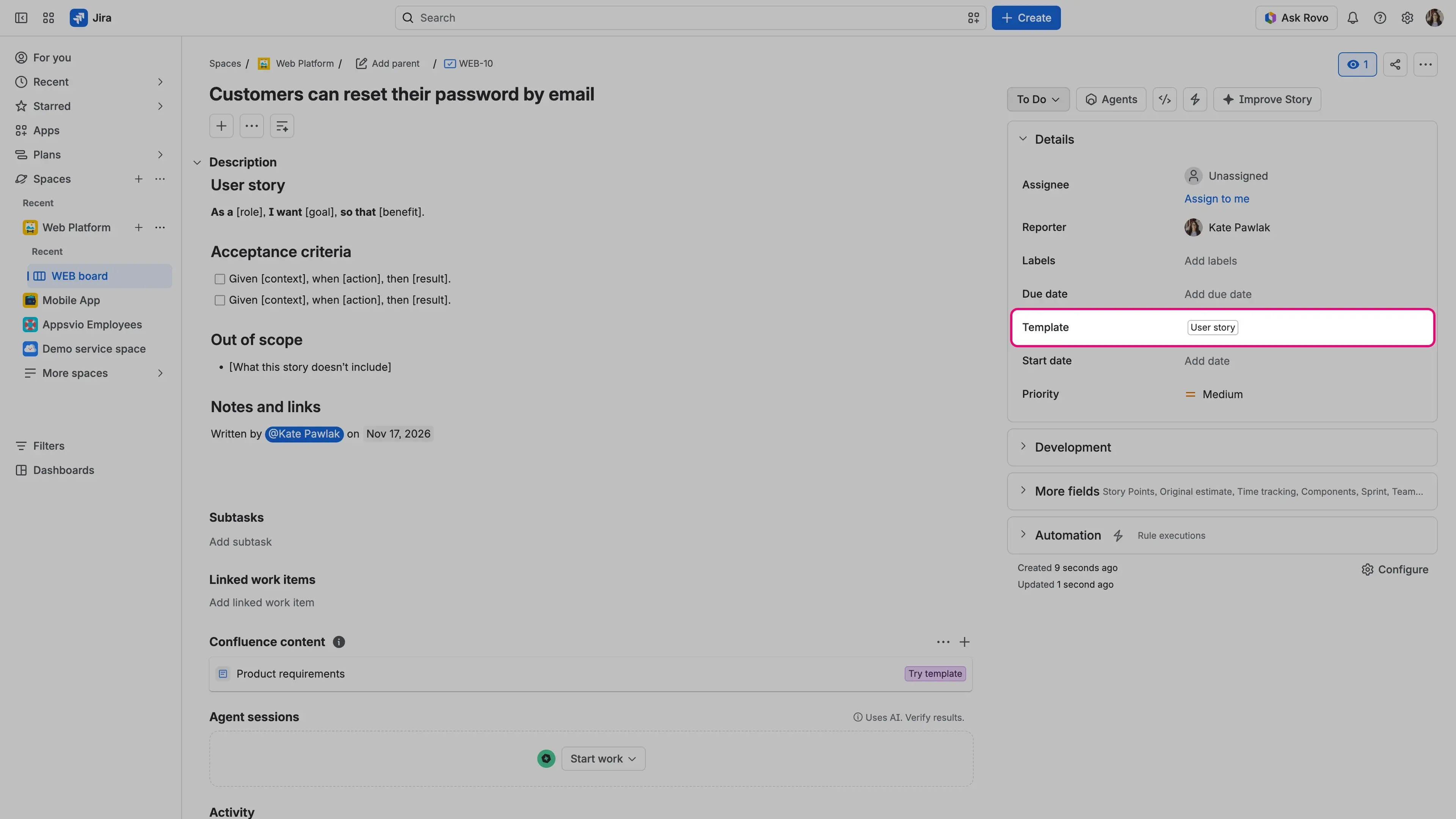
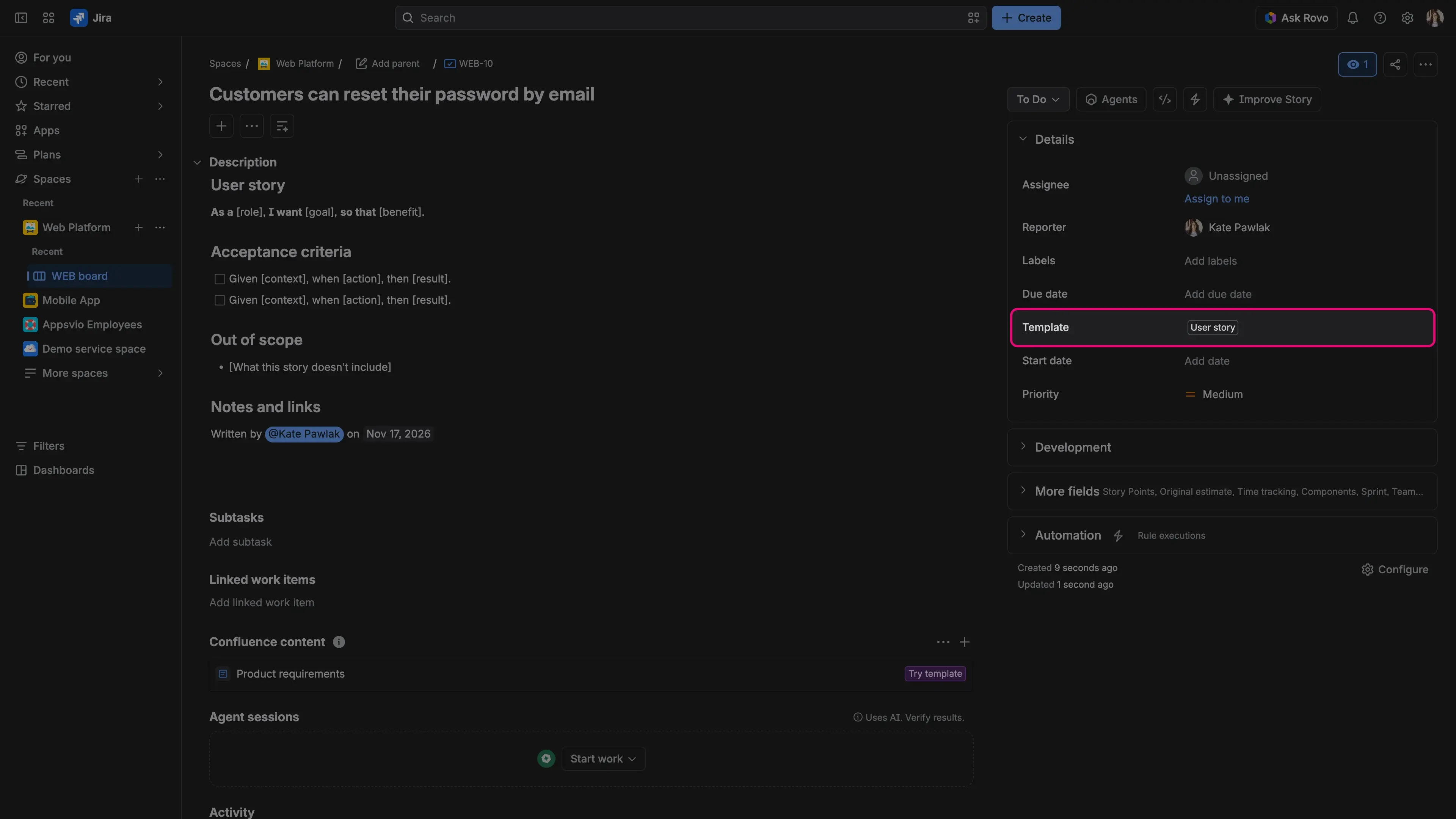
Review the values, and change any of them if you need to.


You can also choose another template or clear the Template field. Jira empties only the fields that a template filled in since you opened the work item. It keeps the values of a template that you applied before you opened the work item or reloaded the page. When you open a work item that already has a template, Jira applies and clears nothing until you change the Template field.
Example
A product owner creates a story that has only a Summary: Customers can reset their password by email. During refinement, a team member opens the story, selects the template User story in the Template field, and Jira saves the change. The Description now has the structure of the user story: the story sentence, the acceptance criteria, the scope, and the notes. The team member replaces the placeholders in square brackets. To build this template, see User story.


Result
The work item has the values from the template as soon as you select it. If you selected a different template and it has child templates, the app creates the child work items in the background. Reload the work item to see them. See Template structure.