Create a direct link
Before you start
- You have the Browse templates app permission, or the Issue Templates Agent - Administer App permission.
- The template is assigned to the space and work type you want to link to, and it has Create view selected under Application scope, because the link opens the Create work item dialog. See Create a template.
Steps
In the Jira navigation bar, select Apps > Issue Templates Agent > Templates.
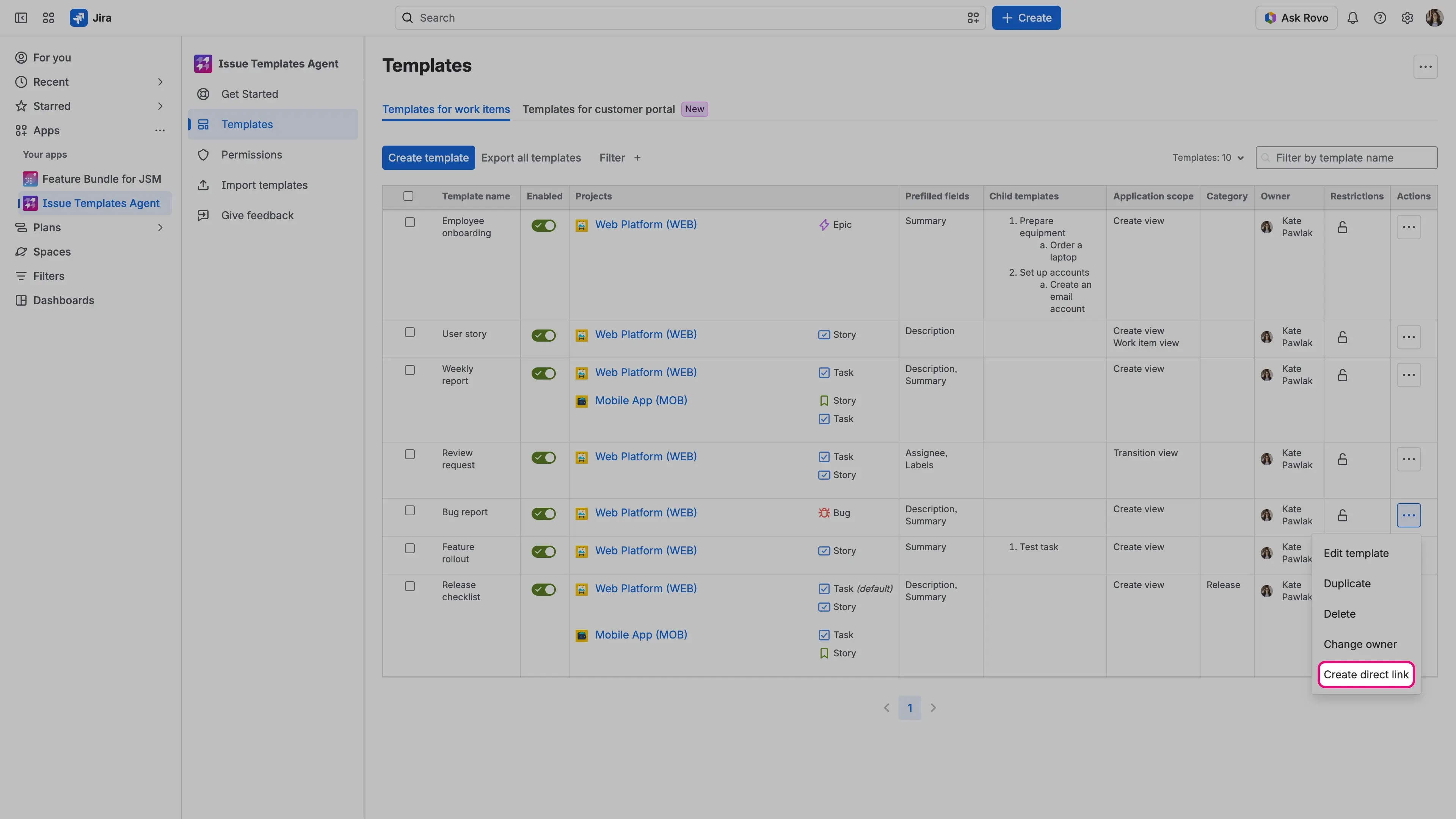
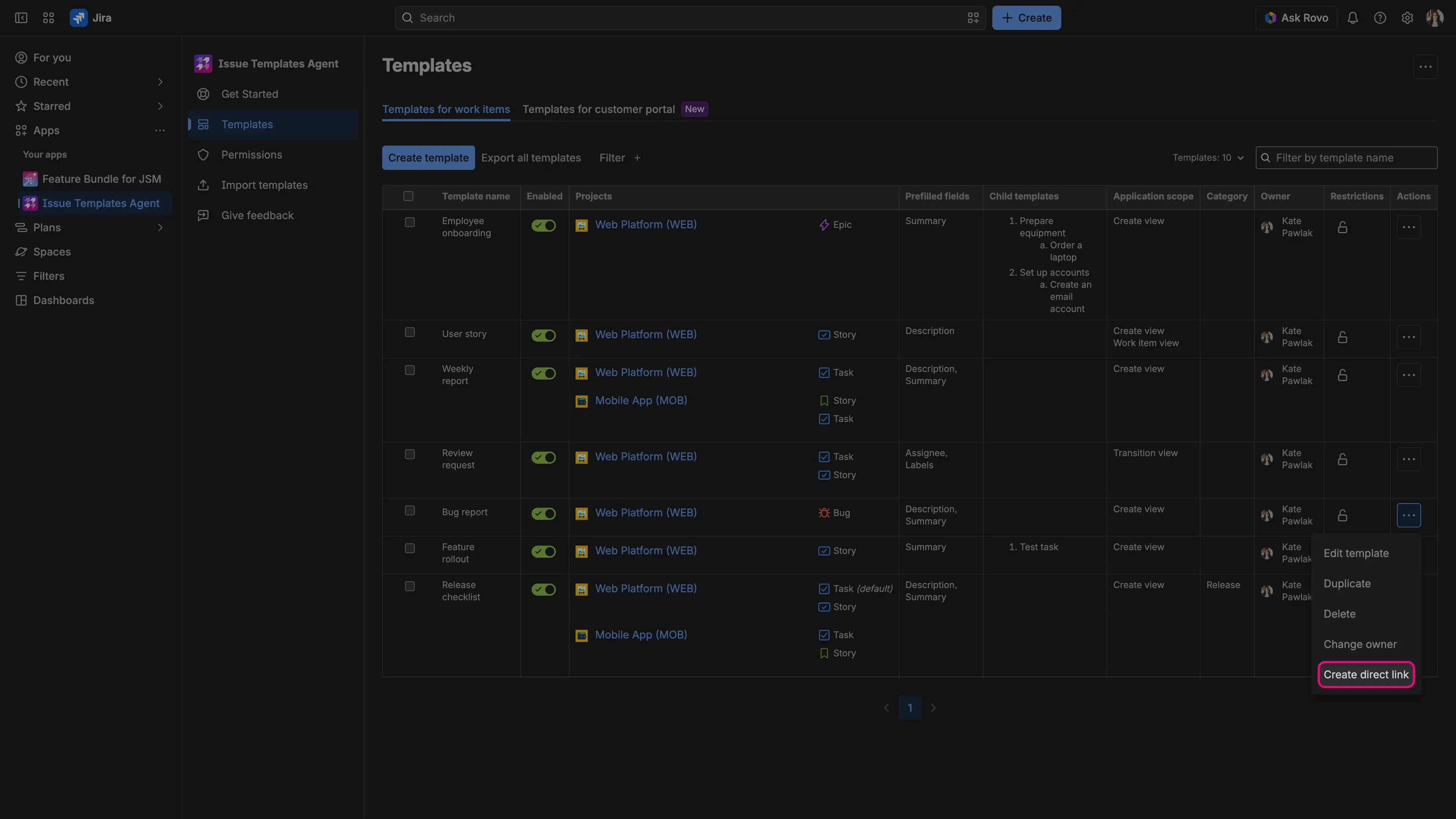
In the row of the template, select More > Create direct link. The action is available for templates for work items, not for templates for customer portal.
In the Create direct link dialog, choose the Space and the Work type. The lists contain only the spaces and work types that the template is assigned to. If the template has exactly one space and work type, the dialog selects them for you.
Select Create. The link appears in the Direct link box.
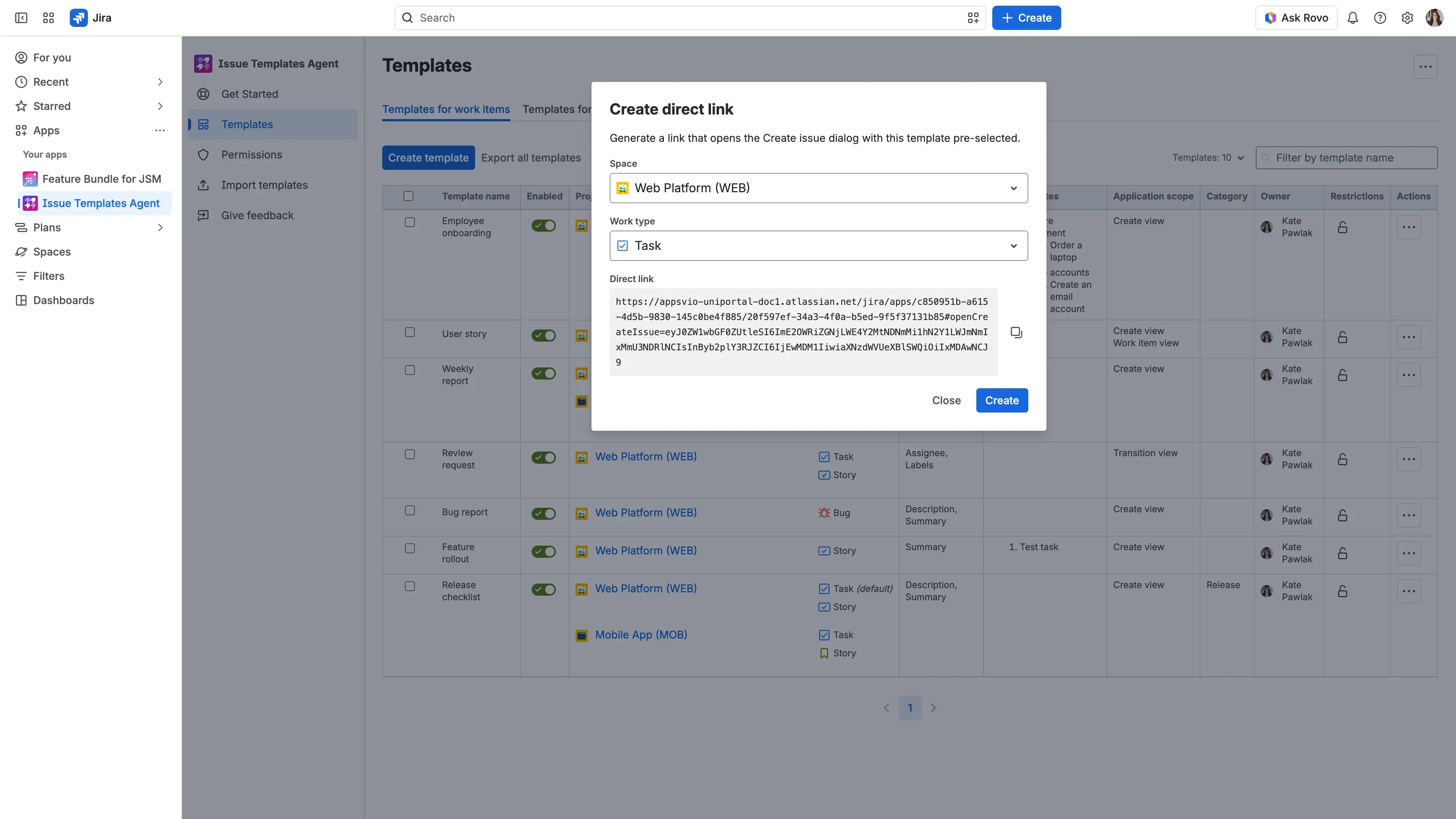
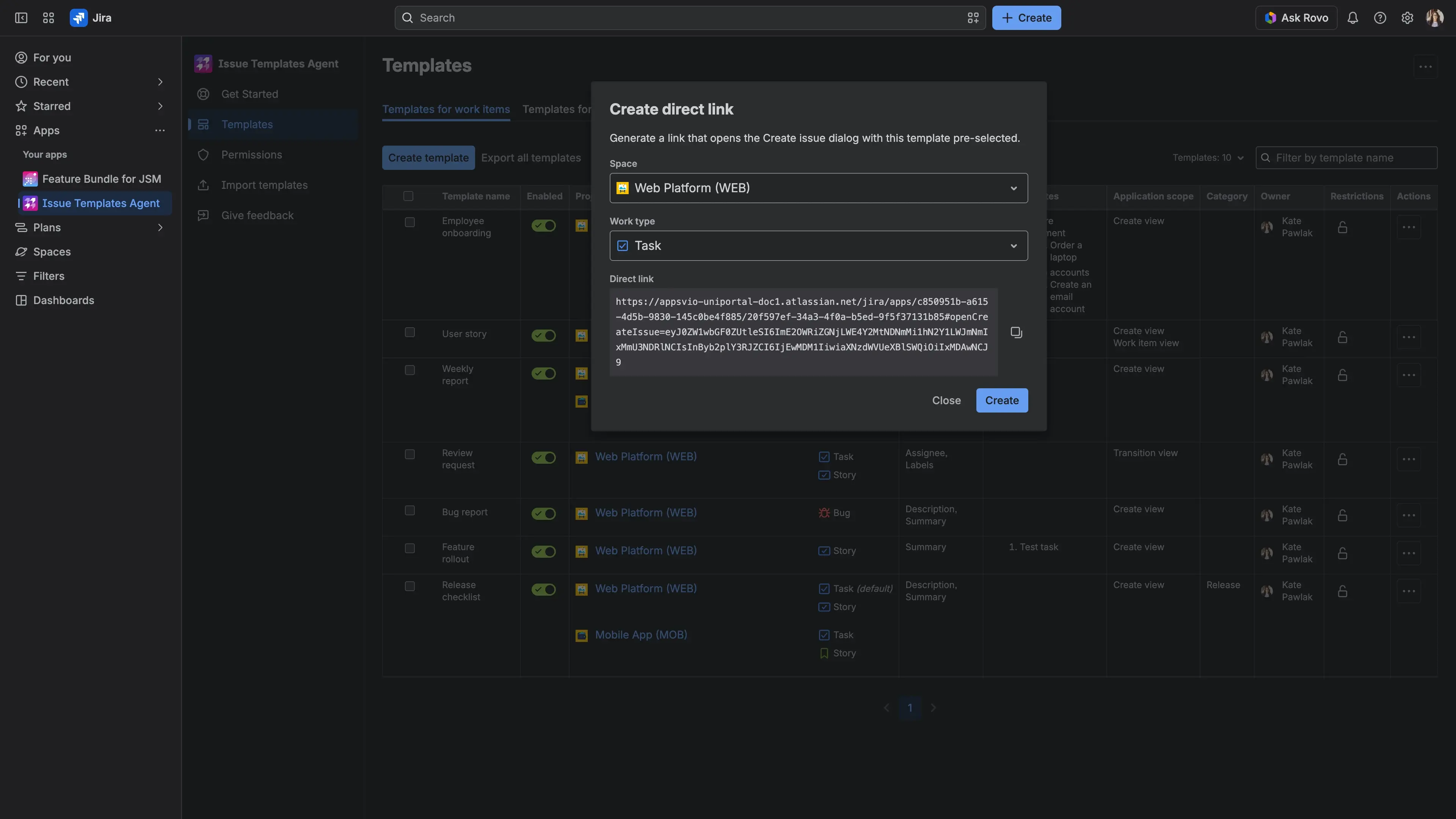
Select the copy icon, and share the link.


If you change the space or the work type after you create the link, the dialog removes the link, and you create a new one.
Result
When someone opens the link, Jira opens the Create work item dialog for the space and work type you chose, with the template selected in the Template field. The template fills in only the fields that are still empty, so values that are already in the form, such as Jira defaults, stay.
- Only people who can open the Issue Templates Agent page can use the link. These are people with the Browse templates or Issue Templates Agent - Administer App permission. They also need the Create work items permission in the space.
- If the template is disabled, doesn’t include Create view in its Application scope, or is restricted for the user, the dialog opens with an empty Template field.
- If Jira can’t find the template for that space and work type, the dialog opens without a template.
- When the user creates one work item, Jira opens it. When the user closes the dialog without creating a work item, Jira returns to the Templates page.
- A direct link works only for the Create work item dialog, not for transition screens, the work item view, or the customer portal.