Set a default template
Before you start
- You have the Create & edit templates app permission, or the Issue Templates Agent - Administer App permission.
- The template is enabled, assigned to the space and work type, and has Create view or Transition view in its Application scope. See Create a template.
Steps
In the Jira navigation bar, select Apps > Issue Templates Agent > Templates.
In the row of the template, select More > Edit template.
On the Parent template tab, in Space and work types, select Choose as default. Each space and work type gets a check box. Select the work types for which this template is the default, and select Save under the list.
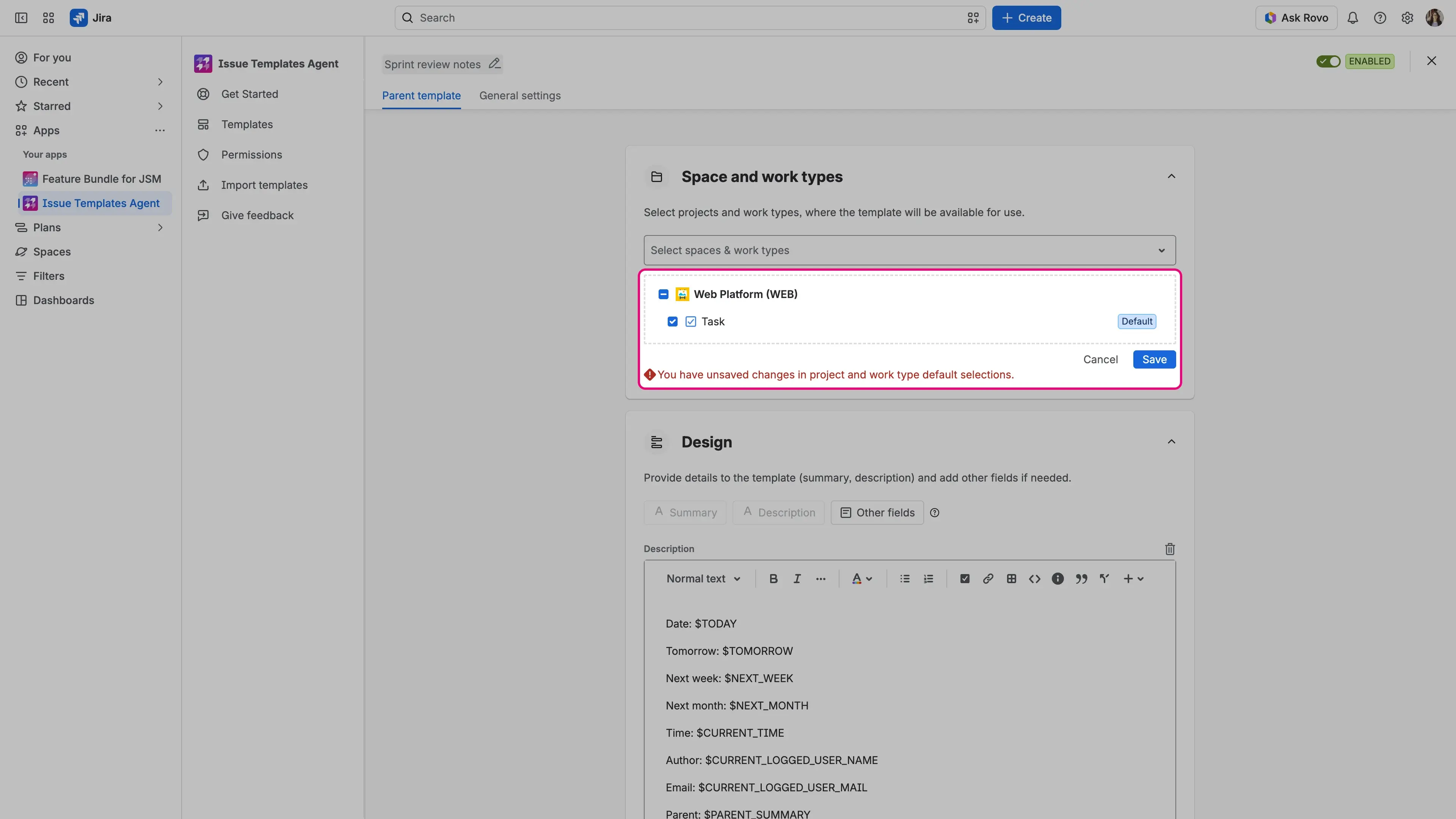
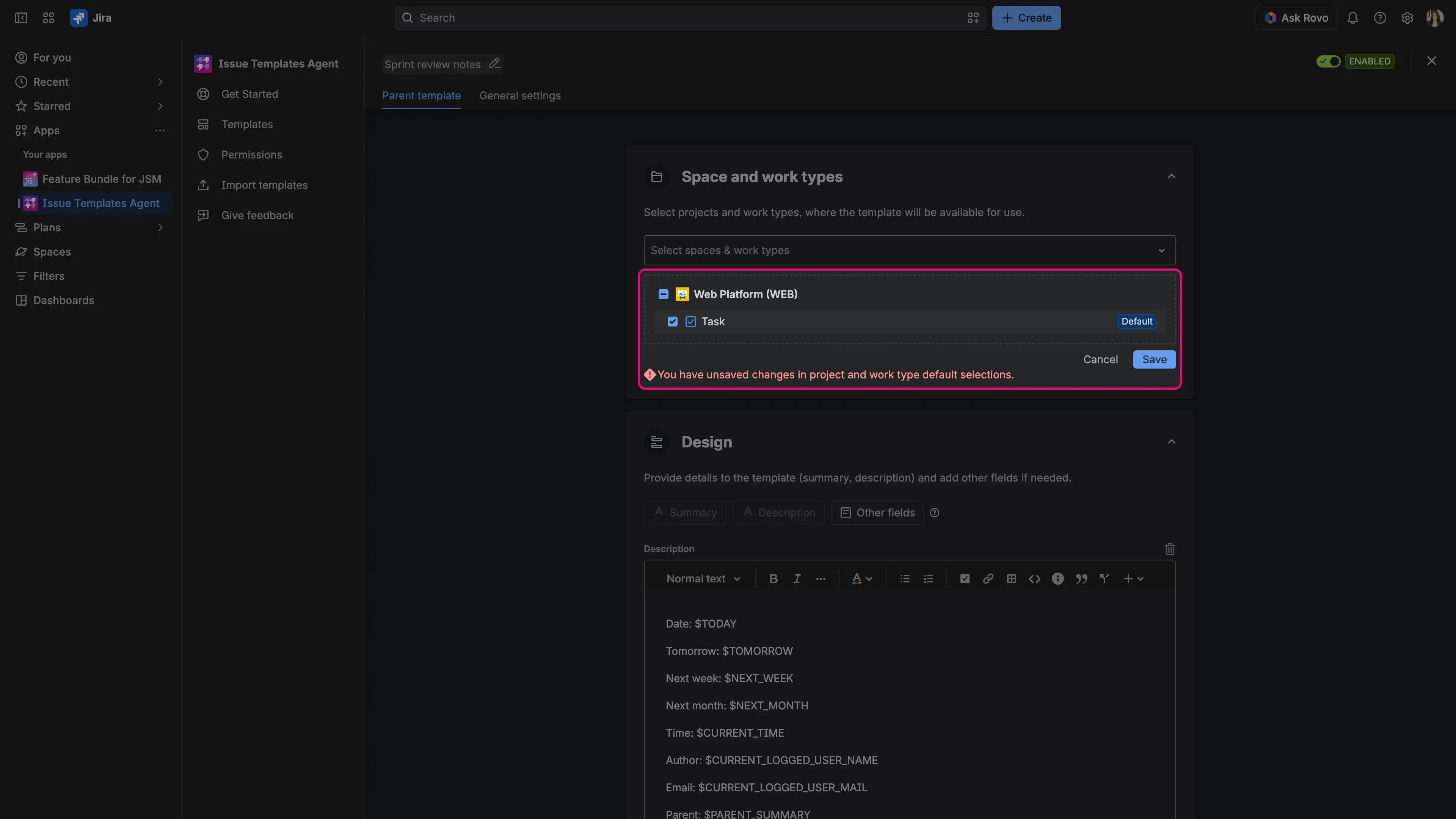
The work type then shows a DEFAULT label. A template can be the default for some pairs and not for others.
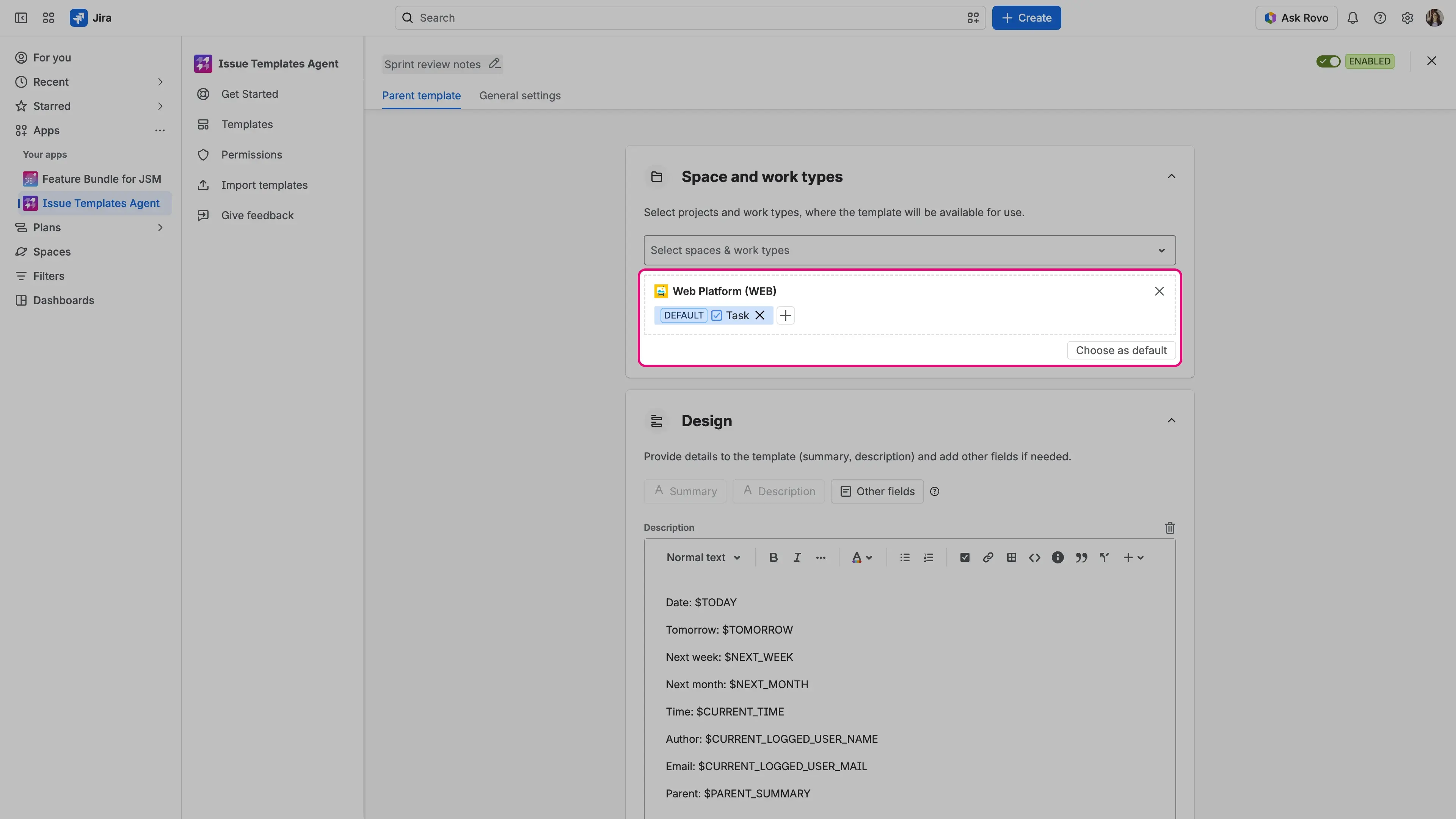
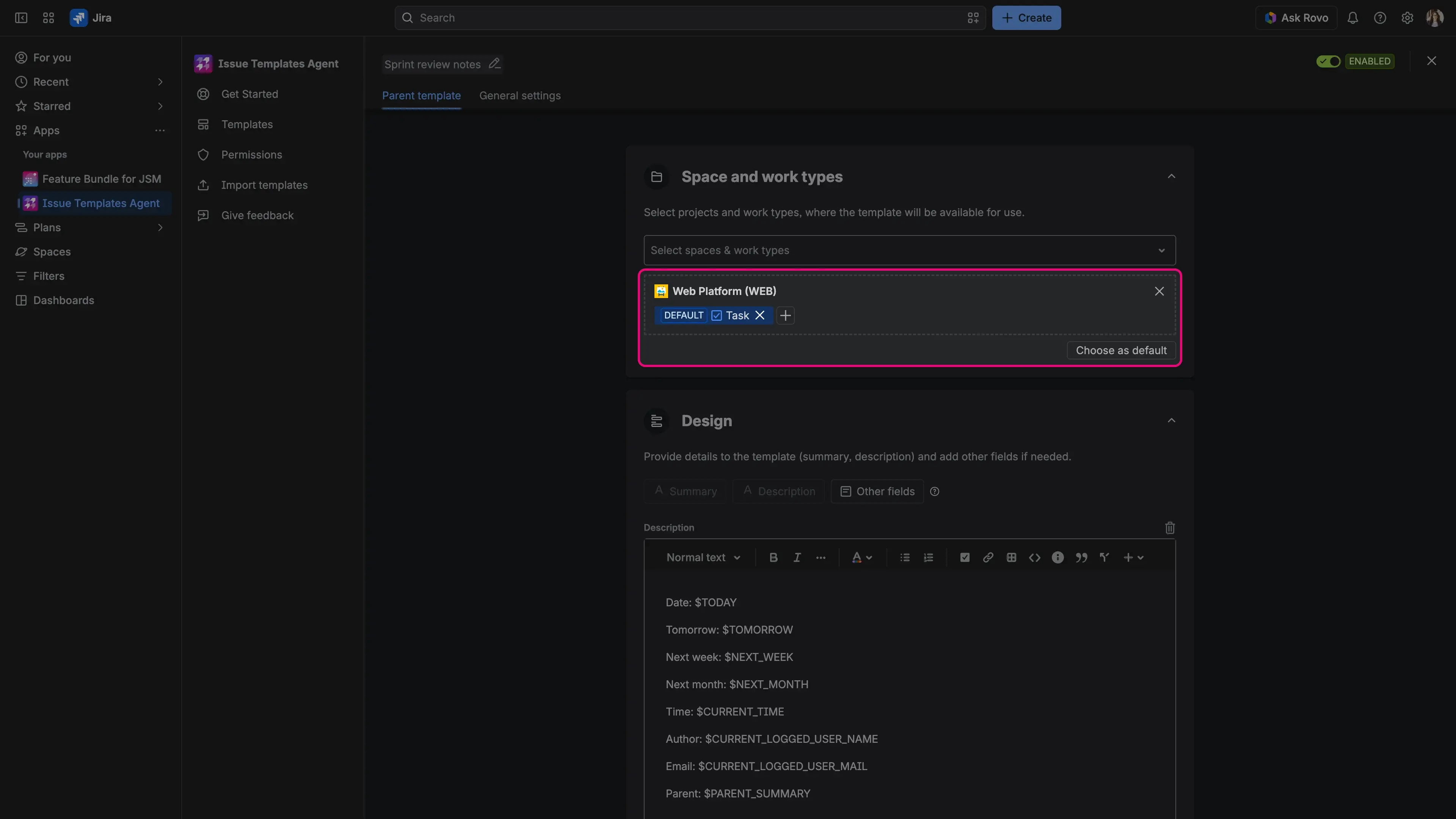
Select Save template.


A space and work type has at most one default template. When you mark this template as the default, the previous default template loses its mark. To see which templates are defaults, use the Is Default filter on the Templates page.
Result
When a user opens the Create work item dialog for that space and work type, and the Template field is empty, Jira selects the default template and fills in its fields. A message confirms that the template has been applied. The user can choose another template or clear the field. See Using templates.
- Jira fills in the template also on a transition screen that contains the Template field, if the Application scope of the template includes Transition view.
- Jira doesn’t apply a default template on the work item view of an existing work item.
- Jira doesn’t apply it when the Template field already has a value when the form opens.
- Jira applies it only if the template is available to the user. The template must be enabled, within its Application scope for that view, and not excluded for the user by template restrictions. If it isn’t available, Jira applies nothing.
- The default template replaces the current values of the fields it defines, including Jira’s own default values.