Create recurring Jira issues automatically
Use a Jira Automation flow with the Scheduled trigger to create the same work items every day, week, or month. The flow uses the Use Issue Templates Agent action, and the app creates the work item, with its child work items, from a template. Nobody has to choose the template.
This page uses a weekly report as the example. Every Monday, the flow creates a work item with the Summary Weekly report, week 47, where 47 is the number of the current week.
Why create recurring work items from a template?
- The flow creates the work item at the scheduled time, so nobody has to remember it, and it doesn’t depend on who is at work that day.
- Every work item has the same content. The fields, the description with its checklist, and the child work items come from the template, so nobody retypes them or skips a step.
- You change the template once. The flow points to the template, so a change in the template applies to every later run, and you don’t edit the flow.
- A variable such as
$WEEK_OF_YEARputs the current week or date in the Summary or the Description, so you can find the work item of a given week. - In the Advanced edition, the Audit log records every run of the flow with its outcome, including the ones that Jira rejected.
Who the action runs as
With the Scheduled trigger, the action runs as the flow actor, Automation for Jira, so no person has to start it. The reporter of the new work item is Automation for Jira.
Before you start
- You have the Advanced edition and an active license. See App Editions.
- You are a Jira administrator. Only Jira administrators can create global Jira Automation flows.
- You have a template for work items. Its fields must be available in the space and the work type of the new work items. For the example, create a template with the Summary
Weekly report, week $WEEK_OF_YEAR. See Create a template and Variables. - You have the numeric ID of the work type of the new work items. The action has no list of work types. See Atlassian’s article Finding the issue type ID in Jira Cloud.
Steps
In the Jira settings, select System > Global automation, select Create flow, and select Create from scratch.
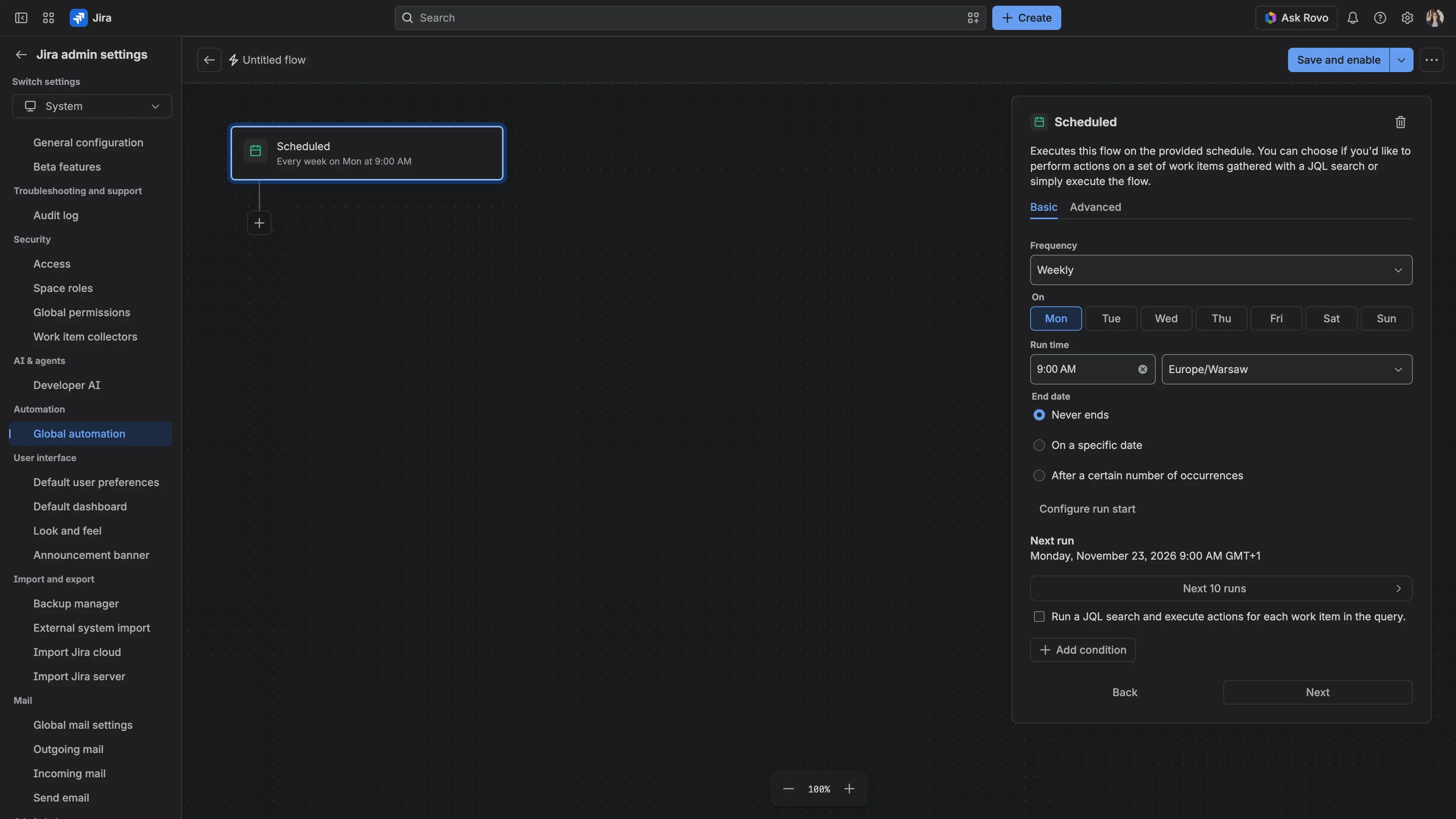
Select Scheduled as the trigger. Set Frequency to Weekly, select Mon under On, set Run time to the time you want, and select Next.
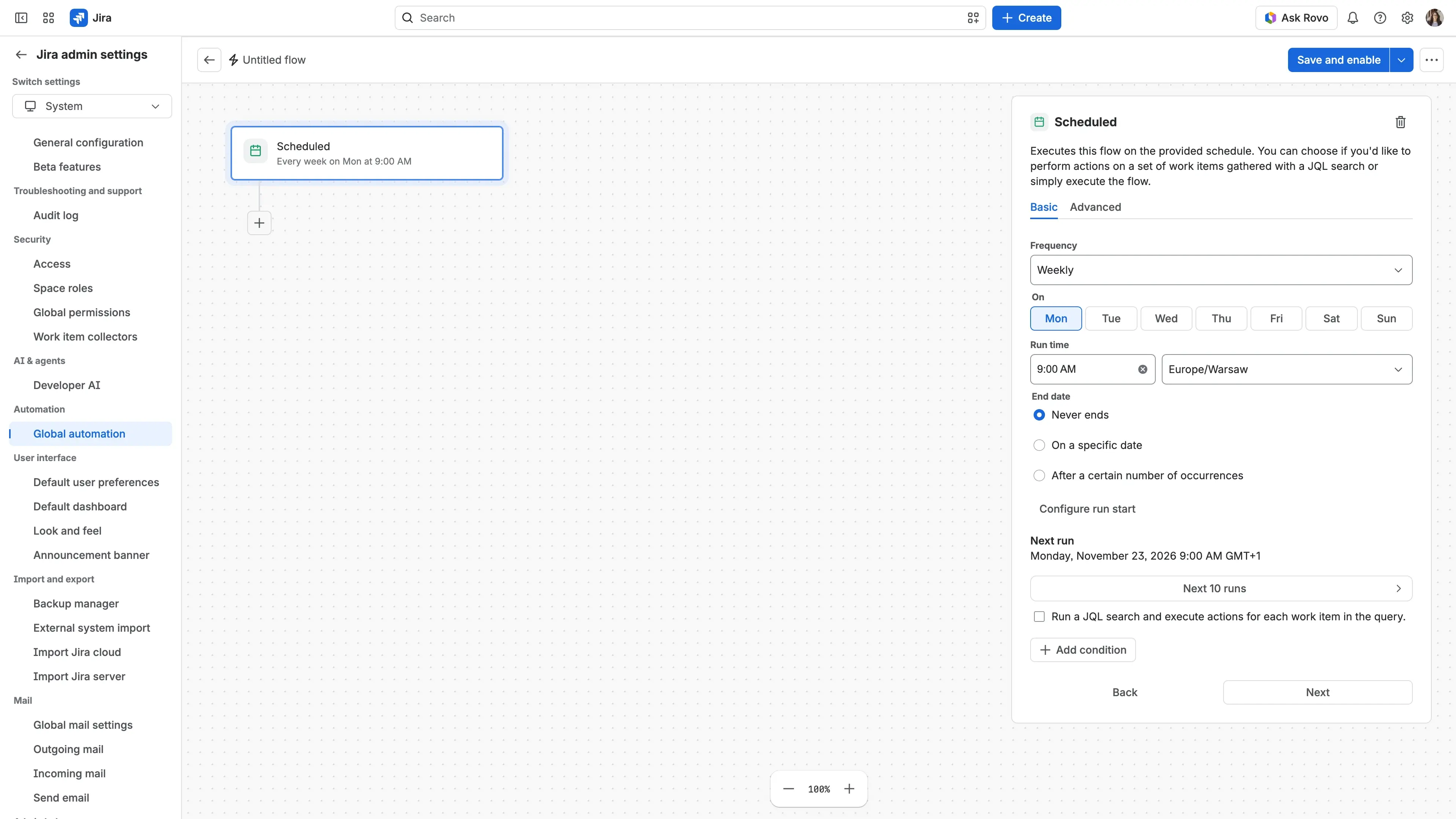
Select the plus icon below the trigger, select Action, and choose Use Issue Templates Agent. If the action shows Connect, select it to connect Jira Automation to Issue Templates Agent. You do this once.
Under Choose where you want to trigger templates, select On new issue.
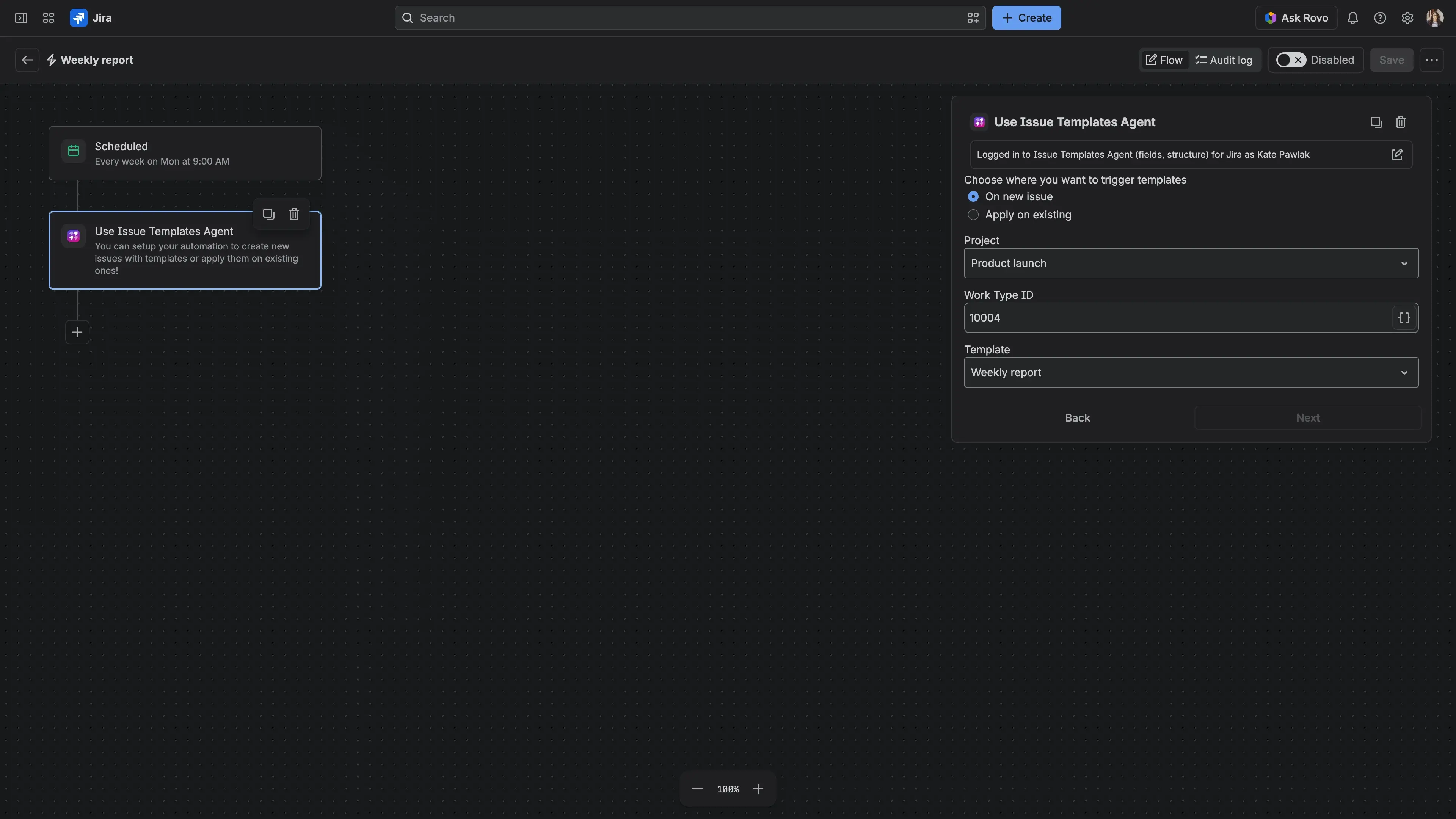
In Project, select the space where the flow creates the work item. In Work Type ID, paste the numeric ID of the work type. In the example, it is the ID of the Task work type.
In Template, search for the template by name and select it.
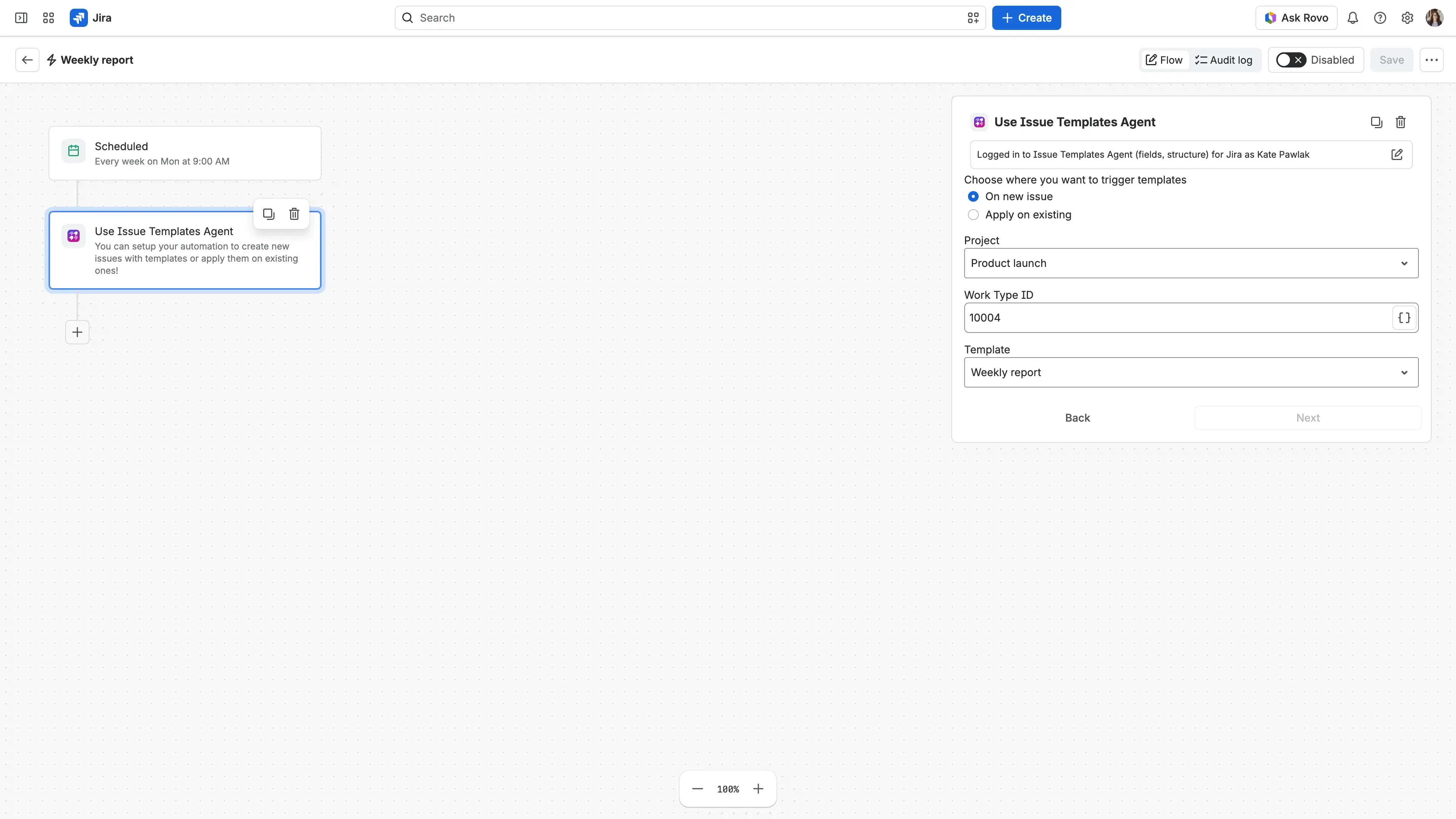
Select Next to save the action, and then select Save and enable. Enter a name in Flow name, for example
Weekly report, and select Turn on flow.


Result
Every Monday at the chosen time, the flow runs, and the app creates the work item from the template. The work item appears in the space a few seconds later, and the Summary shows the current week, for example Weekly report, week 47. Later actions in the same flow can’t use the new work item.
To test the flow, set the schedule a few minutes ahead, wait for the run, and then set the schedule you want.


How can you change the schedule or create more work items?
- To change the frequency, edit the Scheduled trigger of the flow, for example to run every day or on the first day of the month.
- To create several work items in one run, add one Use Issue Templates Agent action for each work item. The actions can use different templates, spaces, and work types.
- To create a work item with child work items, such as a monthly audit with a task for each team, use a template with a structure. The app creates the child work items after the parent work item. See Template structure.
- To create the work items as a specific user, replace the action with the Send web request action that calls the REST API. The reporter is then the owner of the API token. See Use the REST API and Manage API tokens.
If the flow doesn’t create work items
The flow execution in Jira Automation shows the status of the run. These are the most common causes:
- The app has no active license, or the license is Standard.
- The action shows This connection needs to be re-authenticated, for example in a copy of a flow. Select Resolve and allow the connection.
- The template was deleted. Select another template in the action.
- The work type ID is wrong, or the space doesn’t have that work type. Jira rejects the work item. The flow still shows the run as successful, and only the Audit log records the error.
- A field of the template isn’t available in the space. Jira rejects the value, and the Audit log records it.
- The flow runs at another time than you expect. Check Run time and the time zone in the trigger.