Create default issues in every new Jira space
Use a global Jira Automation flow with the Space created trigger to create the same starter work items in every new space. The flow uses the Use Issue Templates Agent action, and the app creates the work items, with their child work items, from a template. Nobody has to create them by hand.
This page uses a starter Task as the example. When someone creates a space, the flow creates a Task named Start here with the Sub-tasks Set up the board and Invite the team.
Why create starter work items from a template?
- Every new space starts with the same work items, so teams don’t begin with different setups.
- Nobody has to remember to create them, and an administrator doesn’t add them after each space.
- You change the template once. The flow points to the template, so a change applies to every space you create later.
- You don’t assign the template to each new space. The flow names the space, and the template doesn’t need to be assigned to it.
Who the action runs as
With the Space created trigger, the action runs as the user who creates the space, not as the flow actor, and that user must hold the Administer Jira permission. When a user who is not a Jira administrator creates a space, the action fails.
Before you start
- You have the Advanced edition and an active license. See App Editions.
- You are a Jira administrator. Only Jira administrators can create global Jira Automation flows.
- You have a template for work items with the starter work items. For the example, create a template with a structure: a Task named
Start herewith two Sub-tasks,Set up the boardandInvite the team. See Create a template and Add child templates. - In the child templates, you don’t choose a space, so the dialog shows Parent project. Then the app creates the child work items in the new space. A child template with a chosen space creates its work items in that space, not in the new one.
- You create the new spaces as company-managed spaces. Work types of company-managed spaces have the same IDs in the whole Jira site, so one flow fits every new space. A team-managed space has its own work types with its own IDs, so a flow with a fixed work type ID can’t create work items there. Jira rejects them.
- You know the work type of the parent work item, and every new space has that work type. The fields of the template must also be available in the new spaces.
- You have the numeric ID of that work type. The action has no list of work types. See Atlassian’s article Finding the issue type ID in Jira Cloud.
Steps
In the Jira settings, select System > Global automation, select Create flow, and select Create from scratch.
Select Space created as the trigger. To limit the flow to some spaces, choose a Space type, for example Software spaces. The default is All spaces. The list doesn’t separate company-managed spaces from team-managed spaces. Select Next.
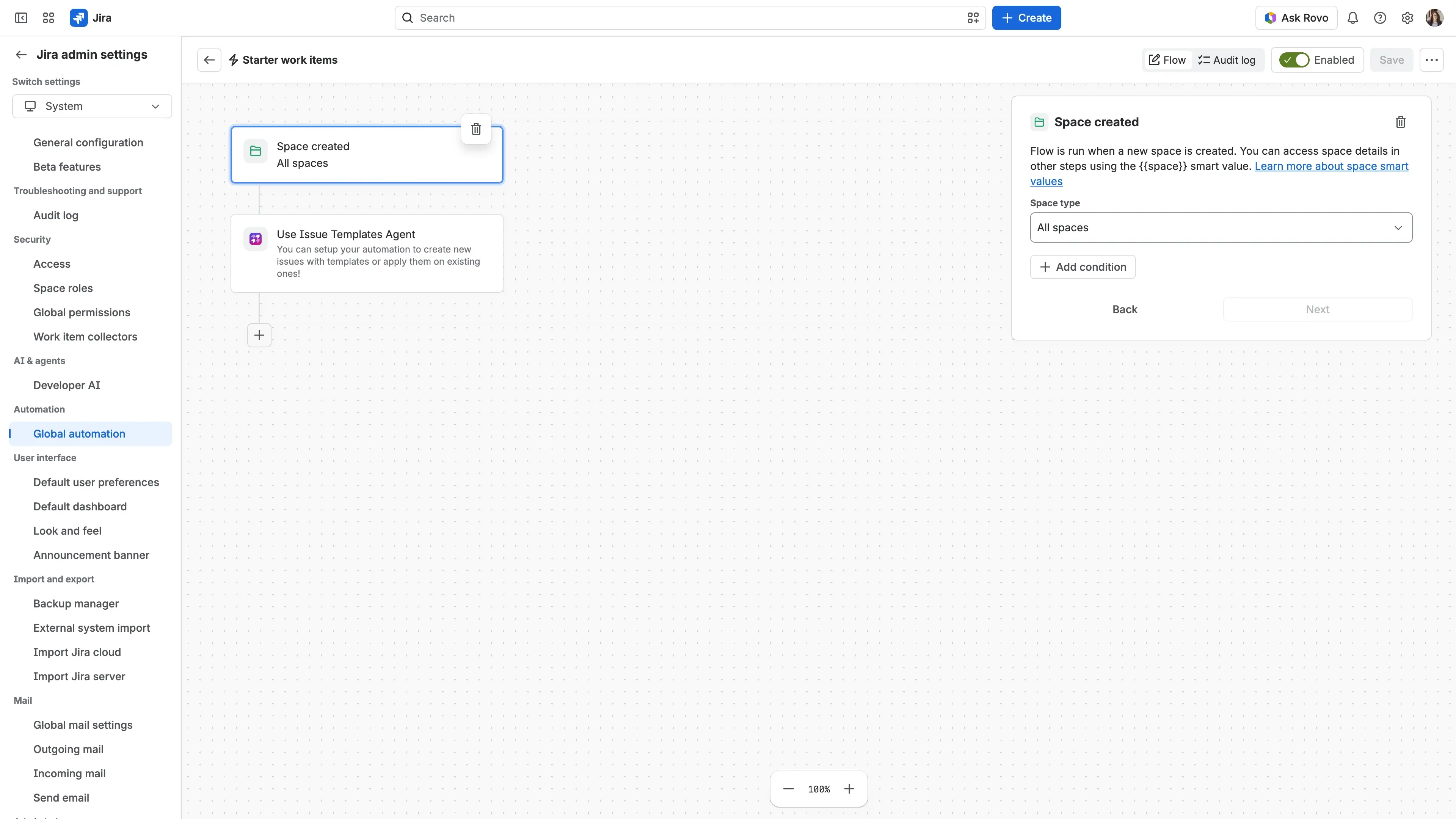
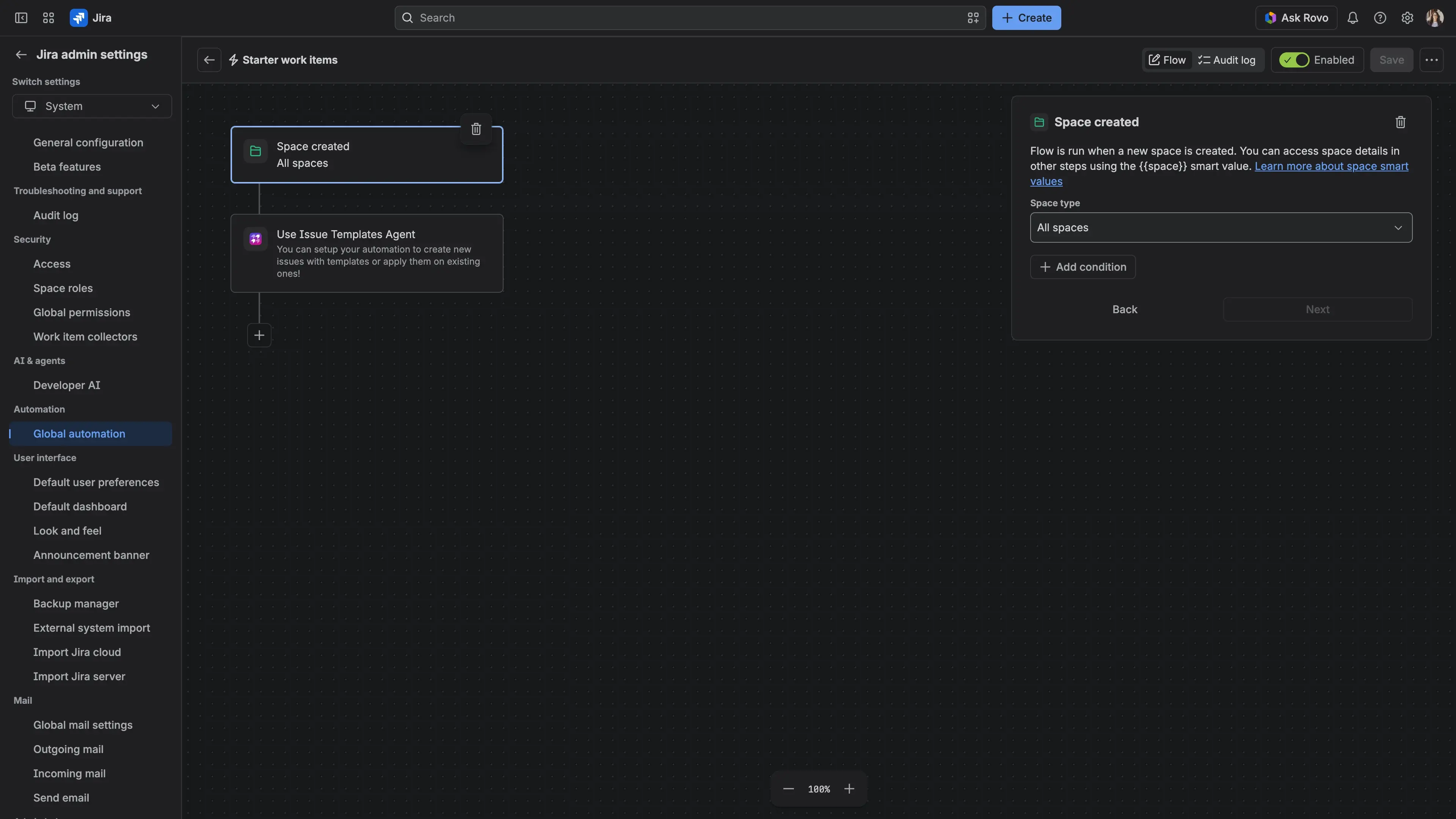
Select the plus icon below the trigger, select Action, and choose Use Issue Templates Agent. If the action shows Connect, select it to connect Jira Automation to Issue Templates Agent. You do this once.
Under Choose where you want to trigger templates, select On new issue.
Set Project to Same Project as Trigger. In Work Type ID, paste the numeric ID of the work type. In the example, it is the ID of the Task work type.
In Template, search for the template by name and select it.
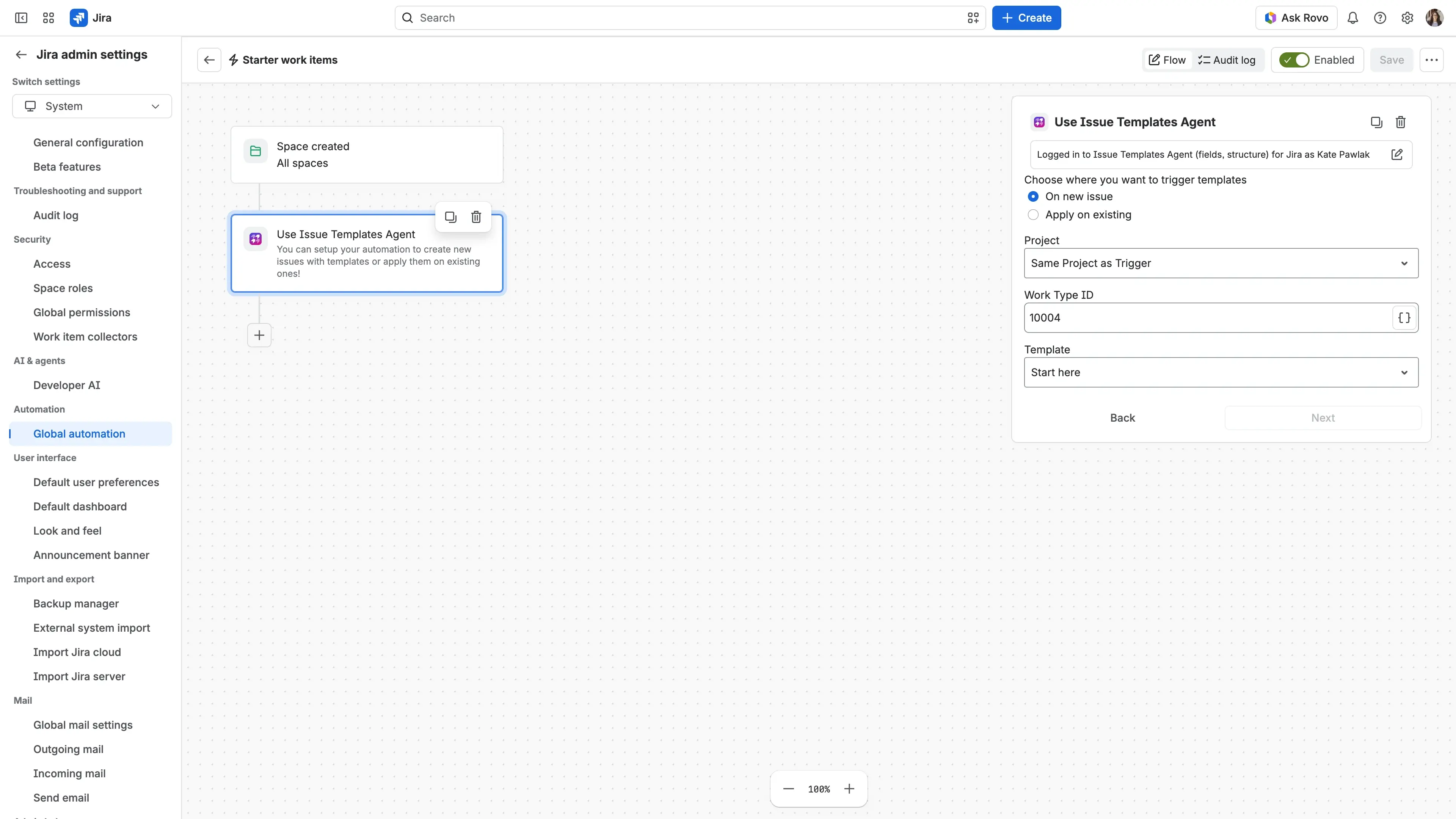
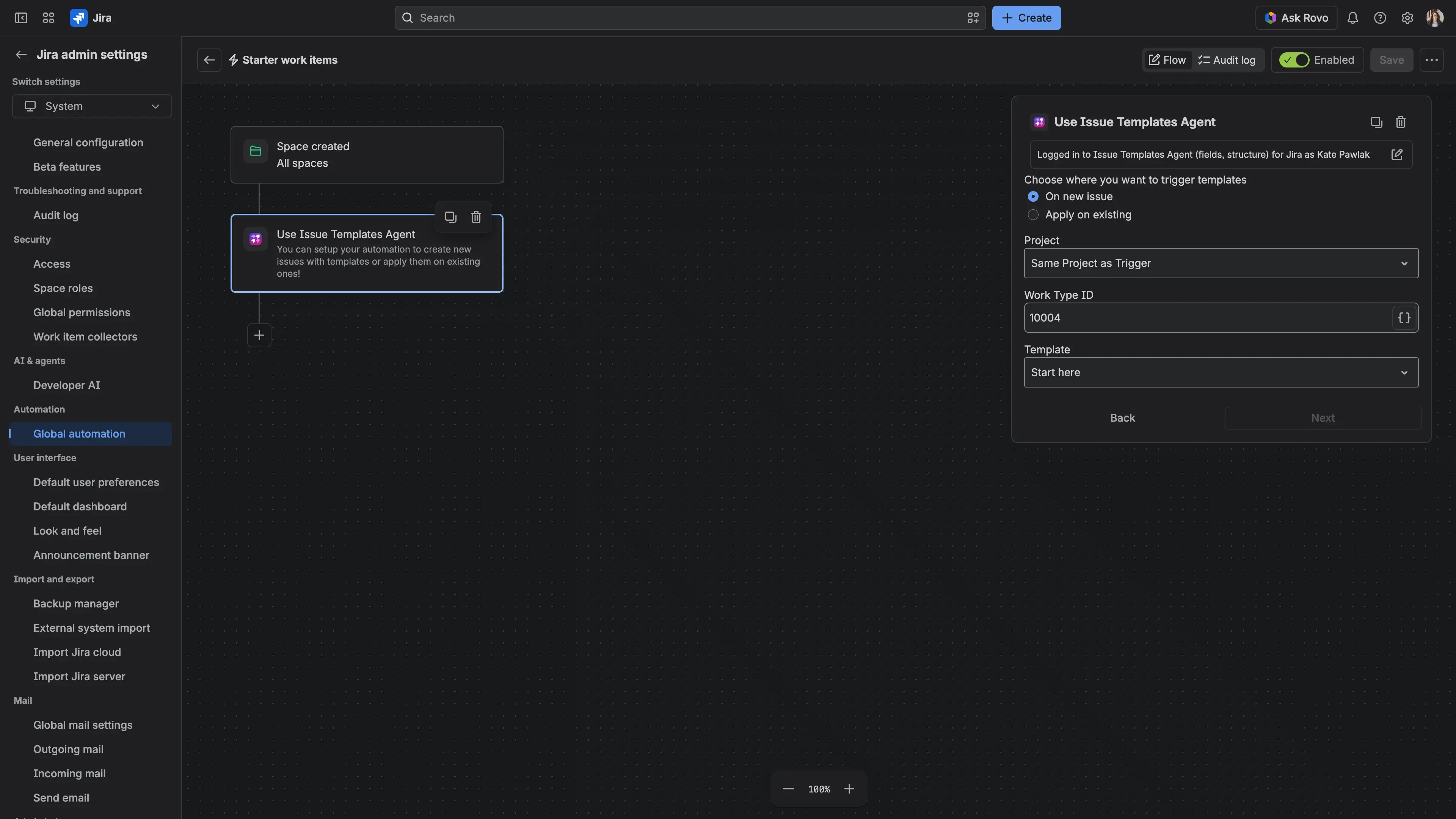
Select Next to save the action, and then select Save and enable. Enter a name in Flow name, for example
Starter work items, and select Turn on flow.


Result
When someone creates a space, the flow runs, and the app accepts the request. The app creates the Task a moment later, and the Sub-tasks after it. Open the new space and reload it if you don’t see them yet. Later actions in the same flow can’t use the new work items.


With the default Space type of All spaces, the flow runs for every new space. A space without the work type of the template, such as a team-managed space, gets no work items, because Jira rejects them. To test the flow, create a test space and check its work items.
If the flow doesn’t create work items
The flow execution in Jira Automation shows the action as failed or successful. These are the most common causes:
- The user who created the space isn’t a Jira administrator. The action fails.
- The app has no active license, or the license is Standard.
- The template was deleted. Select another template in the action.
- The work type ID is wrong, or the new space doesn’t have that work type, for example because it is a team-managed space. Jira rejects the work item. The flow doesn’t show it, and only the Audit log records it.
- A field of the template isn’t available in the new space. Jira rejects the value, and the Audit log records it.