Company-managed and team-managed spaces
Issue Templates Agent works in company-managed and team-managed software and business spaces. Jira builds the two types differently, so a few rules differ.
| Company-managed spaces | Team-managed spaces | |
|---|---|---|
| Template field on the Create and Edit screens | The app adds the Template field when you save a template with Create view or Work item view. | You add the Template field to the work type in the space settings. |
| Template field on transition screens | A Jira administrator adds it. | A Jira administrator adds it. |
| Templates with a single work item | A template can use spaces of both types together. | A template can use spaces of both types together. |
| Templates with a structure (two or three levels) | A template can use several company-managed spaces. The first-level children of a three-level template can come from another company-managed space. | A template can use only one team-managed space. It can’t mix it with company-managed spaces. The children come from that space. |
| Parent field in a template | A parent from a company-managed space works only with work types of company-managed spaces. | A parent from a team-managed space works only with work types of that space. |
| Import | A template with a structure can list several company-managed spaces. | A template with a structure can list one team-managed space only. The import reports an error if the template mixes it with other spaces. |
For the steps to set up a template, see Create a template. For templates with a structure, see Template structure.
Add the Template field in a team-managed space
In a team-managed space, you add the Template field yourself.
In the space, open the space settings and select Fields.
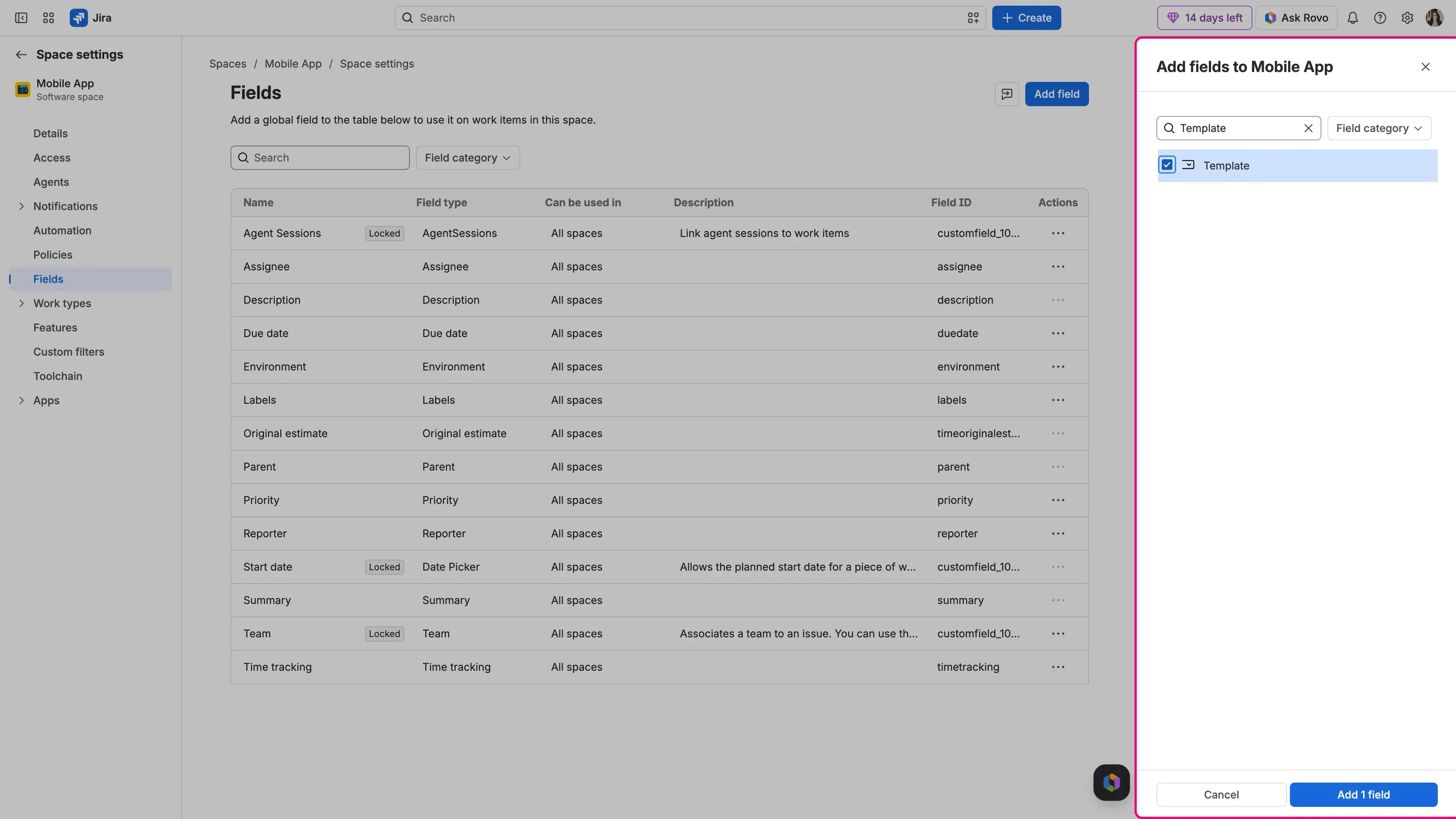
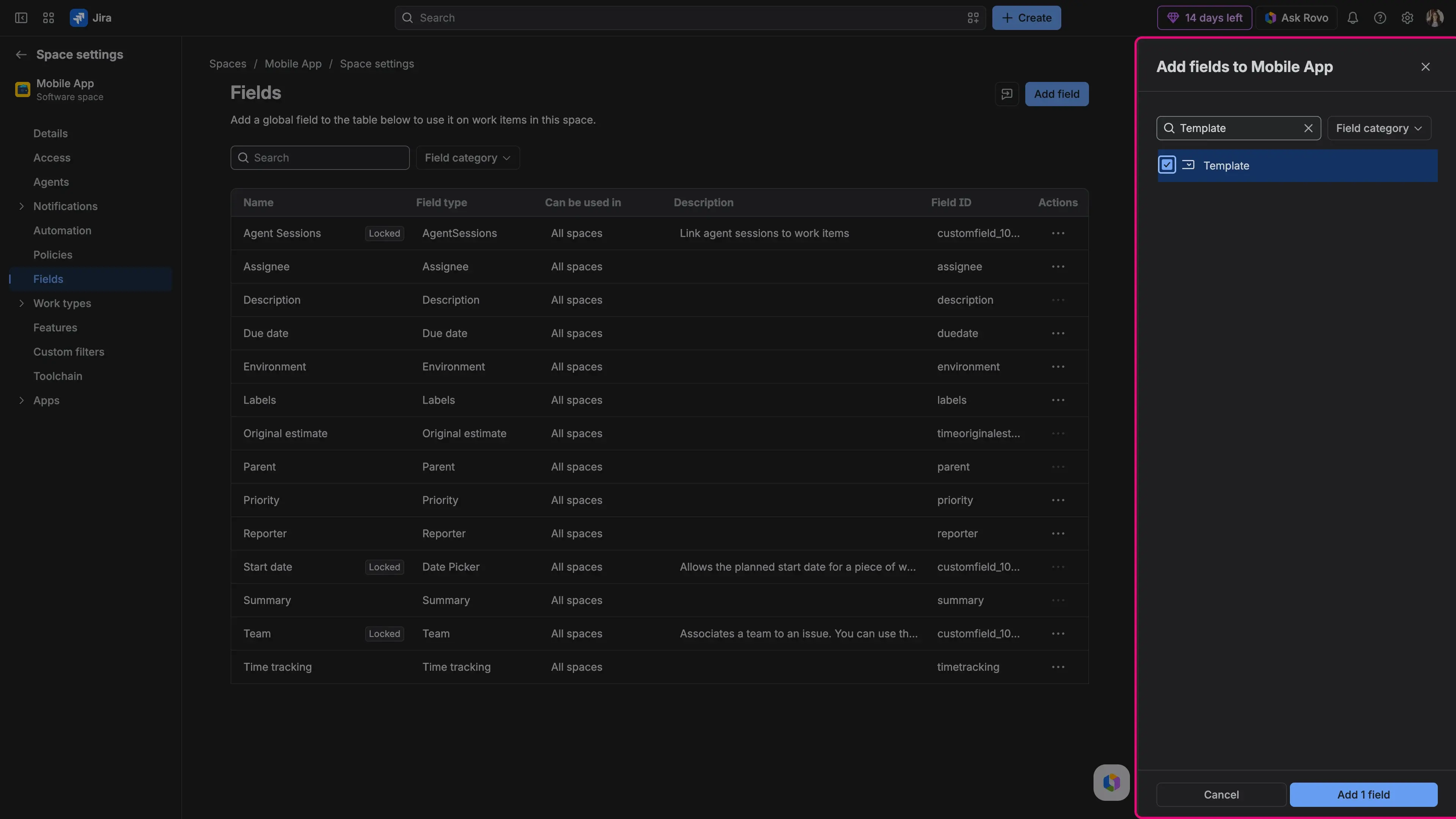
Select Add field and search for Template.
Tick Template and select Add 1 field. The field is now available in the space.
In the space settings, select Work types and then the work type where you want to use templates.
In the Fields panel on the right, drag Template from Select fields into the Context fields list of the work type.
Select Save changes.
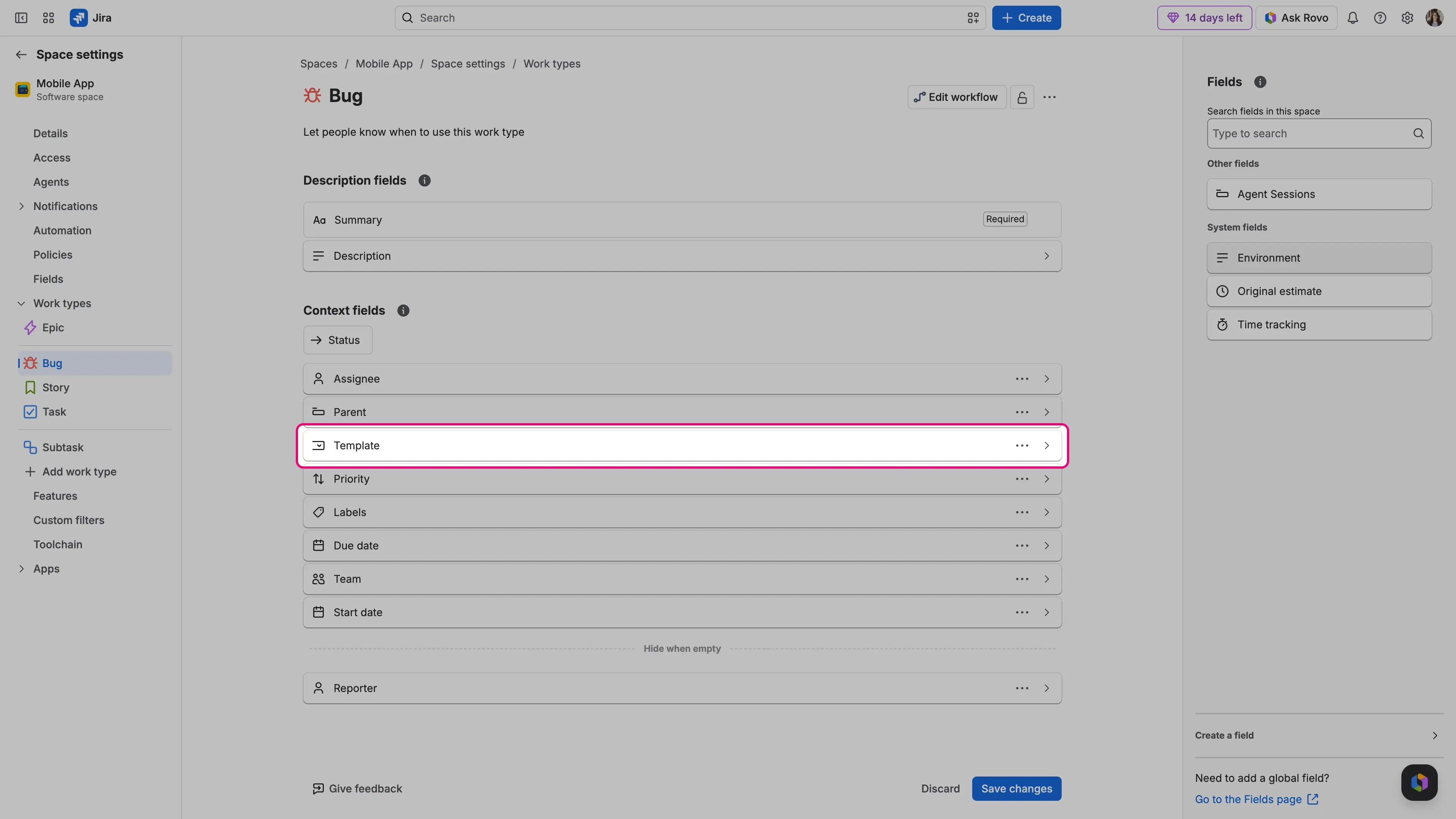
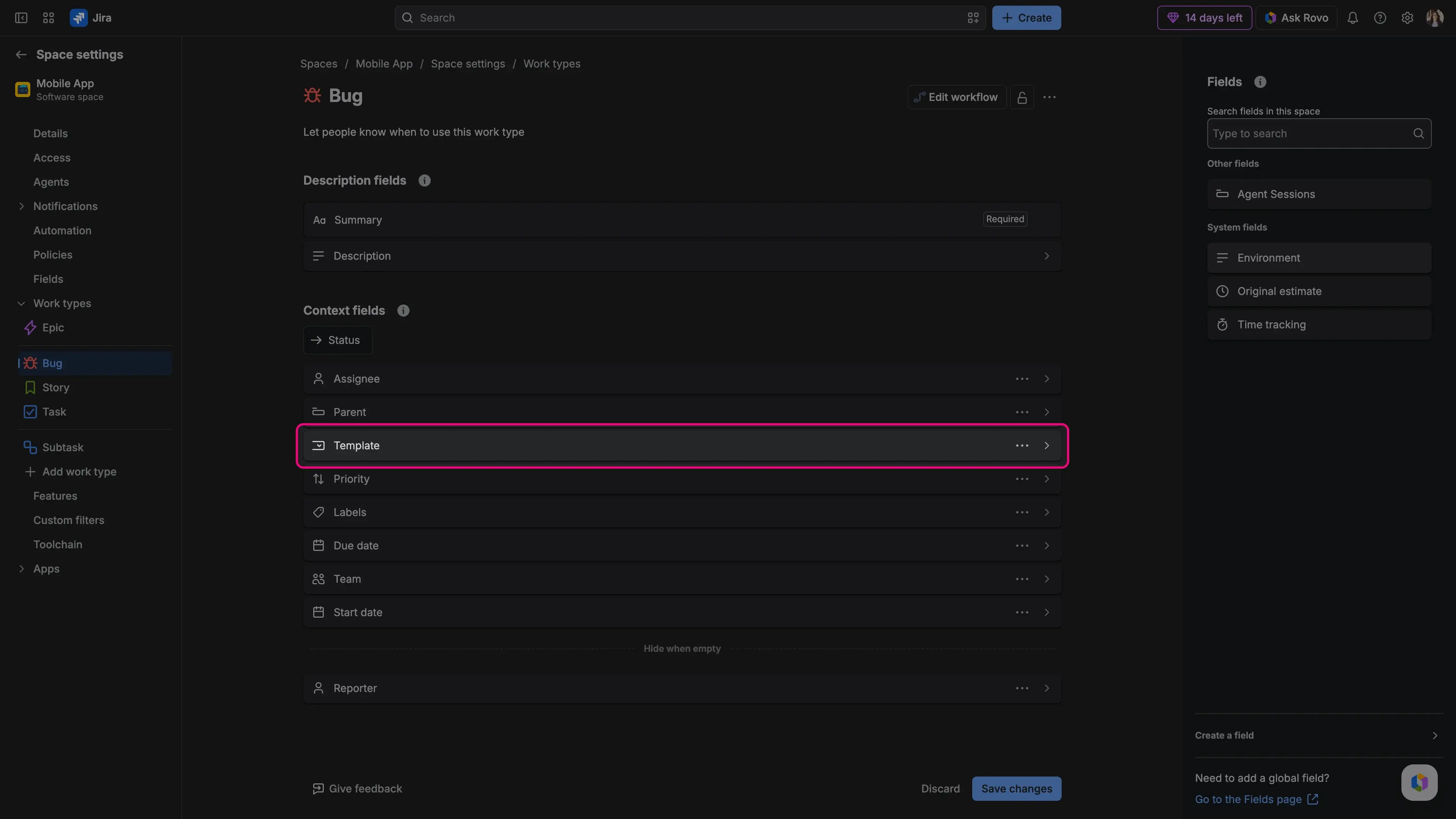
Repeat steps 4 to 6 for every work type that uses templates.


