Add child templates
Before you start
- You have the Create & edit templates app permission, or the Issue Templates Agent - Administer App permission. With Browse templates only, you can see the structure but not change it.
- The template is a two-level or three-level template. See Template structure.
- You chose at least one space and work type on the Parent template tab. The Child templates tab stays disabled until you do.
Steps
Open the template: select Apps > Issue Templates Agent > Templates, then select More > Edit template in the row of the template. To start a new one, select Create template and choose a two-level or three-level type.
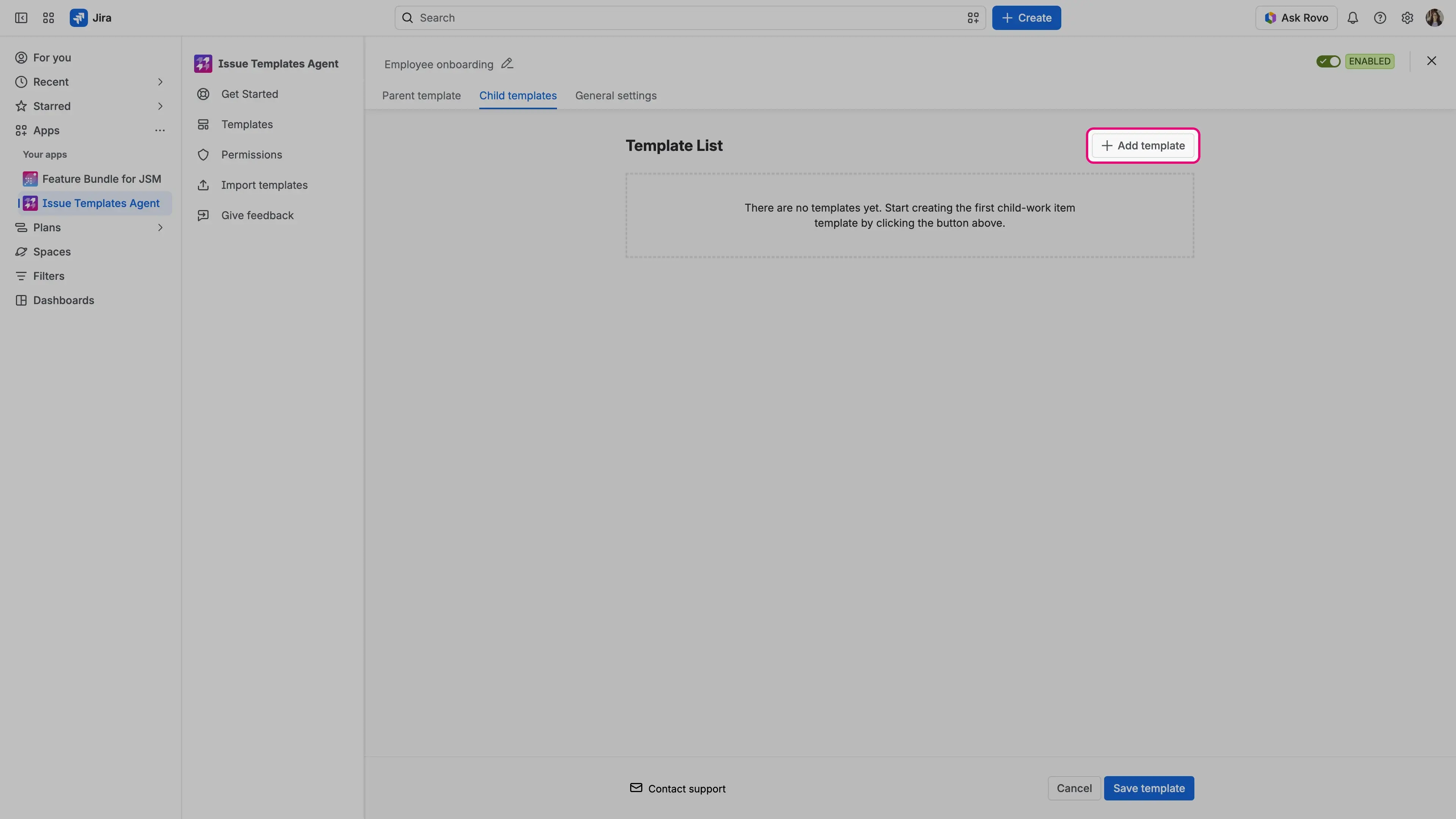
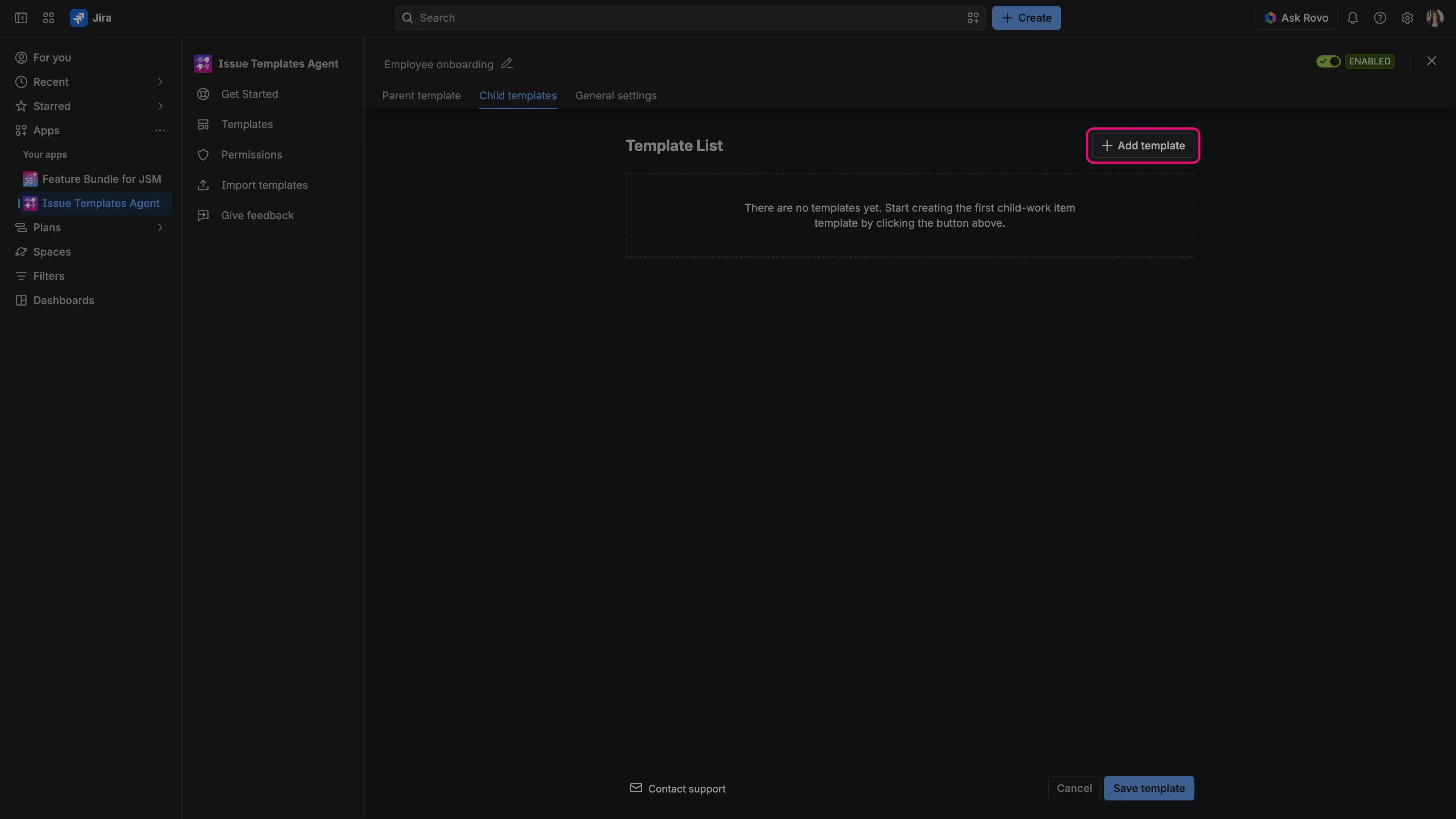
Open the Child templates tab and select Add template.
In the dialog, enter a name in Template name.
Under Select child work items, in Project and Work type, choose the work type of the child work item. A child template needs a name and a work type.
- In a two-level template, the child is a sub-task. The list offers the sub-task types of the spaces of the parent template.
- In a three-level template, the first-level child has a standard-level work type, for example Task. The list offers the work types of the spaces of the parent template. If the parent template doesn’t use a team-managed space, it also offers work types of any company-managed space.
- If you don’t choose a space, the app creates the child in the same space as its parent work item. The dialog shows this as Parent project.
Under Design the template, add the fields and values of the child work item the same way as for the parent. See Create a template.
- A child template always has the Summary field, and you can’t remove it.
- You can use the Watchers field in a child template. You can’t use the Parent field.
- You can use the Team field only in the first-level children of a three-level template. Enter the Team ID in the field. To find the Team ID, open the profile page of the team (in the Jira sidebar, select Teams, and then select the team). In the address of the page, copy the part between
/team/and?. The ID looks like36885b3c-1bf0-4f85-a357-c5b858c31de4. When the app creates the child work item, Jira sets that team in the Team field. See Atlassian’s Team field in Jira REST API. - You can use variables of the parent work item, for example
$PARENT_SUMMARY.
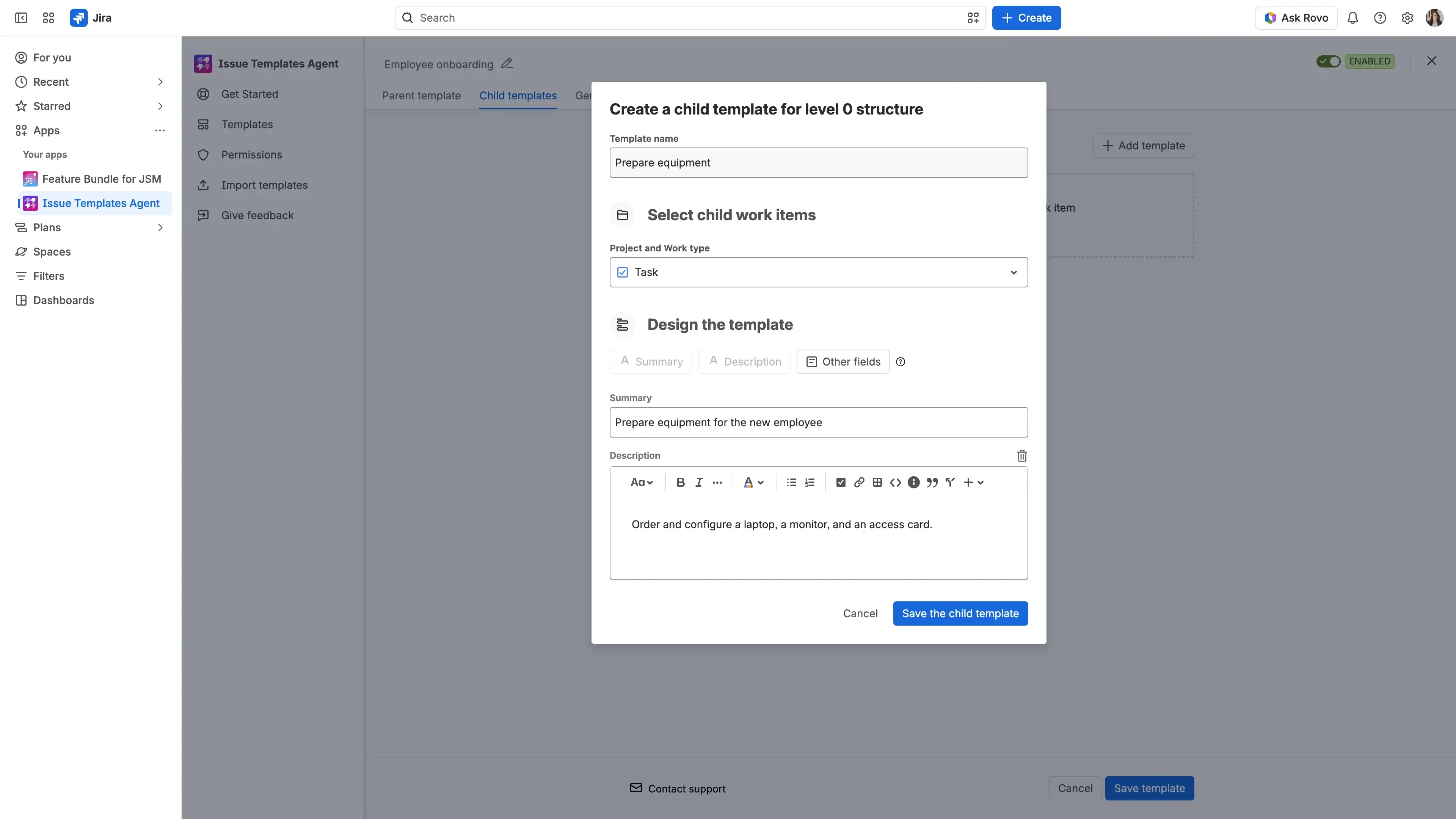
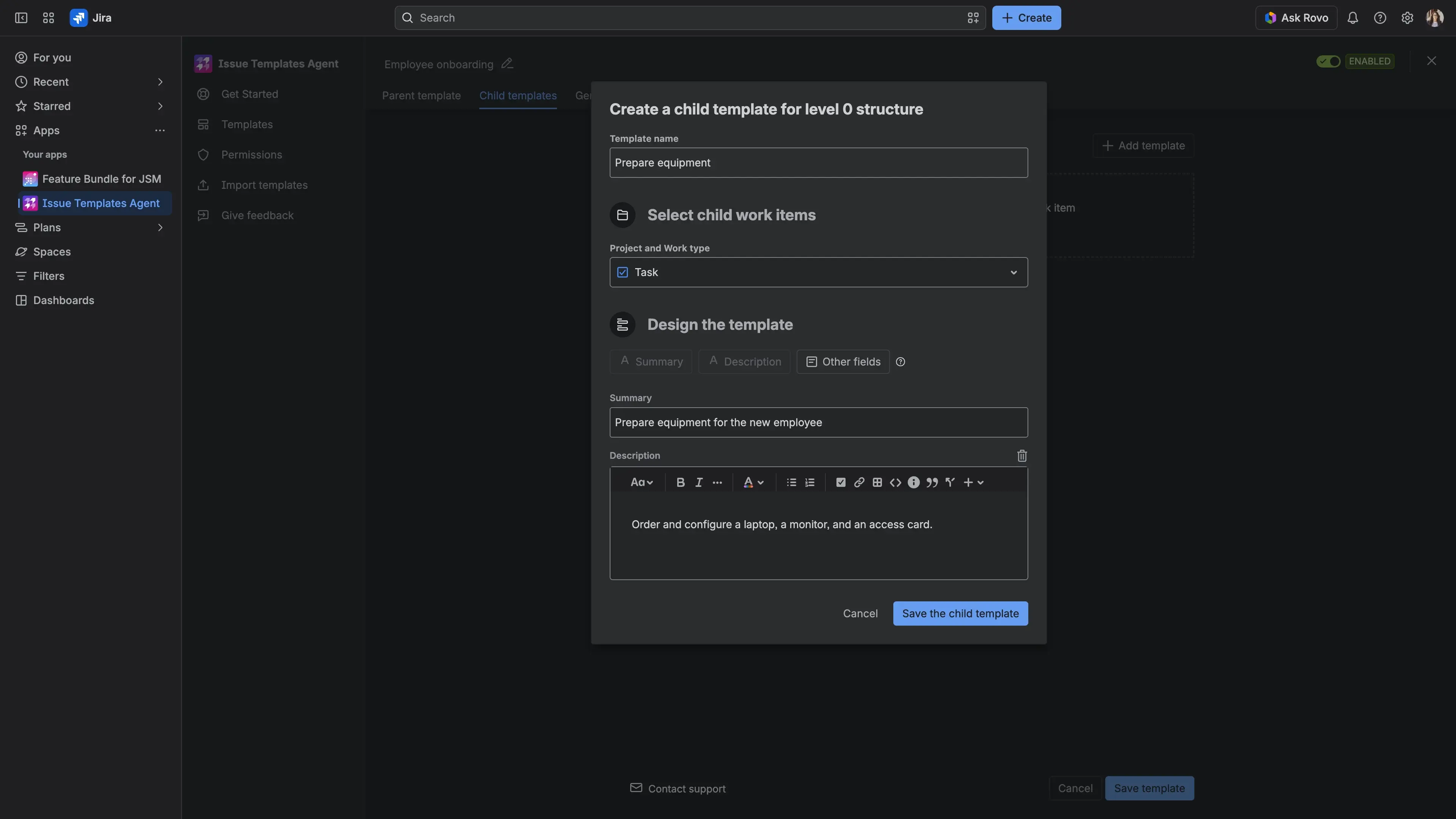
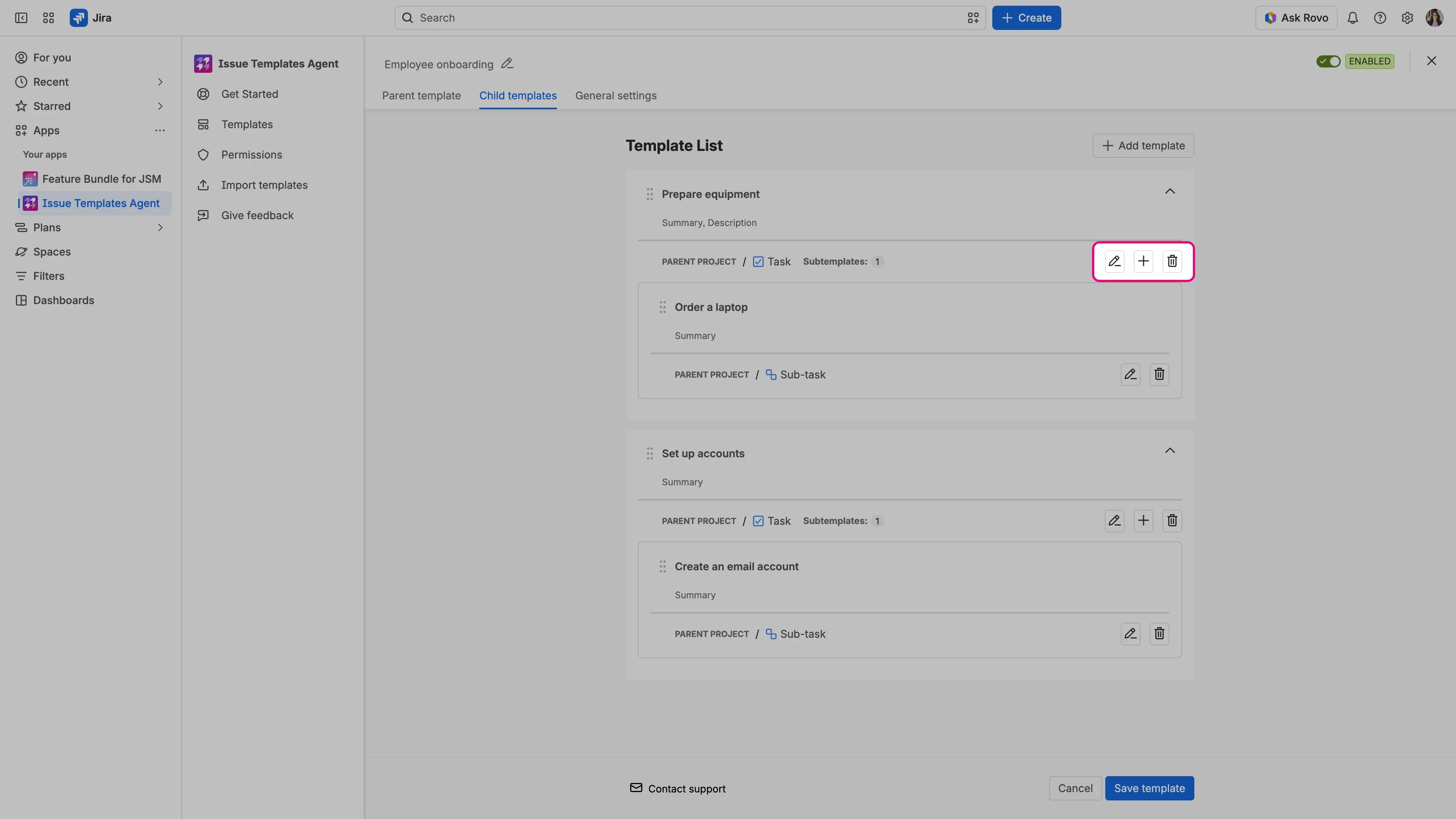
Select Save the child template. The child appears in the list.
In a three-level template, to add sub-tasks, expand a first-level child and select the plus icon in its row. Repeat steps 3 to 6. The sub-task type must belong to the spaces of the parent template. The app creates the sub-tasks in the same space as the parent work item.
To change the order, drag a child template within its level. The app creates the work items in the order of the list. You can’t move a child to another level.
To change a child template, expand it and select the pencil icon in its row. To remove it, select the trash icon. Removing a first-level child also removes its sub-templates.
Select Save template.


Result
When a user applies the template, the app creates the parent work item and then the child work items in the order of your list, level by level. A template can have any number of child templates on each level.
If some child work items can’t be created
If Jira rejects some child work items, for example because a required field is empty, a value is invalid, or a permission is missing in the target space, the app creates the rest:
- The app skips a rejected work item together with its own children. Its siblings still get their children, and the batches that follow are still created.
- After a batch with failures, the app adds one comment on the work item that has the Template field. The comment lists each failed item by the names of its templates, for example
Parent template > Child template, with the error messages that Jira returned. If the failed items were under a deeper work item, the app adds the same comment there too. - In a Jira Service Management space, the comment is an internal note that only agents see. In other spaces, it is a regular comment.
- The app doesn’t retry a rejected work item, and it keeps the child work items it already created.
If the failure has another cause, such as a network error, the app adds no comment and doesn’t create the rest of that batch. In that case, contact support.