Create your first template
Before you start
- Issue Templates Agent is installed.
- You have the Issue Templates Agent - Administer App permission, or the Browse templates and Create & edit templates app permissions.
- You have a company-managed software or business space where you can create work items.
Steps
Open the Templates page of Issue Templates Agent in one of these ways:
- In the Jira navigation bar, select Apps > Issue Templates Agent > Templates.
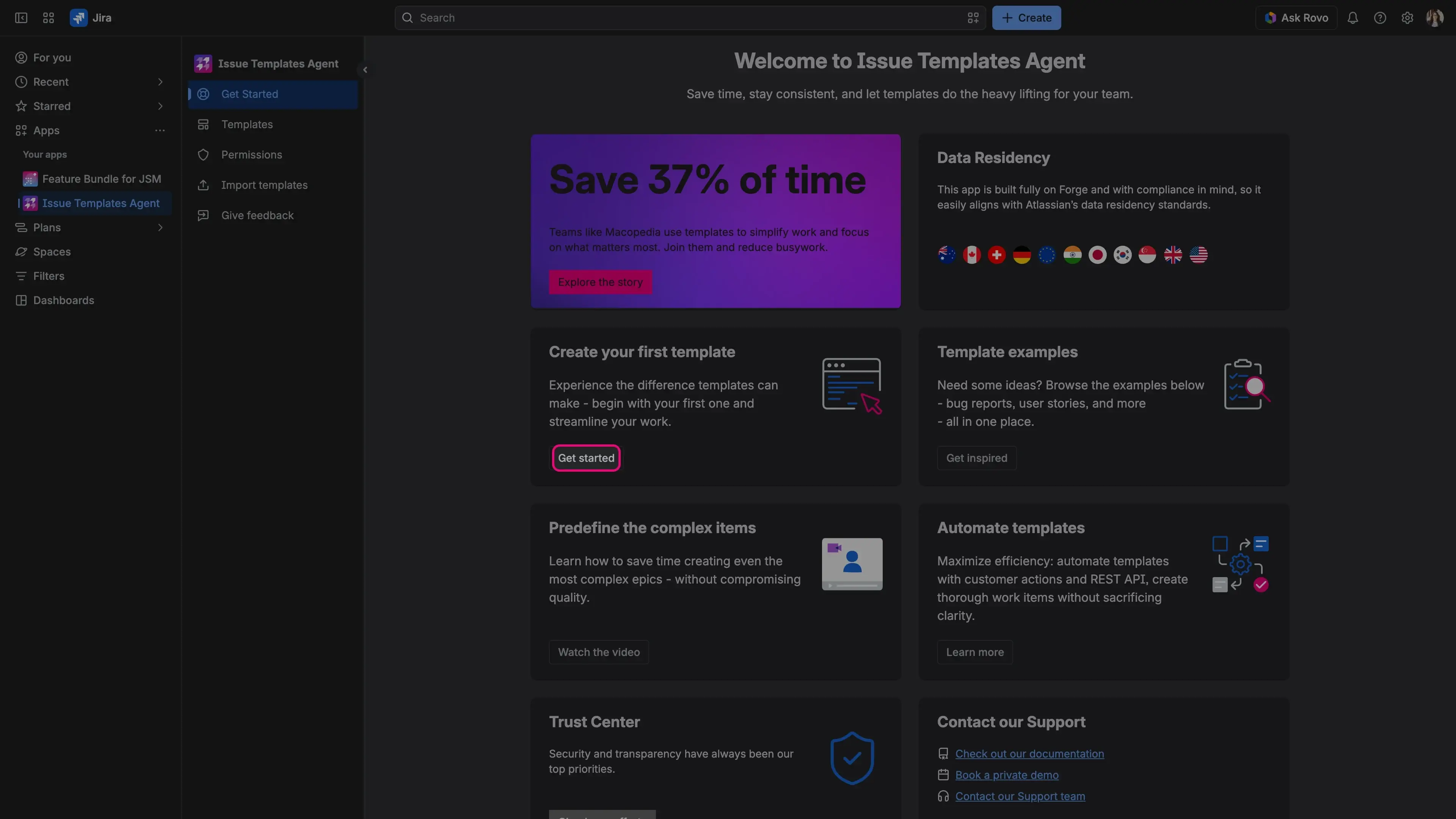
- Open the Get Started page of Issue Templates Agent and select Get started in the Create your first template block.
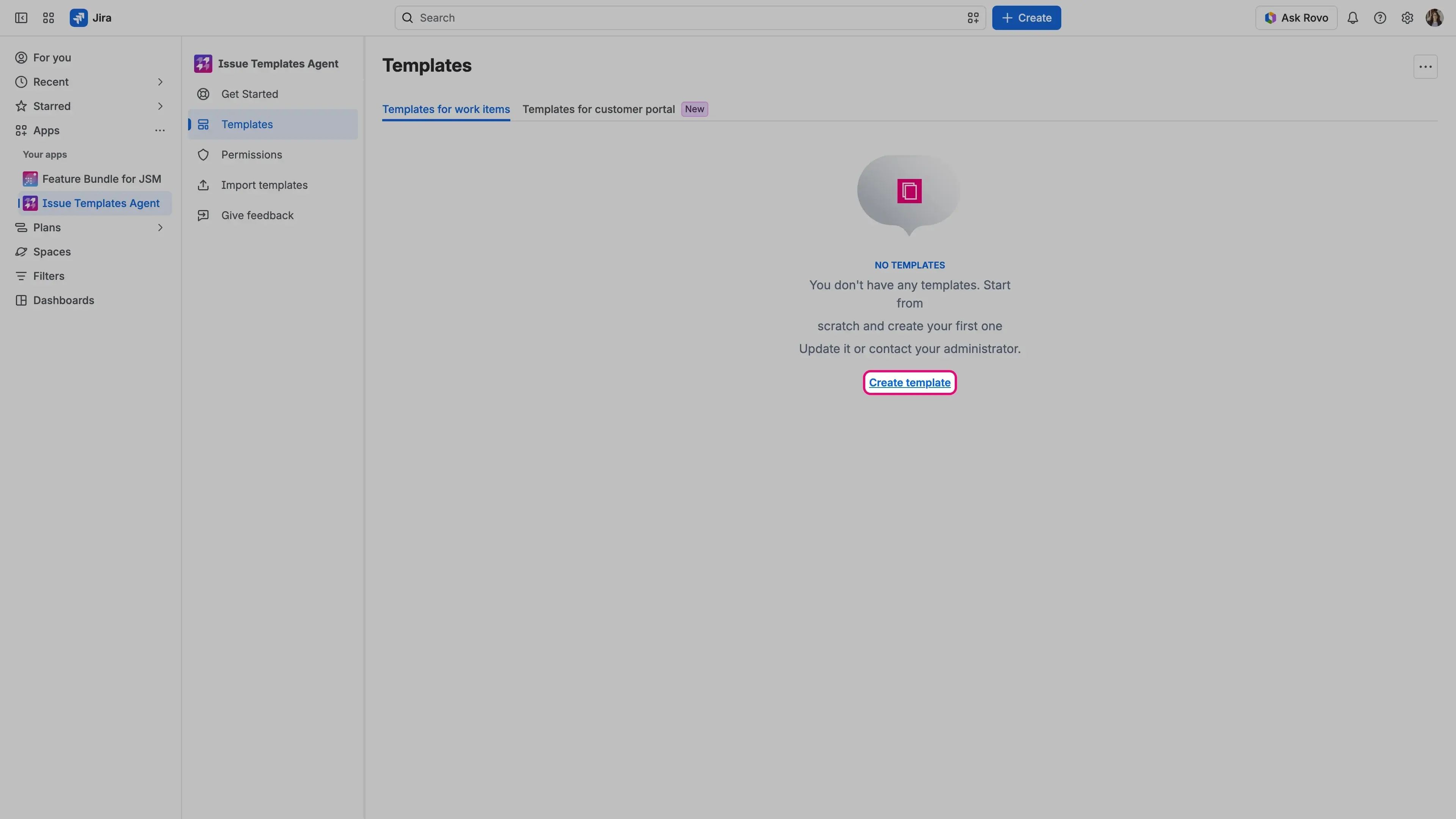
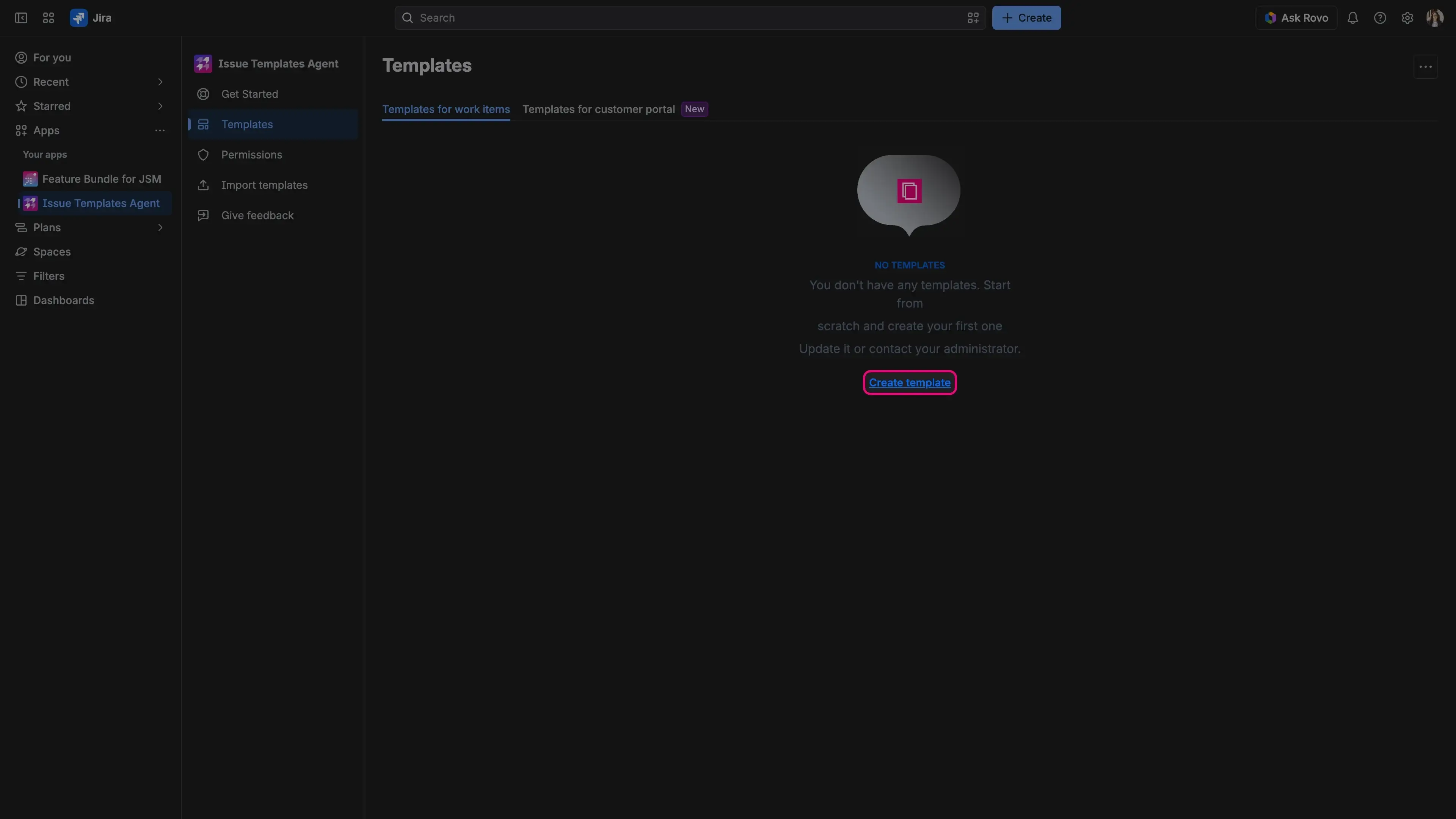
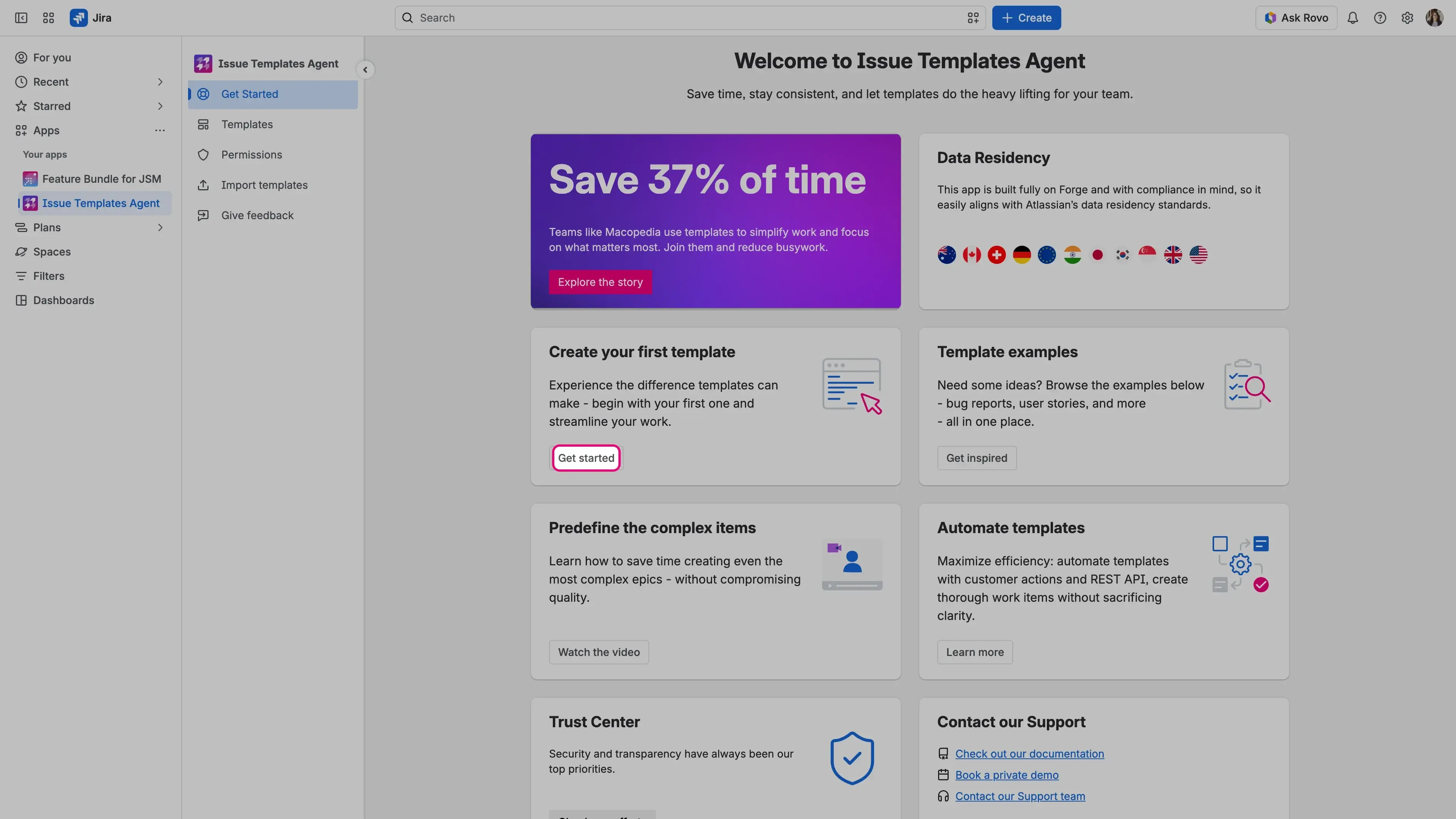
Select Create template.
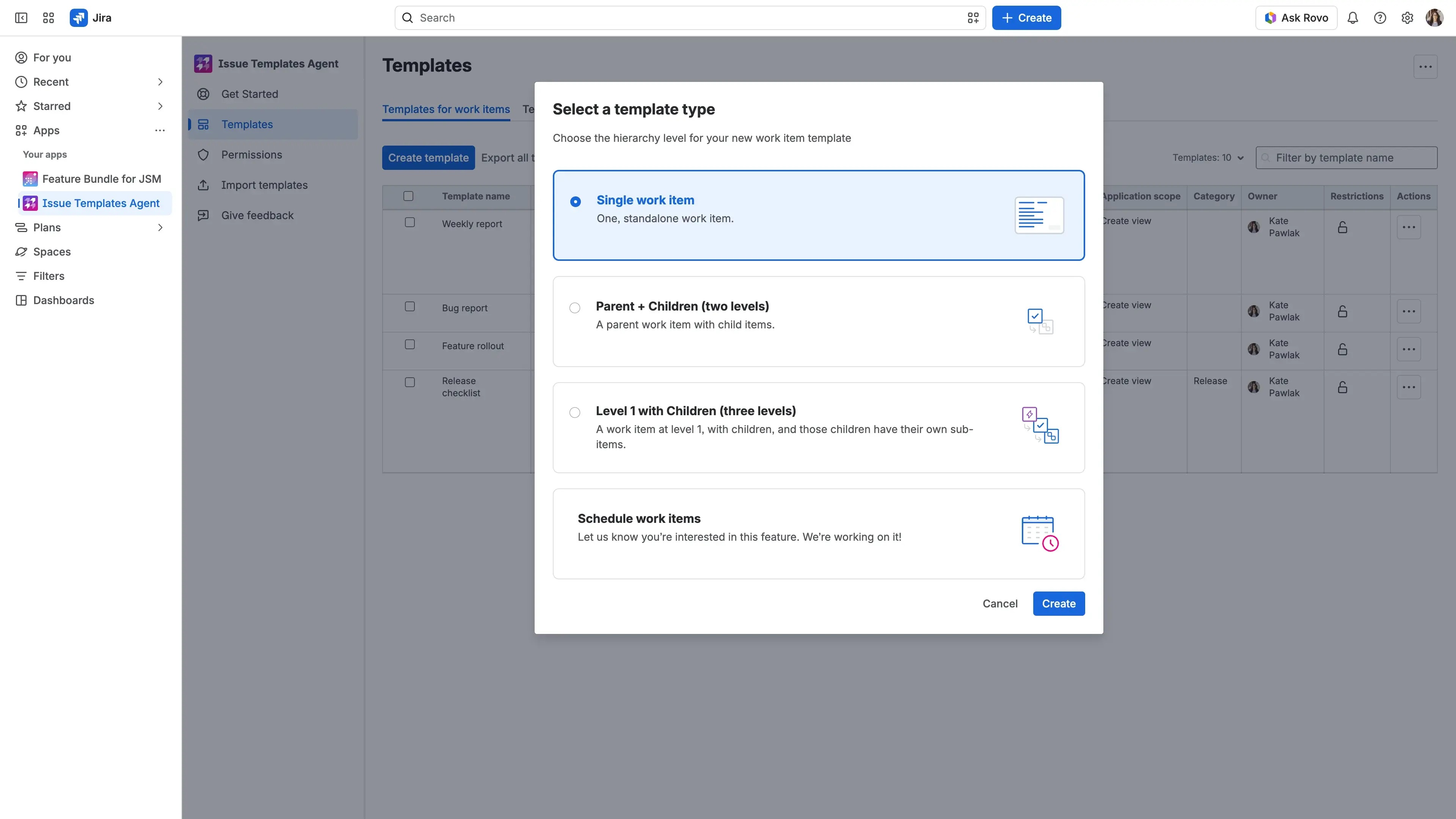
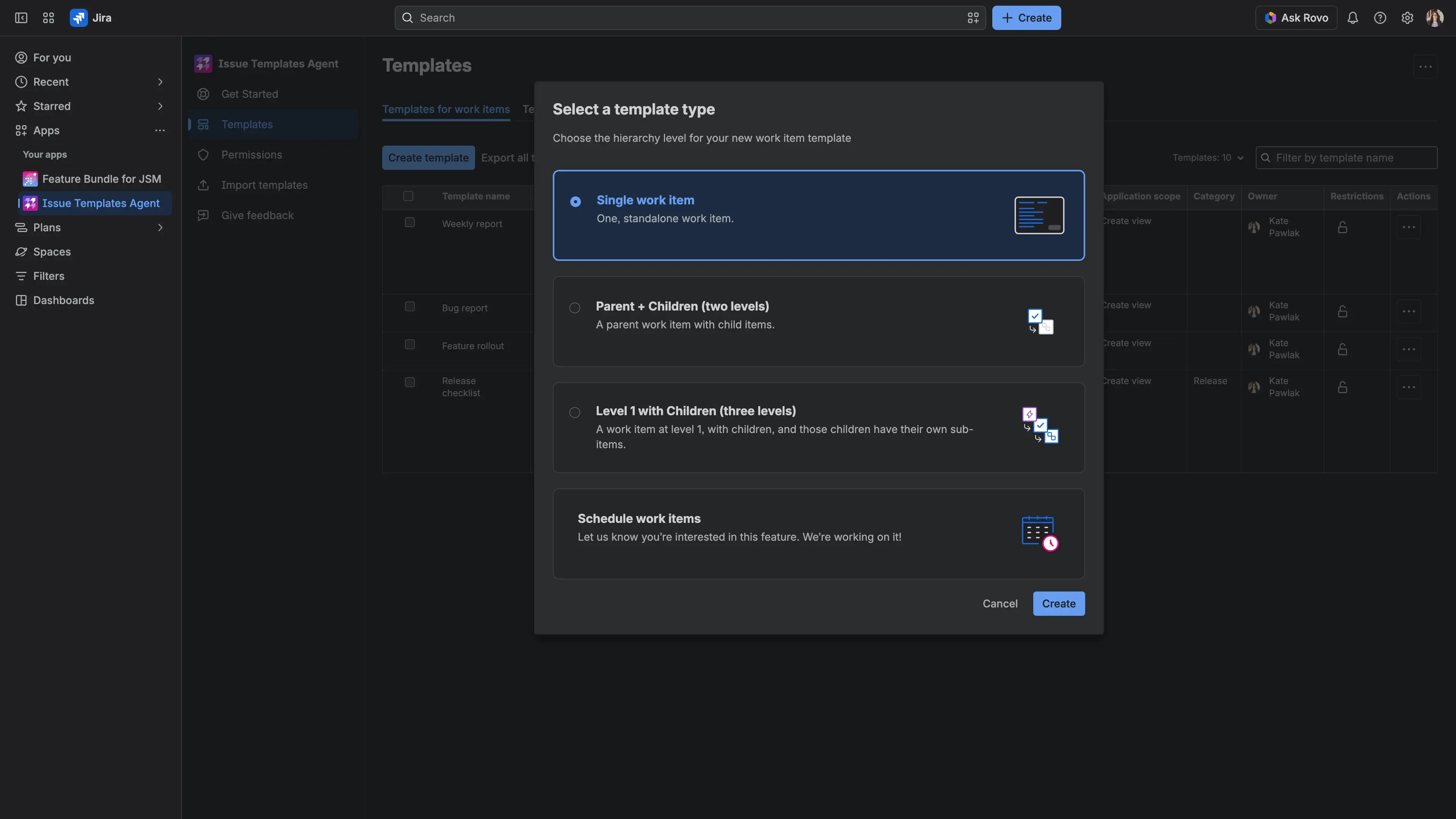
In the Select a template type dialog, keep Single work item selected and select Create.
Select the name New template in the header and type a name, for example
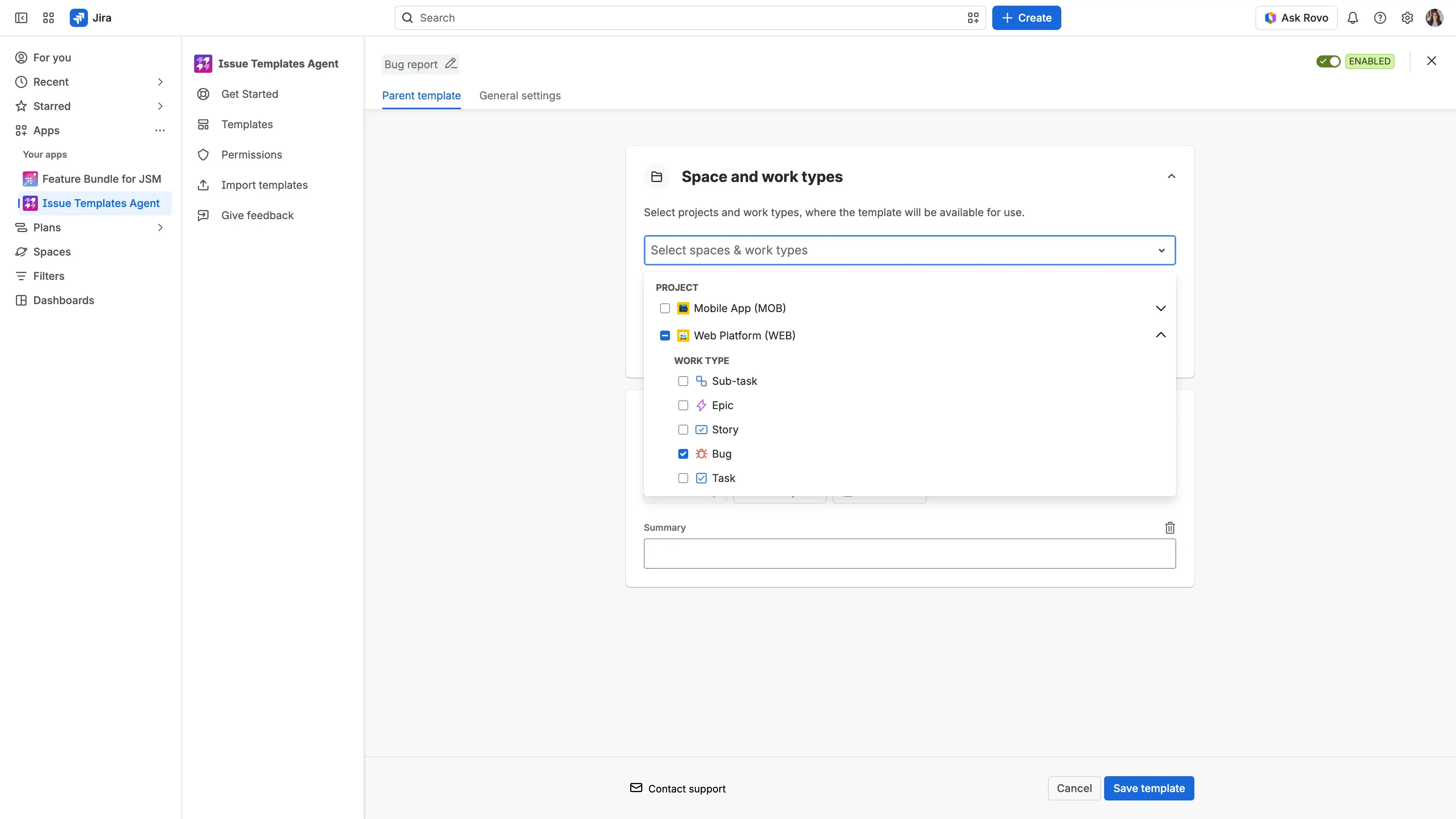
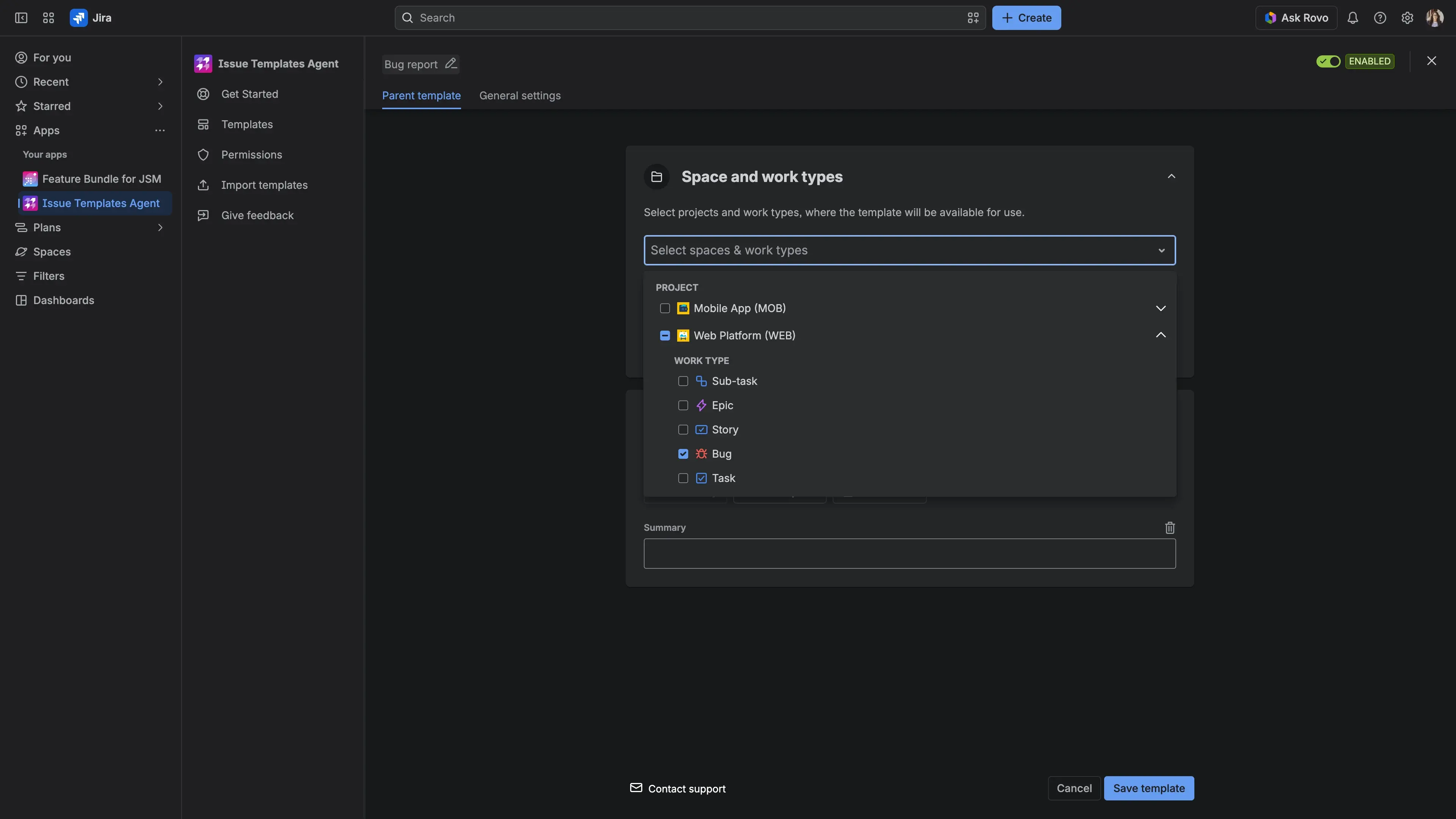
Bug report.On the Parent template tab, choose a company-managed space and tick the work type Bug in Select spaces & work types. The selection is applied right away. Close the list when you are done.
In the Summary field, type
Bug:.Select Description and type the text you want in every bug report, for example the headings
Steps to reproduce,Expected result, andActual result.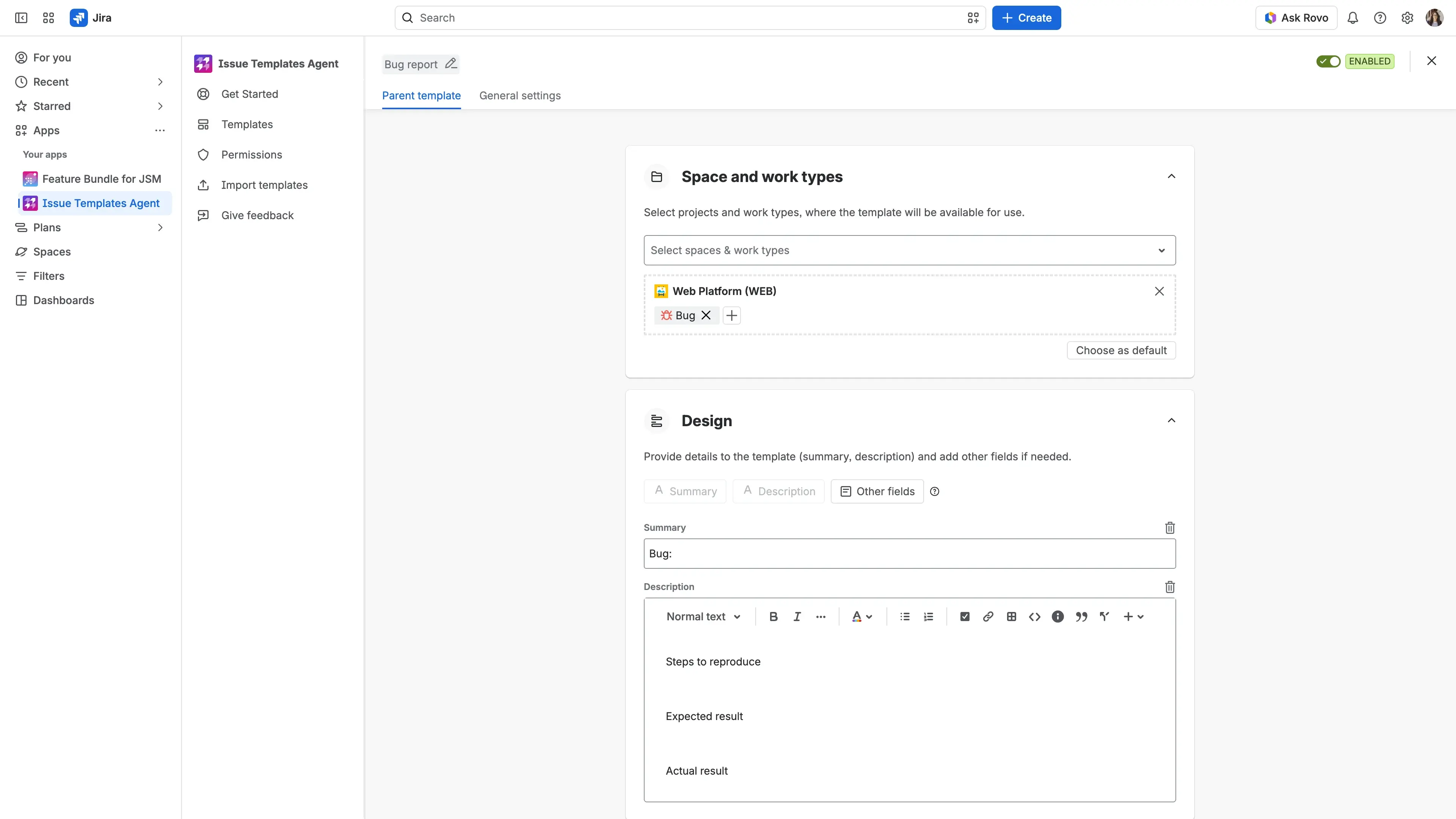
Select Save template. The page shows a confirmation and returns to the Templates list.
Create a work item in that space: select Create in the Jira navigation bar and choose the work type Bug.
In the Template field, select Bug report. Jira fills in the Summary and Description. To check, select the information icon at the end of the Template field: the message Template has been applied. appears.
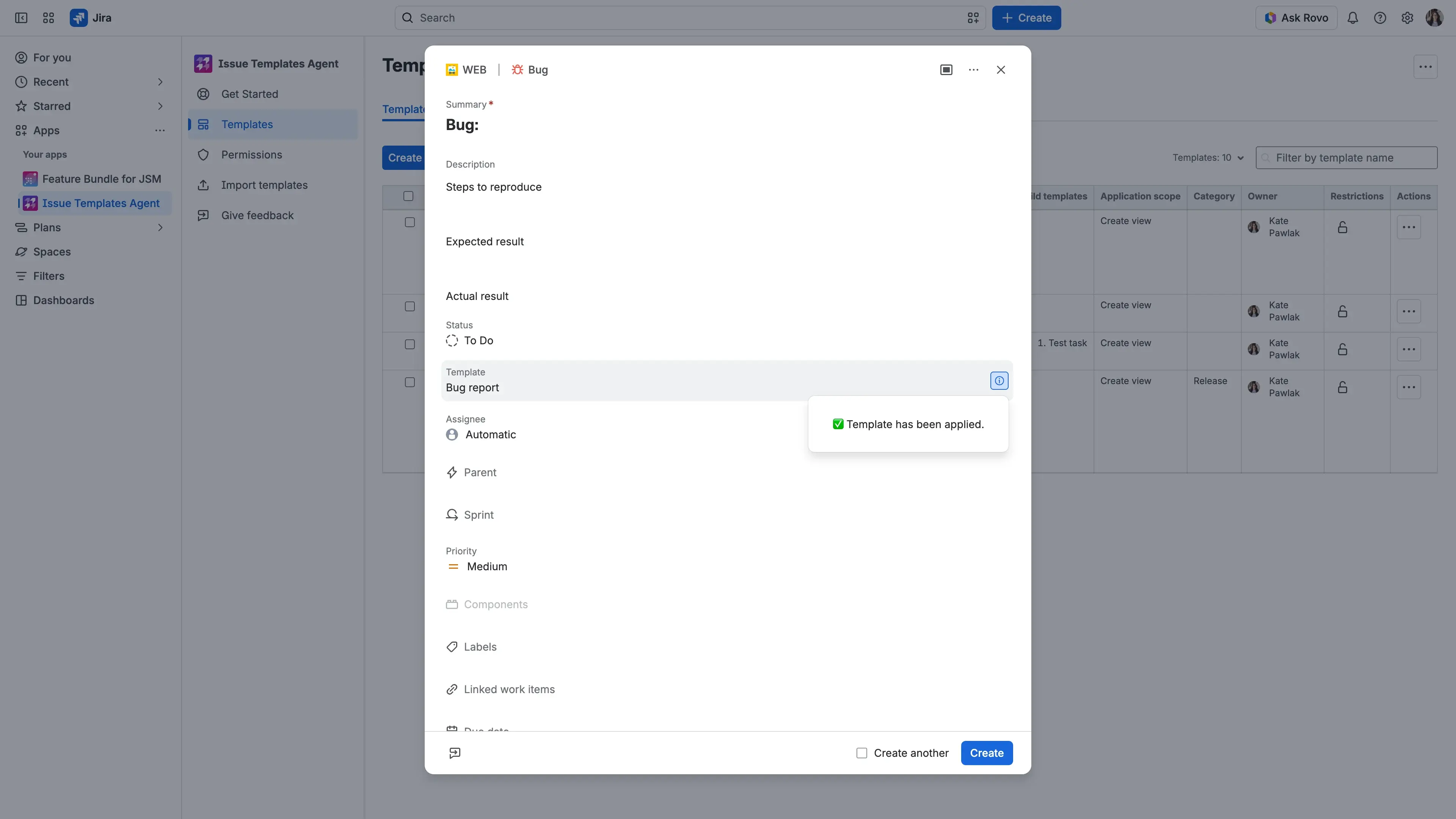
Edit the values if you need to, then select Create.


Team-managed spaces
In a company-managed space, the app adds the Template field to the Create screen for you. In a team-managed space, add the Template field to the work type in the space settings first. See Create a template.
Result
You created a work item with the Summary and Description from your template. The template is now available to everyone who creates a Bug in that space. To use it elsewhere, see Using templates.