Templates on Create issue view
Starting projects with the correct data should not be a manual task. Applying issue templates during the creation process ensures that every user story or bug report in Jira is pre-filled with essential details. This helps teams maintain high documentation standards while creating tickets faster.
With Issue Templates Agent, Jira issue templates can be applied directly from such places as: Create issue screen, Add a Child issue button and a Transition screen. Here, we are exploring the application through Create Issue screen.
Remember
In order for the template to be visible, the toggle in template configuration screen has to be in enable mode.
How to apply templates on Create issue view?
Using a Jira ticket template during the creation phase follows the standard Jira process:
- Click Create button in the top navigation bar.
- Select the relevant Project and Issue type.
- Locate the Template field and select a template from the dropdown menu.
- The fields will fill automatically with the predefined data.
- Create an issue, just like it would be done normally.
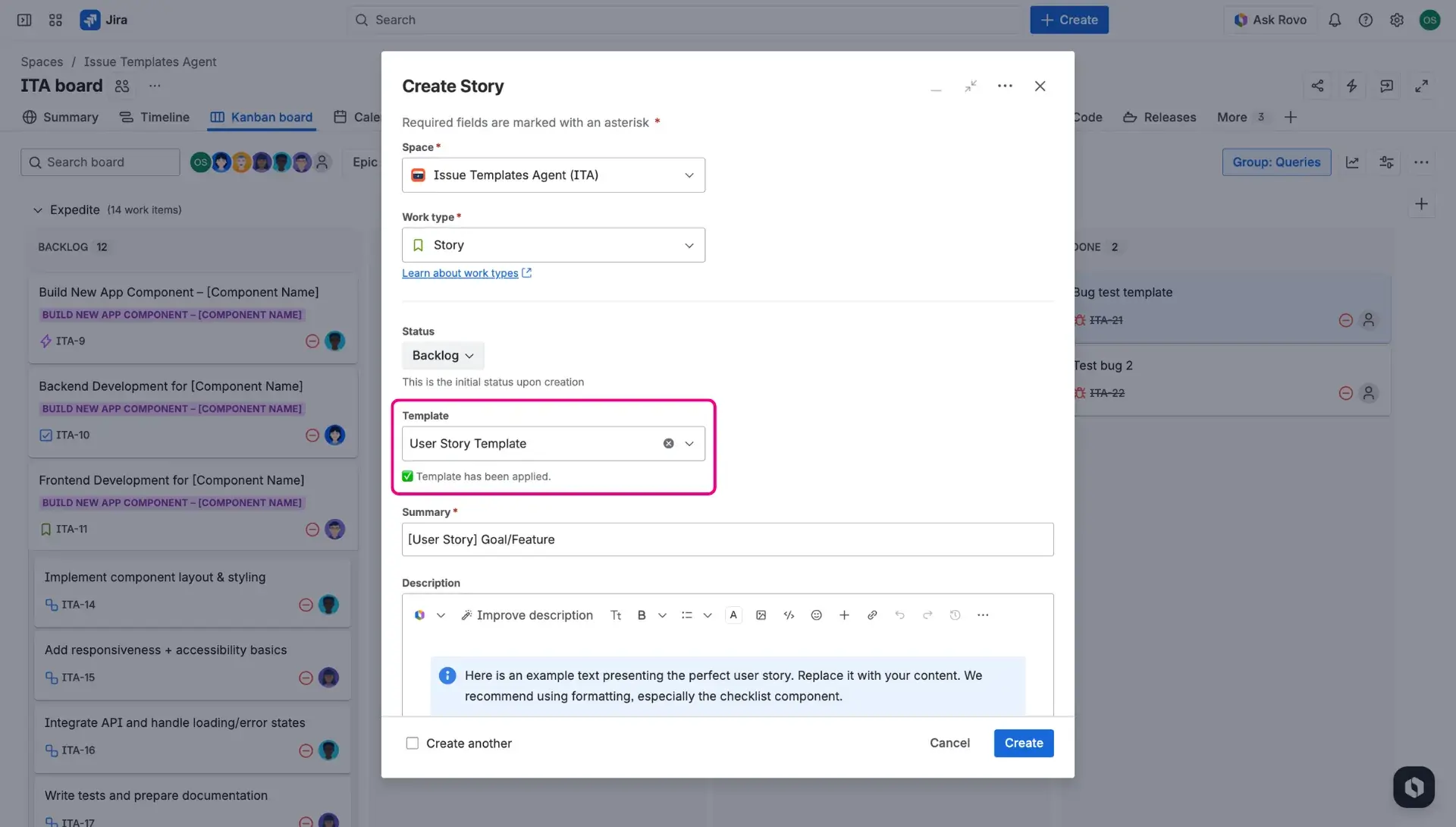
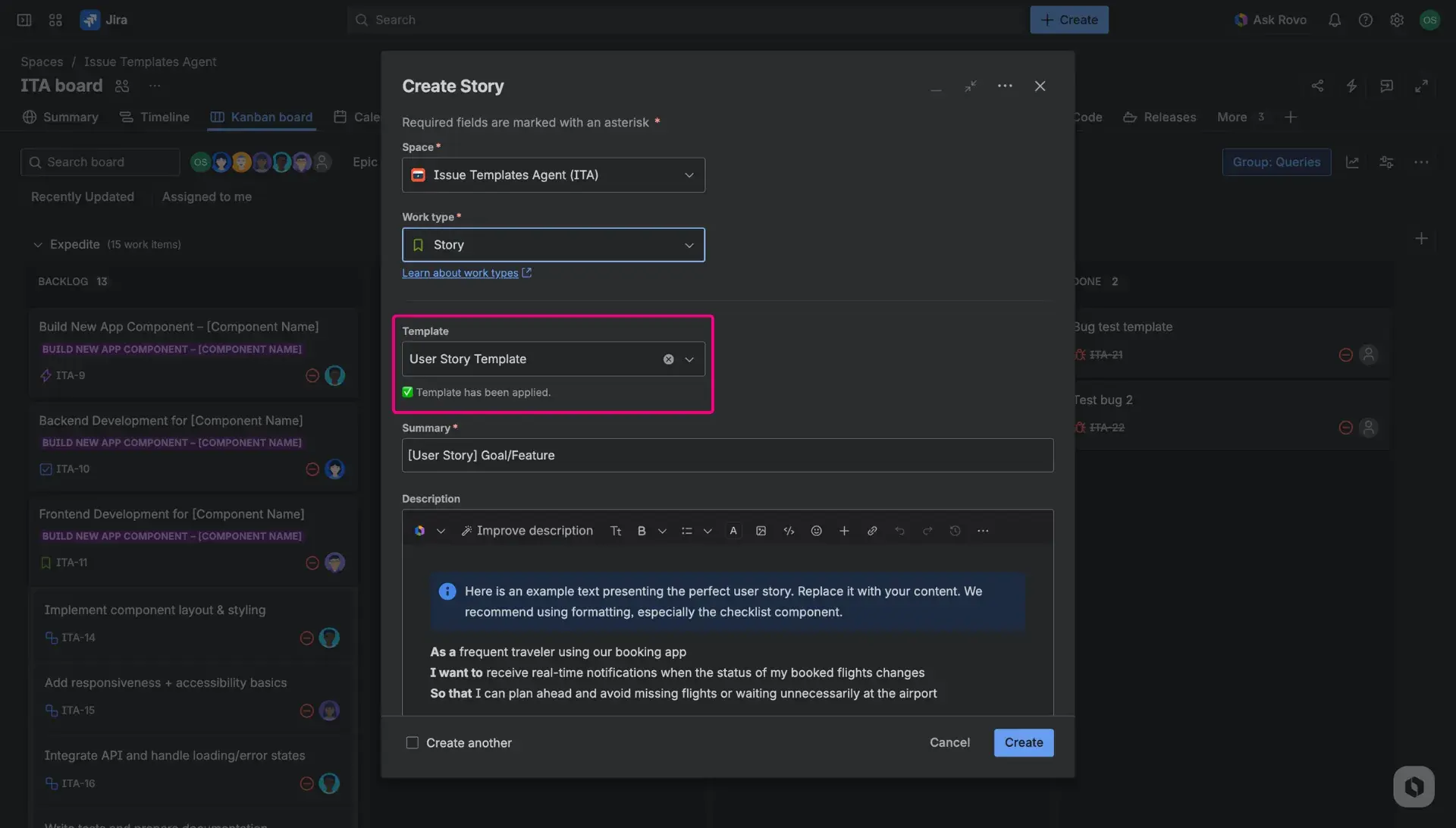
Using a default Jira issue template
A Jira issue template can be set as the default for specific projects and issue types by following these steps:
- Open the template configuration settings by going into Apps > Issue Templates Agent > Templates page and create or edit an existing template.
- Select the projects and issue types where the template should be used.
- Click the Choose as default button next to the selections.
- Save the configuration.

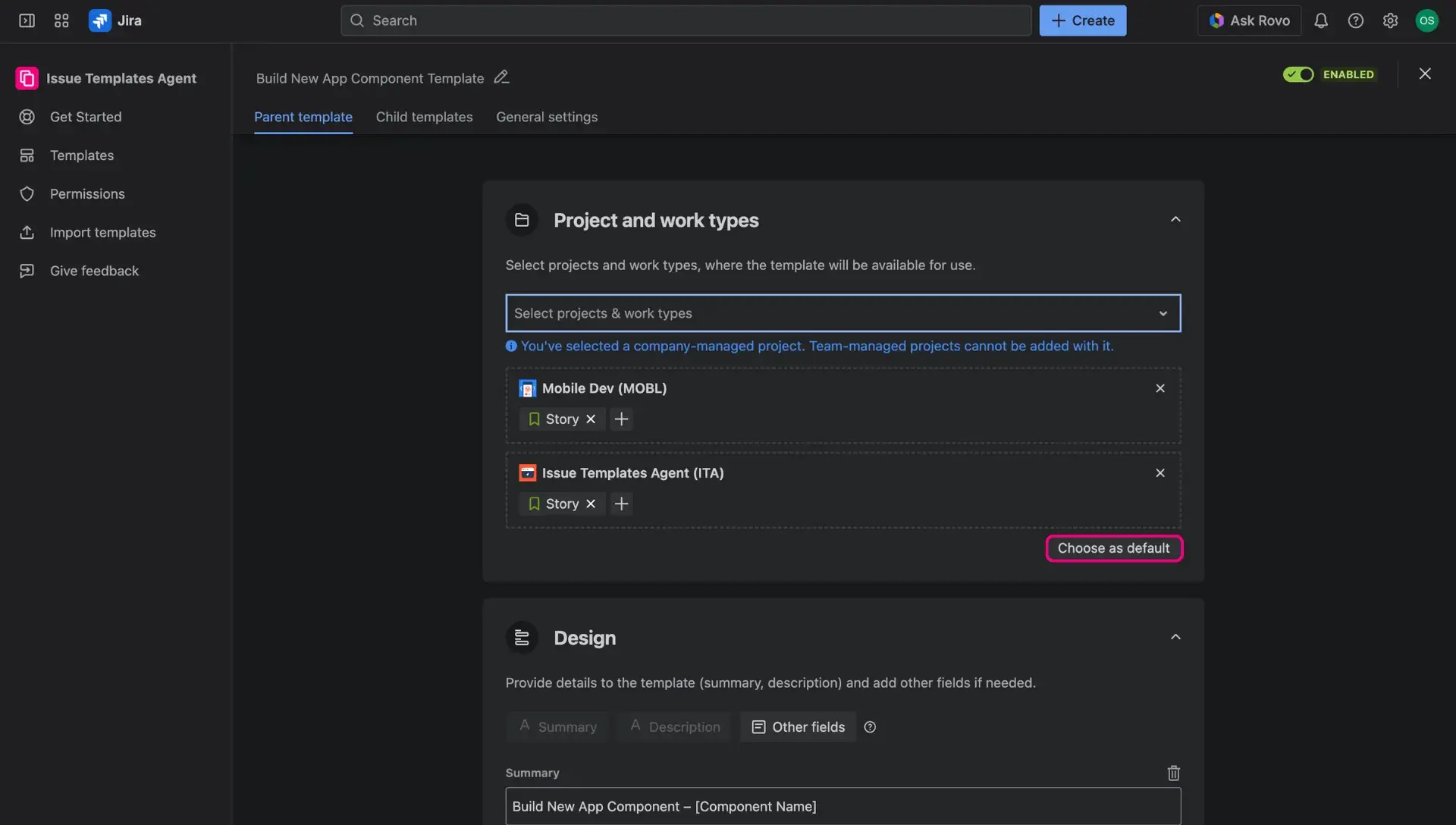
Once completed, the Jira ticket template will load automatically whenever a new task is created with those settings. This ensures the correct user story format or task structure is applied every time.
Functional considerations
- Field editing: All fields remain editable after a template is applied. This allows for specific adjustments before the issue is saved.
- Hierarchy handling: For Simple or Advanced structures, only the parent issue is created manually. The associated child issues are generated automatically.
- Standard Jira behaviour: Summary field cannot be empty. Even if these values are not specified in the template, the user must enter them on the Create issue screen. The Priority field will be filled in with a default value if no specification is provided.
- Atlassian settings: Assignee field will assume a value consistent with the permission configuration in Jira. Issue Templates Agent for Jira app doesn’t change the settings of Atlassian products.
Supported fields
Most Jira fields are compatible for Jira issue templates. A complete list is available on the Supported fields page.
Support for Fix version & Component
- Support for Fix version: If you have a version in the template which is archived, the template can’t be applied on the Create issue screen. You have to go to the template configuration and remove this version.
- Support for Component: If you have a Component in the template which is removed from project, the Template can’t be applied on the Create issue screen. You have to go to the template configuration and remove this component.