Template library
Template library serves as the central hub for managing all templates within the application. It provides a structured overview of every Jira issue template, ensuring efficient organization and quick administrative access for all team workflows.
To access the library:
- Navigate to the Apps menu.
- Select Issue Templates Agent.
- Open the Templates page.
There, users can switch between tabs: Templates for work items and Templates for customer portal in order to access and manage Jira and JSM templates.
Looking for an issue template?
Users can easily search through the library in the Search field, however keep in mind that the field is case sensitive.
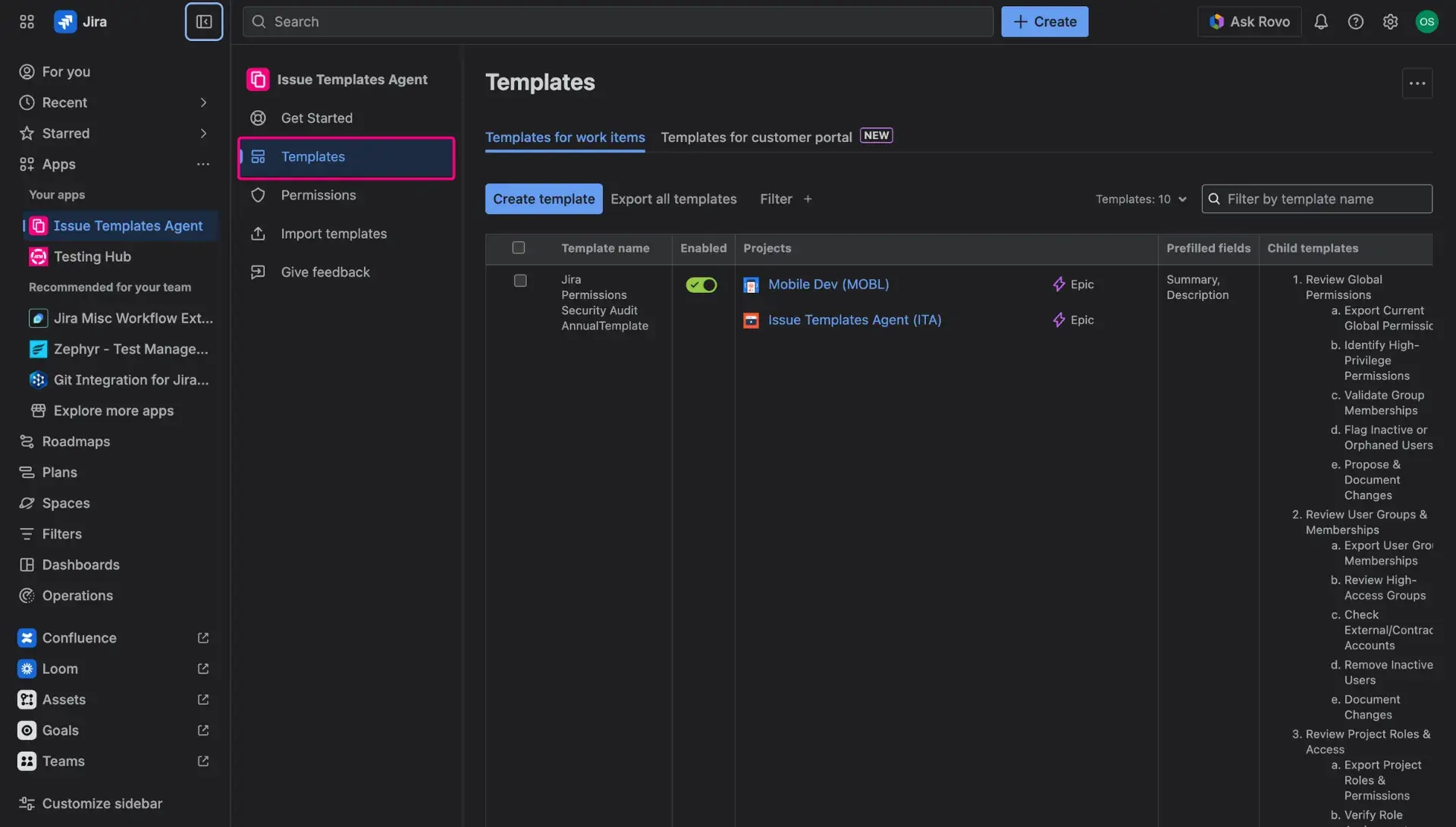
Every created Jira ticket template is visible within the Template library table and organized in alphabetical order by name. The following sections provide a detailed description of each column within the table.
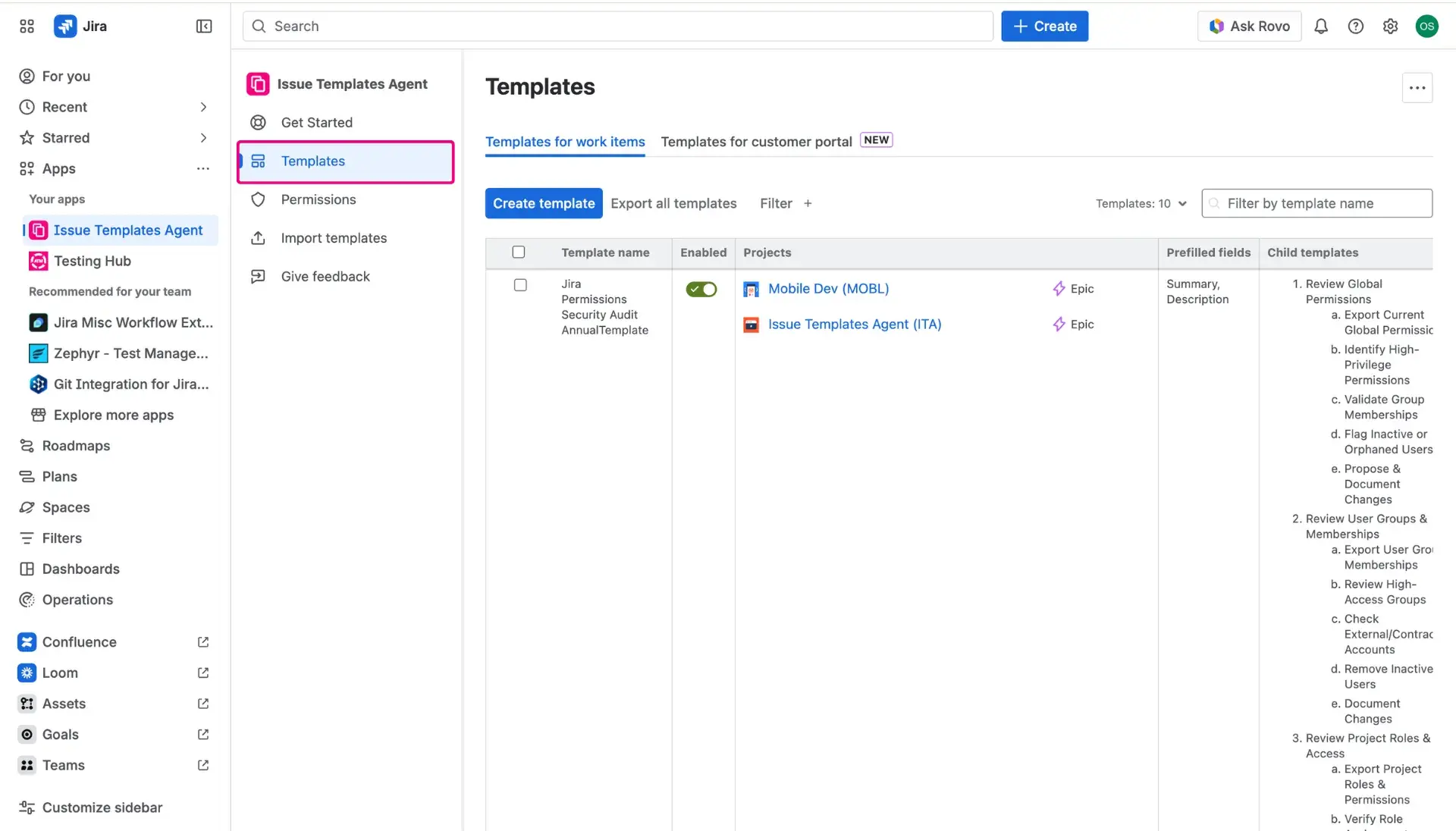
| Column name | Description | |
| 1 | Name | This column contains the template name to help users find the correct template from the list. |
| 2 | Projects | Project(s) where the template can be used. For each template user is able to select multiple projects. |
| 3 | Prefilled fields | This column contains a list of template fields, for which some content has been provided |
| 4 | Child templates | A hierarchical list of Child issue templates for simple and advance structures. The list contains names of templates. |
| 5 | Category | These words or phrases that help you find correct template with ease. |
| 6 | Application scope | Template scopes where the template can be used by users. Each template can be assigned to multiple scopes. |
| 7 | Owner | Indicates the creator of the issue template. |
| 8 | Restrictions | Allows for an easy access for assigning permissions for a specific template. |
| 6 | Actions | Currently in this column you will find an option to delete, edit a template or duplicate it. |
Edit templates
You can easily edit each template. Just click on the arrows appearing right next to its name or on three dots on the right and select Edit template. Both ways open the template configuration page. This action does not affect issues already existing in Jira.
Duplicate templates
The Actions menu (three dots) contains an option to duplicate templates. Once selected, a new window for template edition opens. The name of the templates, which you will be editing, is “Copy of [templateName]”. Remember to save your changes once finished - the Save button is at the bottom of the page.
Delete templates
You can delete a template by clicking the three dots icon in the last column and selecting Delete template. After clicking, a popup appears where you must confirm the deletion. This action does not affect issues already existing in Jira.
Enable and disable templates
The table includes a status toggle for each entry, allowing users to manage the availability of templates across Jira projects. This feature provides a way to control which templates are active without the need for permanent deletion.
This functionality is particularly useful for managing seasonal processes, draft templates that are not yet ready for production, or templates undergoing maintenance.
How does it work?
- Enabled: When the toggle is active, the template is available for use in the projects and issue types defined in its configuration.
- Disabled: When the toggle is deactivated, the template is hidden from the Create Issue view and other screens.