Permissions
Issue Templates Agent provides two distinct layers of security: Global Permissions for application-wide administration and Granular Permissions for template-specific visibility and usage. These settings ensure that Jira issue templates remain consistent, secure, and available only to authorized users.
Global permissions
Global permissions define the high-level authority required to oversee the entire Jira templates environment. Assigning these permissions is the first step in establishing a governed process for Jira ticket templates.
To configure administrative access at the system level:
- Open the Jira Administration menu (gear icon).
- Select the System section.
- Choose Global Permissions from the left-side navigation panel, in the Security section.
- Locate Issue Templates Agent - Administer app permission.
- Add the appropriate Jira groups to grant administrative rights for the application.
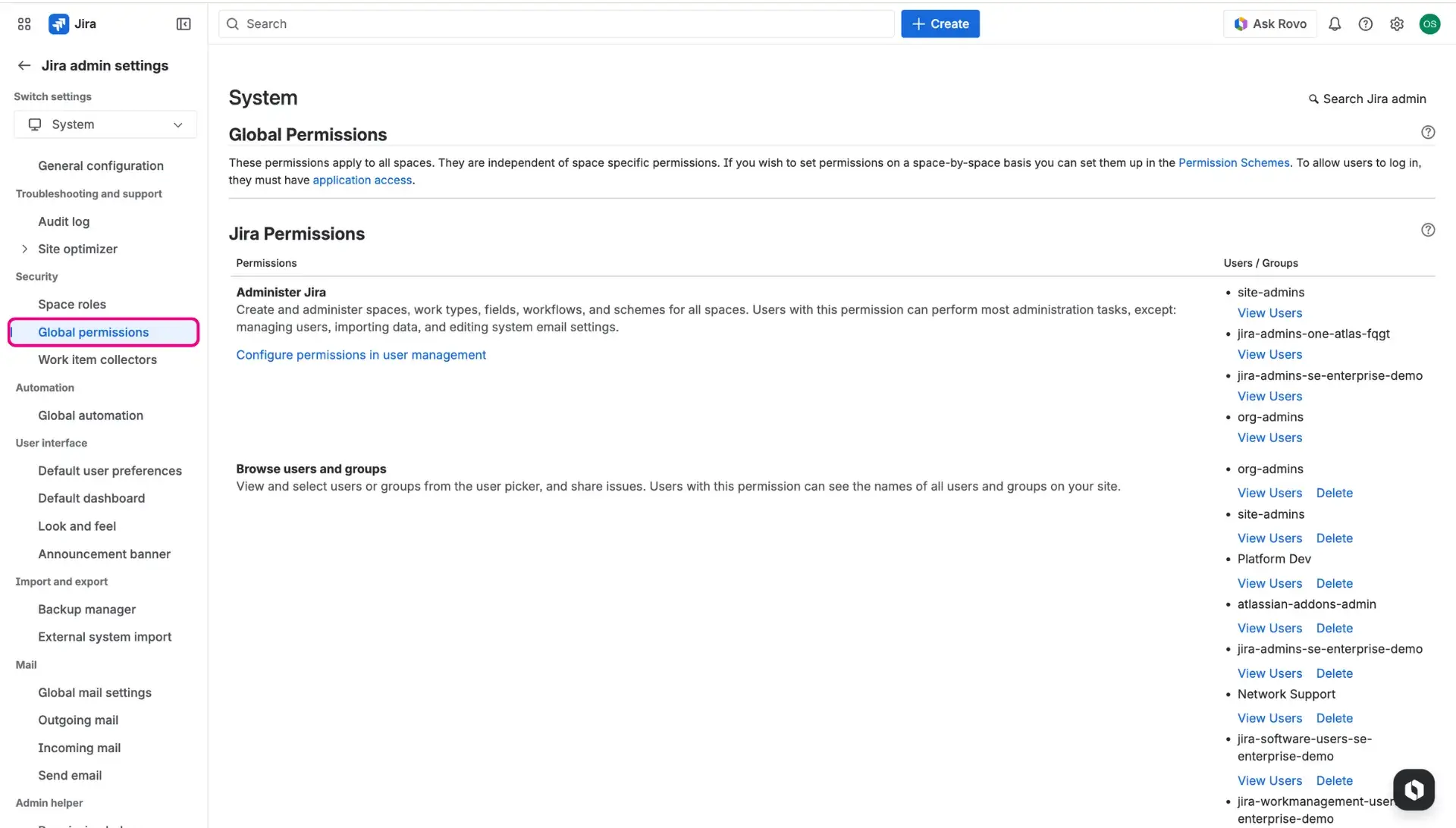
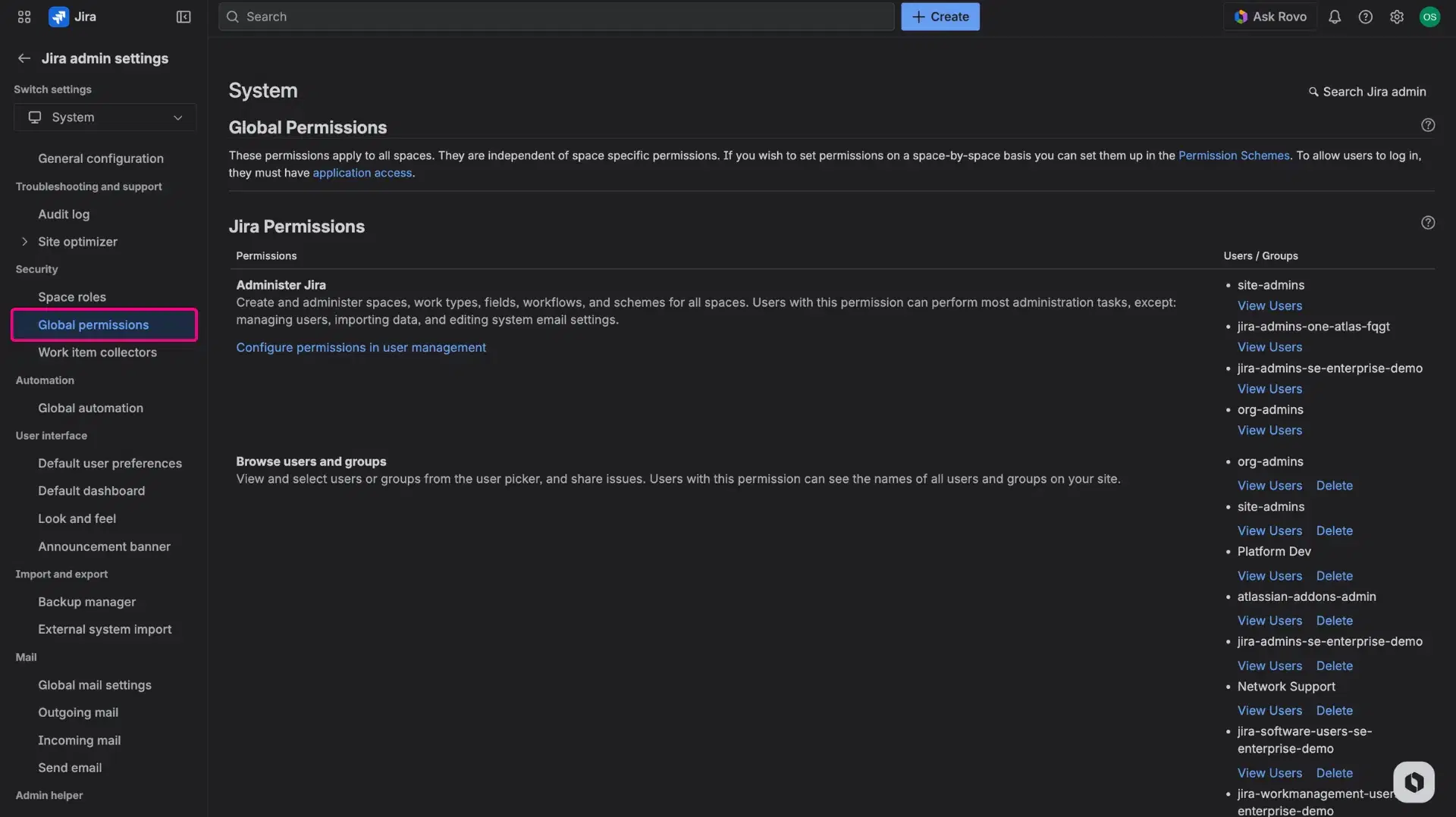
This level of access is typically reserved for Jira Administrators who need to manage the overall structure of Jira project templates and global configurations.
Granular permissions
While global permissions control the application as a whole, granular permissions allow for precise control over individual templates or groups of templates. This layer of security ensures that Jira issue templates are only accessible to those specific users or user groups.
To access and configure granular permissions within the application:
- Open the Apps menu in the top navigation bar.
- Select Issue Templates Agent.
- Choose the Permissions page from the left-side panel.
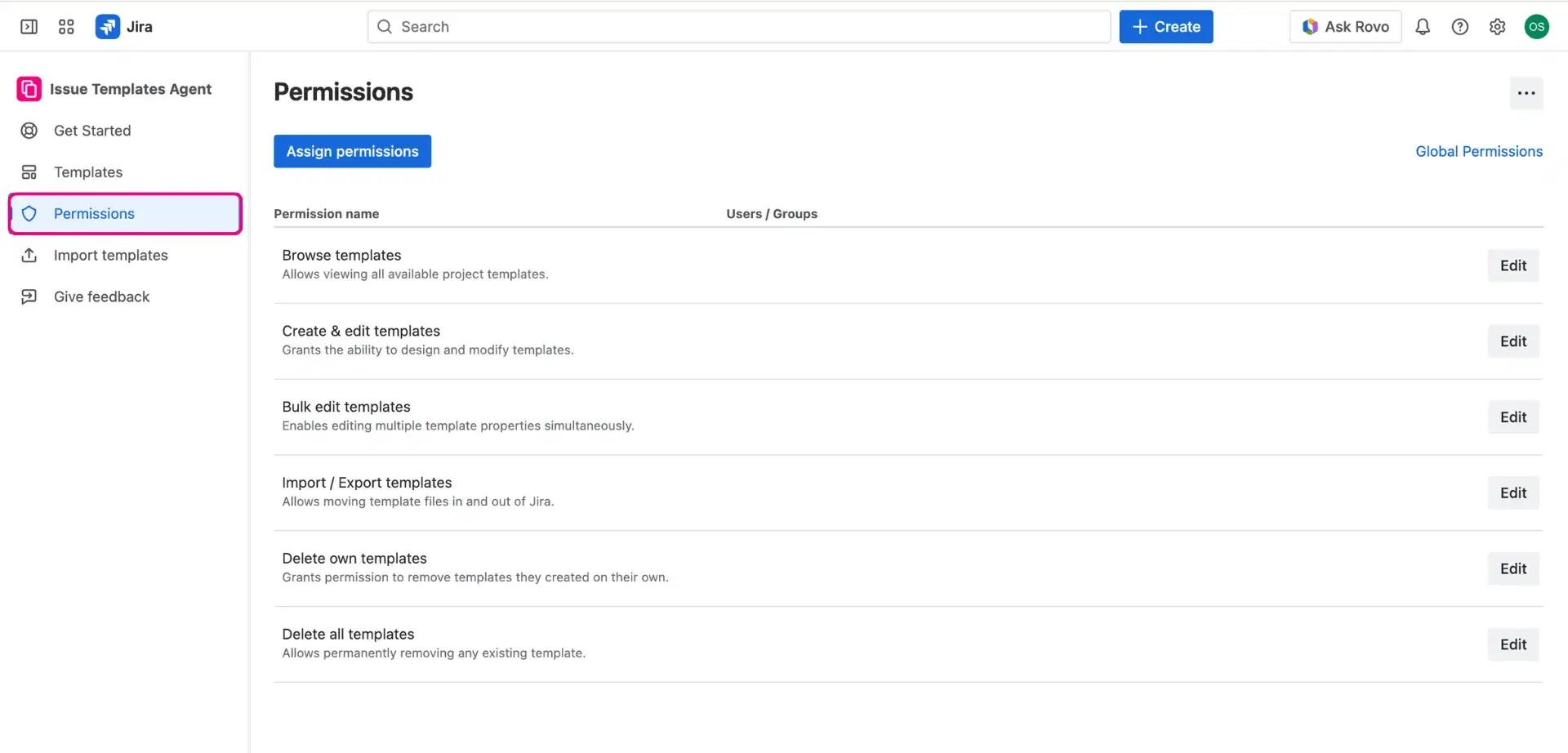

Within this view, access can be restricted or granted based on specific users, groups. This flexibility prevents unauthorized modifications and ensures that the Jira ticket template library remains relevant to each user’s specific role.
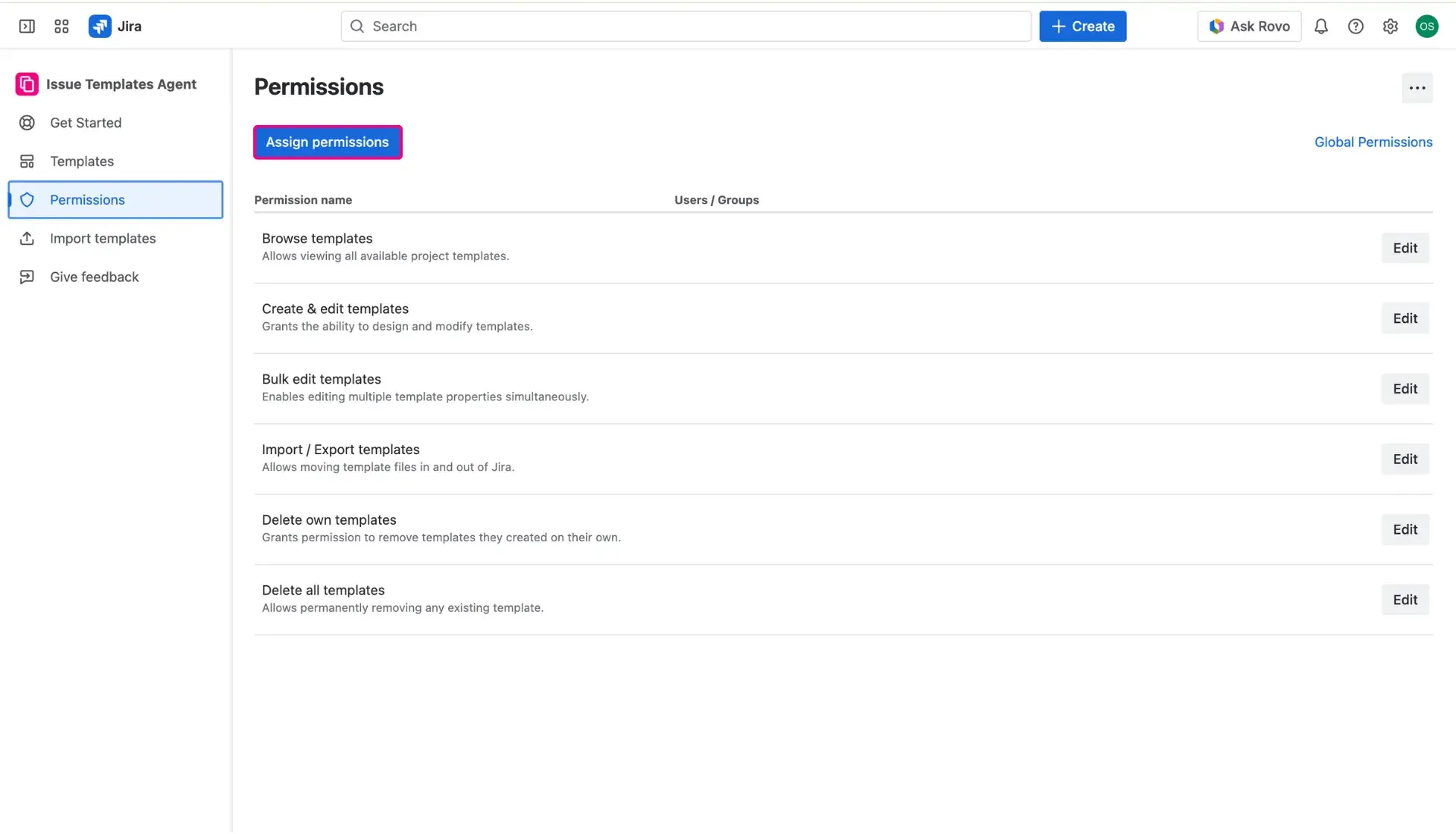
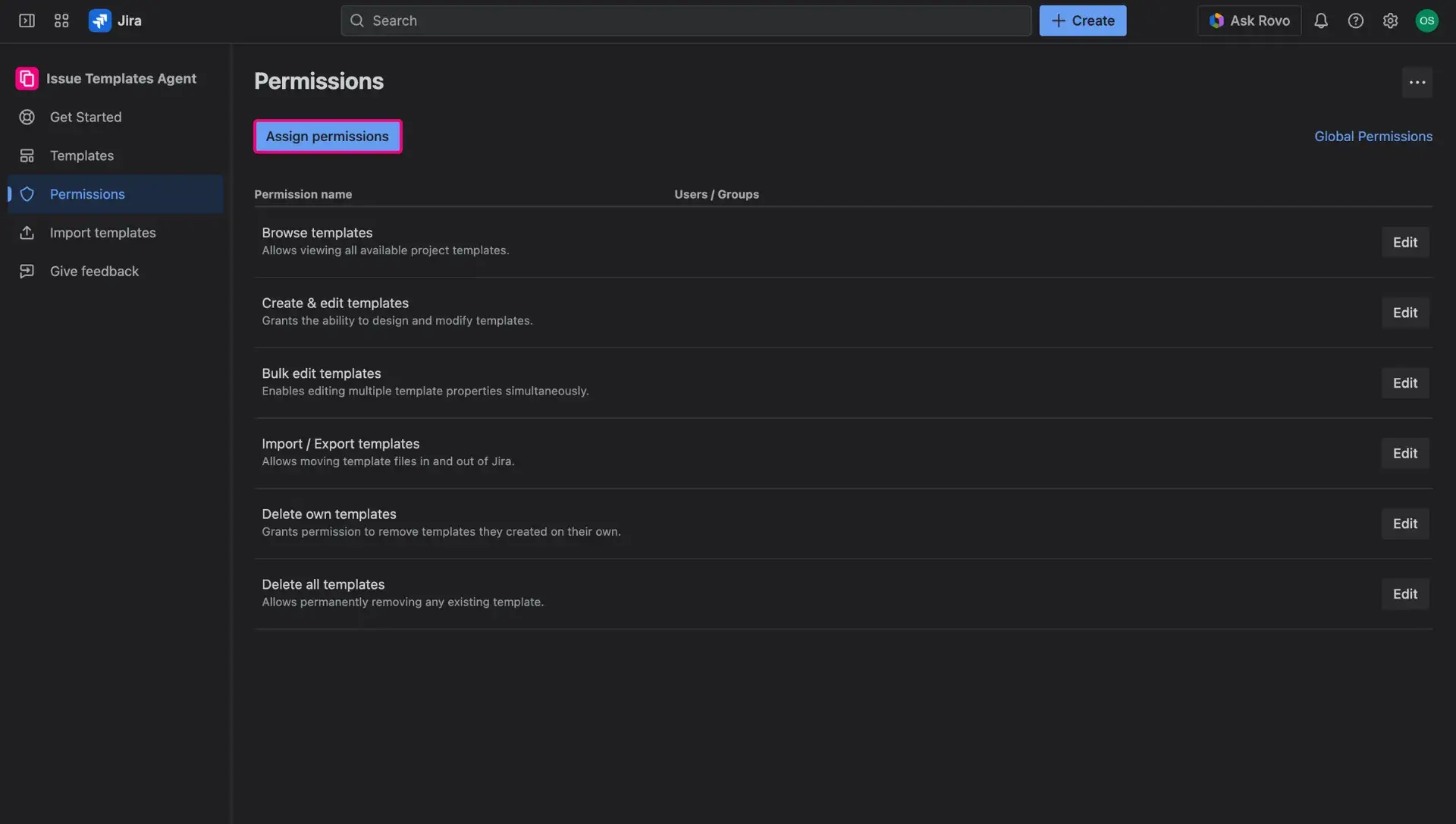
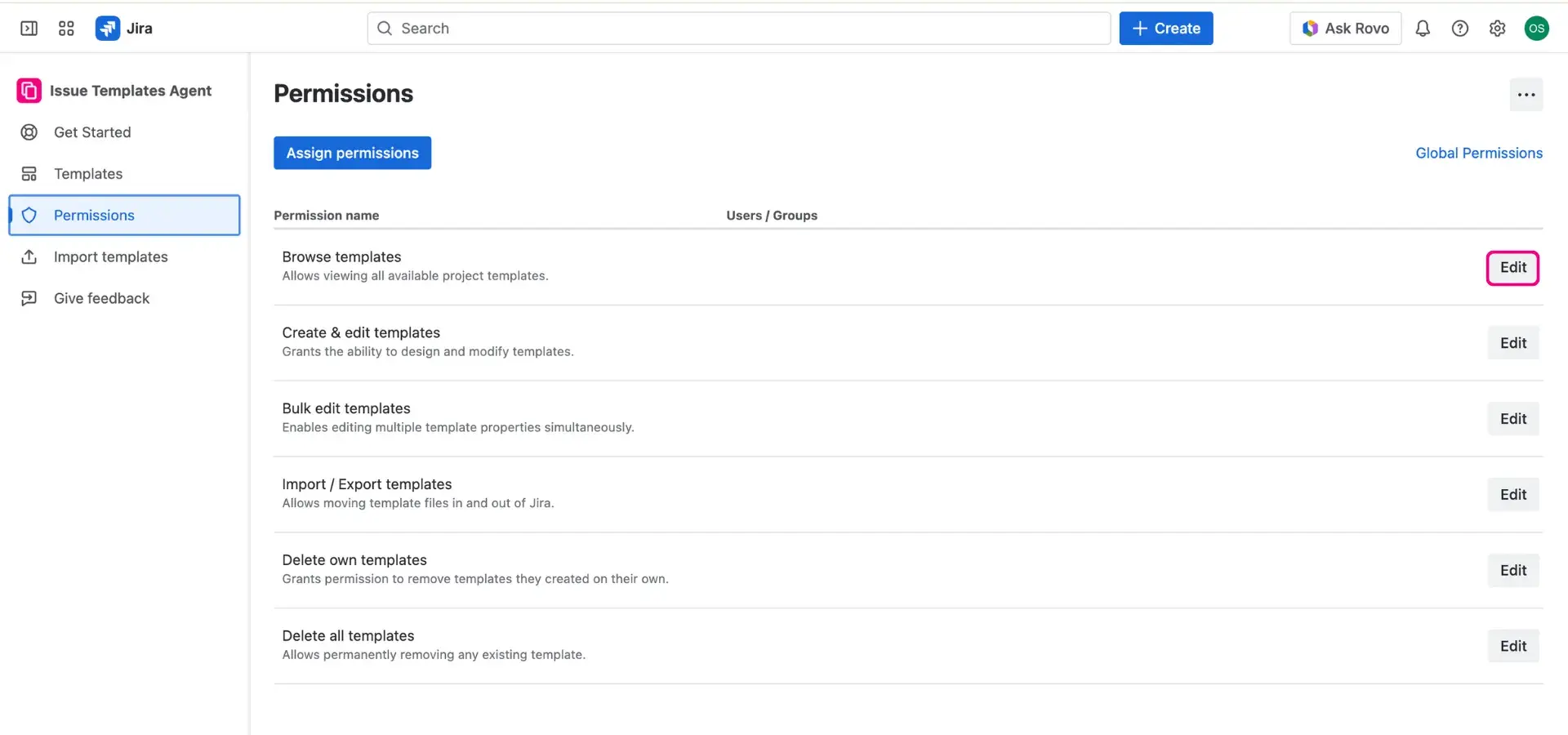
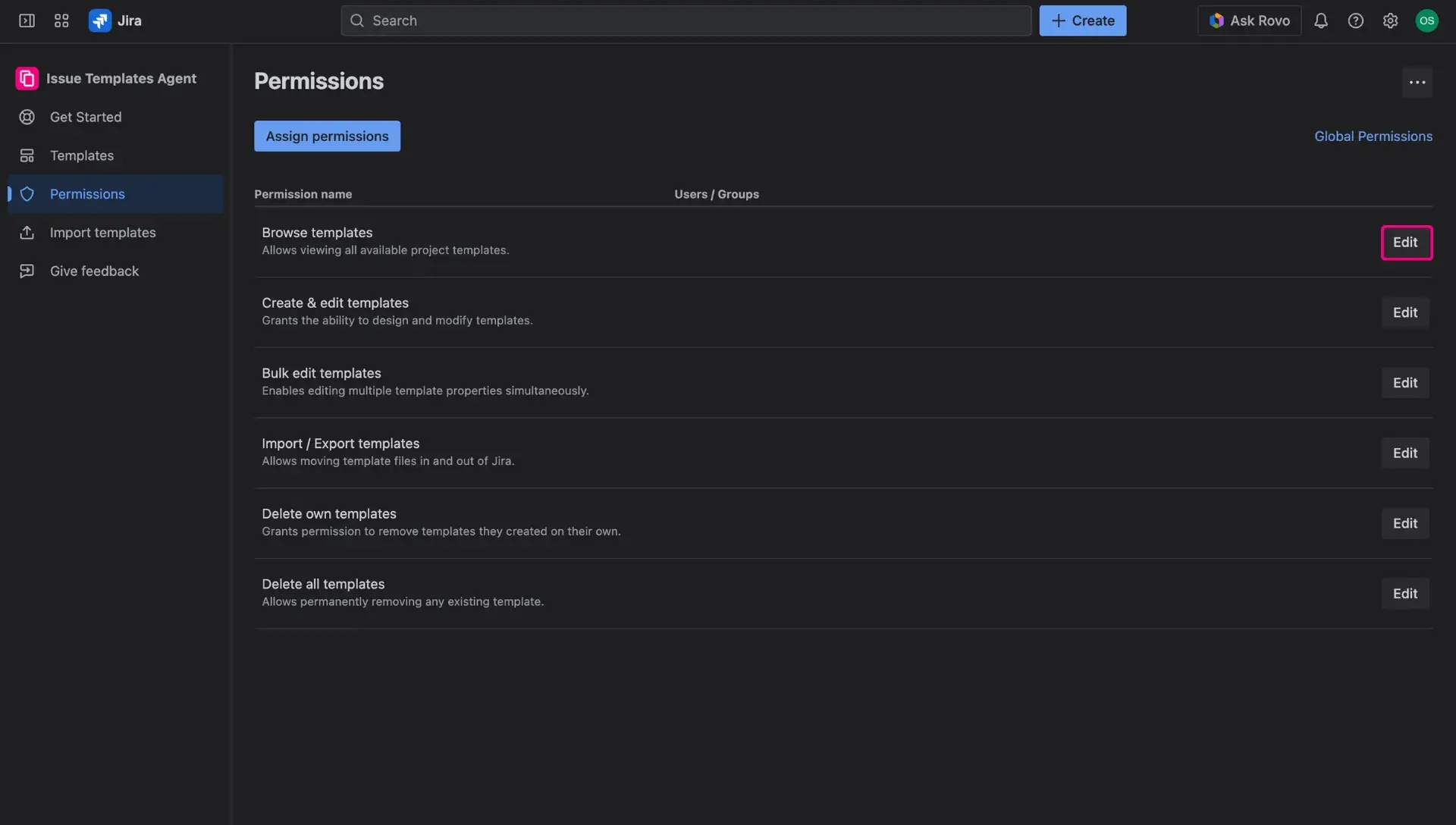
The process for managing access is designed to be straightforward - users can either use the Assign permissions button or individual Edit buttons at each described permission.
Assign permissions
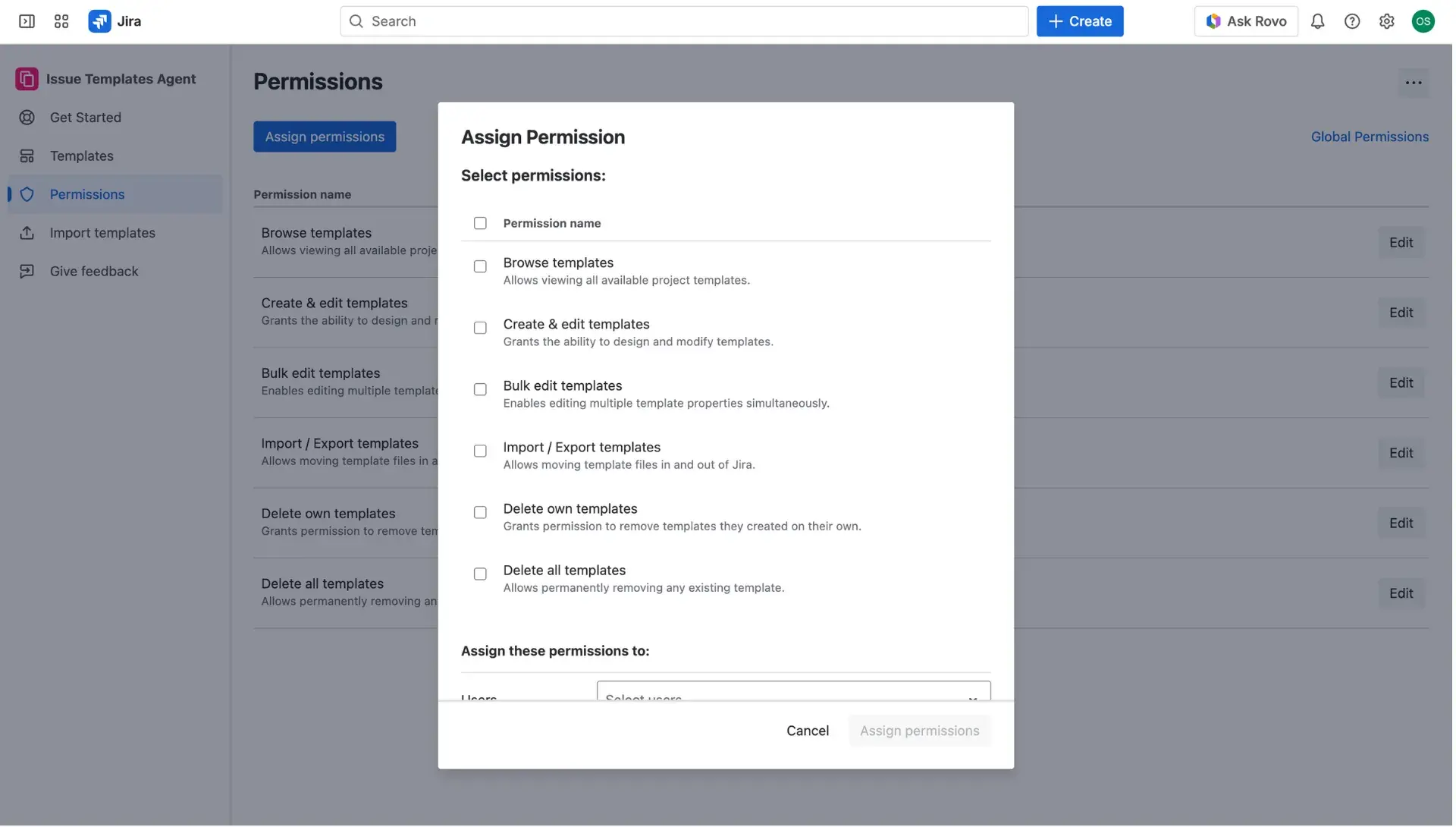
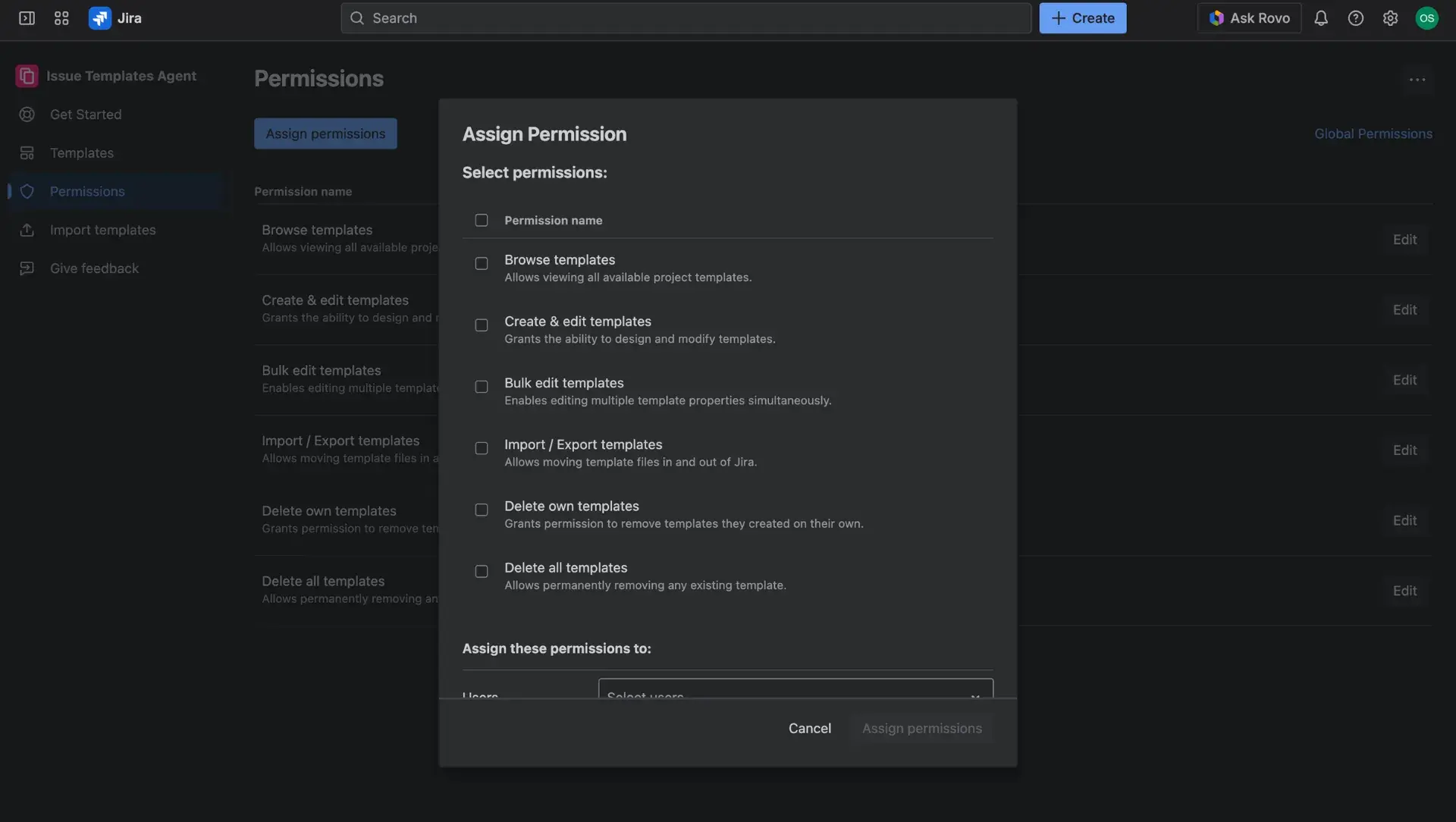
If the Assign permissions button is used - a new dialog window opens. There, Admins can identify the specific permission within the list, select it and choose users or groups that are to be granted with these permissions.
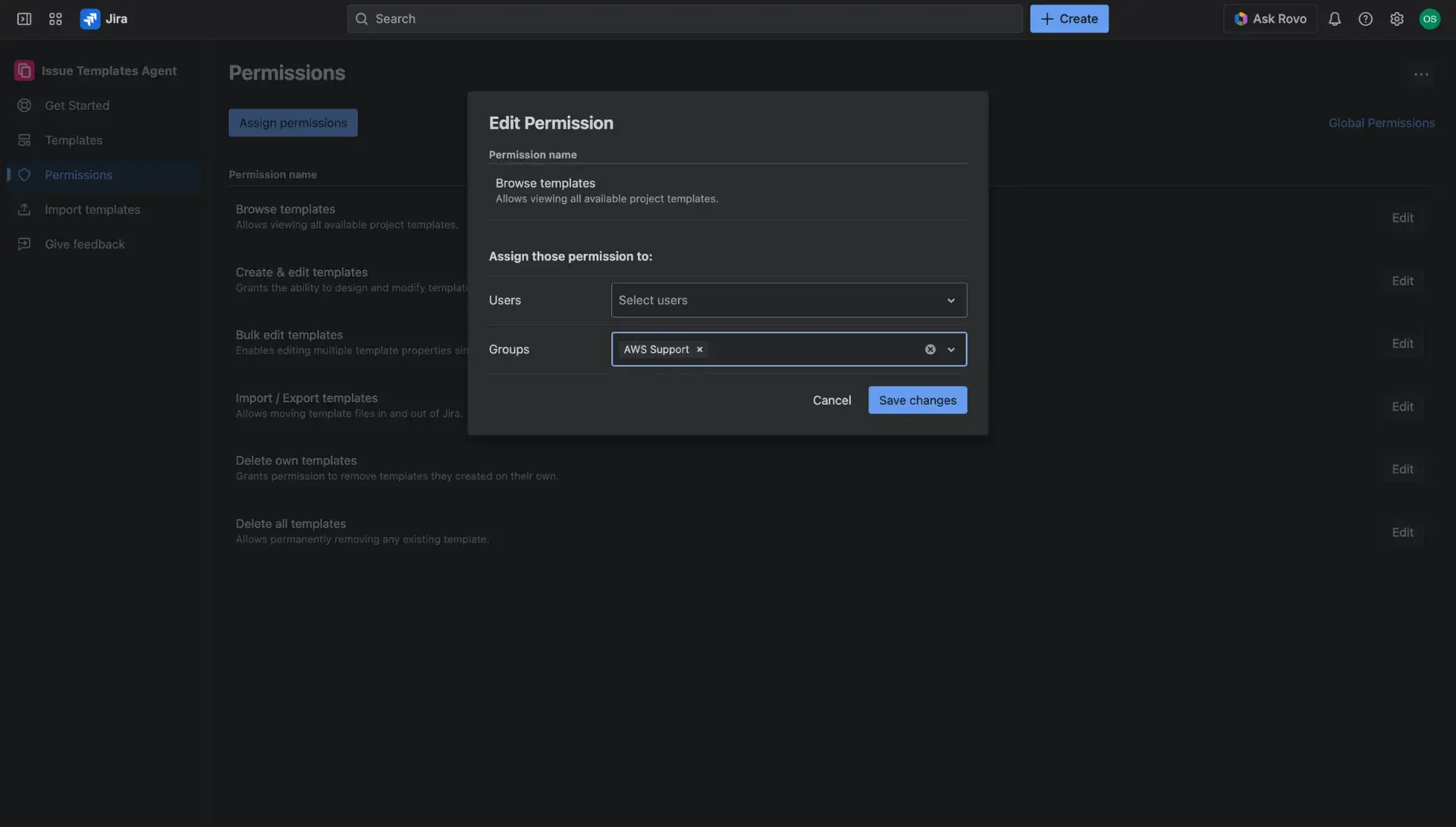
Edit permissions
If the Edit button is used - in a new dialog window, users or user groups can be selected for this specific permission.

Available permissions
The following actions can be restricted or granted to individual Jira users or specific groups:
- Browse templates: Enables the viewing the Jira issue template library.
- Create & edit templates: Grants the ability to build new templates or modify existing ones.
- Bulk edit templates: Allows for the simultaneous updating of multiple templates.
- Import/export templates: Enables the movement of templates between environments or the creation of data backups.
- Delete own templates: Restricts deletion rights to only those templates created by the user.
- Delete all templates: Provides administrative-level rights to delete any template within the app.