Import and export templates
The process of importing and exporting assets is a standard part of managing Jira issue templates. These functionalities provide a reliable method for creating backups or facilitating a migration from sandbox to production environments. Furthermore, this feature enables the synchronization of a Jira ticket template library with external resources or the migration of templates from other add-ons.
How to export templates?
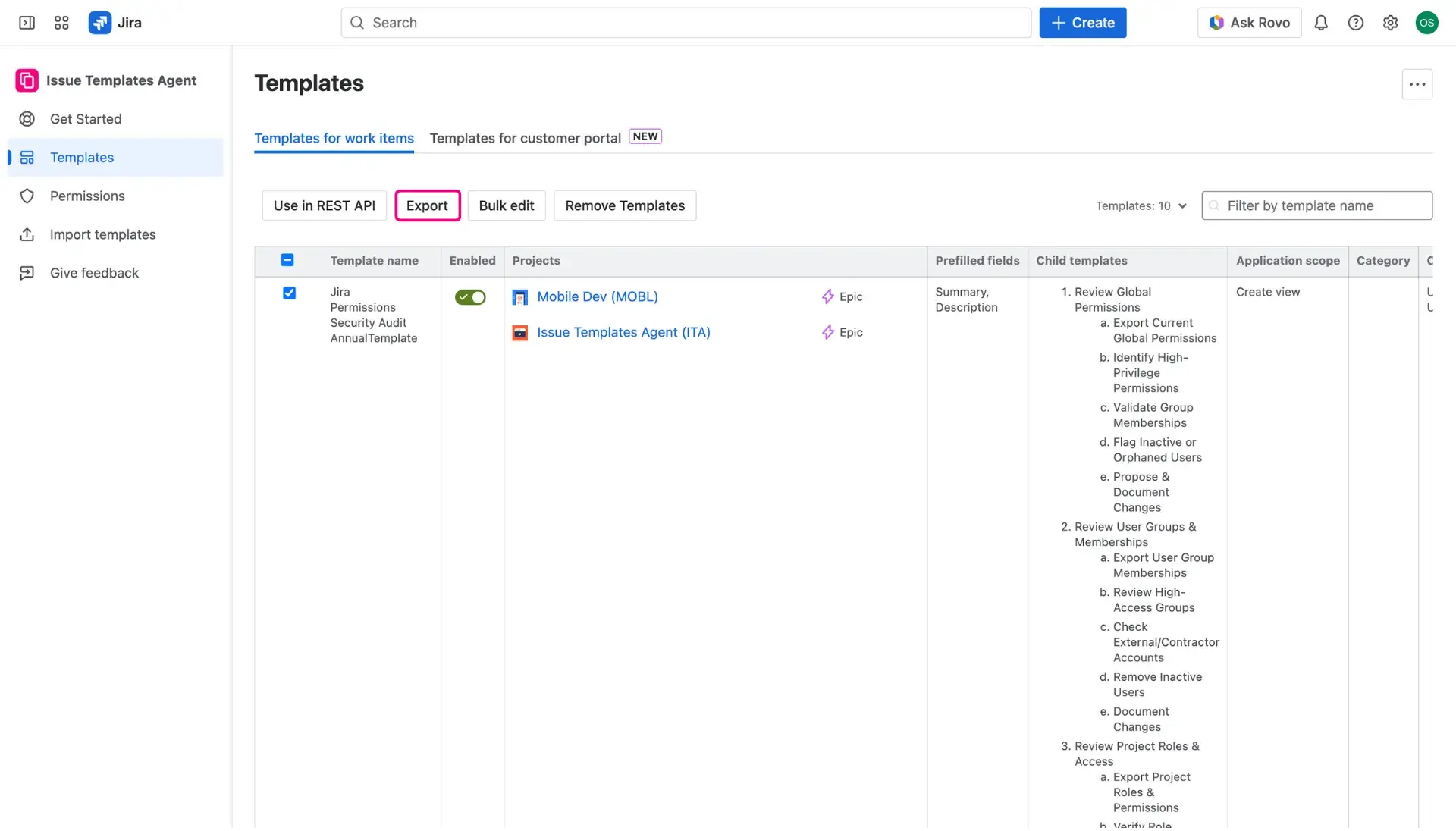
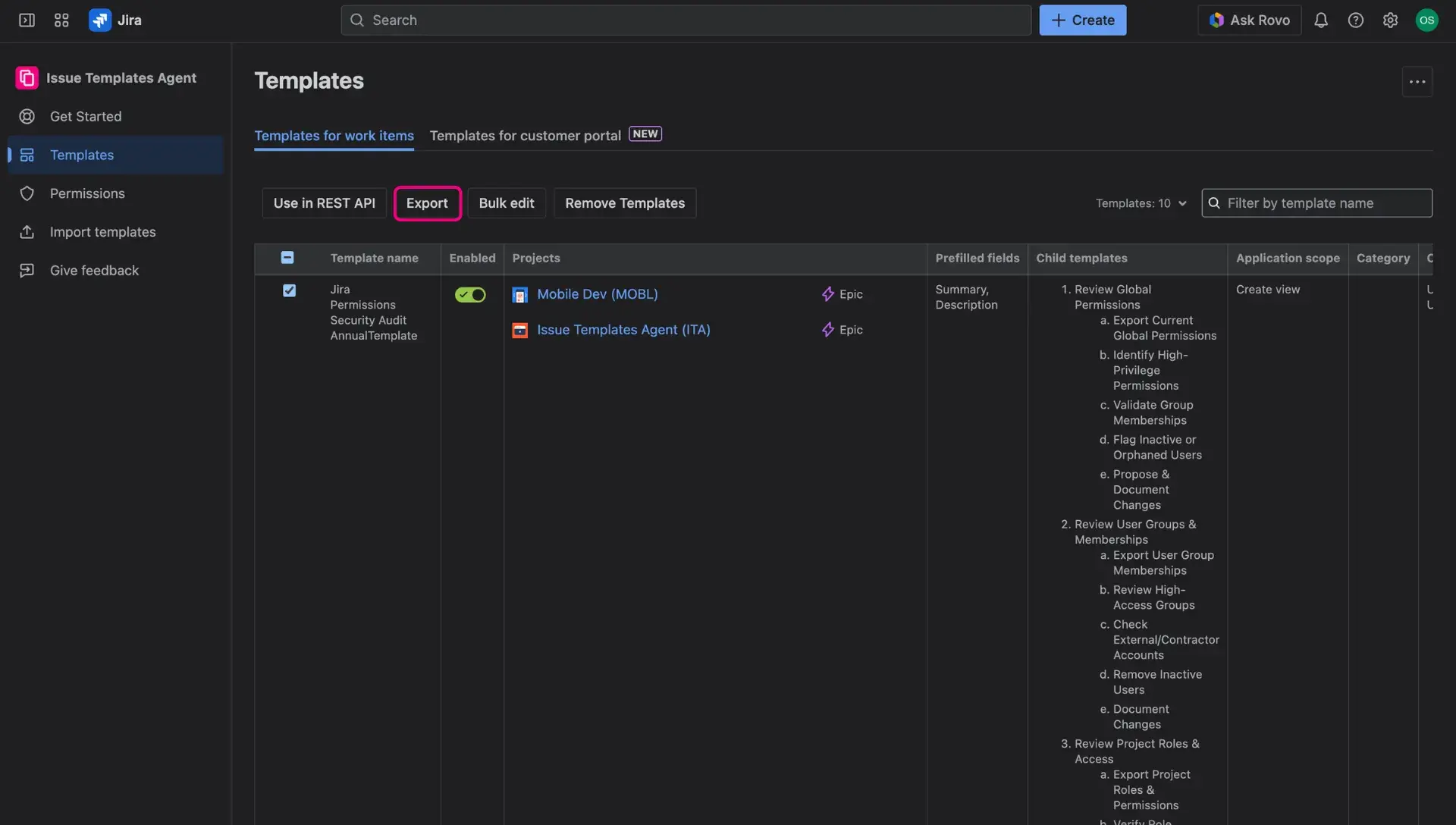
Exporting Jira templates can be performed in bulk or for specific selections. Export is possible for both work item and customer portal templates. The following steps should be followed:
- Navigate to the Template library.
- Click the Export all button located above the table to export the entire library.
- Select specific entries by checking the boxes in the first column if only a partial export is required.
- Click the Export button that appears once selections are made.
All templates are exported in JSON format to ensure data portability.
How to import templates?
Import templates section provides a dedicated space for uploading JSON files. Accurate file formatting is a requirement for successful configuration.
To complete an import:
- Access the Import templates section via the management panel.
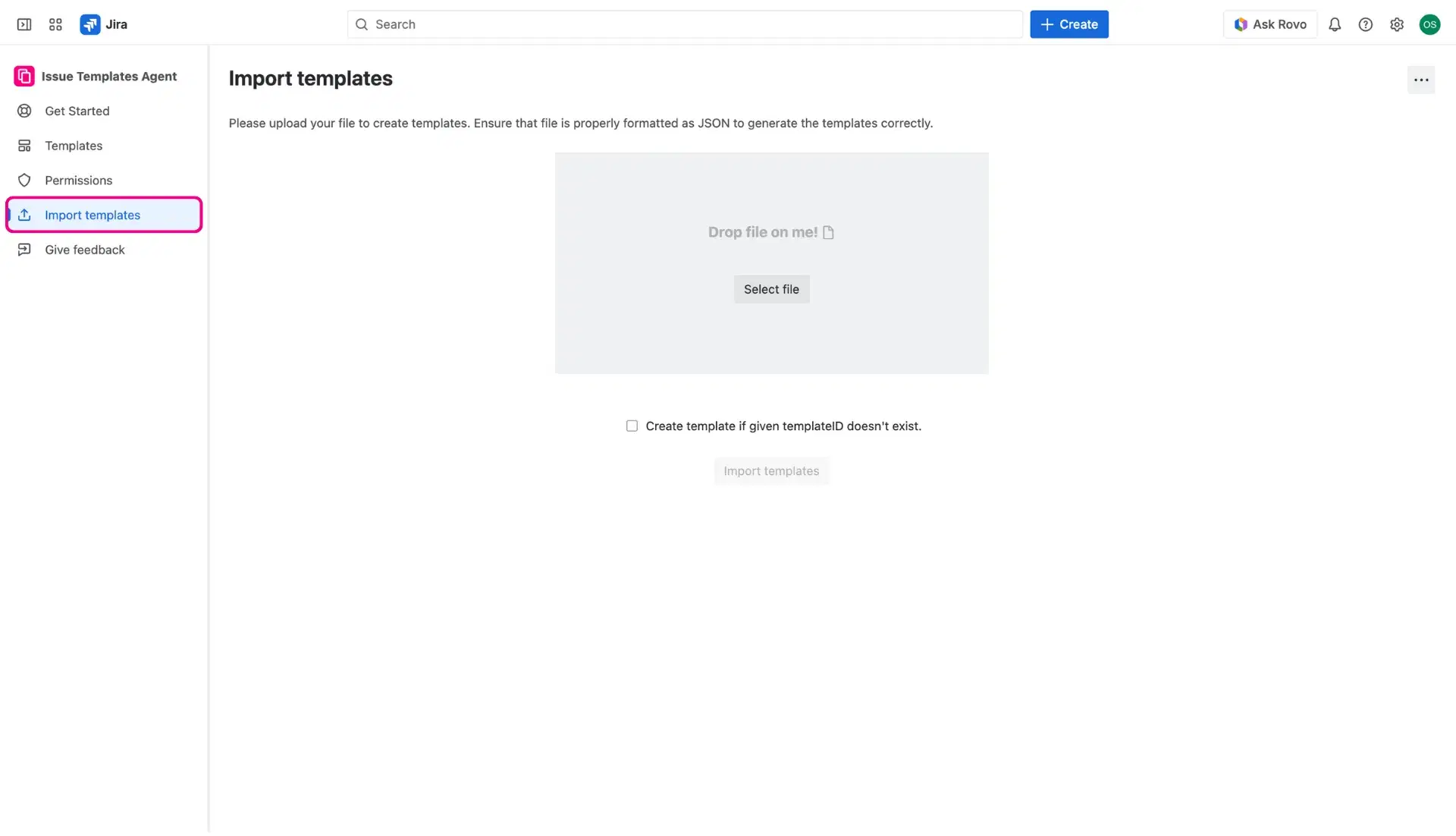
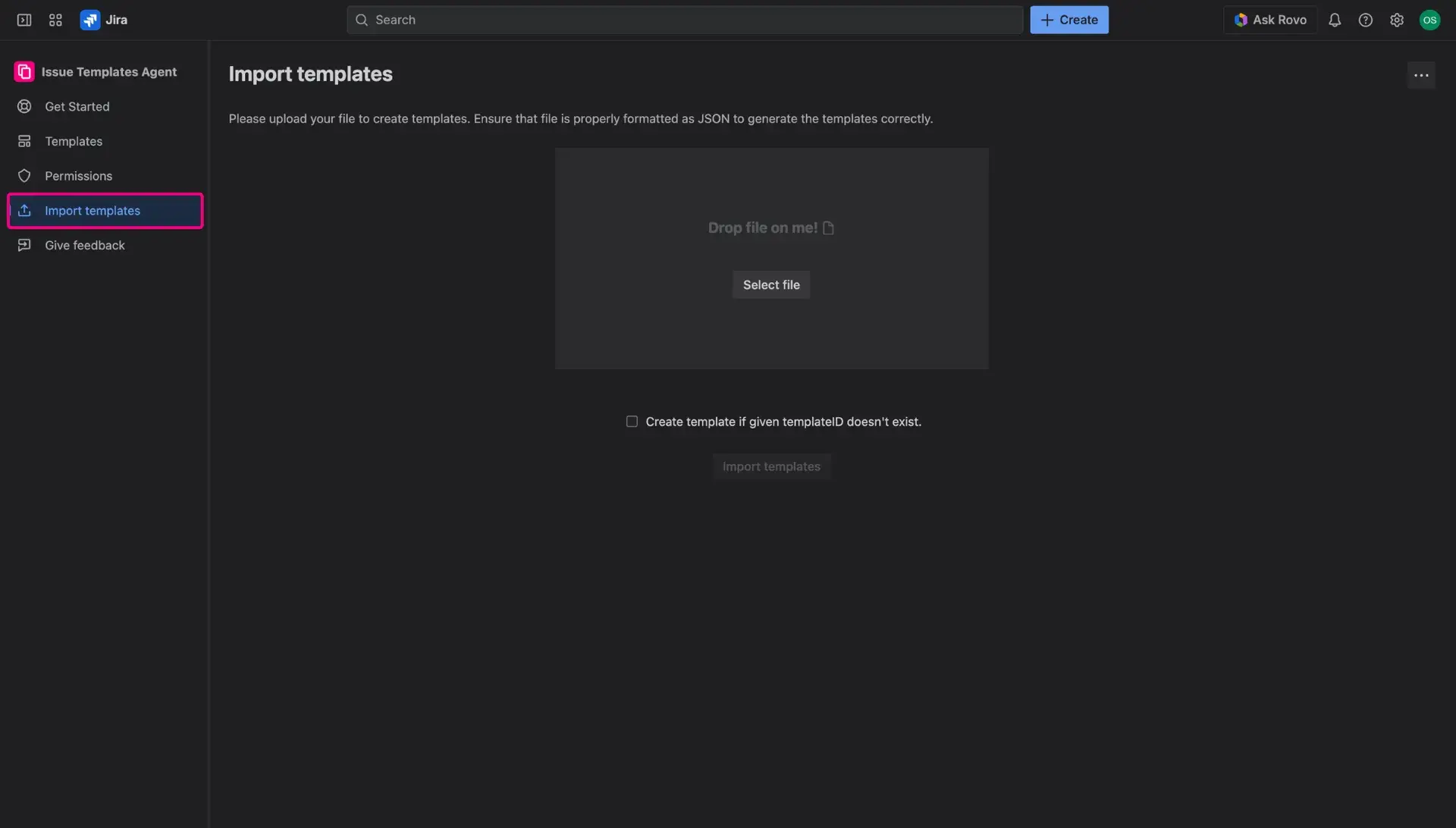
- Upload the desired JSON file.
- The import file must meet these specific requirements:
- The templateID must be unique and cannot be duplicated within the system.
- The template type must strictly comply with the template structure defined in the file.
If the file contains errors, a warning window displays the specific details that require correction to ensure a proper Jira issue template setup.