Issue templates in Jira
Standardization helps teams work better together. Jira issue templates ensure all tasks are consistent across your organization. By using a Jira ticket template, you save time, reduce mistakes, and start tasks faster.
Jira project templates help every team:
- Software & DevOps: Use a user story template for requirements or a bug report template to collect all the right data.
- HR & Operations: Use a Jira story for onboarding or offboarding checklists.
- Marketing & Sales: Keep campaigns and lead tracking consistent with predefined fields.
Template field
When you install the app, it creates a Template field automatically. You use this field to choose and apply Jira issue templates to your tickets.
Automatic setup (company-managed projects)
For these projects, the setup is automatic. The Template field will appear on your screens once you select the project and work types during the design process.
Manual setup (team-managed projects)
For team-managed projects, you must add the field yourself:
- Go to Project settings > Fields.
- Click Add field and search for Template.
- Choose the work types where you want to use templates.
- Drag the Template field onto your issue screen.
Troubleshooting: Why is the field hidden?
If you don’t see the Template field, try these steps in the Create issue window:
Option A: Adjust visibility
- Click the More options (three dots) menu in the top right.
- Turn off Hide unused fields.
Option B: Configure display
- Click More options (three dots) and select Configure fields.
- Find Template and check the box.
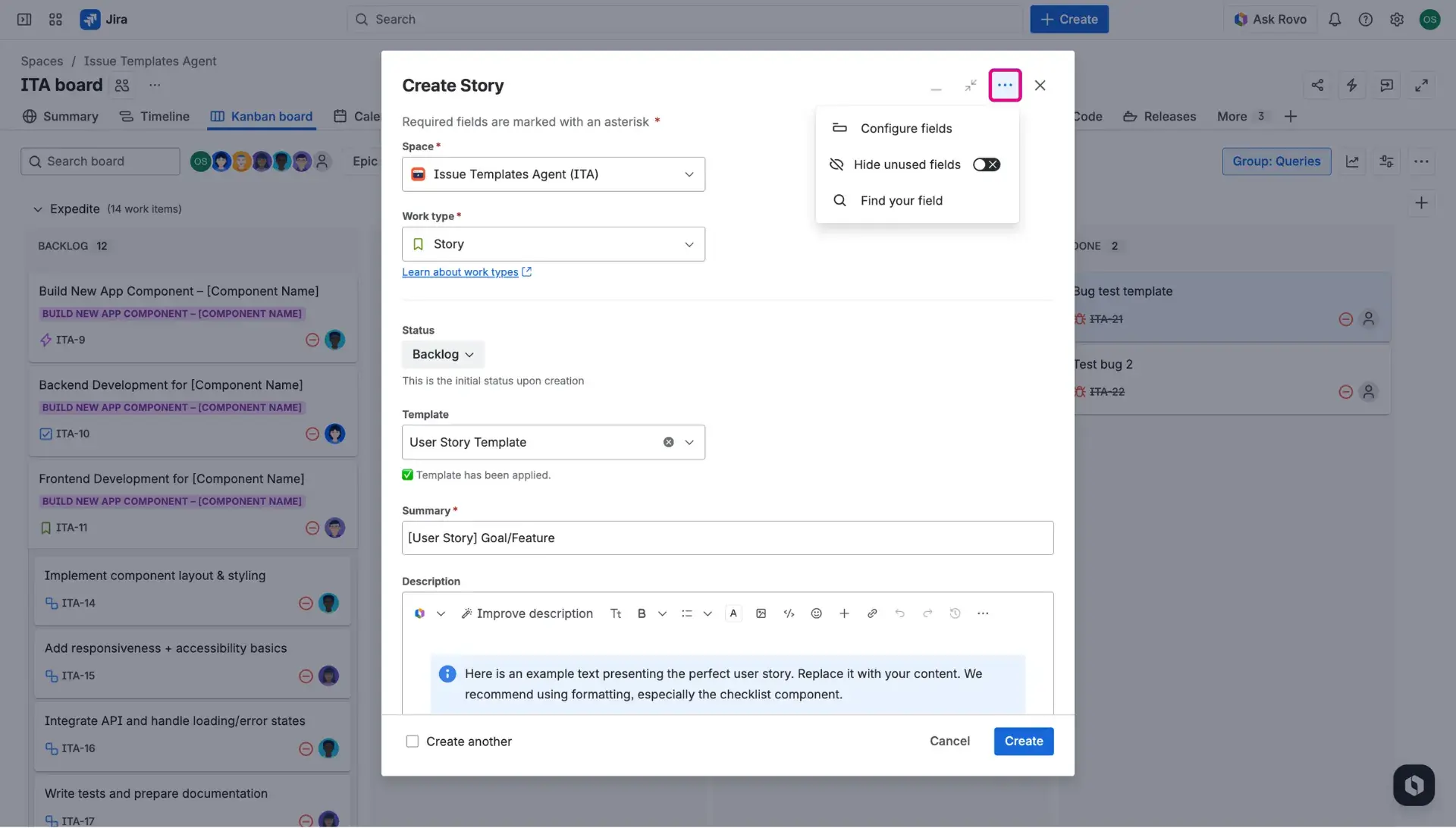
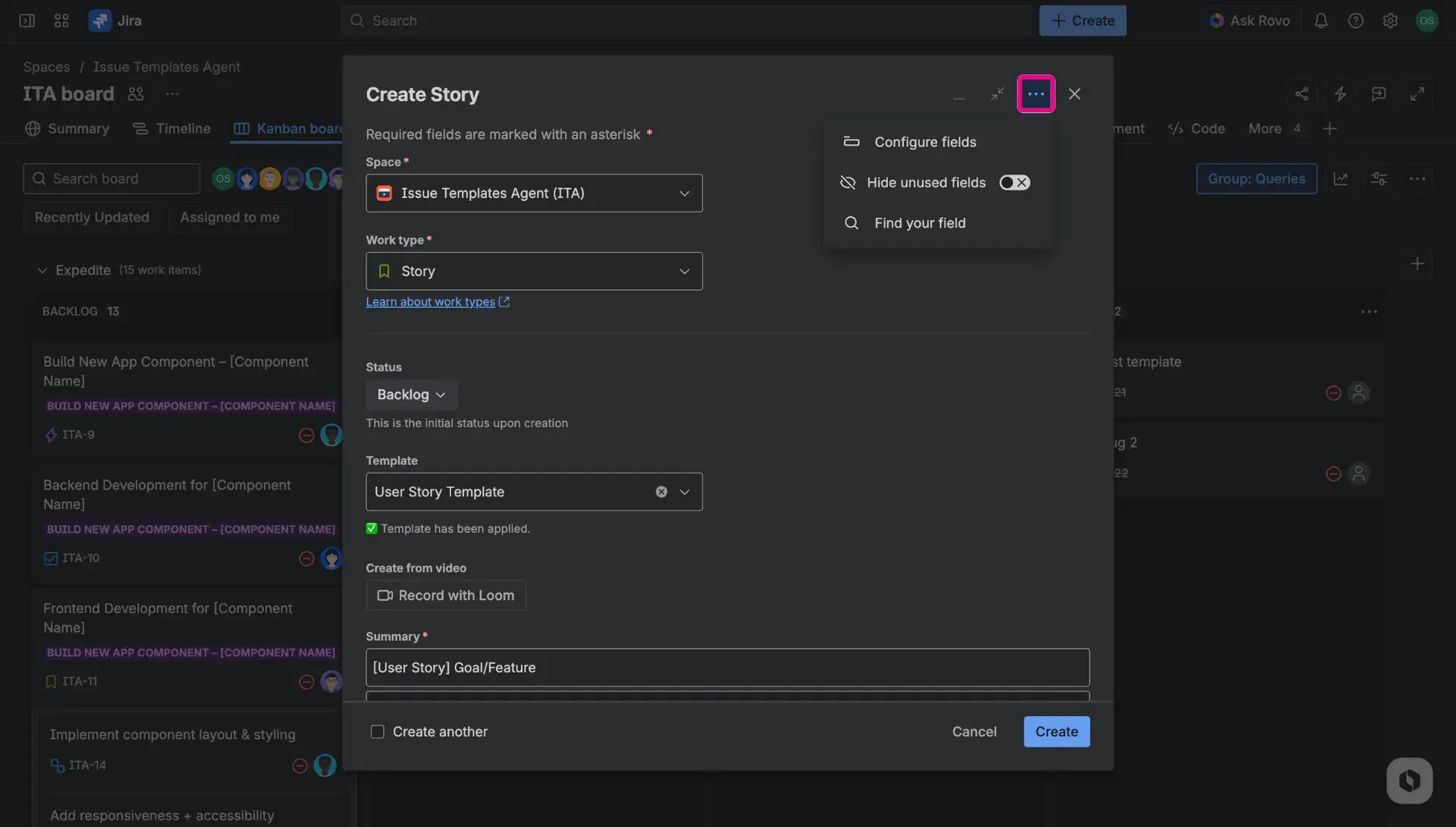
Is the field missing from the list?
If it is missing from this list, it has not been added to the project’s screen configuration yet.
Where the field appears
In the General settings tab, you can choose where the Jira ticket template appears:
- Create issue view: Shown when you create a new ticket.
- Issue view: Shown on existing tasks. This is helpful for updating the user story format or adding details to a bug.
- Transition screen: Shown when moving a task to a new status - for example, when adding a test plan example for the QA team.
For more details about applying templates across different scopes - visit this page.