Save templates as drafts
Saving Jira issue templates as drafts ensures that only fully prepared workflows are available to the organization. This feature allows for the steady development of a Jira ticket template or a complex hierarchy without showing incomplete information to other users.
Using drafts helps administrators maintain high standards. It ensures that a user story template or a technical task structure is perfect before it enters the production environment. Templates for work items, as well as templates for customer portal can be saved as drafts.
How to save templates as drafts?
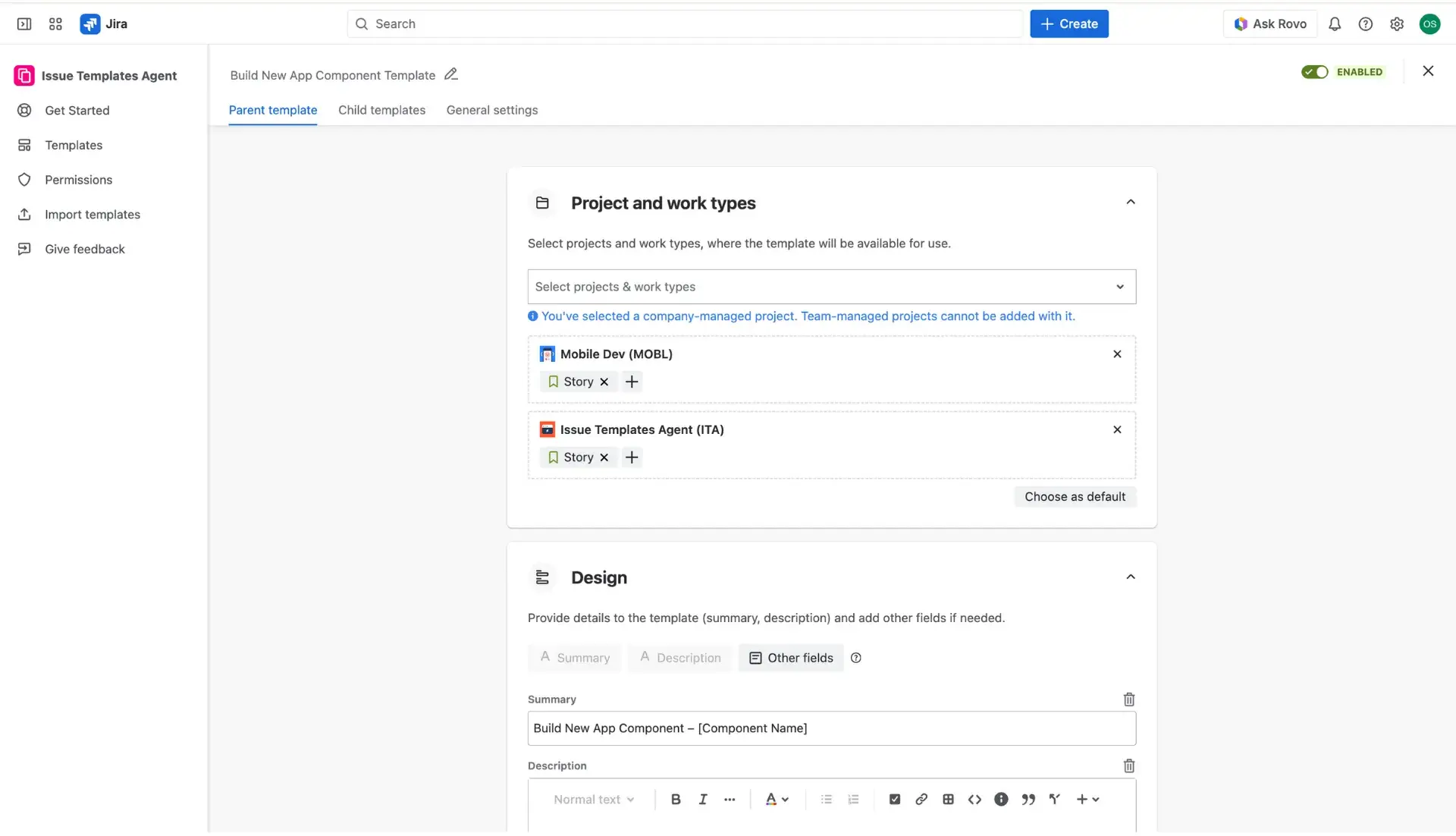
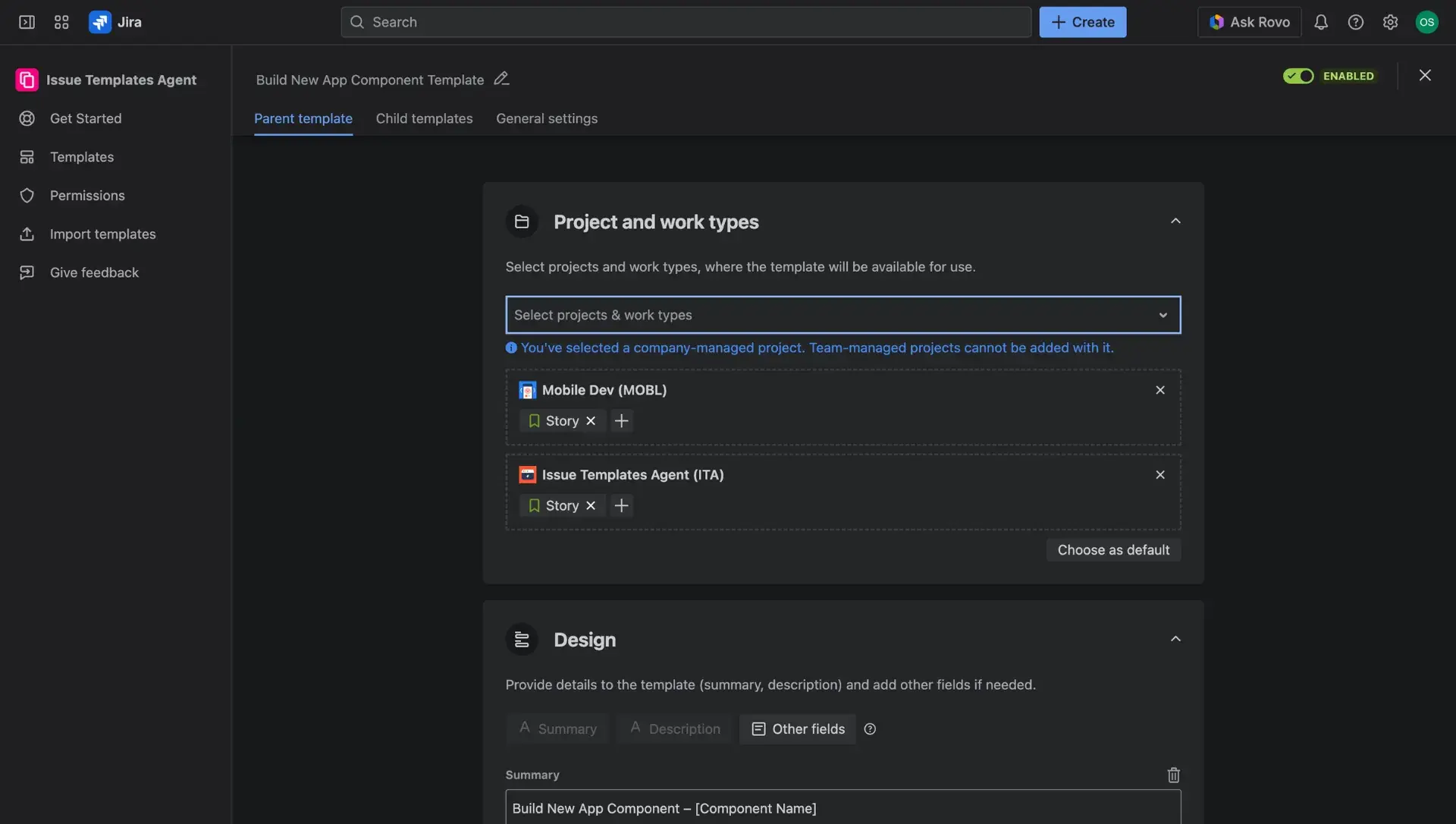
- Navigate to the Create template view within the Issue Templates Agent.
- Define the initial details, such as the template name, projects, and issue/work type.
- Fill the necessary fields with the required data.
- In order to save template as a draft, just switch the toggle in the top right corner to disabled.
- Save your template.
- When the template is ready for publishing, turn on the toggle. The state of this toggle can be changed at any time.
If the toggle is turned off and the issue template is in the Disabled mode - it will not be suggested for use in the Template field.