Basic
Basic structure is built for single-issue creation. It allows for the fast setup of a user story template jira or a bug report template without child issues. This option is perfect for standalone tickets that need a consistent Jira ticket template format to ensure data accuracy.
Remember
In order to configure and create templates, user must be logged in as a user with the Jira Administrators Global Permission. You can expand permissions for other users. Read more here.
How to configure a Basic template
- Access Issue Templates Agent by going into Apps and selecting the add-on.
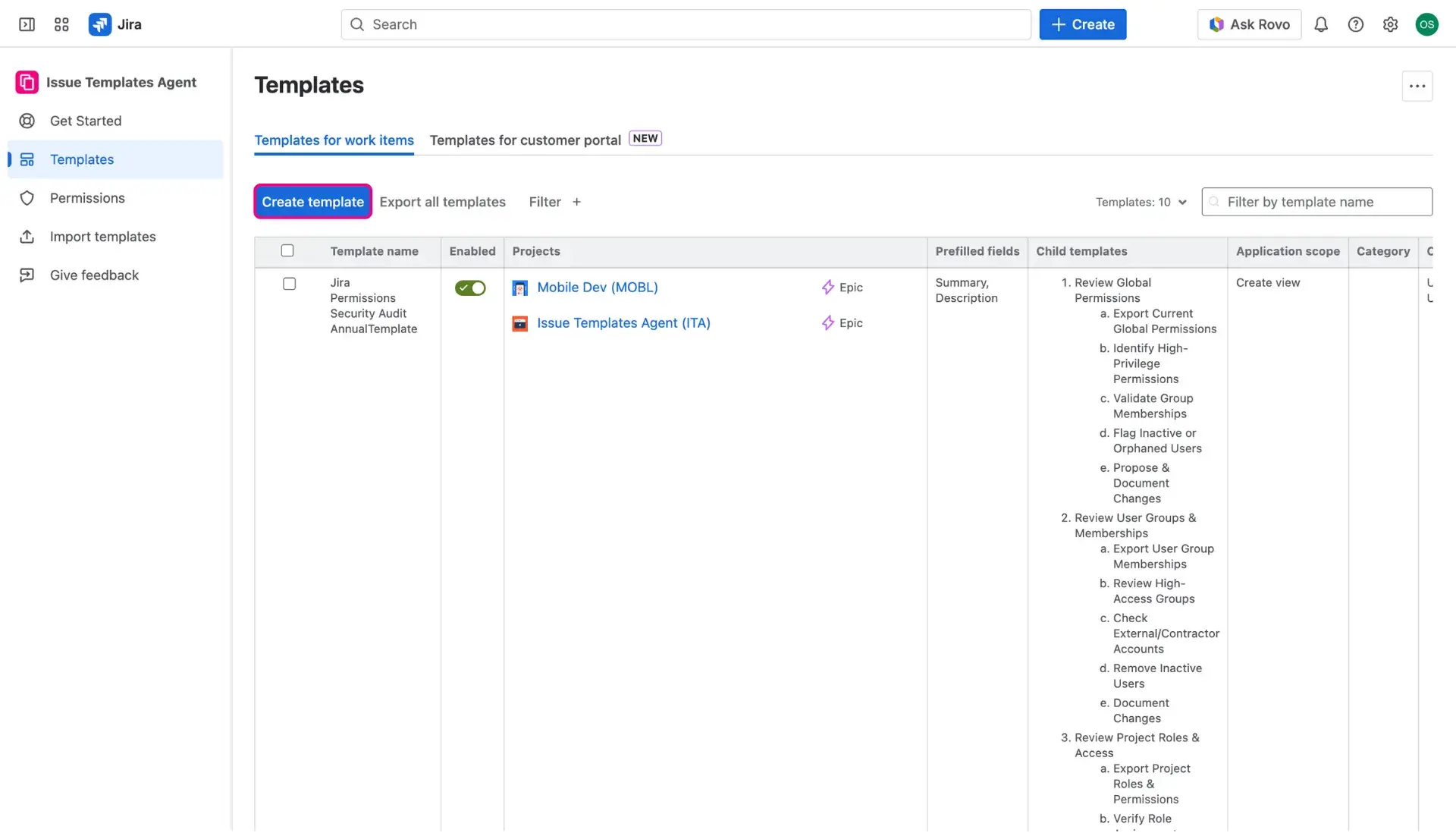
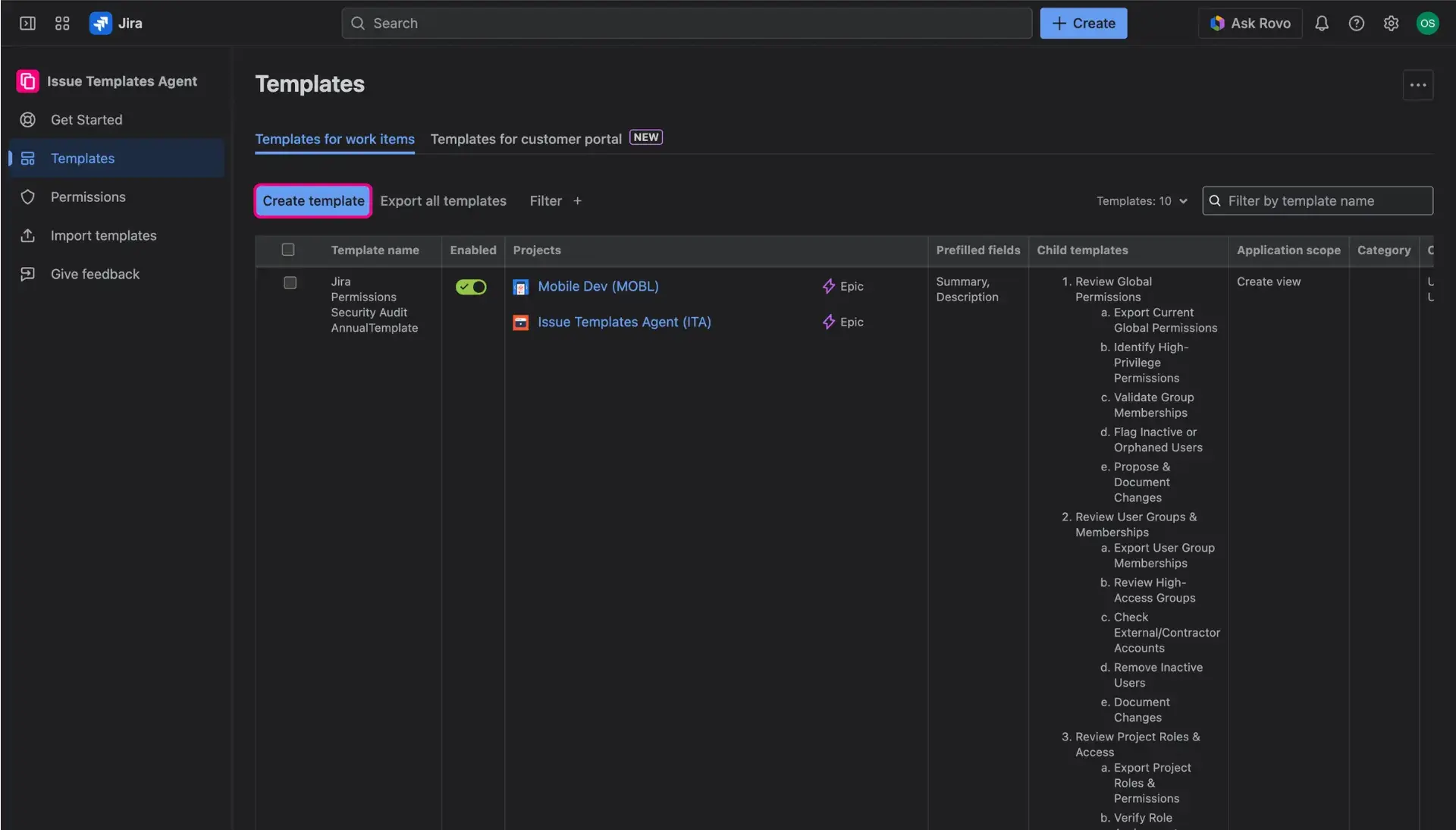
- In the Templates for work items tab, click Create template button, which is found right above the table.
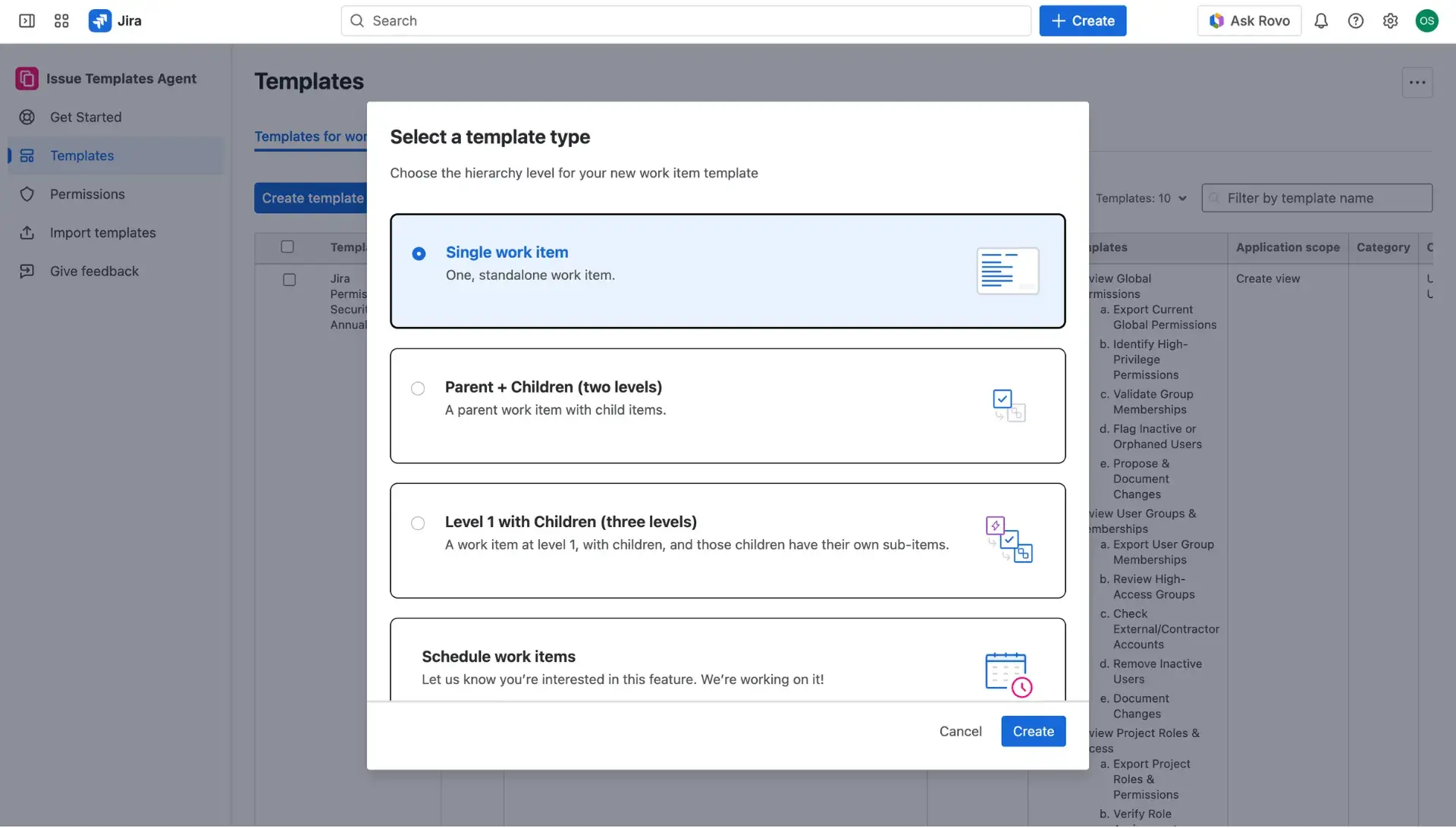
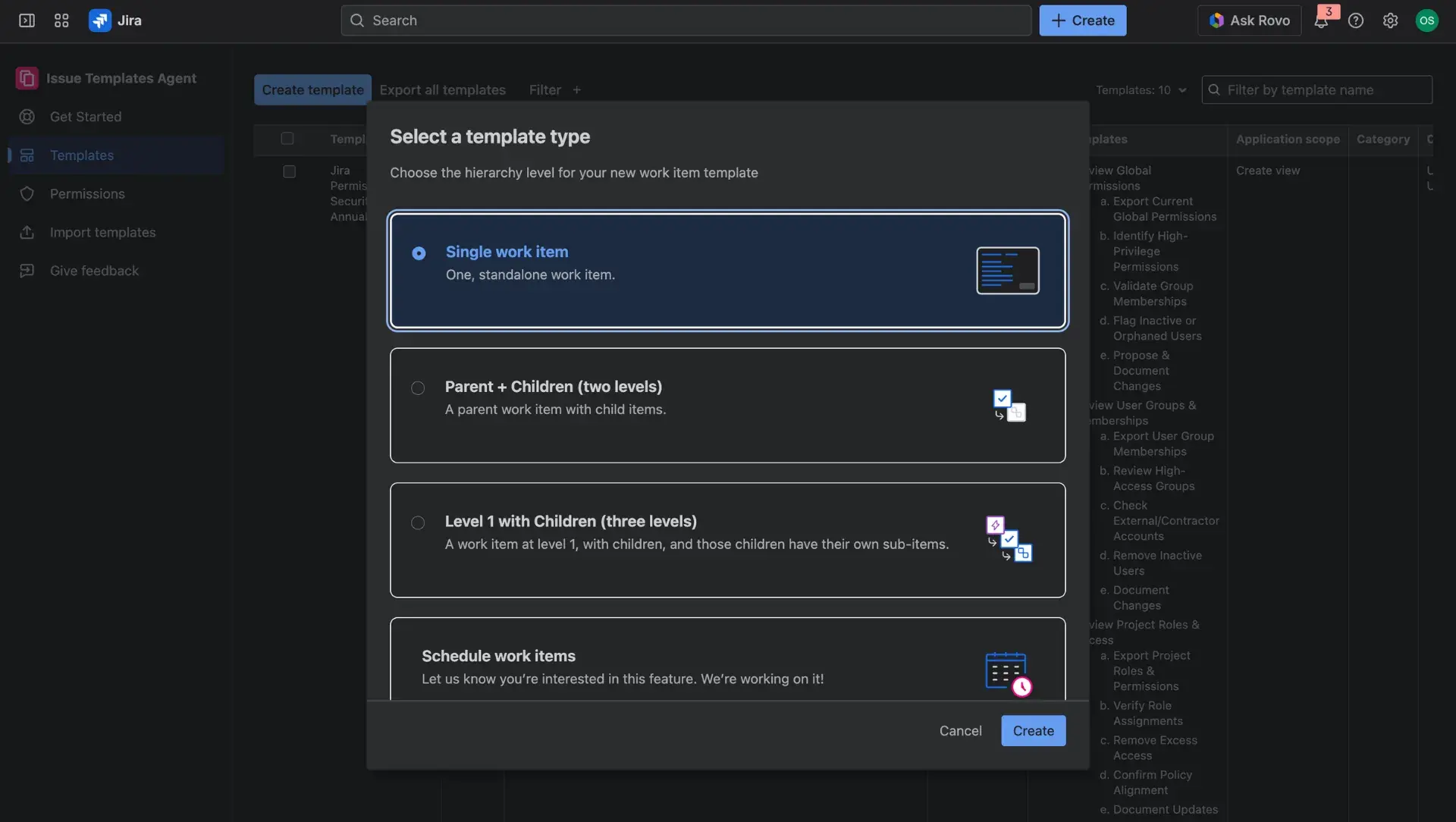
- In the new window select Single work item option.
- In the Parent template tab design the template:
- (required) Add a name of the template.
- This name will show up as an option for selection in the Template field.
- Select Project(s) where the template will be used.
- Choose an issue/work type available in selected project.
- You can set the template as default in defined project and issue type.
- (required) Add a name of the template.
How does setting a default template work?
If the box next to the project and issue type in ticked off, the default template will be applied on the Create issue screen immediately after selecting the issue type.
Thanks to this, the user won’t have to select it manually.
If you have already set a default template somewhere else, selecting a checkbox here will override the previous configuration.
- You can enable/disable each template for use with a toggle in the top right corner.
- Disabling the template means that it won’t show up in Create issue view.
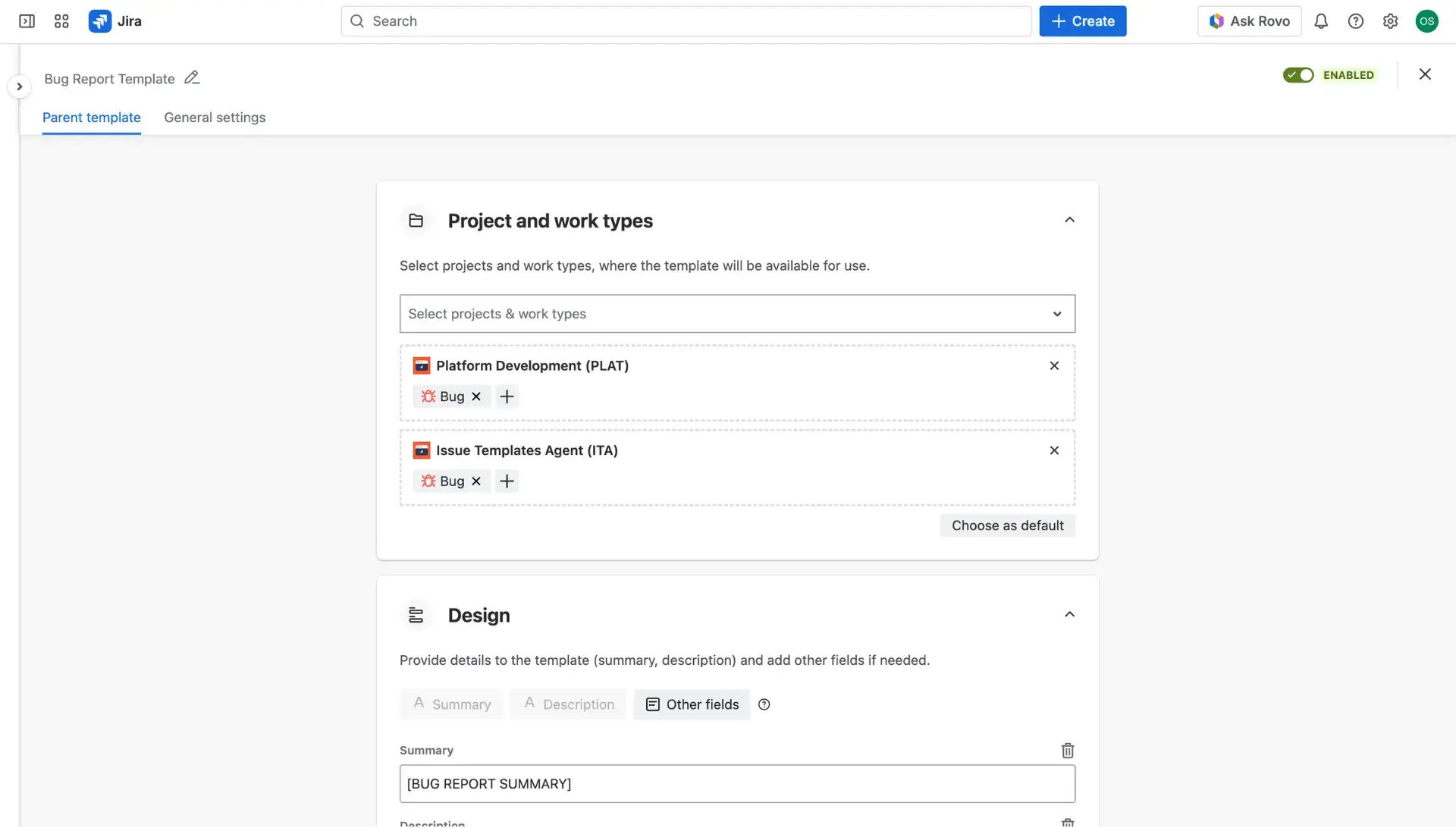

If you need more fields in your template, you can configure them in the Other fields section. Check out which fields are supported here.
In the General settings tab, users can configure: template description, application scope, restrictions and define a category.
- Template scope: three application scopes can be selected - Create view, Transition view, Issue/Work item view - learn more about template scopes here.
- Template restrictions: the access to the Issue Templates Agent and templates can be limited to specific users and users group by selecting them in the dropdown menus - for more details about template restrictions, visit this page.
- Category: for better organization and transparency, templates can be assigned a category, which will be visible in the Template library table. Find out more about the library here.
Once finished, save the template.


Ready to use templates in practice?
With all of the basics covered, it’s best to move to practice immediately. Learn how to start using the created templates here.