Advanced
Advanced structure provides full project visibility by supporting a three-level hierarchy. Starting with a Jira epic template, this setup automatically generates the associated stories or tasks and their subtasks. By using Jira project templates with this depth, complex initiatives stay organized, and every template application results in a complete work structure.
How to configure Advanced template
- Access Issue Templates Agent by going into Apps and selecting the add-on.
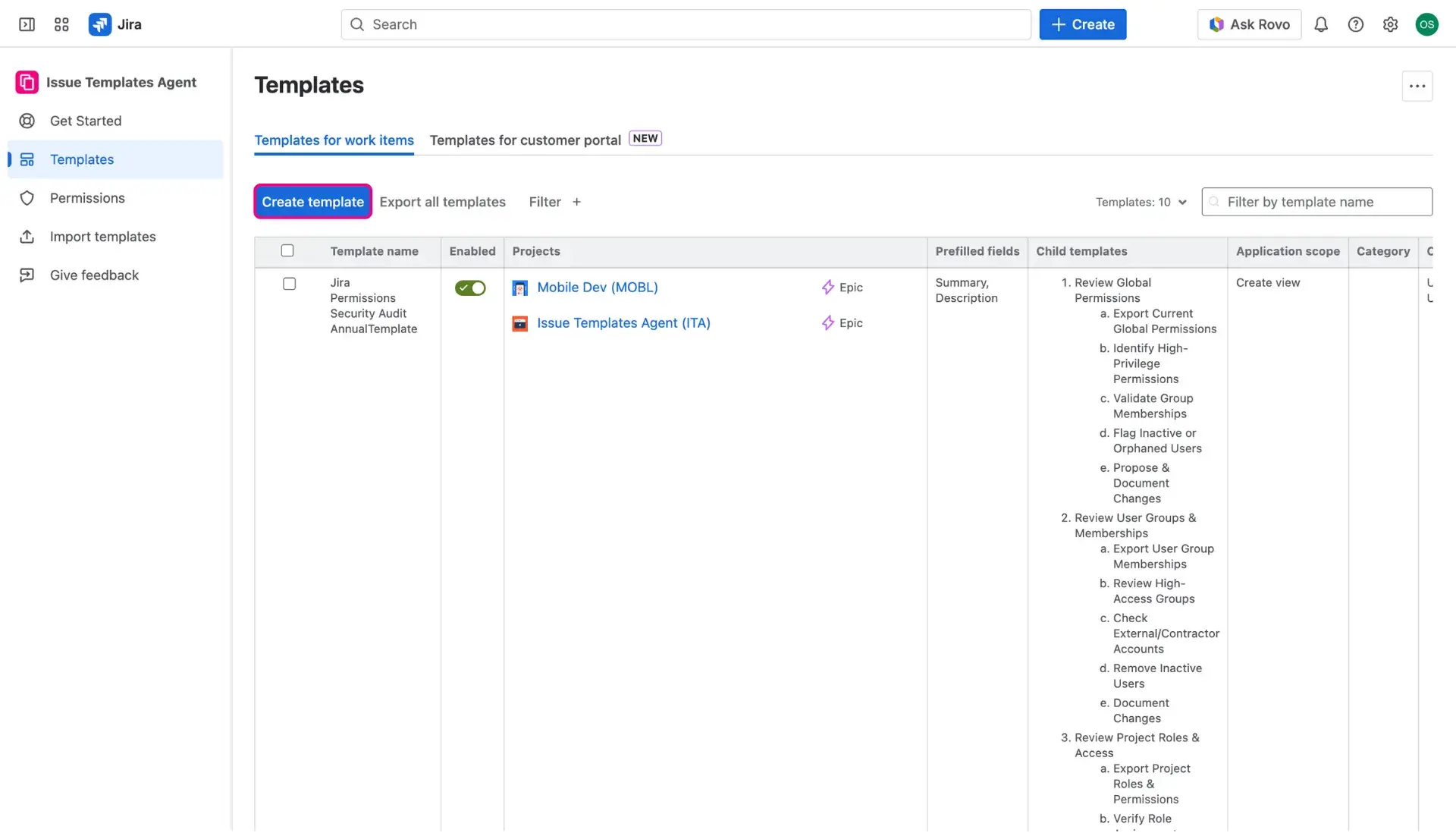
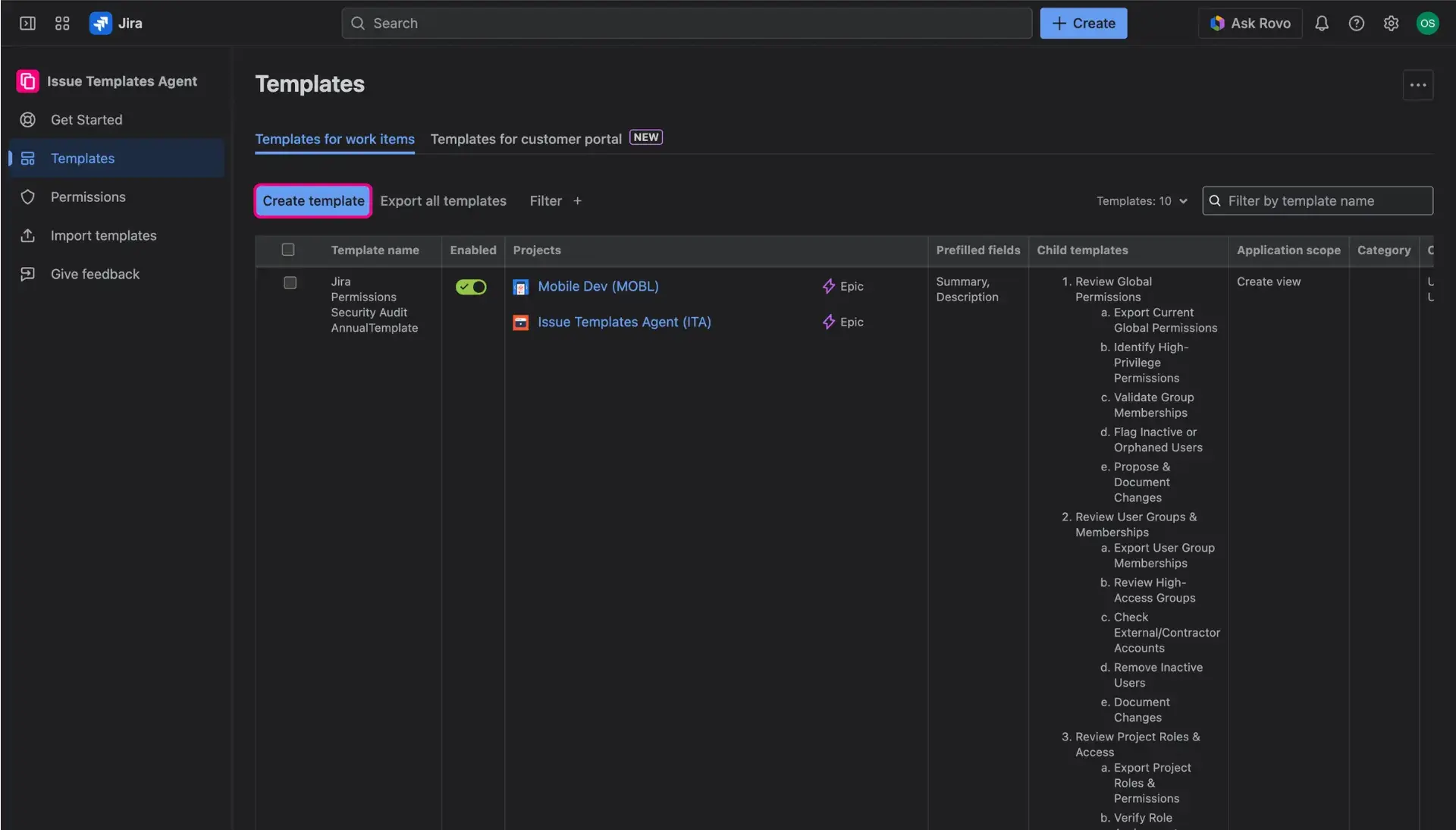
- In the Templates for work items tab, click Create template button, which is found right above the table.
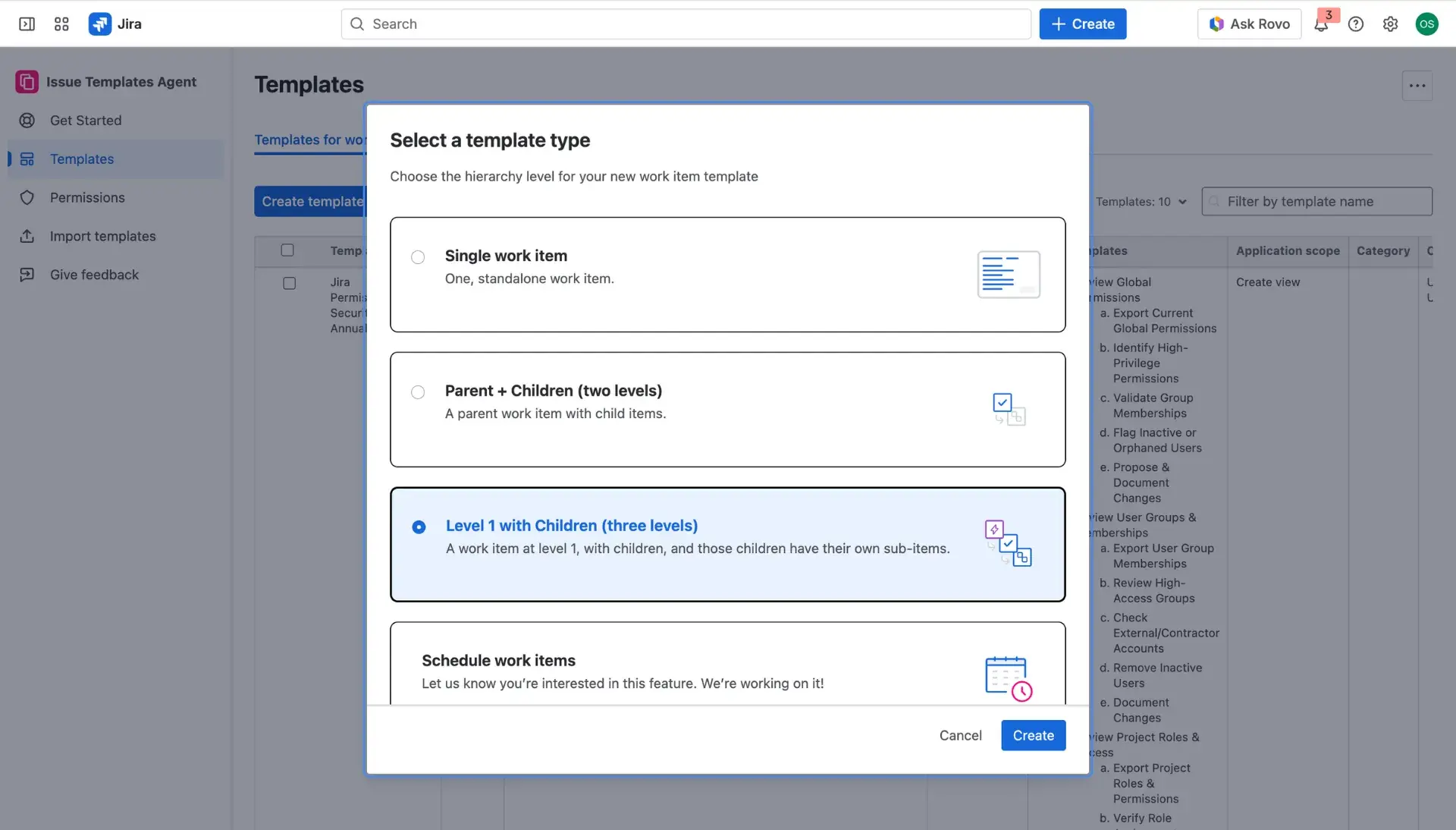
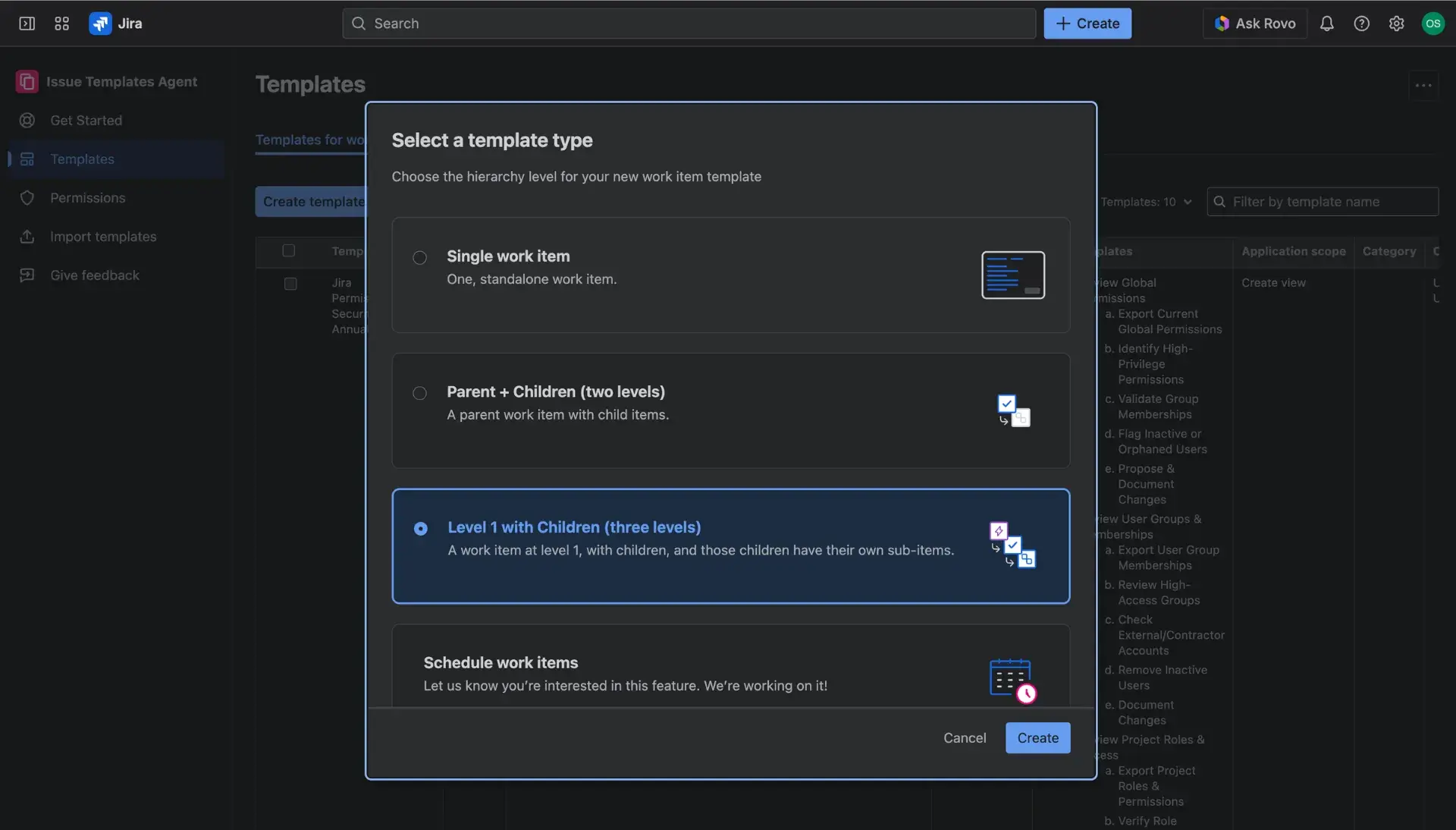
- In the new window select Level 1 with Children.
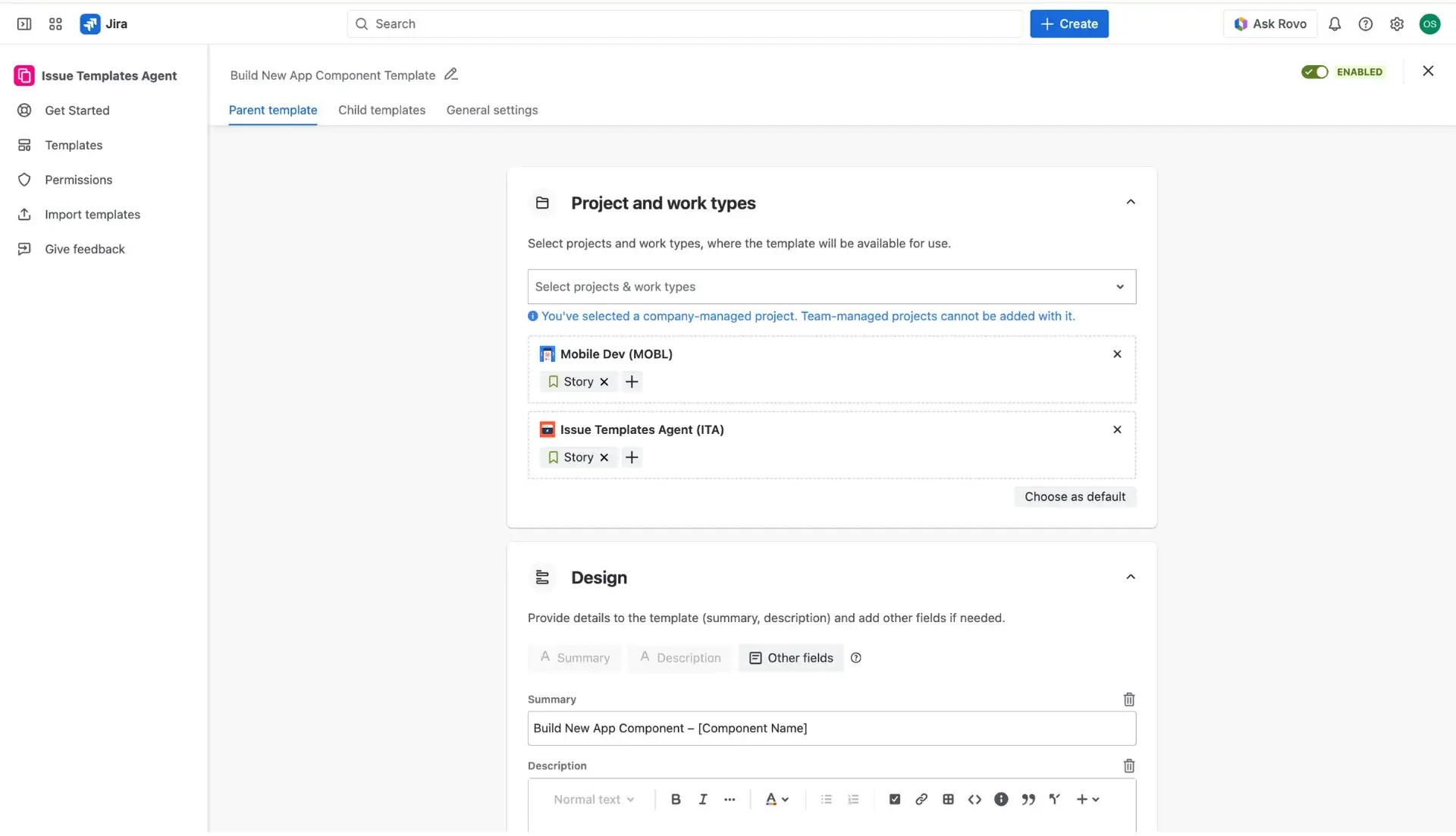
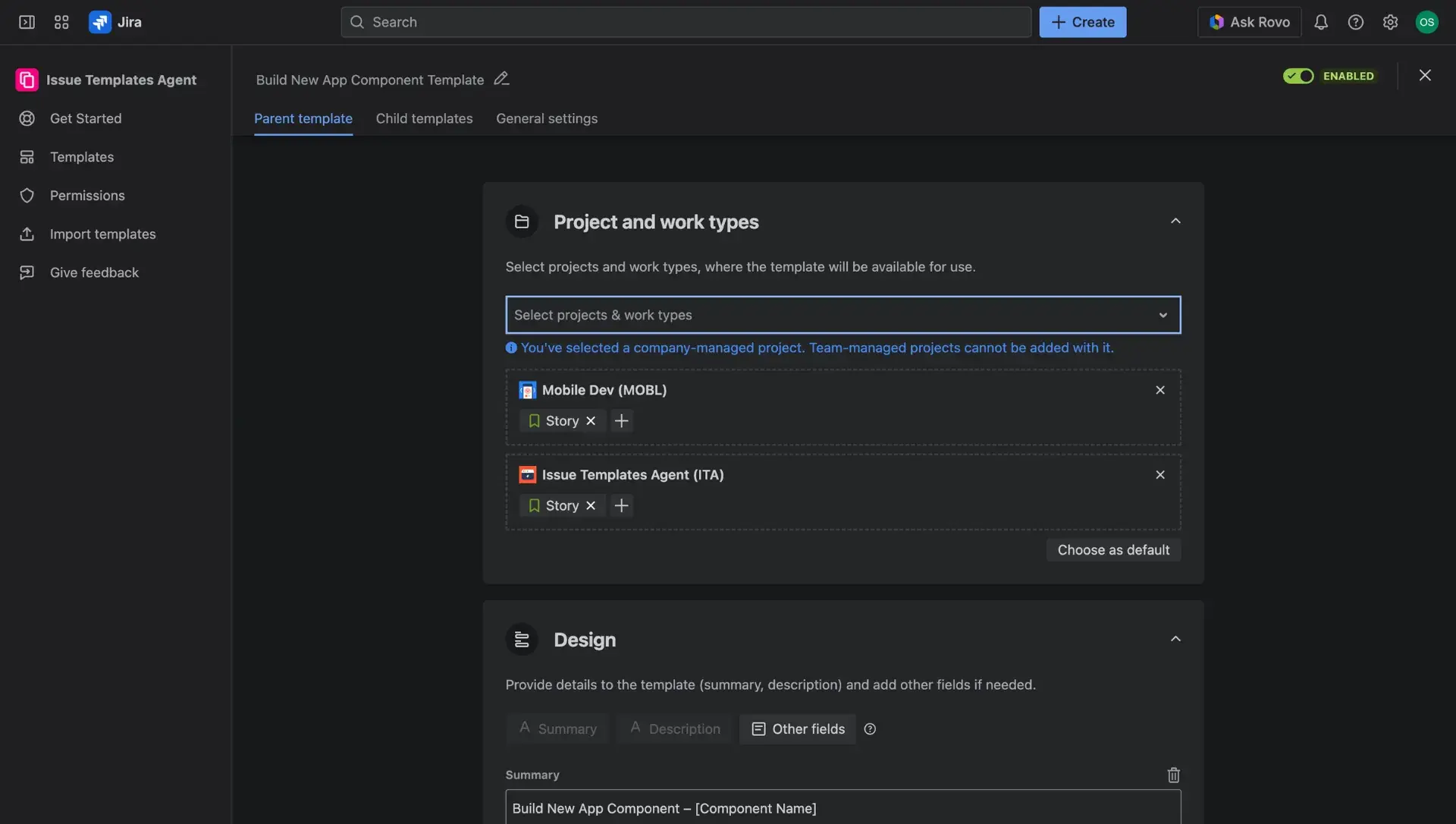
The new page, in the Parent and Child templates tabs, allows you to configure the 3 levels of a template.
- Switch between the tabs to configure both levels.
- Child templates can be configured once project and issue type have been added to the Parent template.
For the Parent template:
- Select a project and issue type.
- Here, issue type scope will always be the ones defined as level +1.
- The template cn be set as default in defined project and issue type - applicable only for the Parent template.
- Each template can be enabled/disabled for use with a toggle in the top right corner - applicable only for the Parent template.
- Disabling the template means that it won’t show up in Create issue view.
- Configure the necessary and any additional fields that are to be included in the template.
- Once the parent template is configured, switch to the Child template tab.
- Select a project and issue type.
- For the Child template and the Subtemplates:
- In the Child template tab, click the Add template button and configure the template in the dialog window.
- Select a project and issue type.
- Configure the necessary and any additional fields that are to be included in the template.
- For Child templates, the Summary field is required, as it is necessary for the creation of a new issue. Additionally, the list of supported fields is extended, in comparison to the Parent templates. For more details regarding supported fields, visit this page.
- In the Child template tab, click the Add template button and configure the template in the dialog window.
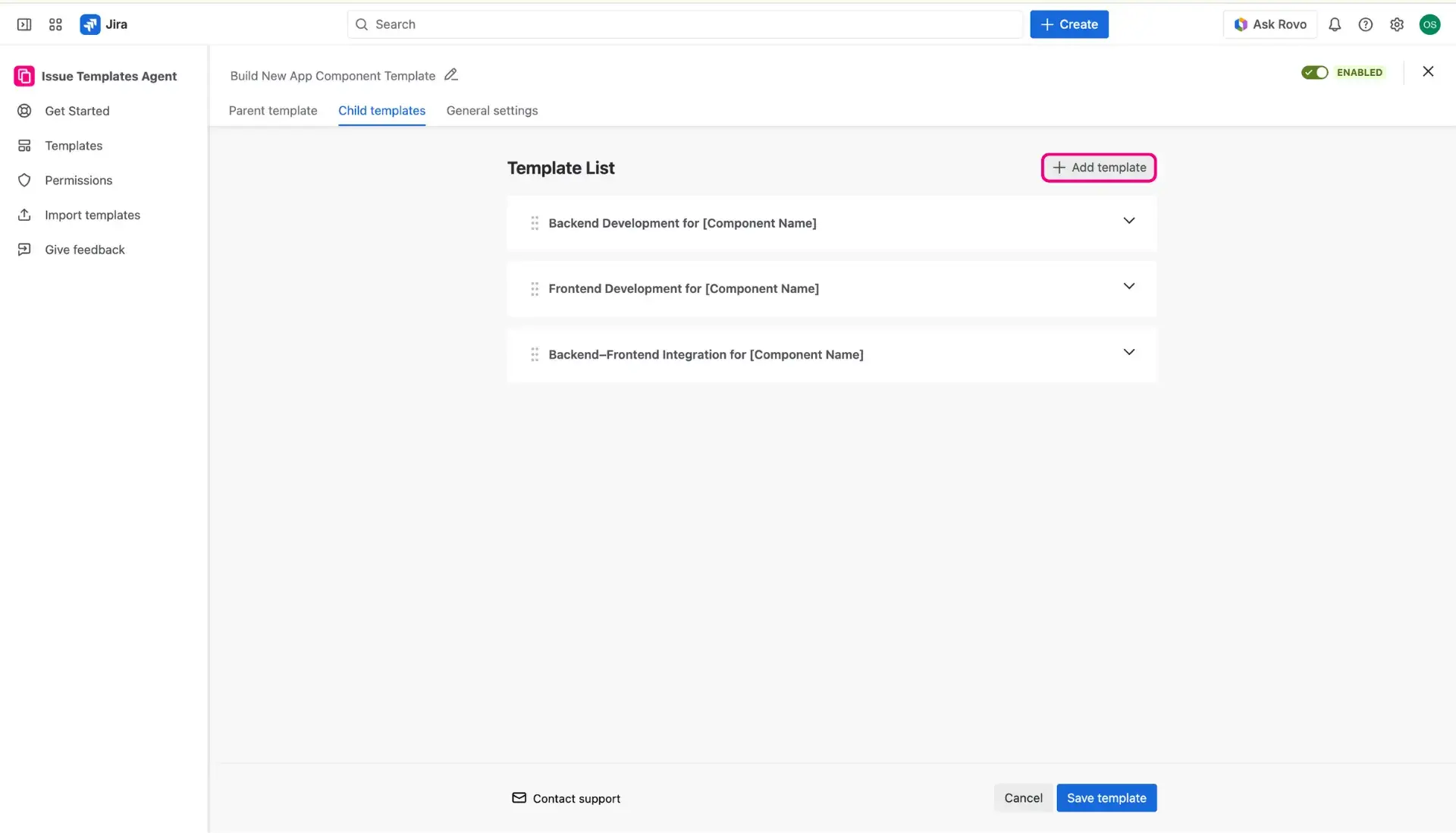
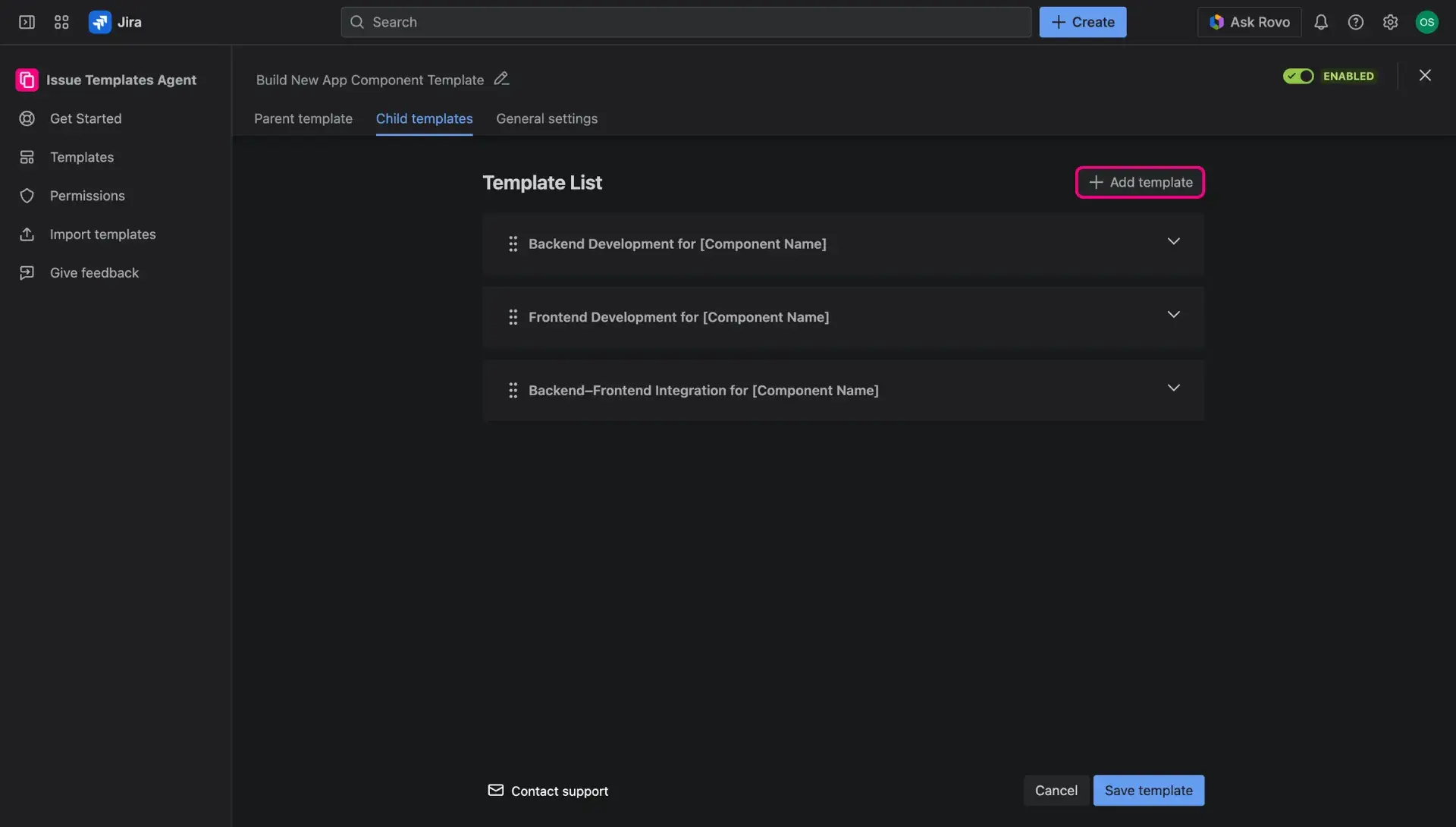
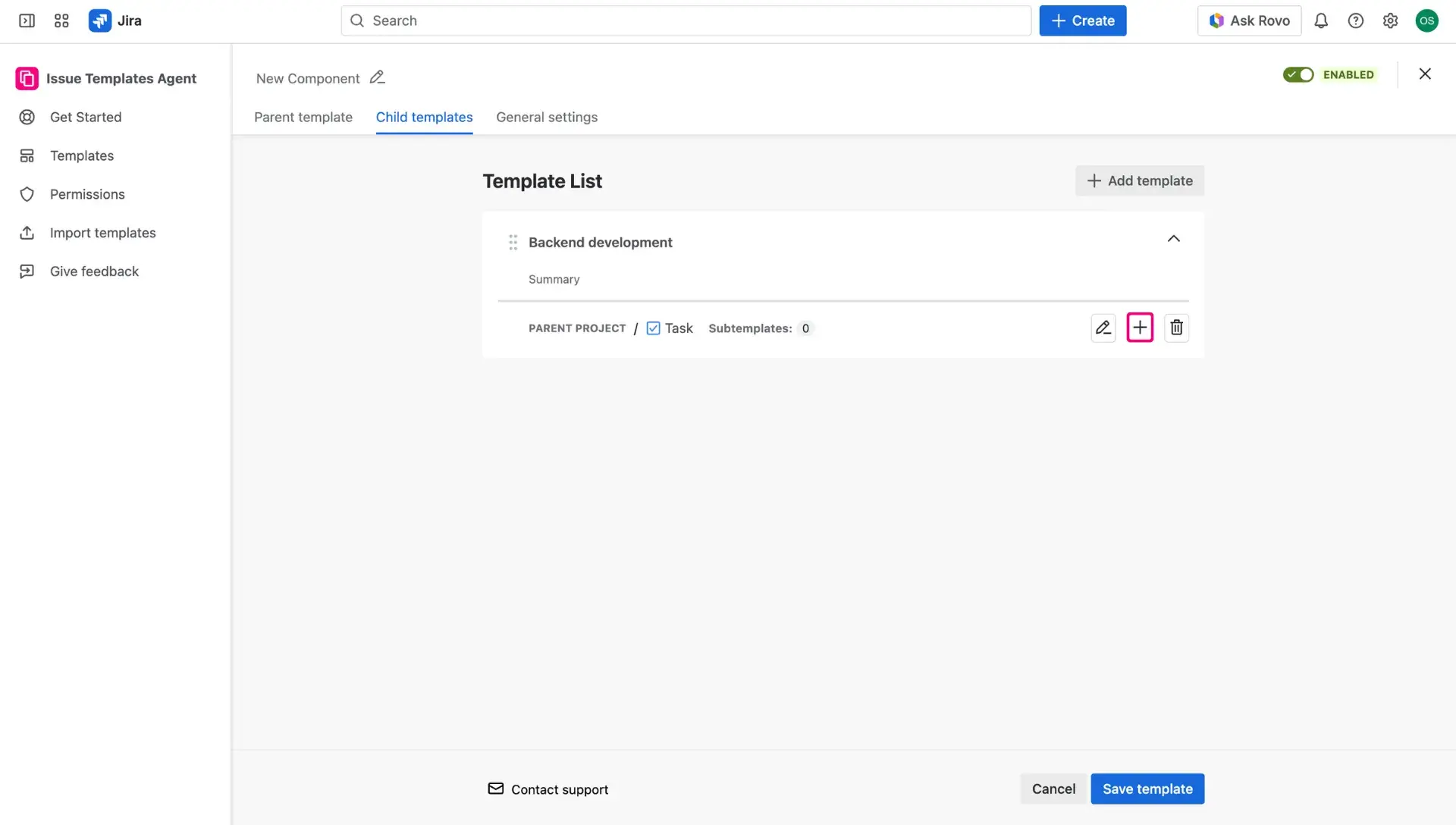
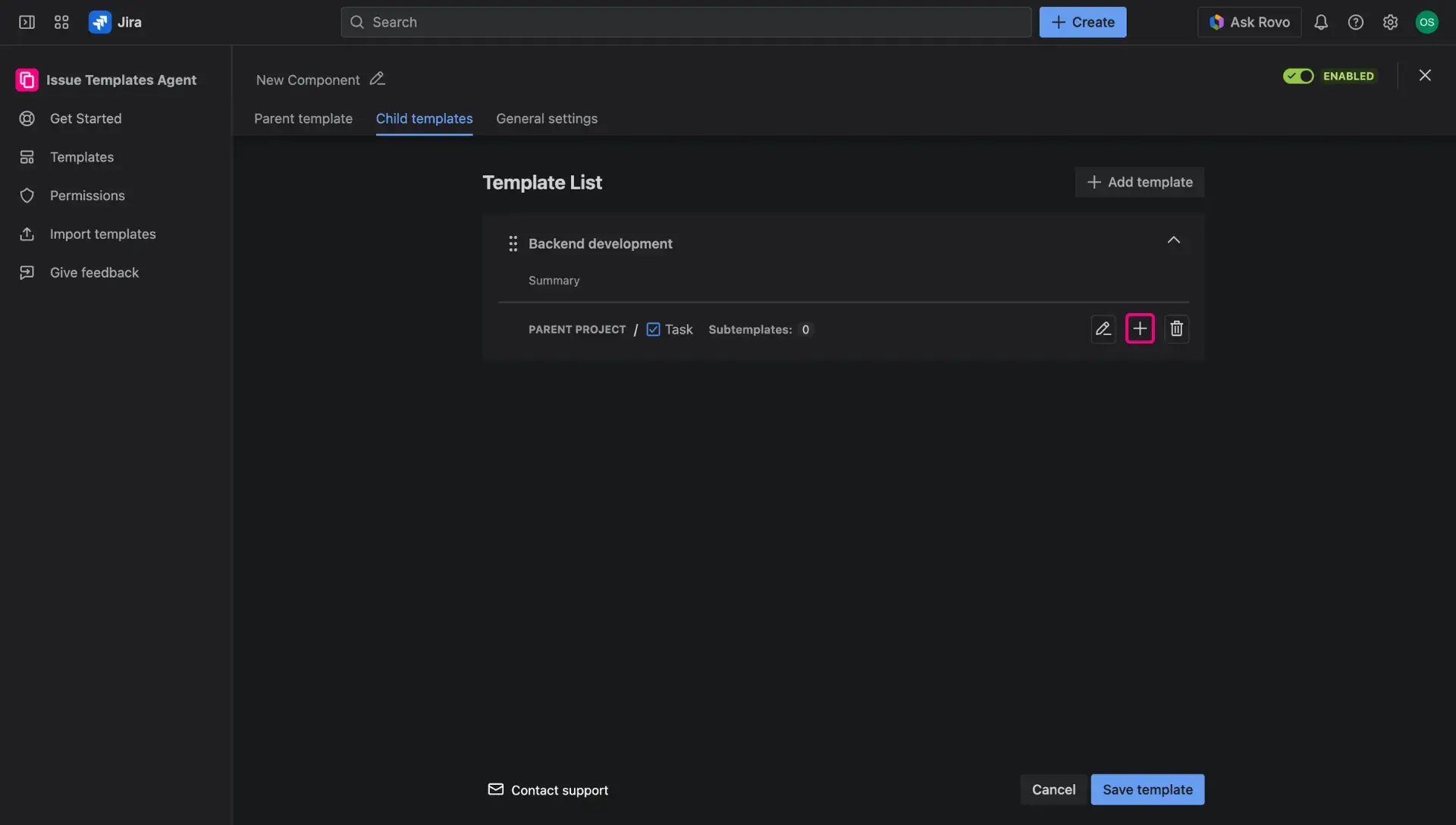
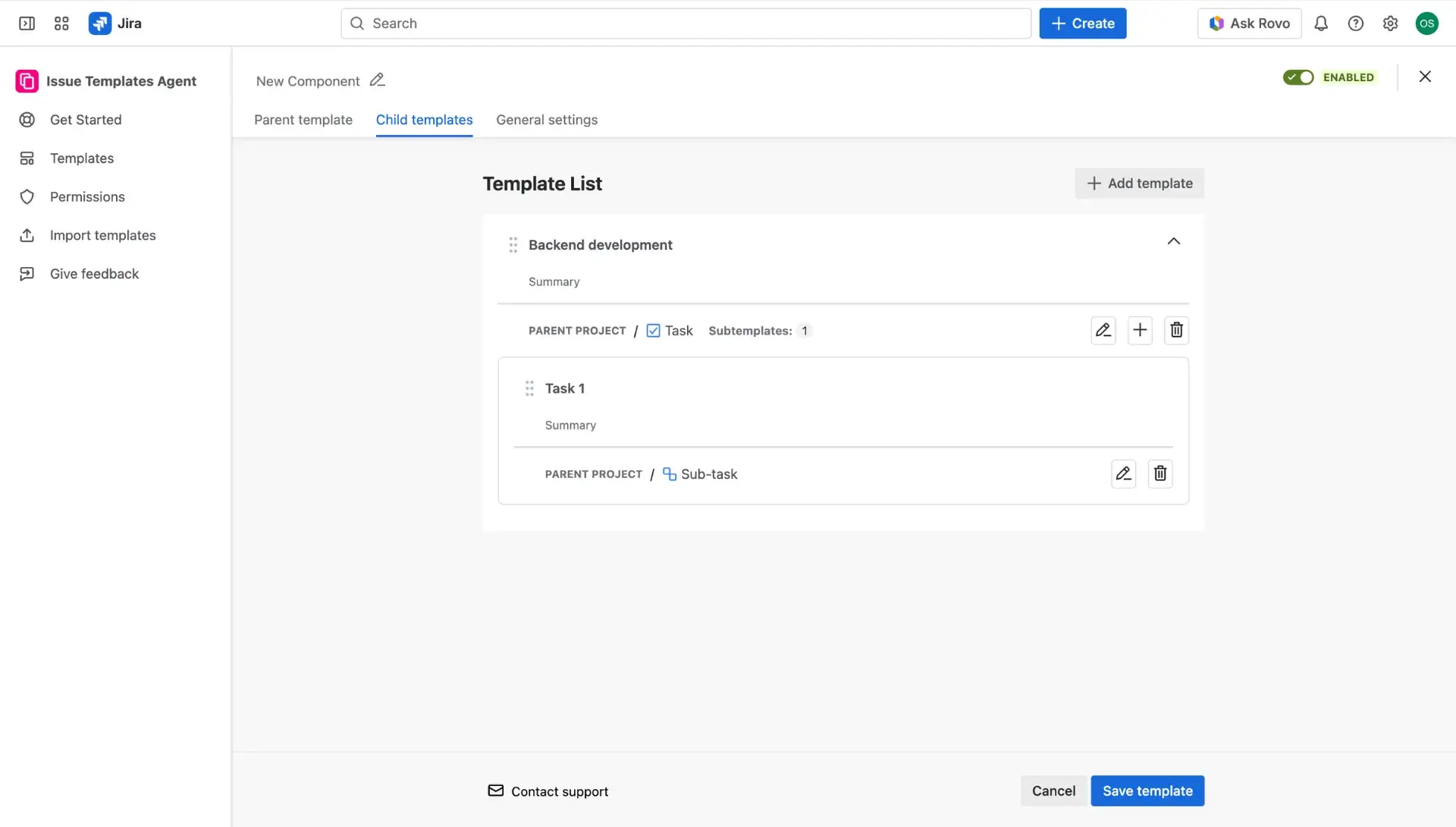
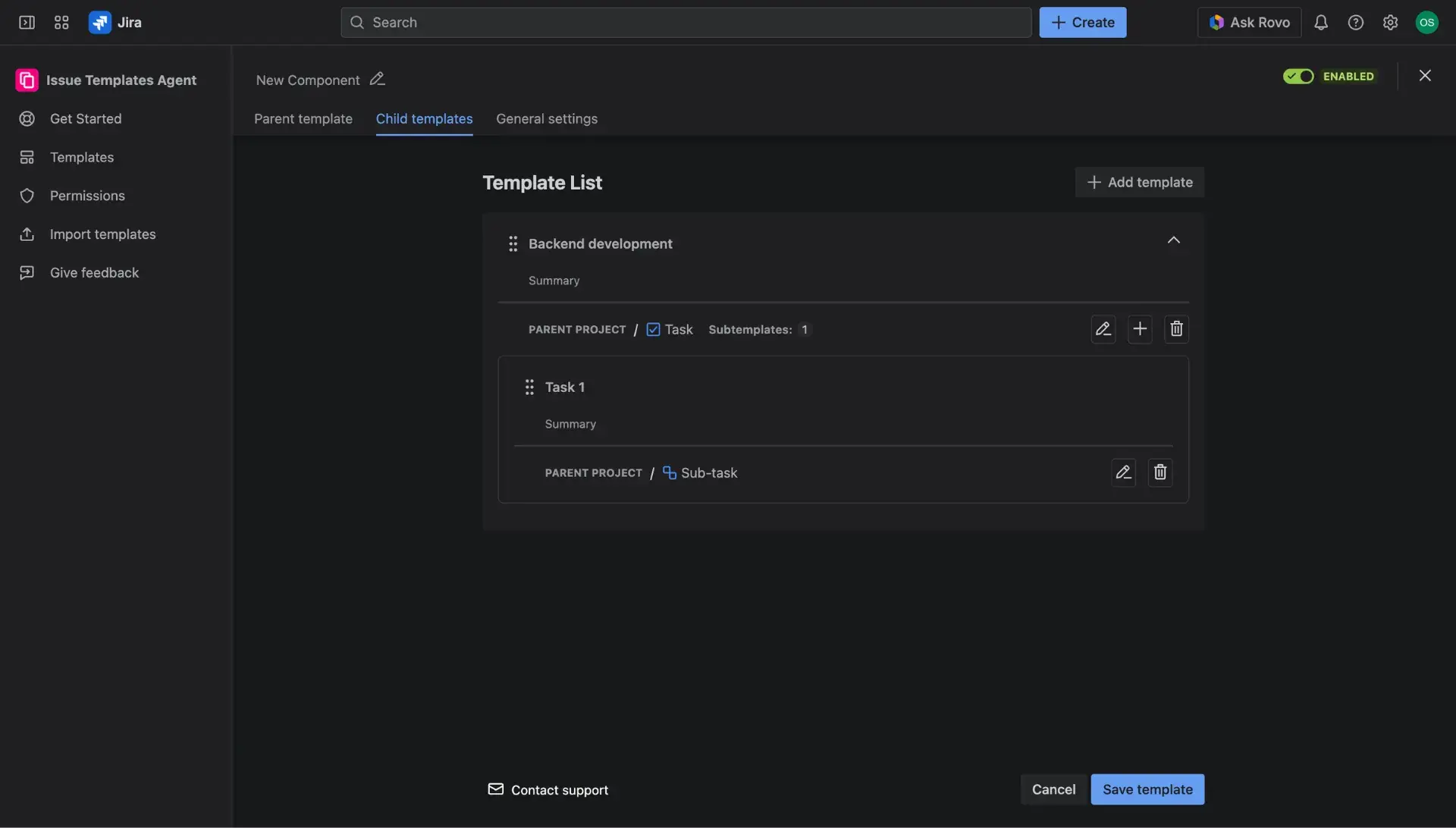
- Once finished, within the Child template, click Add a subtemplate button (plus sign) to add to the structure template at the 3rd level.
- The created subtemplate will be visible in the Templates list.
- In order to add another sublevel template, click on the plus button in the menu, visible in Child template card.
- Once configured, click on the Save as subtemplate button.
How does setting a default template work?
If the box next to the project and issue type in ticked off, the default template will be applied on the Create issue screen immediately after selecting the issue type.
Thanks to this, the user won’t have to select it manually.
If you have already set a default template somewhere else, selecting a checkbox here will override the previous configuration.
- In the General settings tab, users can configure: template description, application scope, restrictions and define a category.
- Template scope: three application scopes can be selected - Create view, Transition view, Issue/Work item view - learn more about template scopes here.
- Template restrictions: the access to the Issue Templates Agent and templates can be limited to specific users and users group by selecting them in the dropdown menus - for more details about template restrictions, visit this page.
- Category: for better organization and transparency, templates can be assigned a category, which will be visible in the Template library table. Find out more about the library here.


- Once finished, save the template.
Ready to use templates in practice?
With all of the basics covered, it’s best to move to practice immediately. Learn how to start using the created templates here.