Bulk edits
Managing a growing library of Jira issue templates requires a streamlined approach to maintenance. Bulk Edit functionality allows administrators to implement widespread changes across multiple templates simultaneously, eliminating the need for repetitive manual updates.
Permission required
For this functionality, users need the Bulk edit permission. For more details, visit this page.
How to make bulk edits?
- Select Apps, go into Issue Templates Agent > Templates page to access the Template library.
- Choose templates which require changes and tick off the checkboxes in the first column.
- Once you select at least one template, the Bulk edit button will appear at the top of the table.
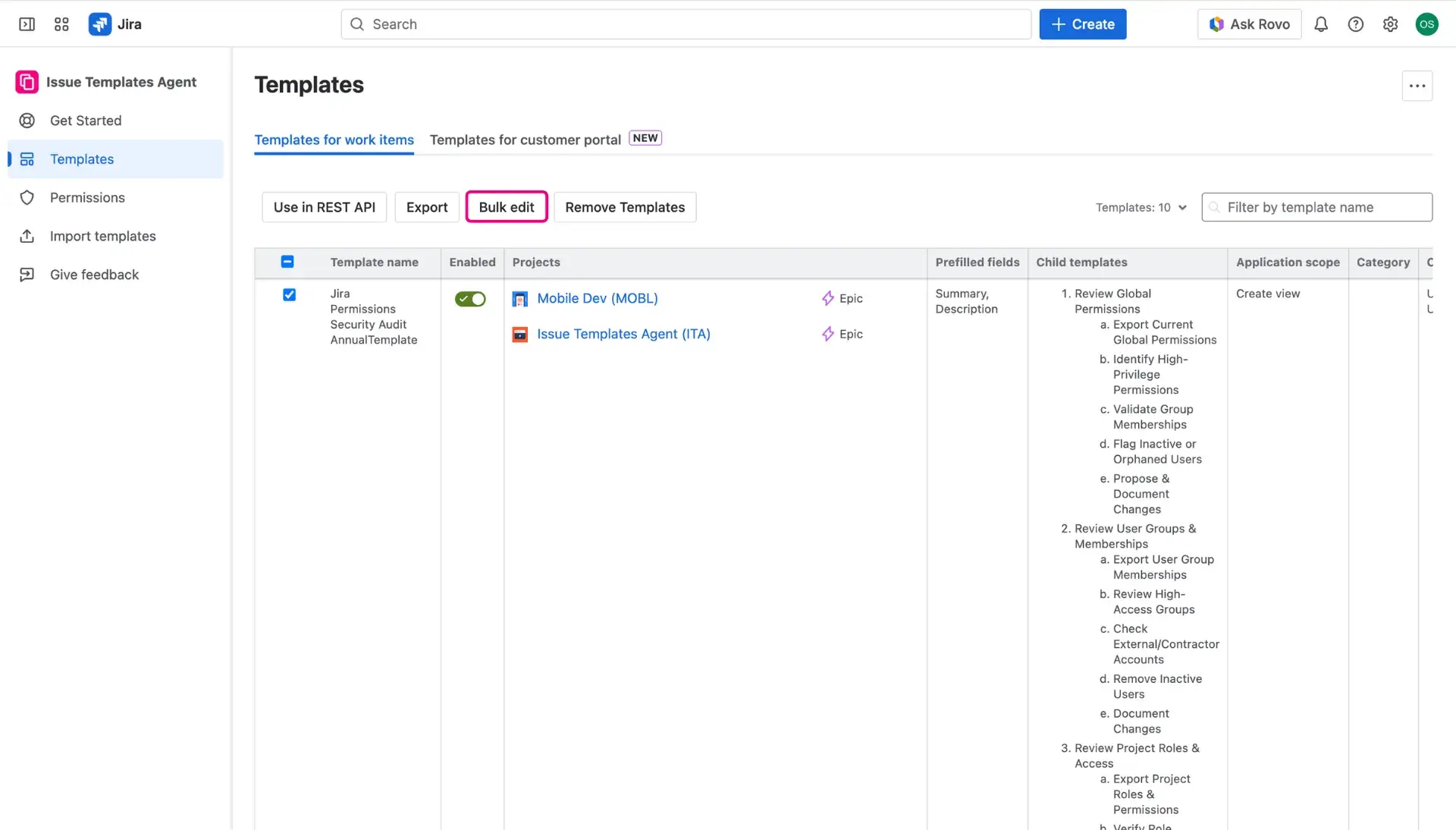
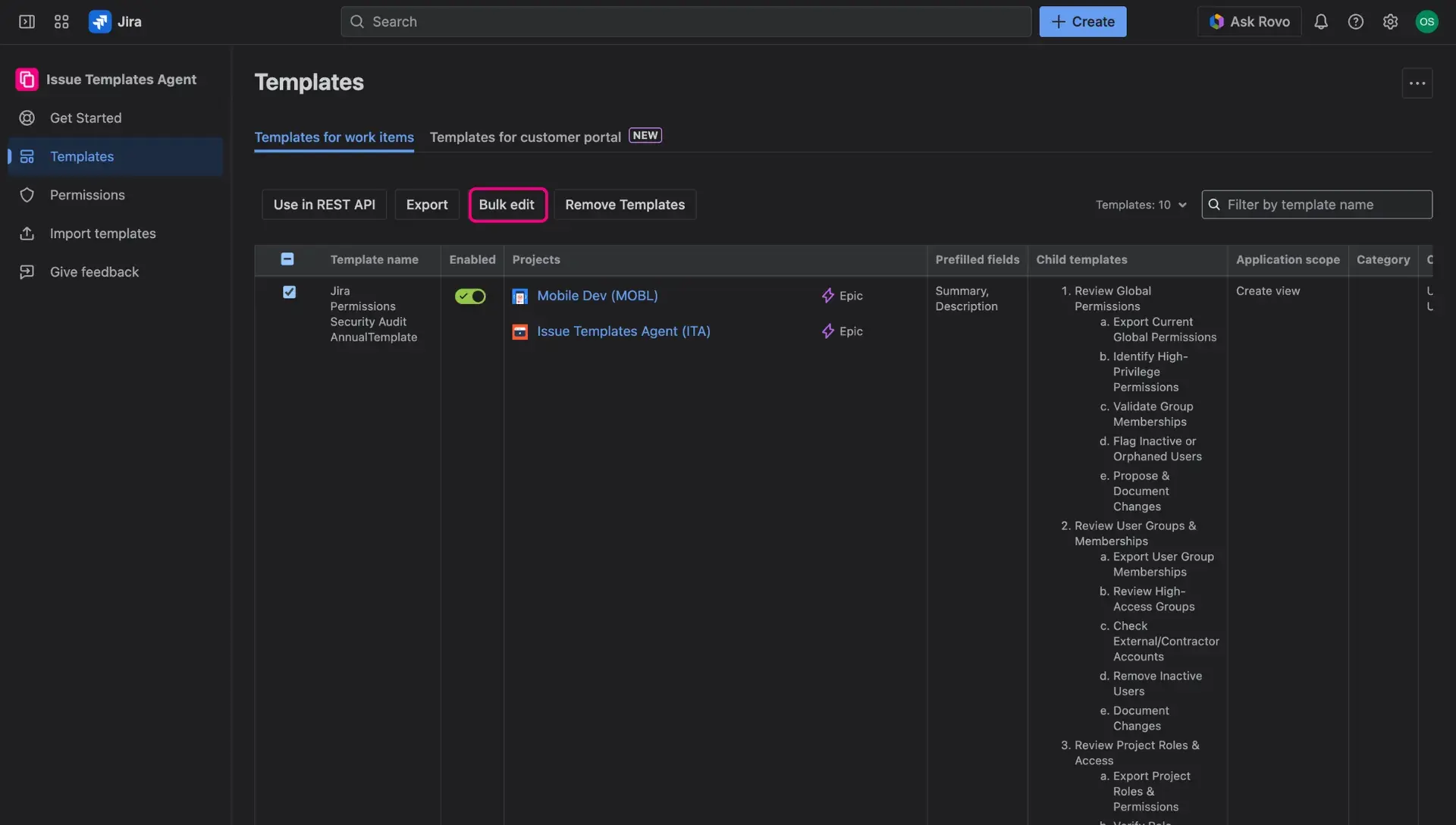
- After clicking the button, a new window will open where you can finish configuration of the changes.
- First select the templates from the list and approve with the button below.
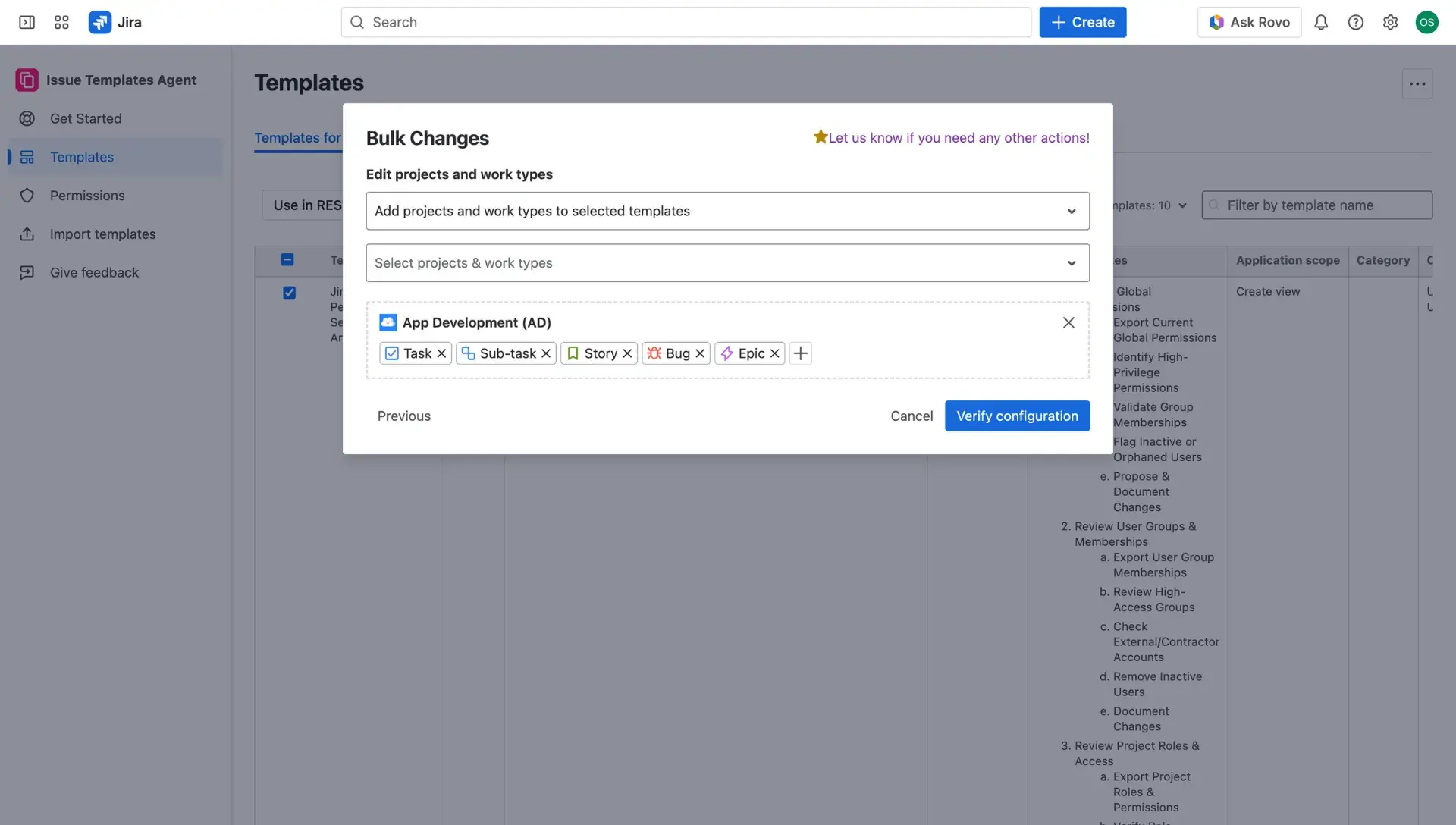
- Decide whether you want to add or remove projects and issue types from selected templates - choose an appropriate option in the dropdown menu.
- Select the projects and issue types, and add them to the list.
- Verify the configuration changes with the button below.
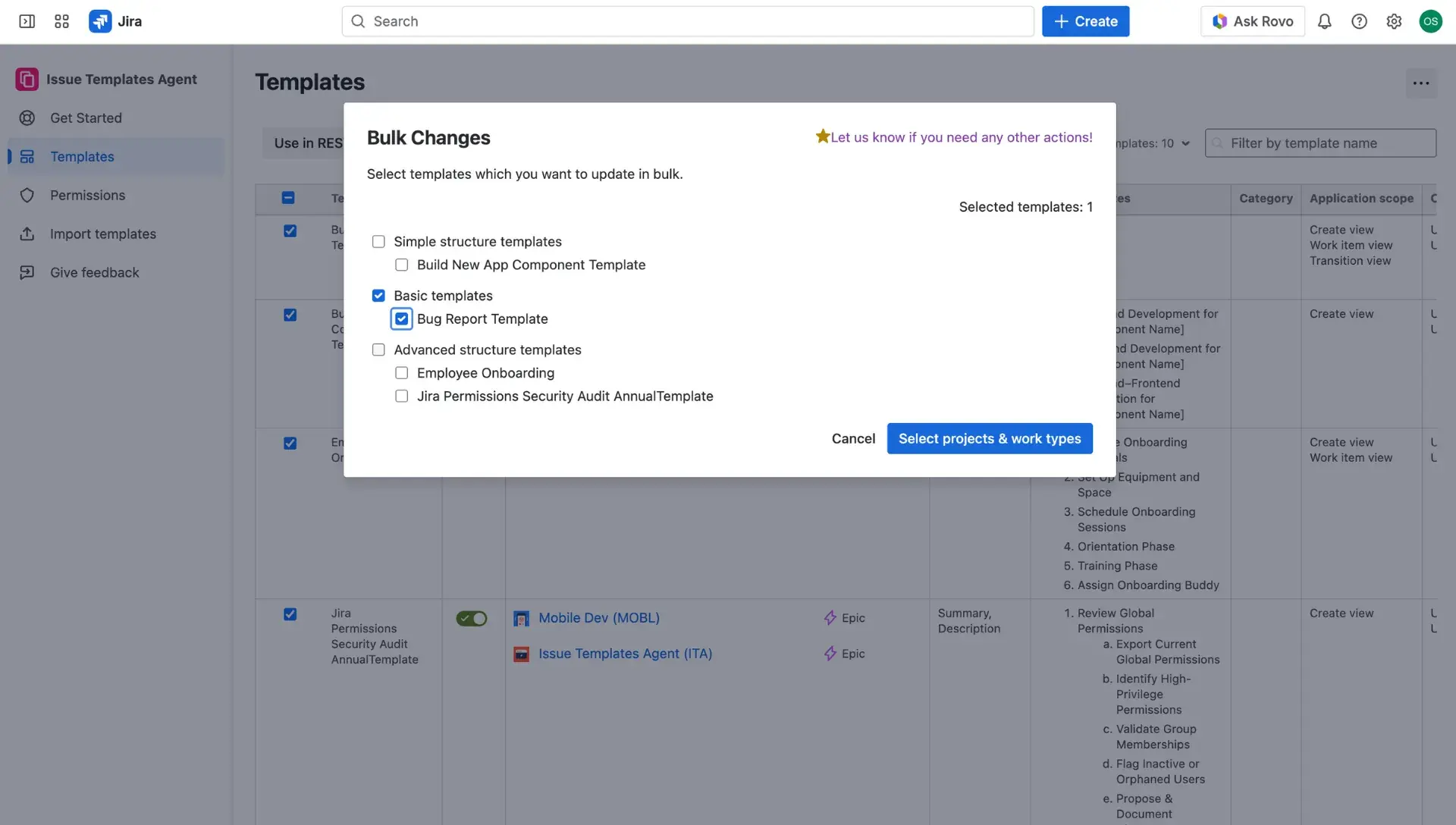
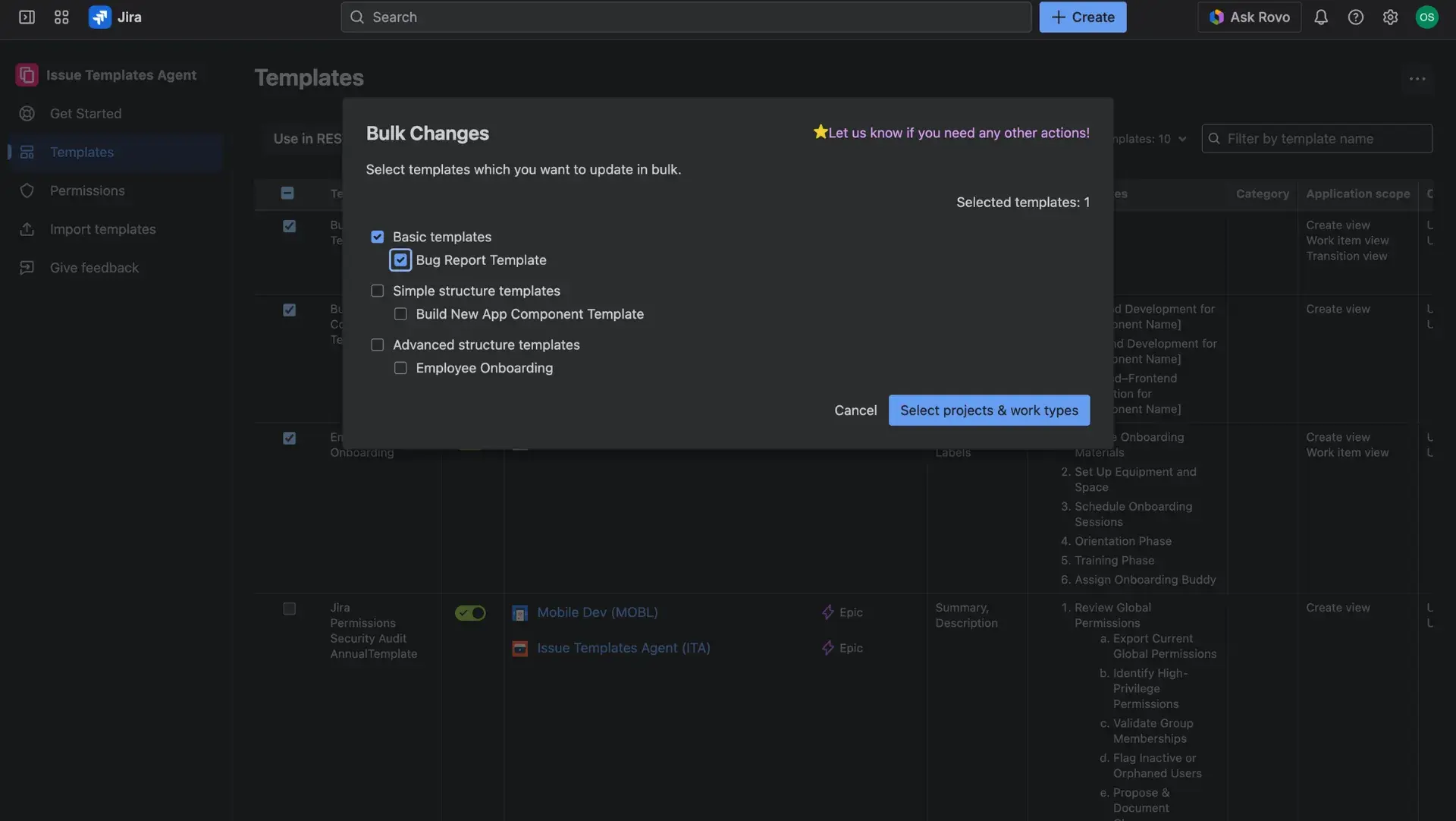
The last window will summarize the changes you have made. At this point you can still deselect templates if you changed your mind.
To finish, click the Update templates button.
Once completed, a message with results will be visible on your screen. If you want, you can continue editing the templates. If you are done, just exit the window.