Scheduled issue creation
Whether it is a weekly maintenance checklist or a monthly audit, scheduling Jira issue templates ensures critical tasks appear exactly when needed. By using automated Jira issue creation, teams can maintain high operational standards while Jira Automation handles the administrative work.
Generating the API token
A secure connection is required for the automation engine to add issues to a new project. This involves generating a unique API Token for the specific Jira issue templates used for project initialization.
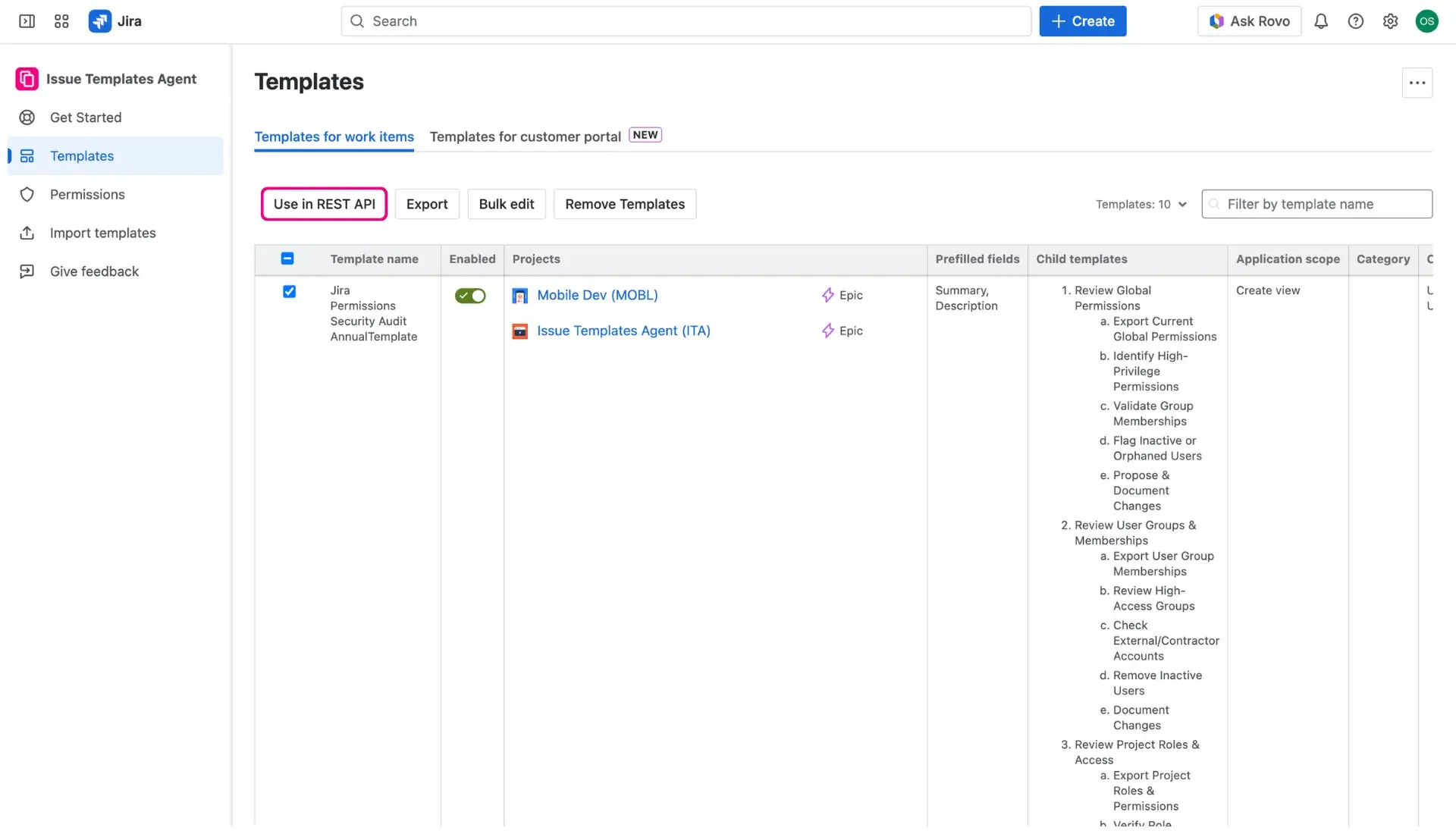
- Navigate to the Apps menu, select Issue Templates Agent > Templates.
- In the Template library, select the templates intended for automation by checking the boxes in the first column.
- Click the Use in REST API button located above the table.
- In the new window, create a label for the token and click the plus-sign button to generate the token.
- Save the REST API URL, the API Token, and the JSON Body as they will be needed for the automation rule.

Configuring the Scheduled automation rule
Once the connection is ready, the native Jira automation engine sets the timing for issue creation.
- Create a new automation rule and select the Scheduled trigger. Set the frequency (daily, weekly, etc.) based on the organization’s needs.
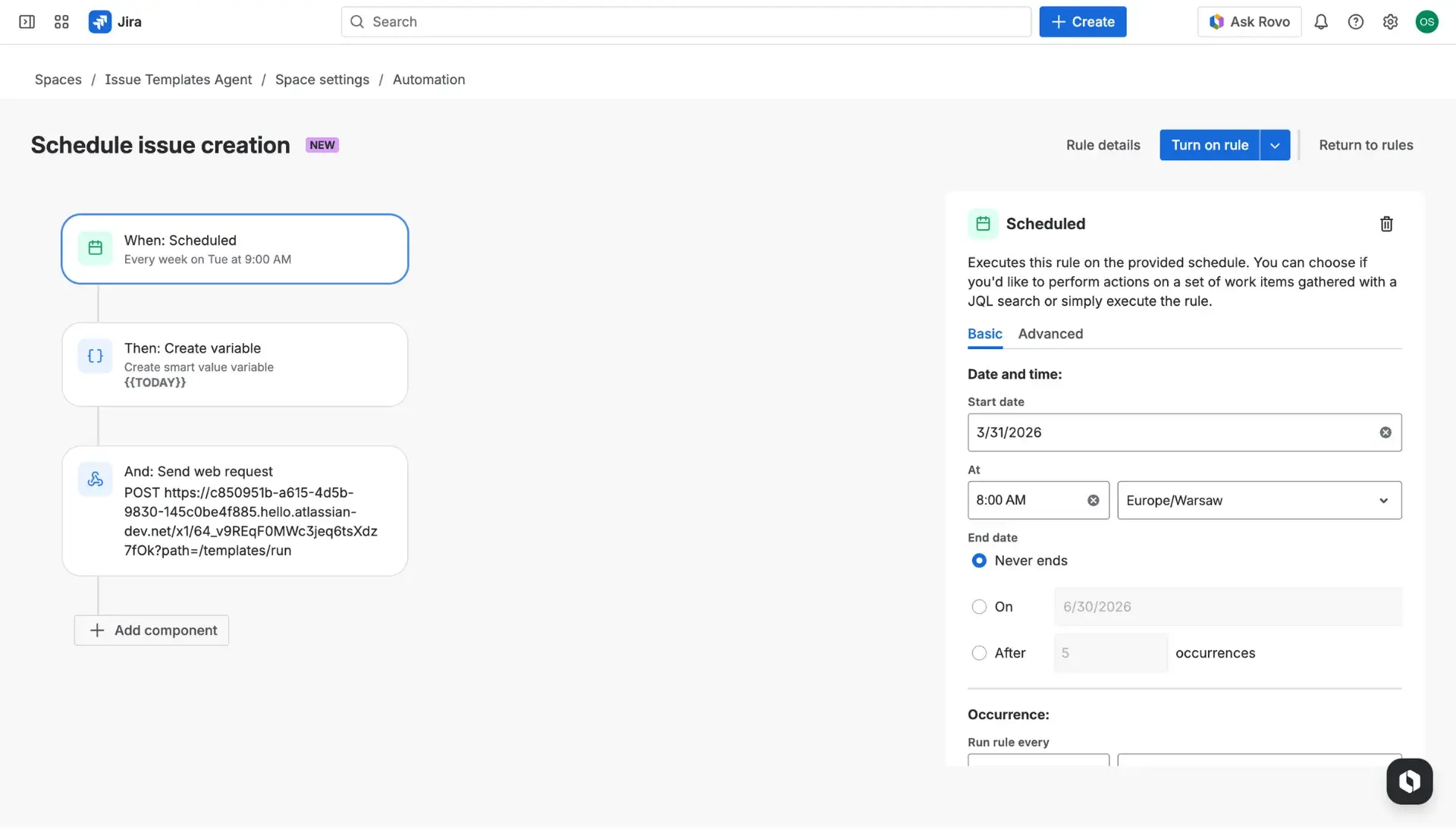
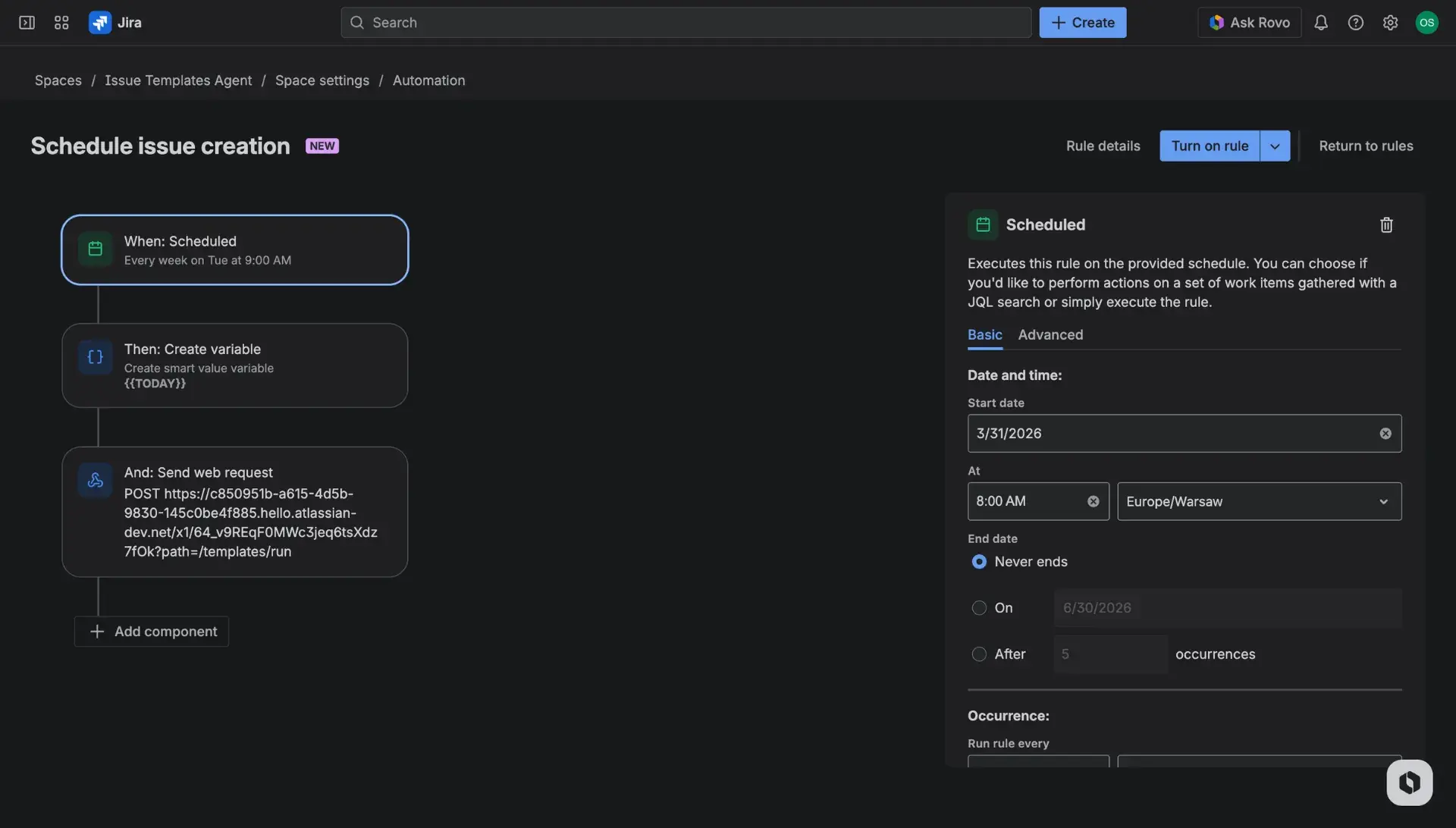
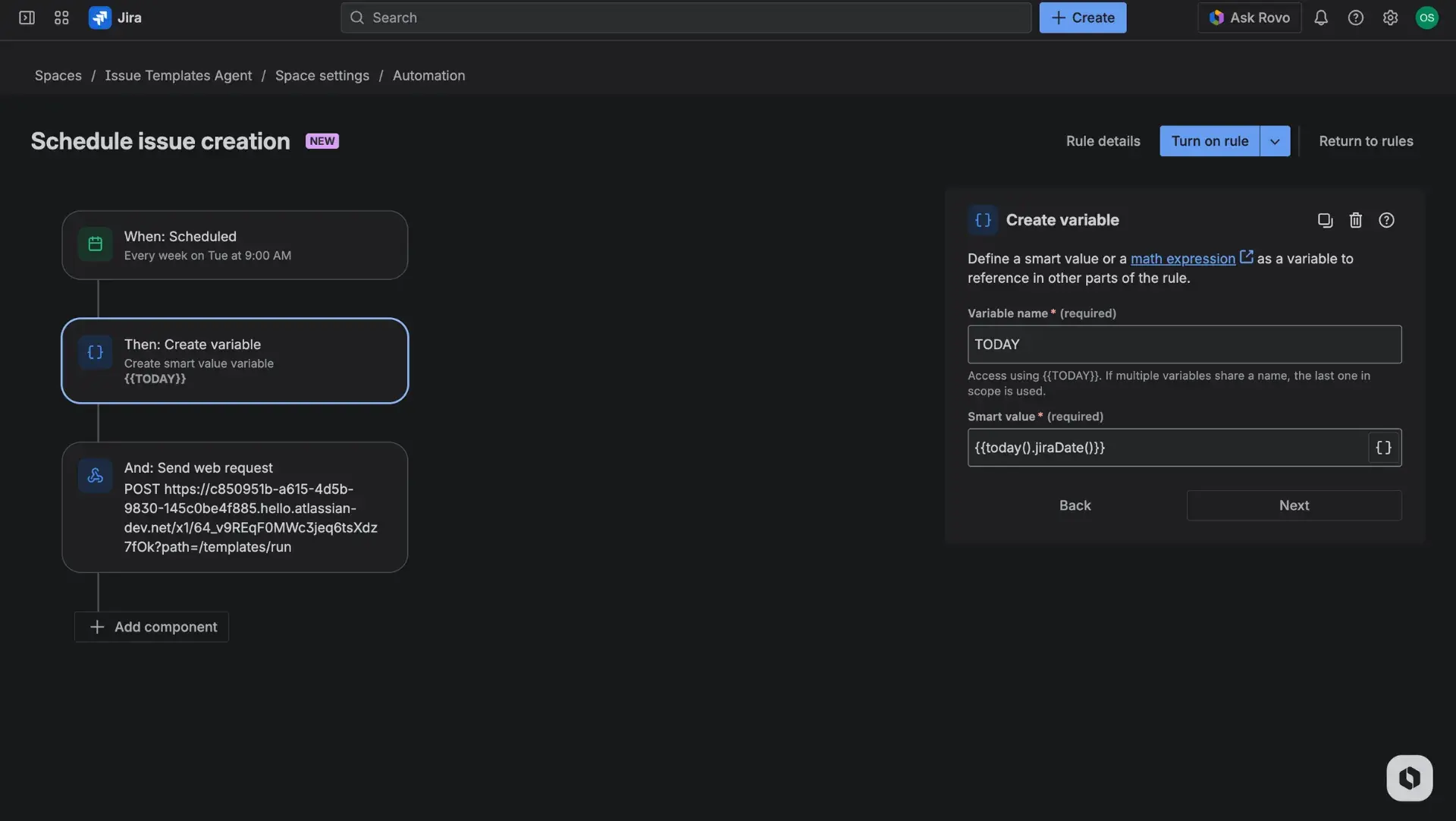
- Add action Create variable and use selected, time-related variables that will be inserted in the template Summary field.
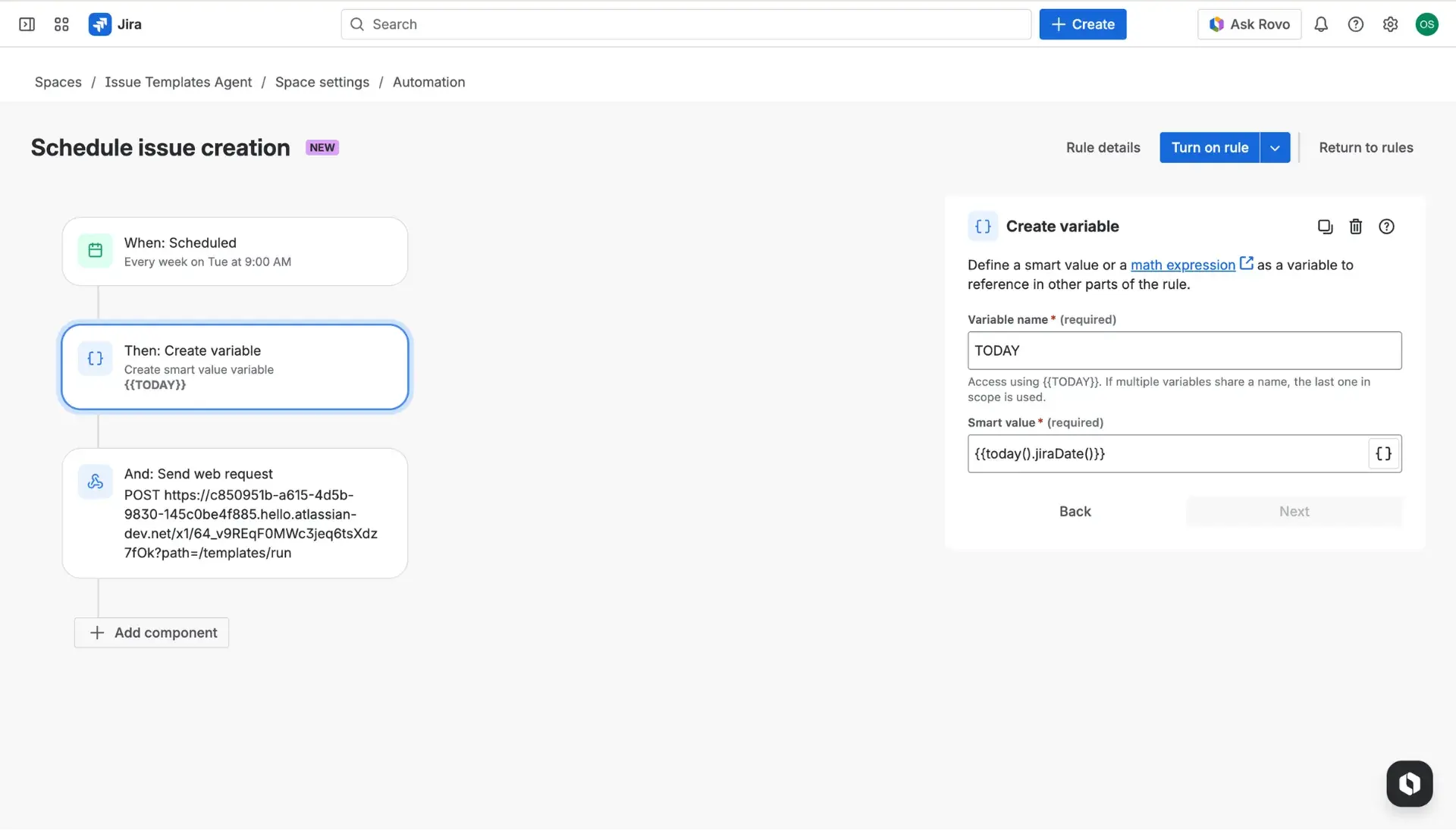
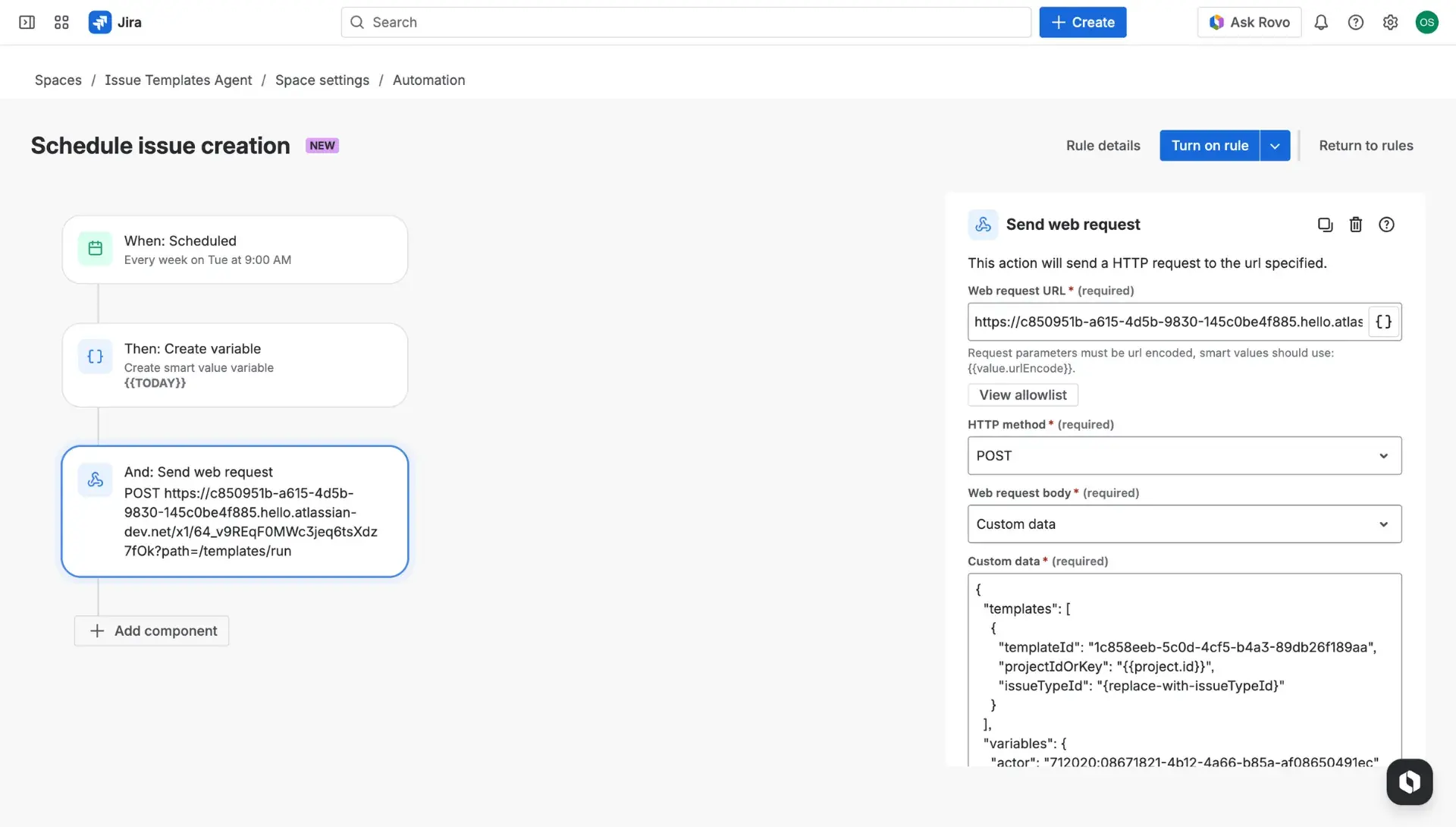
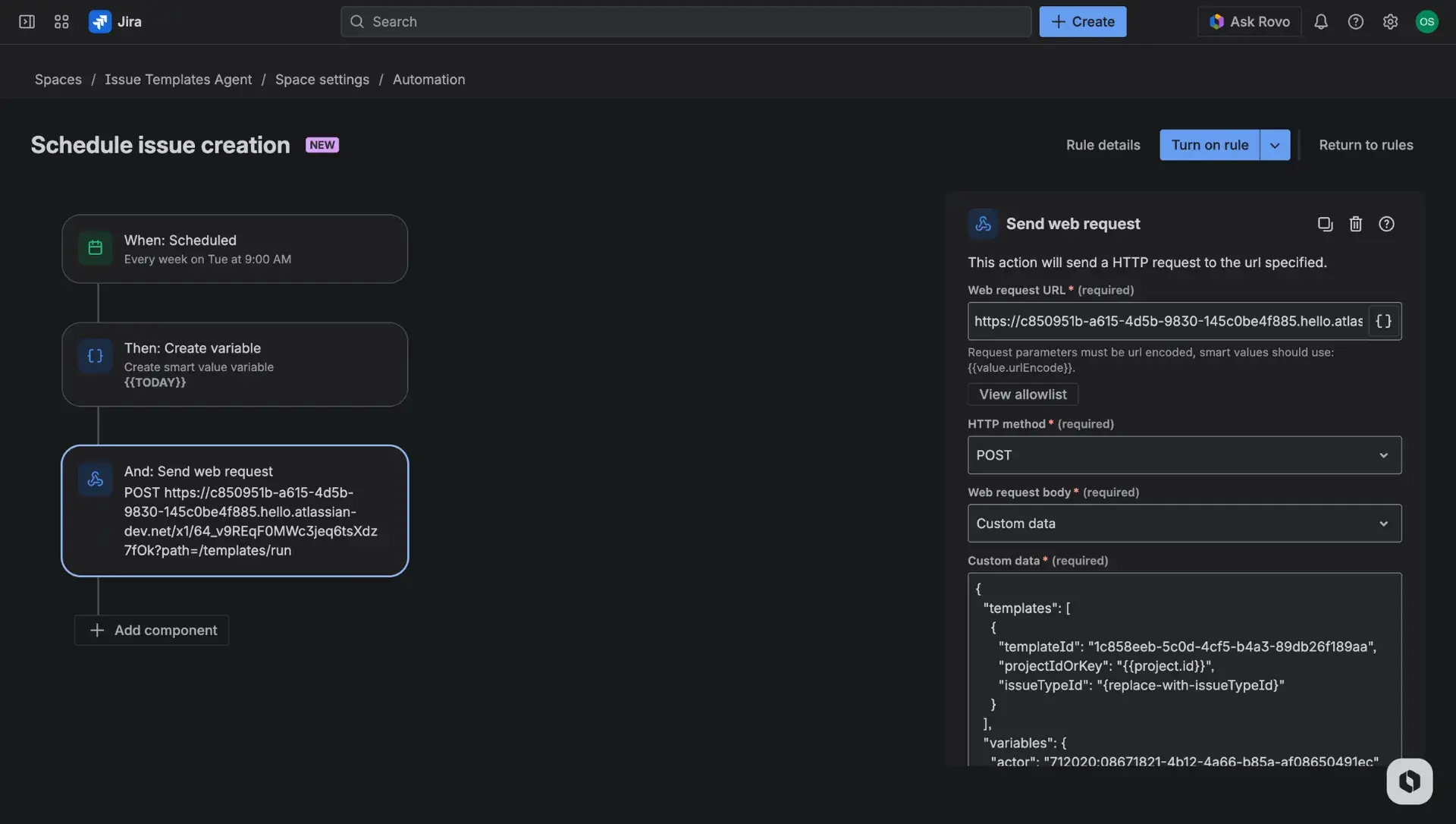
- Select the Send web request action.
- Paste the REST API URL.
- Set the HTTP method to POST.
- Change the Webhook body to Custom data and paste the JSON data from the If you want to create a new issue section.
- Find the issueTypeId row in the JSON body and replace the placeholder with the correct ID for the target Jira story or task.
Service project configuration
To use a template in a Jira Service Management (JSM) project via automation, at least one “valid” Software project must be included in the template’s project scope. Creating a dedicated Software project for administrators is recommended if the organization mainly uses JSM.
In this use case, variables can be used to update field data automatically at the moment of creation. A full list of placeholders for customizing scheduled issues is available on the Variables page.