Apply templates on existing issues
In many organizations, the creation of a ticket is only the start of a larger process. By combining Jira automation with Jira issue templates, teams can transform a basic ticket into a fully detailed work item instantly. This automated issue creation ensures no step is missed and every Jira ticket template is applied with precision.
Generating the REST API token
A secure connection is required for Jira’s automation engine to interact with the templates. This involves generating a unique API Token for the specific Jira issue templates being used.
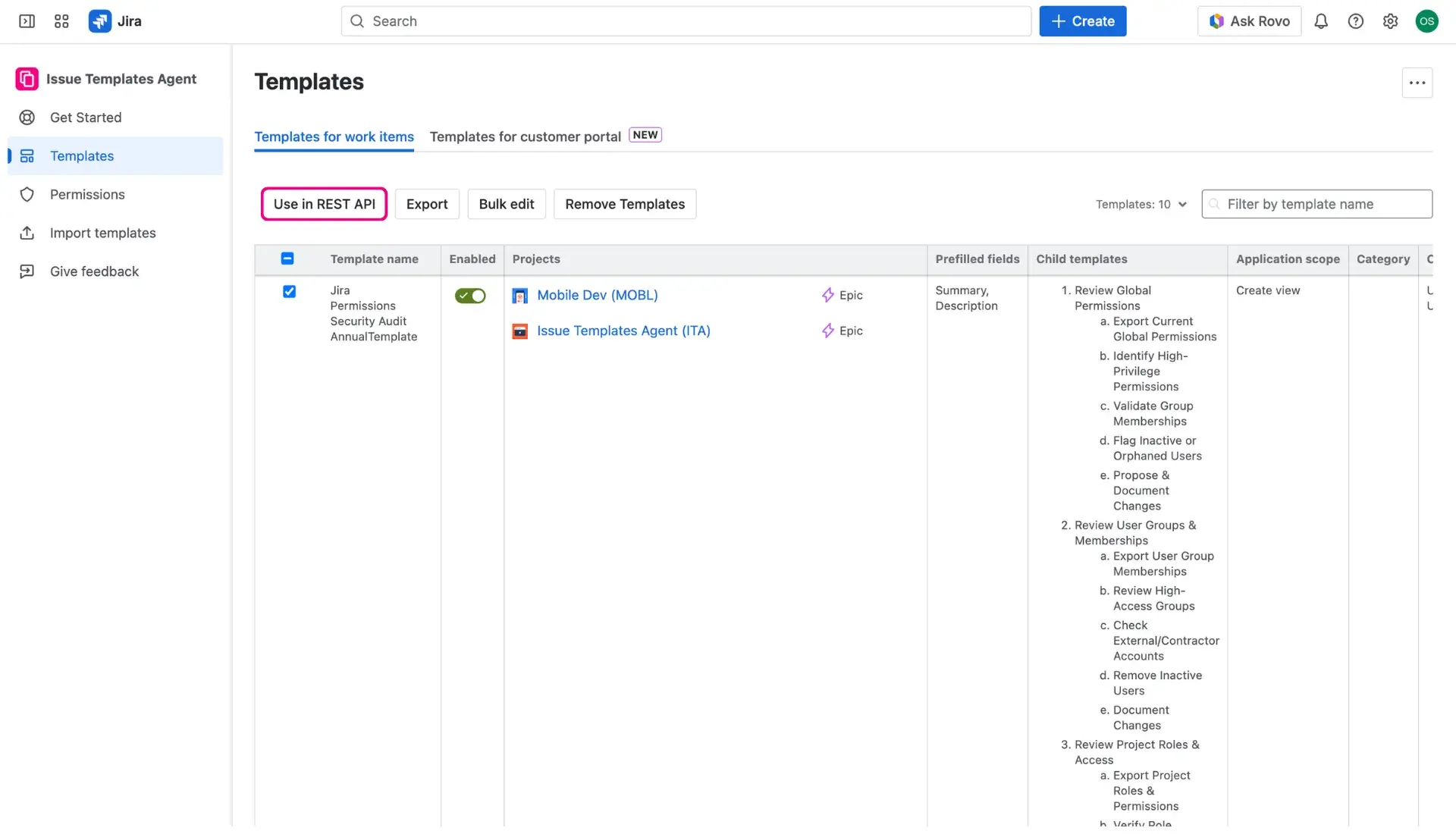
- Navigate to the Apps menu, select Issue Templates Agent > Templates.
- In the Template library, select the templates intended for automation by checking the boxes in the first column.
- Click the Use in REST API button located above the table.
- In the new window, create a label for the token and click the plus-sign button to generate the token.
- Save the REST API URL, the API Token, and the JSON Body as they will be needed for the automation rule.

Configuring the automation rule
Once the connection details are ready, the native Jira automation engine is used to trigger the template.
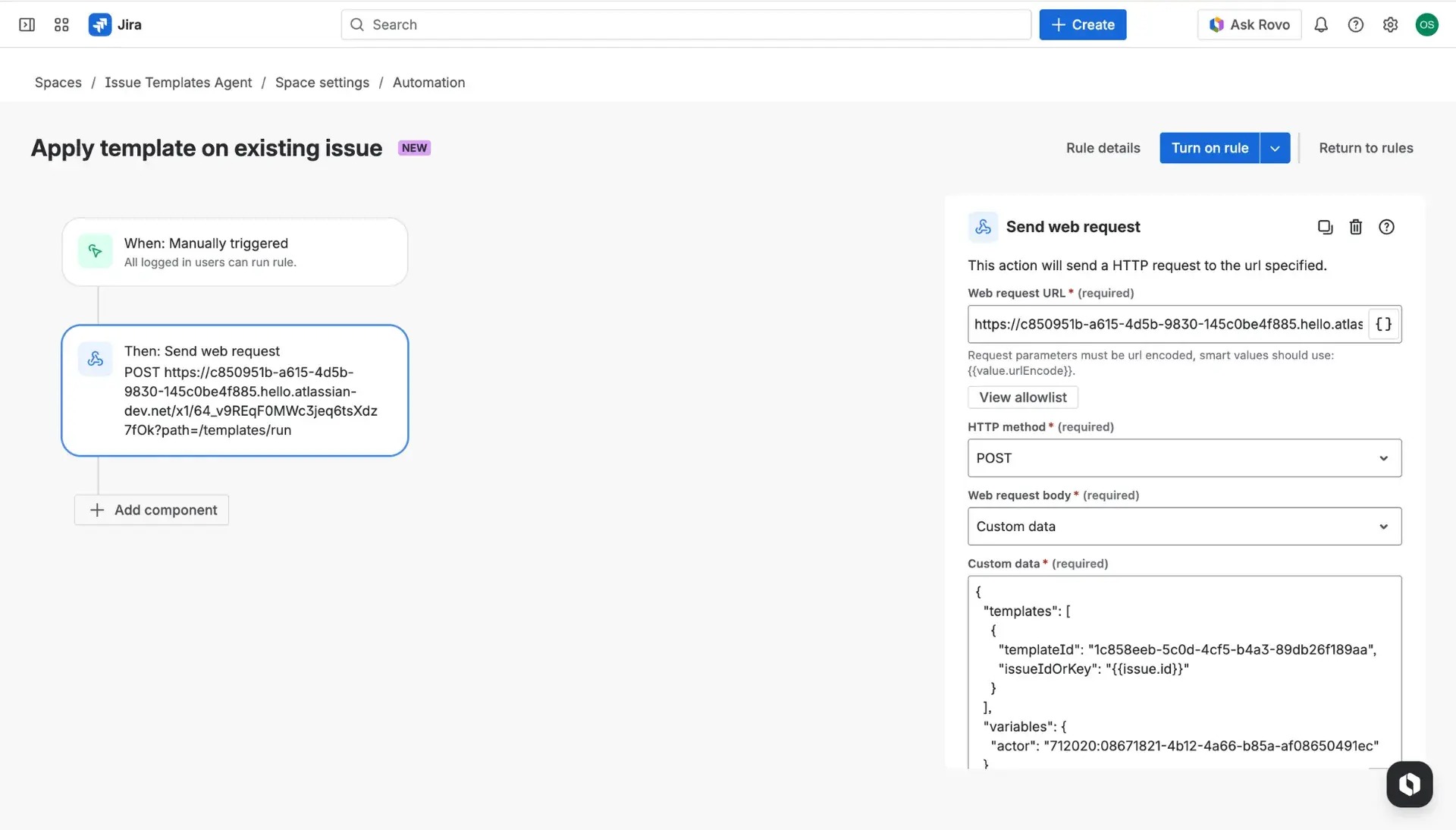
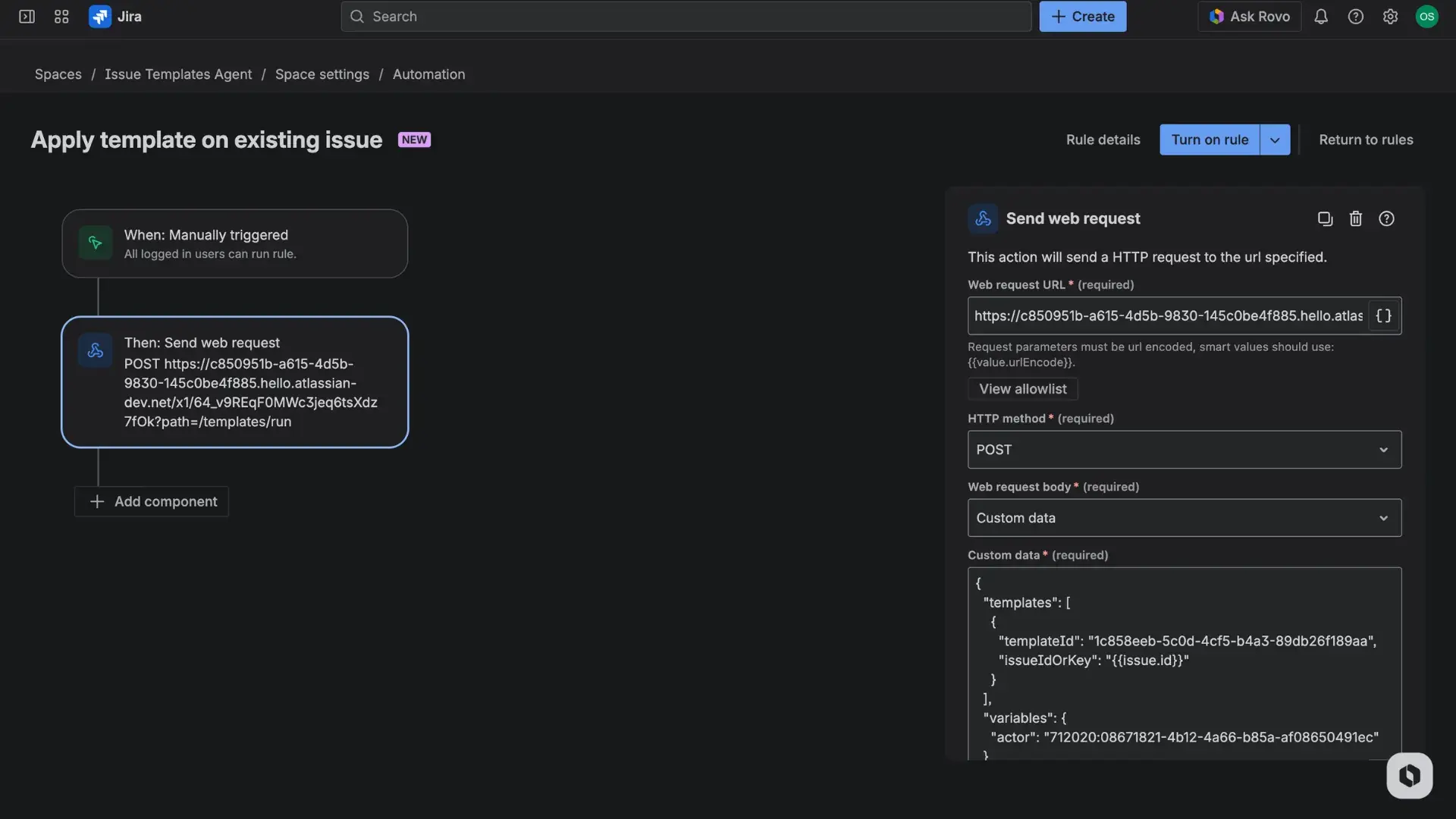
- Create a new automation rule and select Manual trigger.
- Select the Send web request action.
- Paste the REST API URL and the API token.
- Set the HTTP method to POST.
- Change the web request body to Custom data.
- In the web request body, paste the JSON data for If you want to apply on existing issue option.
- Save and turn on the rule.