Templates on the portal
Before you start
- An administrator created and enabled a portal template for the request type.
- An administrator added the Template field to the request form of that request type.
Steps
Open the customer portal and select the request type.
In the Template field, select the template. The field lists the names of the enabled templates assigned to the request type. The form fills in the fields of the template, and a message under the field confirms that the template has been applied.
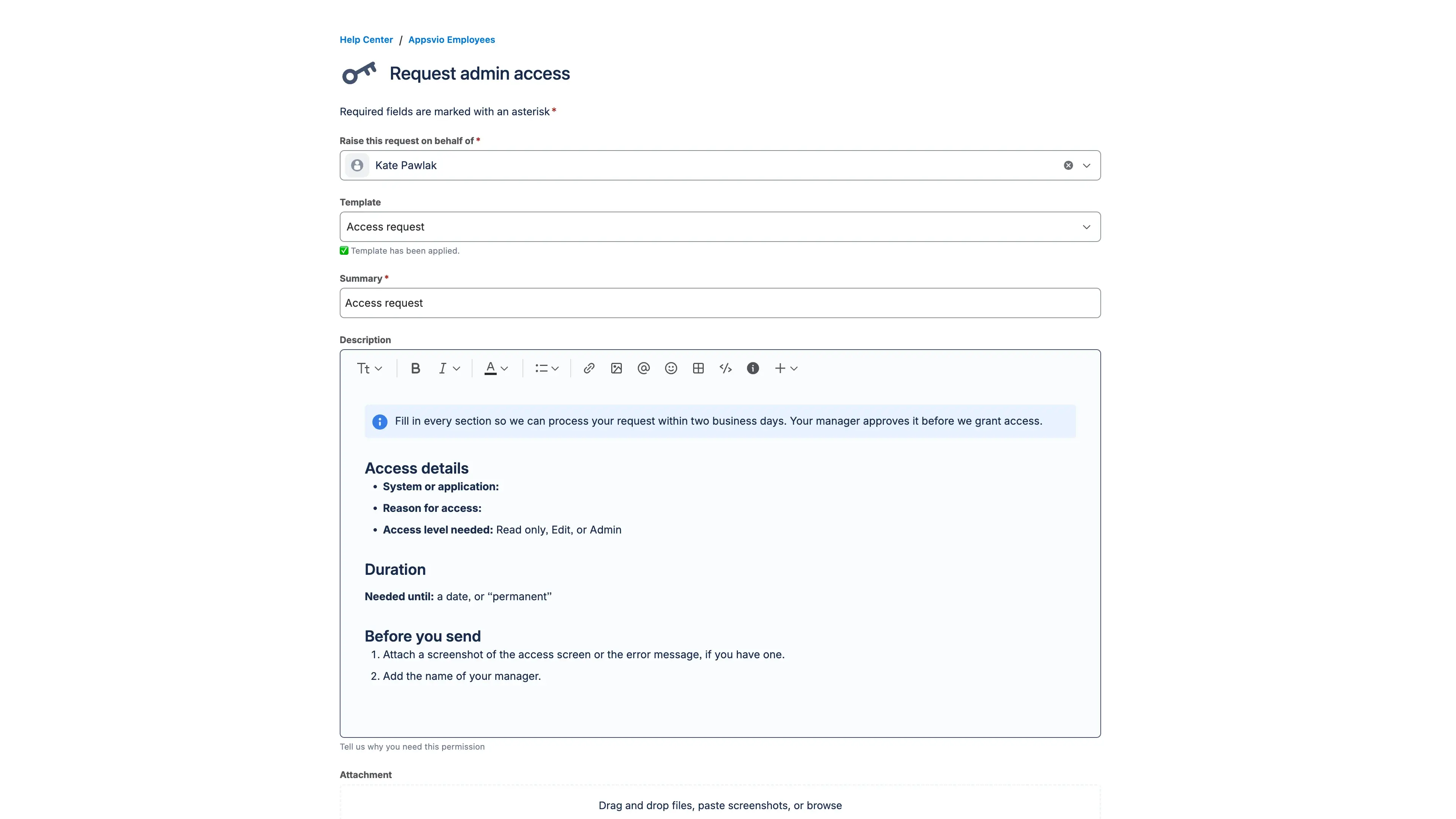
Review the values, and change any of them if you need to.
Submit the request.

You can also choose another template before you submit. Choosing another template first empties the fields that the previous template filled in, and then fills in the fields of the new one.
Result
The request has the values from the template. If the template has a structure, the app creates the child work items under the request after the customer submits it. See Template structure.
If an administrator marked a template as the default for the request type, the form selects it when it opens, as long as it is enabled. If the default template is disabled, the form selects no template.
The Template field shows only the names of the templates. It doesn’t show their descriptions, categories, or owners.
Every customer who can open the request form sees the same templates.
If no enabled template is assigned to the request type, the Template field is hidden.
Without an active license, the field stays visible but applies no template. See App Editions.