Use templates in Jira Automation
Before you start
- You have the Advanced edition and an active license. See App Editions.
- To choose spaces and templates in the action, you have the Browse templates app permission, or the Issue Templates Agent - Administer App permission. Without them, these two lists don’t load.
Who the action runs as
The action always runs as the user who made the flow run, whoever created or owns the flow. That user must hold the Administer Jira permission. To apply a template to an existing work item, the user must also be able to edit that work item. A flow that other users can start, for example by a work item event, fails for every user who is not a Jira administrator.
Steps
Create a Jira Automation flow, or open an existing one.
Add the action Use Issue Templates Agent. If the action shows Connect, select it to connect Jira Automation to Issue Templates Agent. You do this once.
Under Choose where you want to trigger templates, select On new issue to create a work item, or Apply on existing to fill in an existing work item.
- For On new issue, set Project to Same Project as Trigger or search for a space. In Work Type ID, paste the numeric ID of the work type. The action has no list of work types. To find the ID, see Atlassian’s article Finding the issue type ID in Jira Cloud.
- For Apply on existing, set Issue to Same Issue as Trigger or search for a work item.
In Template, search for the template by name and select it. The list shows the first 10 templates. To find another one, type part of its name. It lists templates for work items, including disabled and restricted ones. It doesn’t list templates for customer portal. The action uses one template for each run.
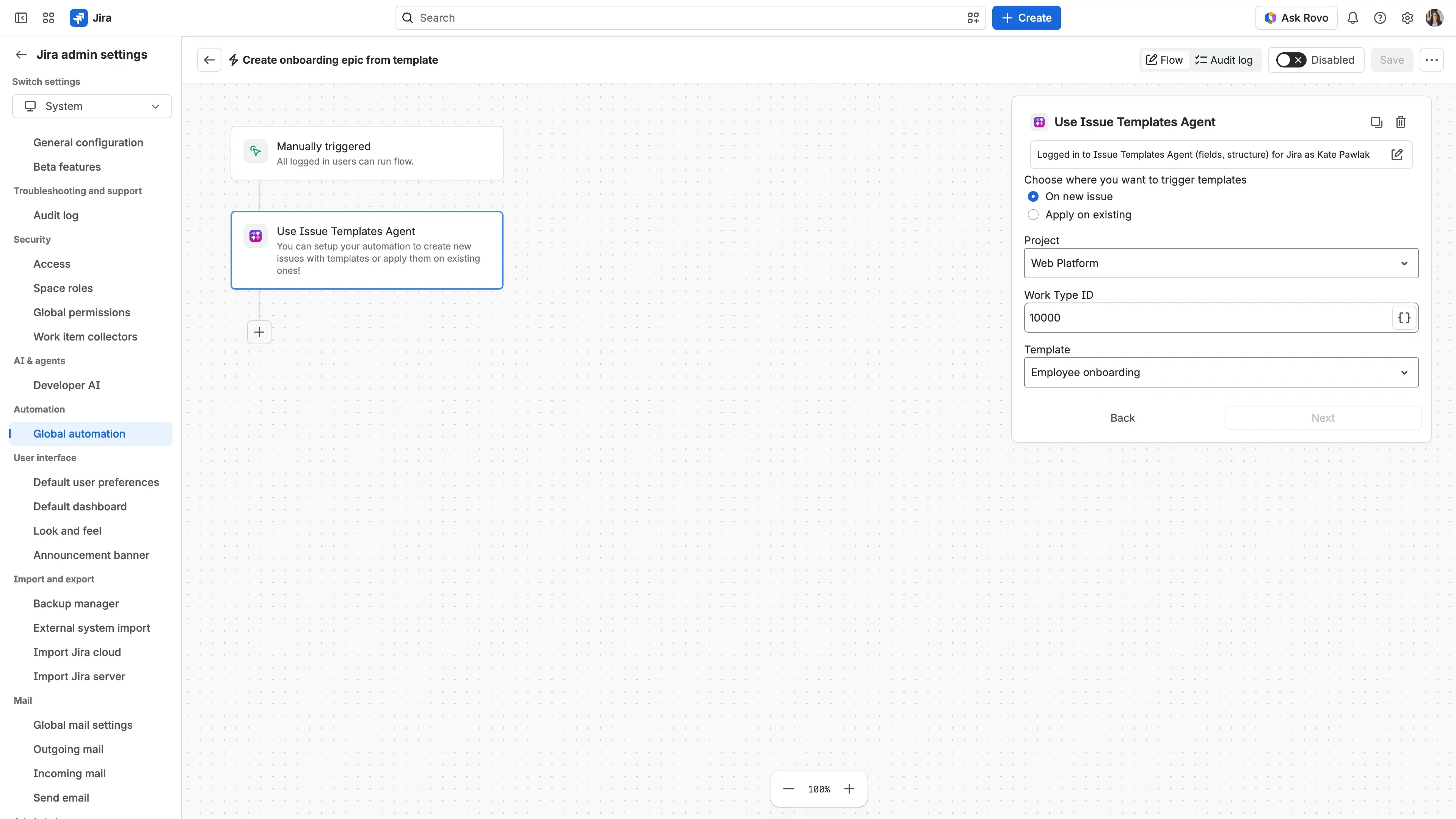
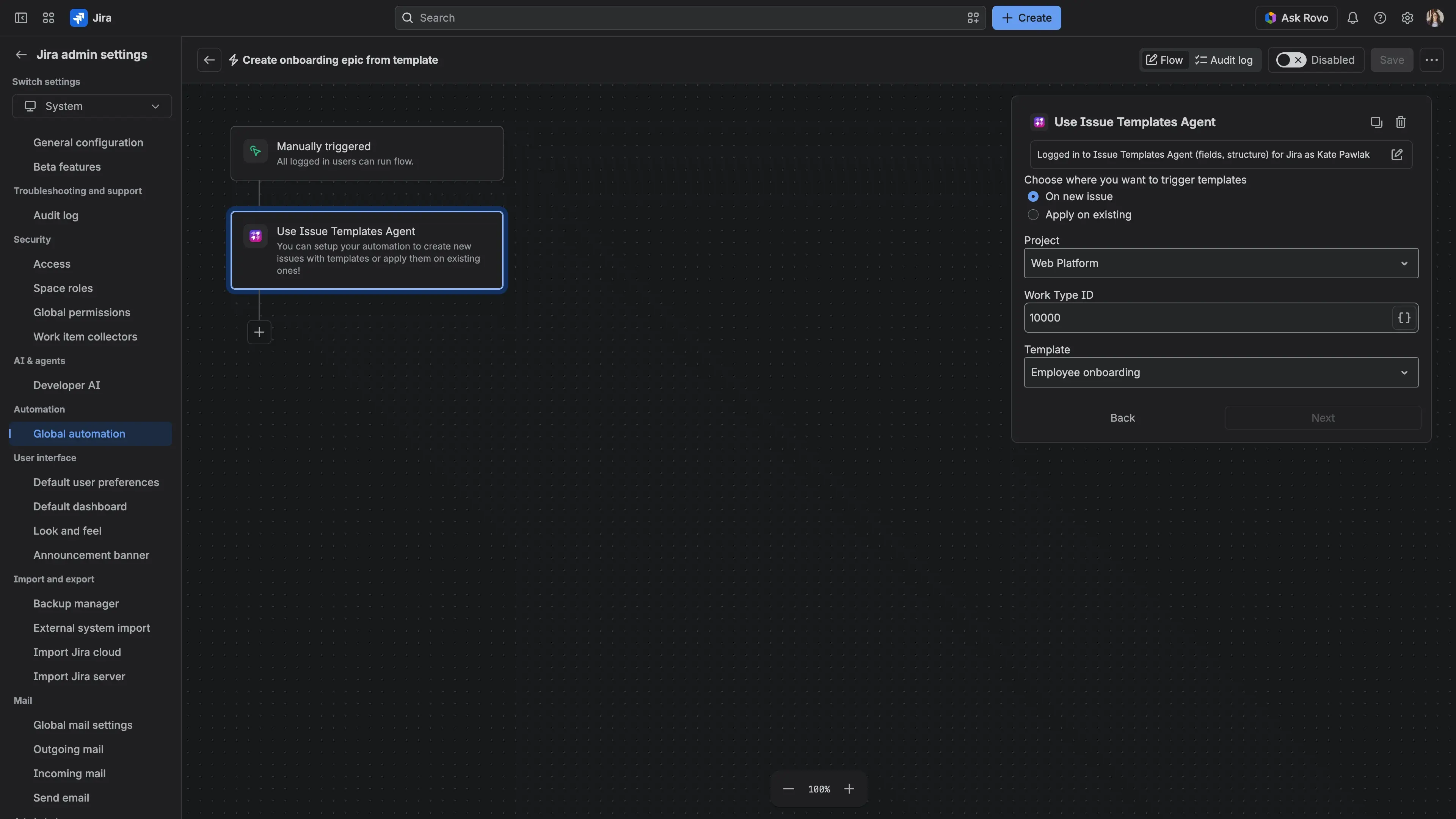
Select Next to save the action, and save the flow. The step in the flow keeps its general description and doesn’t show the values that you chose. Select the step to see them.


The flow stores the template by its ID. If you delete the template, the action fails until you select another template in it.
Result
When the flow runs, the action works as follows:
- On new issue: the flow continues as soon as the app accepts the request. The app creates the work item a moment later, together with the child work items of a template with a structure. Later actions in the same flow can’t use the new work item. If Jira rejects the work item, the flow doesn’t show it, and only the Audit log records it.
- Apply on existing: the app updates the work item before the action finishes. If Jira rejects the update, the action fails and the work item stays unchanged.
If the action fails
The flow execution shows the action as failed. These are the most common causes:
- The app has no active license, or the license is Standard.
- The action is incomplete. Edit the action, select the template again, and save it.
- The template no longer exists. Select a template in the action again.
- The work item doesn’t exist, or the app can’t see it.
- The user who made the flow run isn’t a Jira administrator, or can’t edit the work item.
- Jira rejected the update of the work item. The message includes the field and Jira’s reason.