Restrict a template to users and Jira groups
A template restriction limits which users Jira offers a template to. A template without a restriction is available to everyone.
Before you start
- You have the Create & edit templates app permission, or the Issue Templates Agent - Administer App permission. With Browse templates only, you can see which templates have restrictions but not change them.
- The template is a template for work items. Templates for customer portal have no restrictions.
Steps
Restrict a template in the template form
Select Apps > Issue Templates Agent > Templates.
In the row of the template, select More > Edit template.
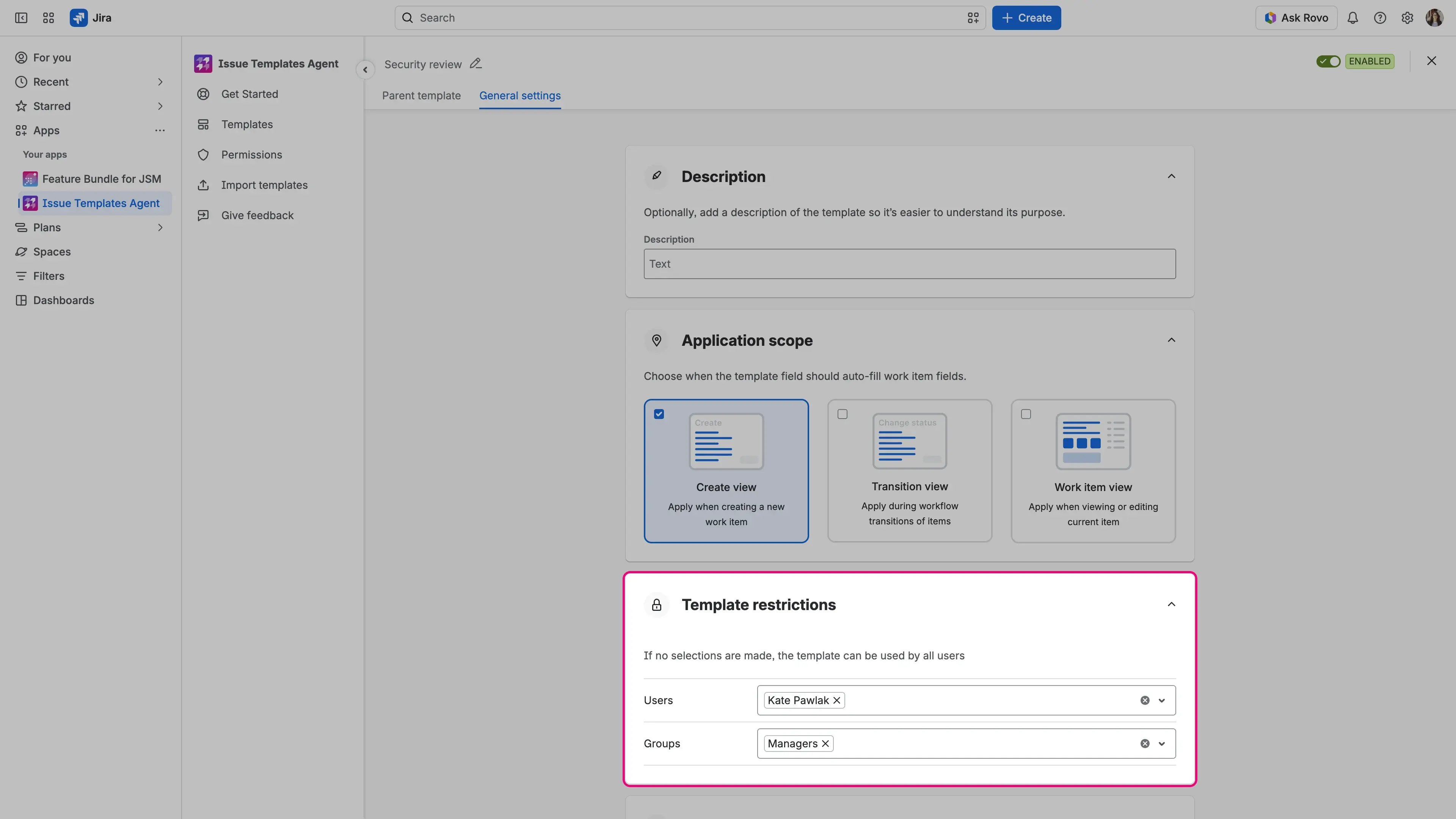
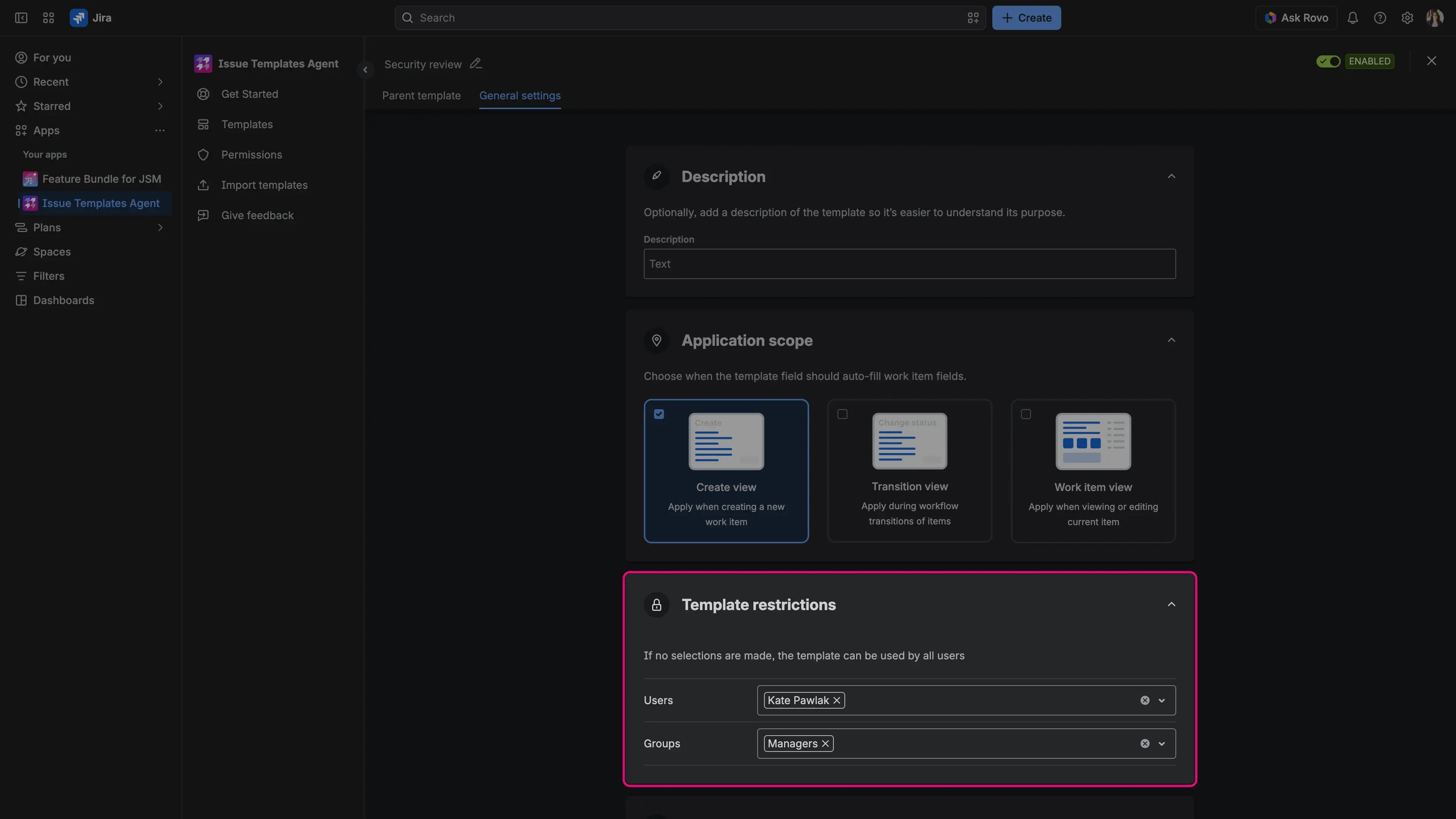
Open the General settings tab. In the Template restrictions section, choose users in Users and Jira groups in Groups. To find a user, type part of the name.
Select Save template.


Restrict a template from the list
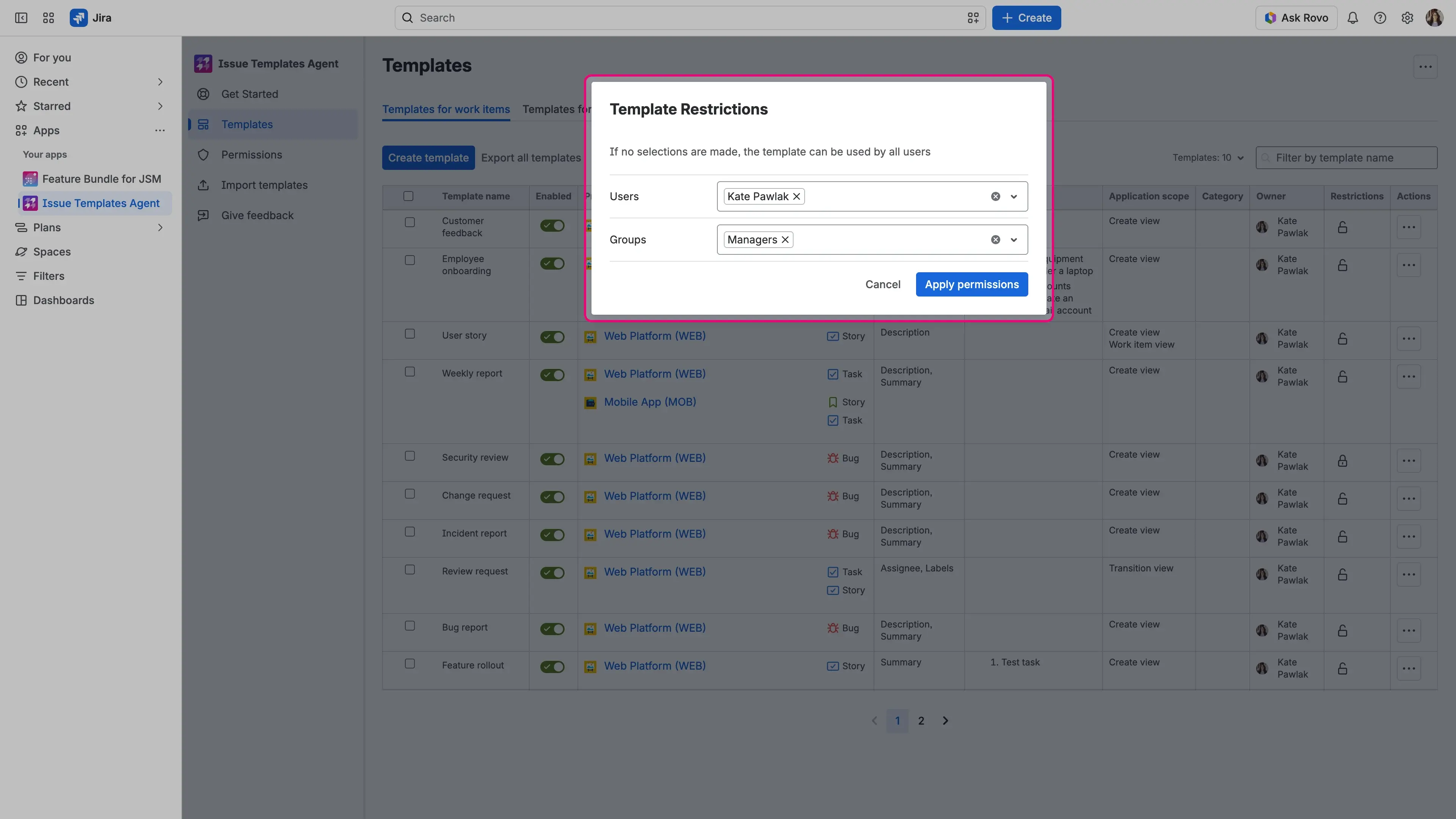
On the Templates page, select the lock icon in the Restrictions column of the template.
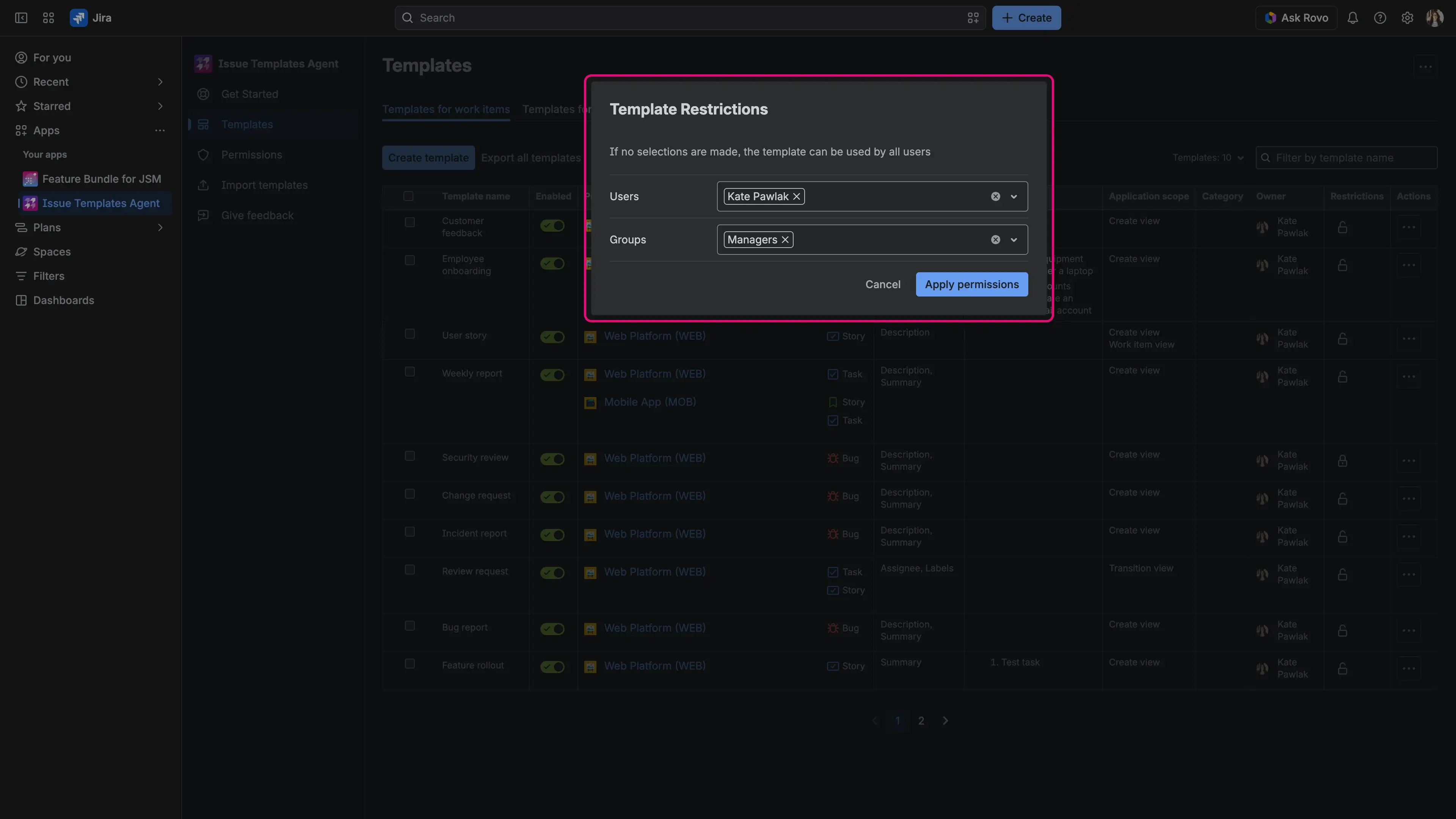
In the Template Restrictions dialog, choose users and Jira groups, and select Apply permissions. The app saves the restrictions at once, without opening the template.


Result
The lock icon of the template is locked. Jira offers the template in the Template field only to the selected users and to members of the selected Jira groups. To remove the restriction, clear both pickers.
Rules for restrictions
- A user can use a template when the template has no restriction, when you selected the user, or when the user belongs to at least one selected Jira group. Any one of these is enough.
- The rule applies to everyone, including holders of Administer App and the owner of the template.
- The app checks Jira group membership when the user opens the screen. A user who joins or leaves a Jira group gets or loses access without any change to the template.
- If no template is available to a user for a space and work type, Jira hides the Template field. A restricted default template doesn’t apply for a user who can’t use it.
- The Templates page lists all templates, restricted or not, to everyone who can open the app. Restrictions also don’t limit who can edit, delete, or change the owner of a template. App permissions control those. See App permissions.
- The REST API and the Automation action ignore restrictions. They can use a restricted template. See Automation and REST API.