App permissions
App permissions control who can manage templates in the app. They don’t control who can apply templates on work items.
Assign the Administer App permission
Issue Templates Agent - Administer App is a Jira global permission. Jira administrators have it by default. A holder of it can do everything in the app without any of the permissions below. Only holders of Administer App can open the Permissions page, change the assignments, and change the owner of a template.
To give Administer App to a group:
- In Jira, select the Settings icon, then select System.
- Under Security, select Global permissions.
- Select Grant Permission.
- In the Select a permission list, choose Issue Templates Agent - Administer App.
- In the Group list, choose the group, and select Add.
The app permissions
All other permissions are app permissions. You assign them on the Permissions page of the app:
| Permission | What it allows |
|---|---|
| Browse templates | Opening the app, seeing the list of templates, opening a template read-only, and opening the Use in REST API dialog. Without it, a user can’t open the app. |
| Create & edit templates | Creating, editing, duplicating, and saving templates, enabling and disabling them, and editing their restrictions, structure, and fields. |
| Bulk edit templates | Starting a bulk edit. To complete it, the user also needs Create & edit templates. |
| Import / Export templates | Exporting selected templates and all templates. To see the Import templates page, the user also needs Create & edit templates. |
| Delete own templates | Deleting templates that the user owns. |
| Delete all templates | Deleting any template. |
Before you start
You hold the Issue Templates Agent - Administer App permission.
Steps
Assign permissions
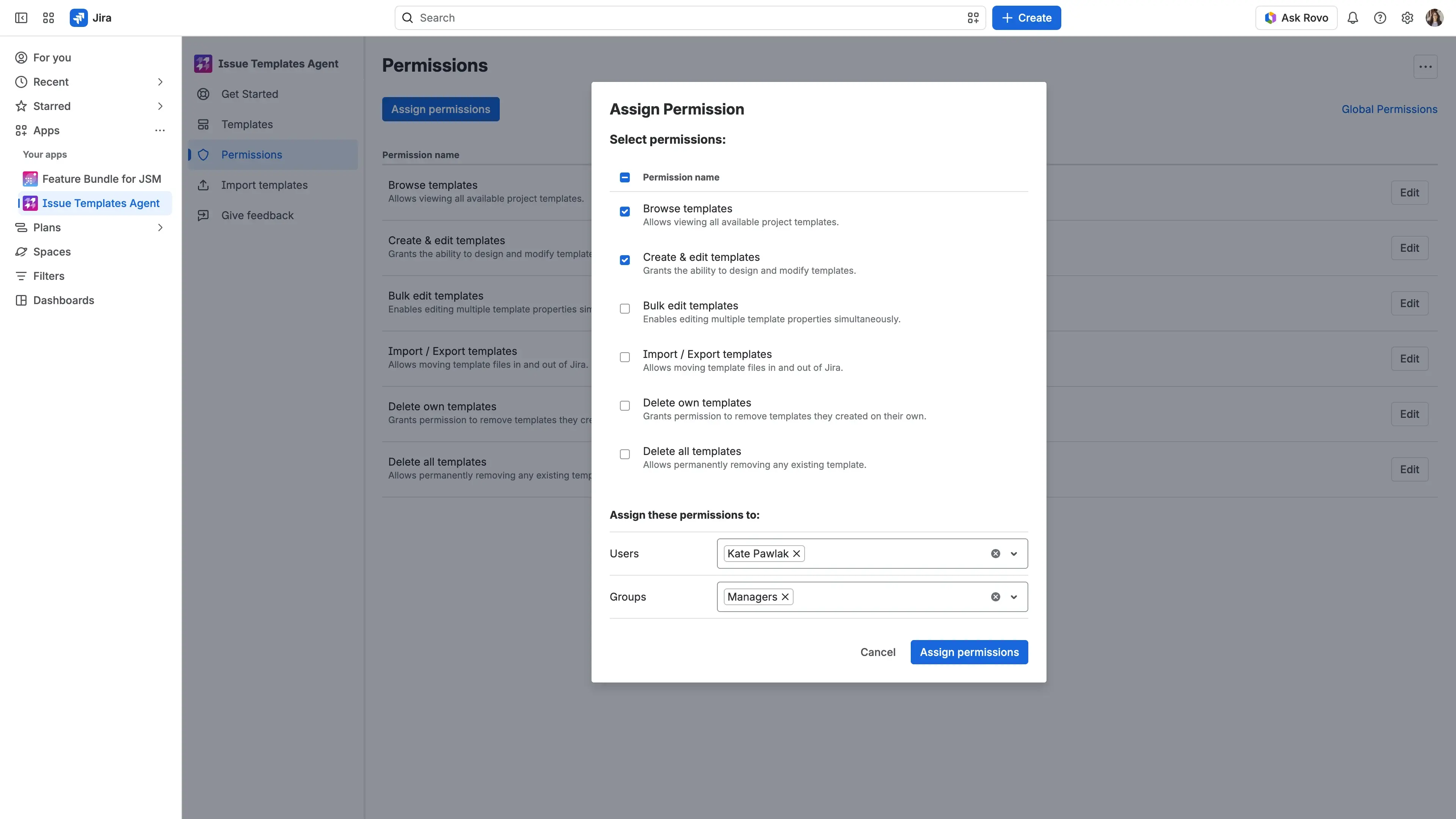
On the Permissions page, select Assign permissions.
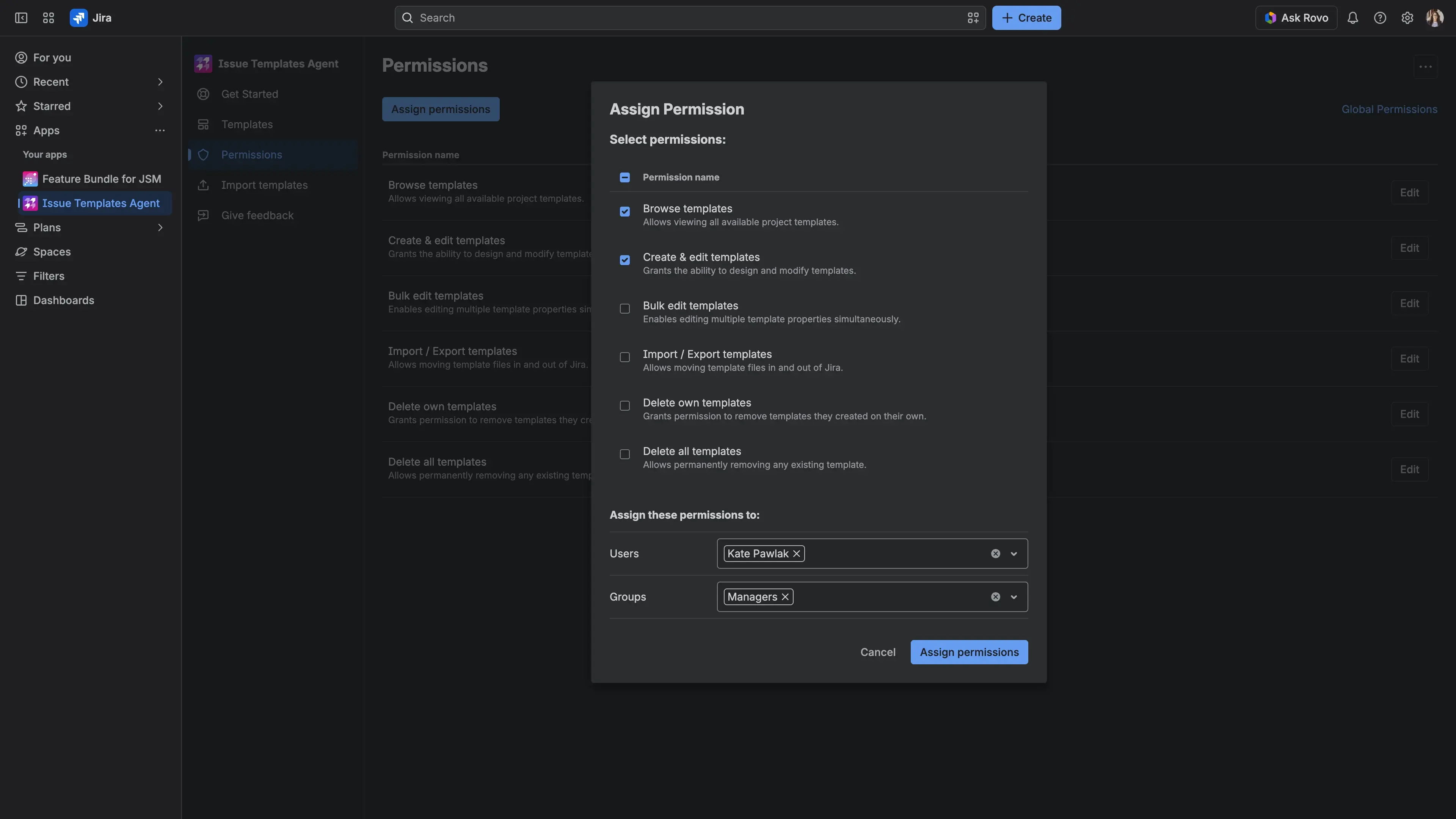
In the Assign Permission dialog, select the permissions. Under Assign these permissions to:, choose users and Jira groups.
Select Assign permissions. The app adds the users and groups to each selected permission and keeps the people already assigned.


Change the assignment of a permission
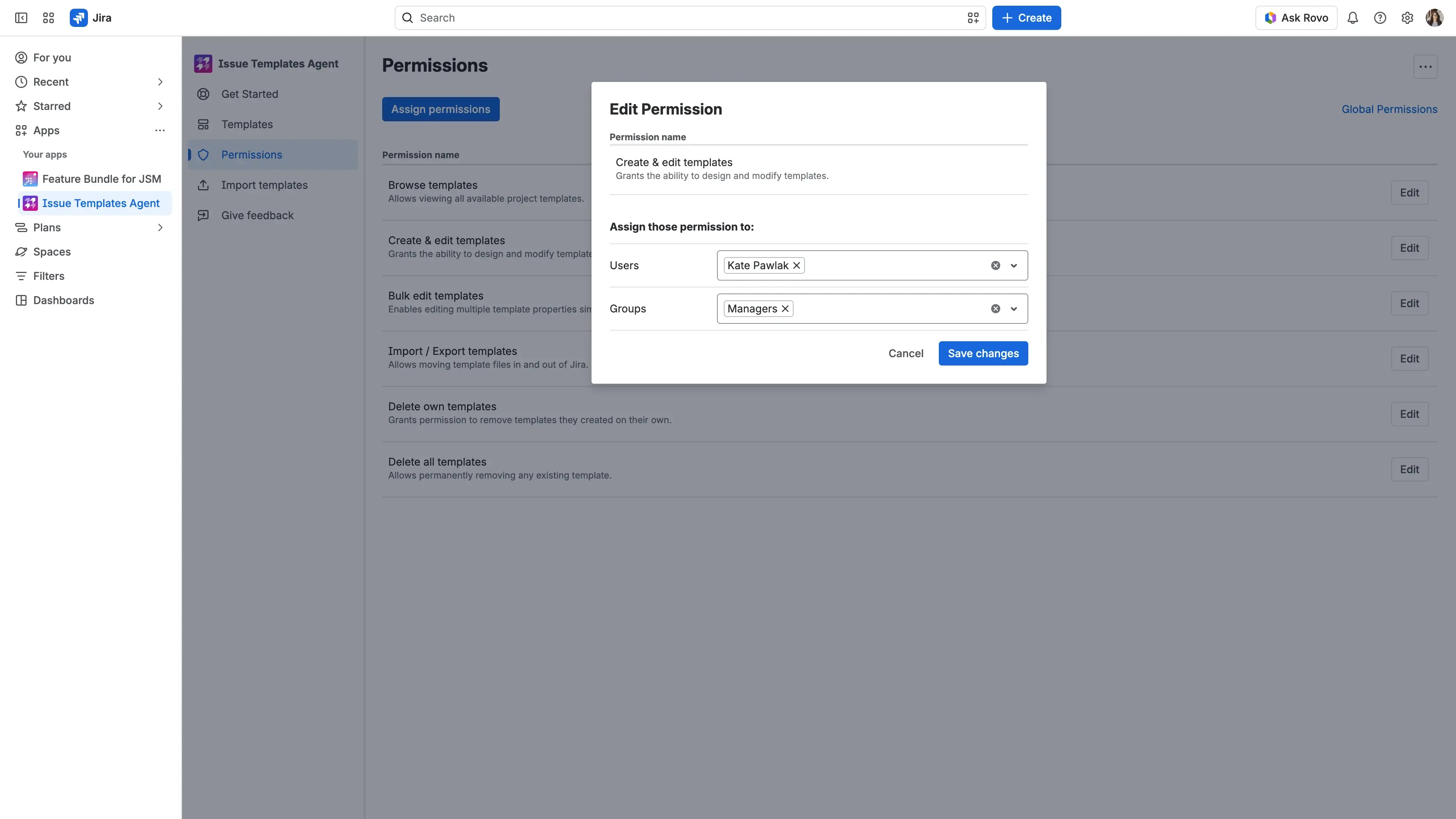
In the row of the permission, select Edit.
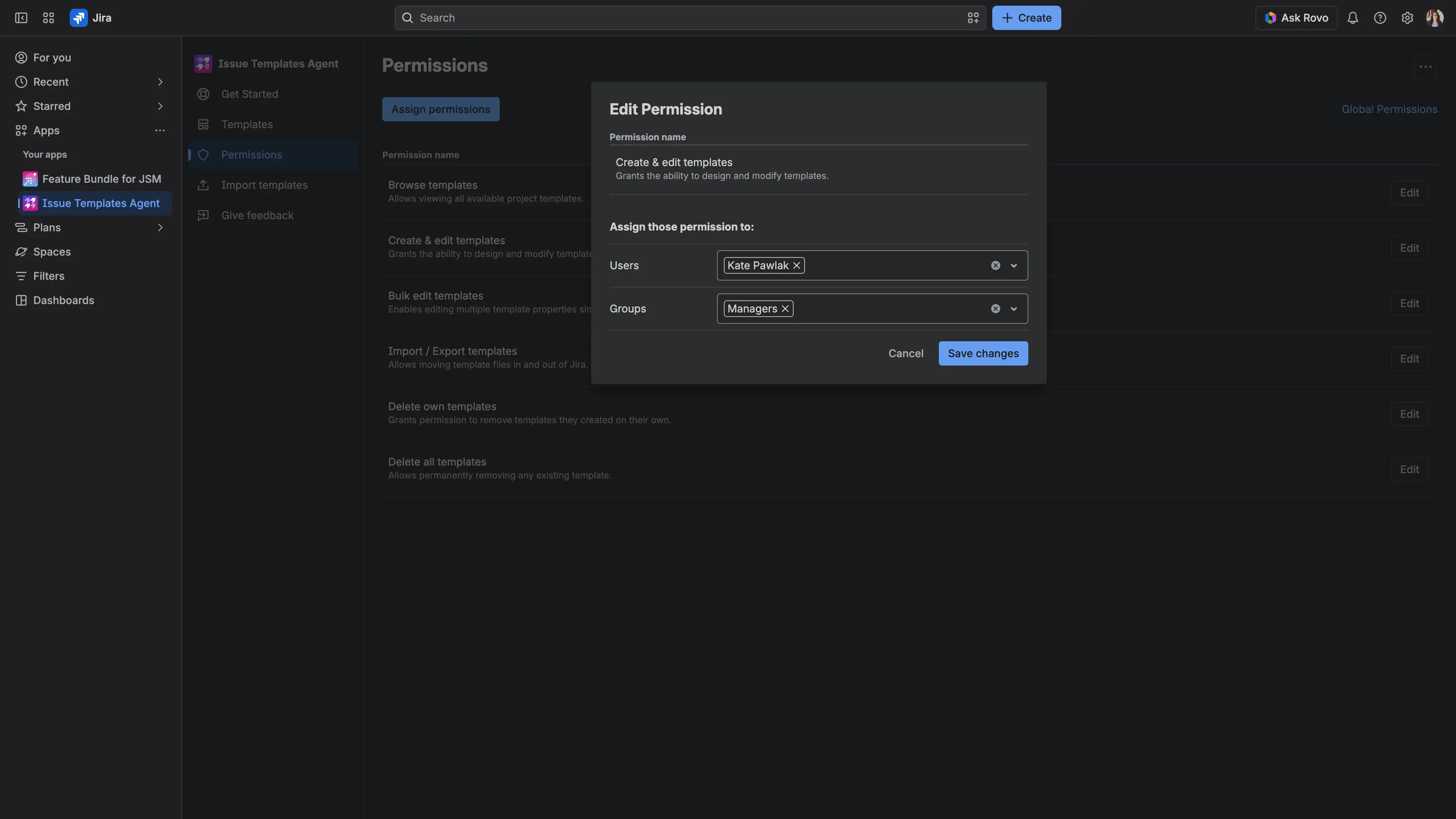
In the Edit Permission dialog, change the users and groups. Select Save changes. The new list replaces the previous one, so the users and groups that you remove lose the permission.


Result
The table shows the users and groups for each permission. A change takes effect for another user the next time that user opens the app. The app records every change in the Audit log.


A permission that nobody has shows an empty list in the table.
Rules for permissions
- A user holds a permission when you list the user directly, or when the user belongs to a listed group.
- Permissions only add access. You can’t deny a permission. A permission that nobody has is held only by holders of Administer App.
- To delete several templates at once, the user must be allowed to delete every one of them. A mix of own and other templates needs Delete all templates.
- To change the owner of a template, you need Administer App. The new owner must hold Create & edit templates and Browse templates, or Administer App.
What app permissions don’t control
- Applying templates on work items. Whether Jira offers a template in the Template field depends on the access of the user to the work item and on template restrictions.
- The REST API and the Automation action. They depend on the Administer Jira permission of the token owner or of the user who made the flow run.
- The API Tokens, Logs, and Technical support pages. They follow Jira administrator access.