Import and export templates
Export saves templates to a JSON file. Import creates or updates templates from such a file. Use them for backups and to move templates between Jira sites.
Before you start
- To export templates, you have the Import / Export templates app permission, or the Issue Templates Agent - Administer App permission.
- To import templates, you also have the Create & edit templates app permission. See App permissions.
Steps
Export templates
Select Apps > Issue Templates Agent > Templates.
To export all templates, select Export all templates. This ignores the active tab, the filters, and the search, and it exports templates for work items and templates for customer portal together. To export some templates, select their rows and then Export.
In the Export templates dialog, wait until the file is ready, and select Download. The file is named
templates_followed by the date of the export, for exampletemplates_2026-11-16.json. If you select Cancel while the app prepares the file, the app offers no file.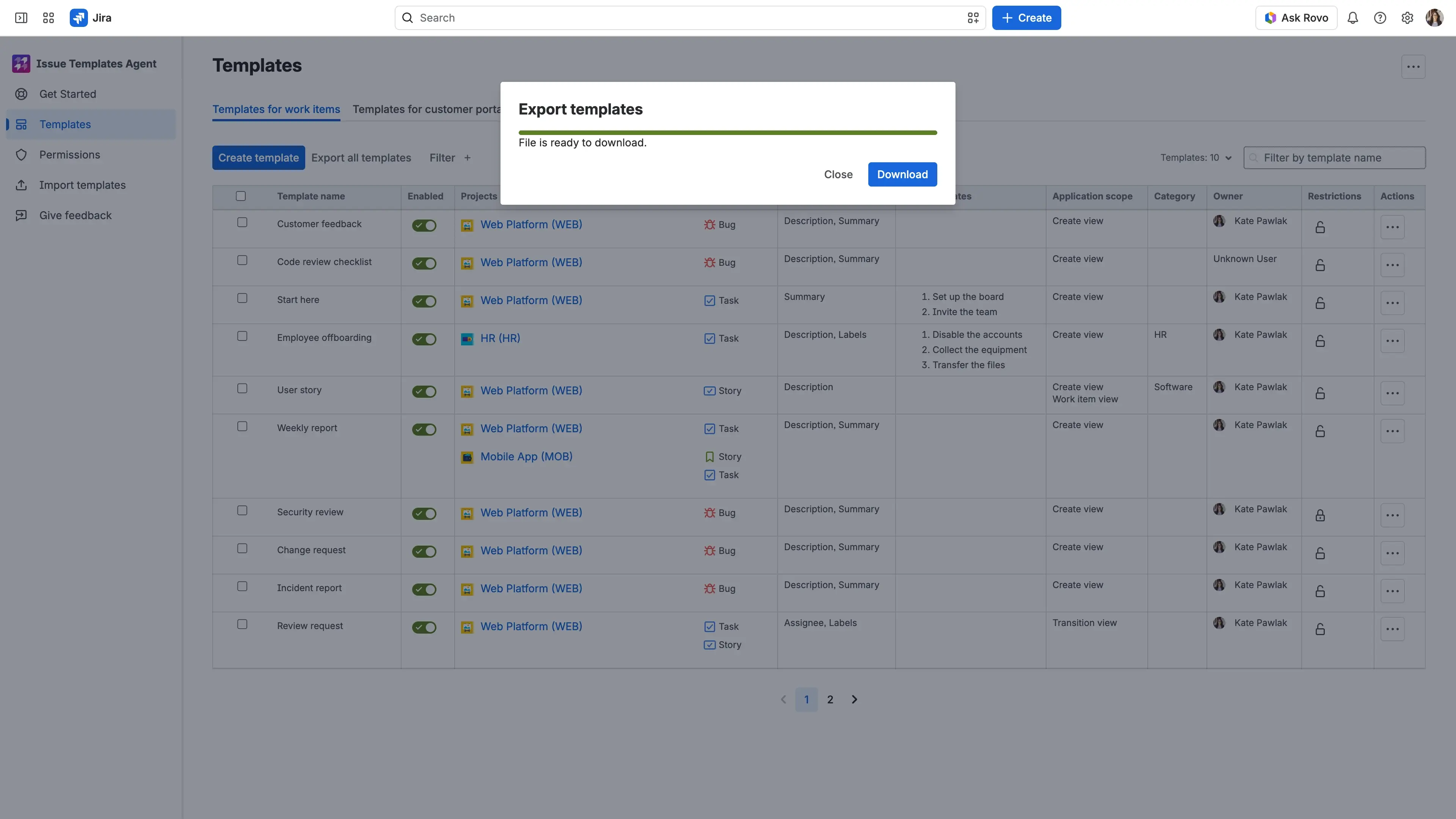


Import templates
Select Apps > Issue Templates Agent > Import templates.
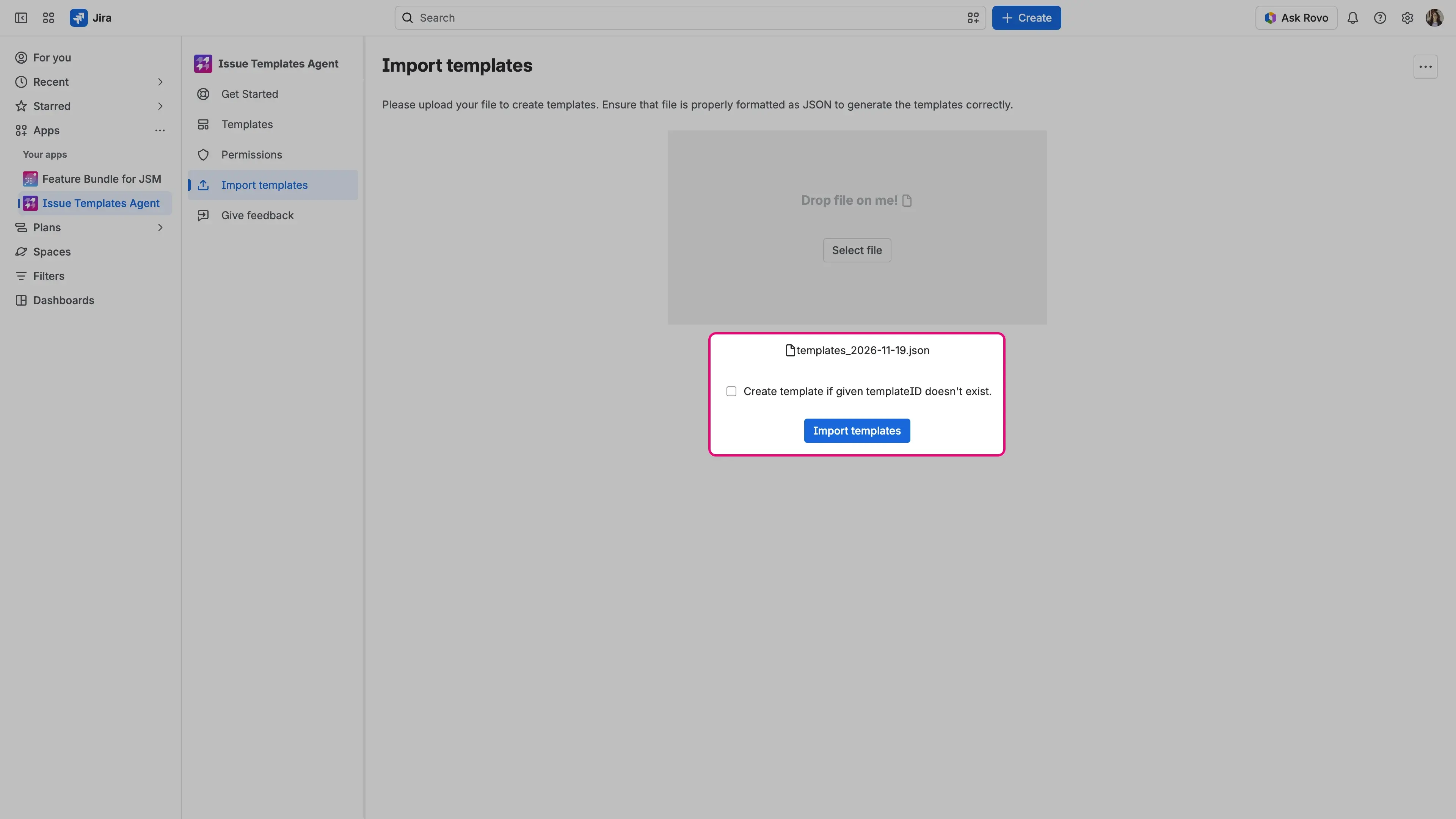
Drop the JSON file on the drop area, or select Select file. You can add only one file, and it must be a JSON file. The app validates it in the Validating templates dialog.
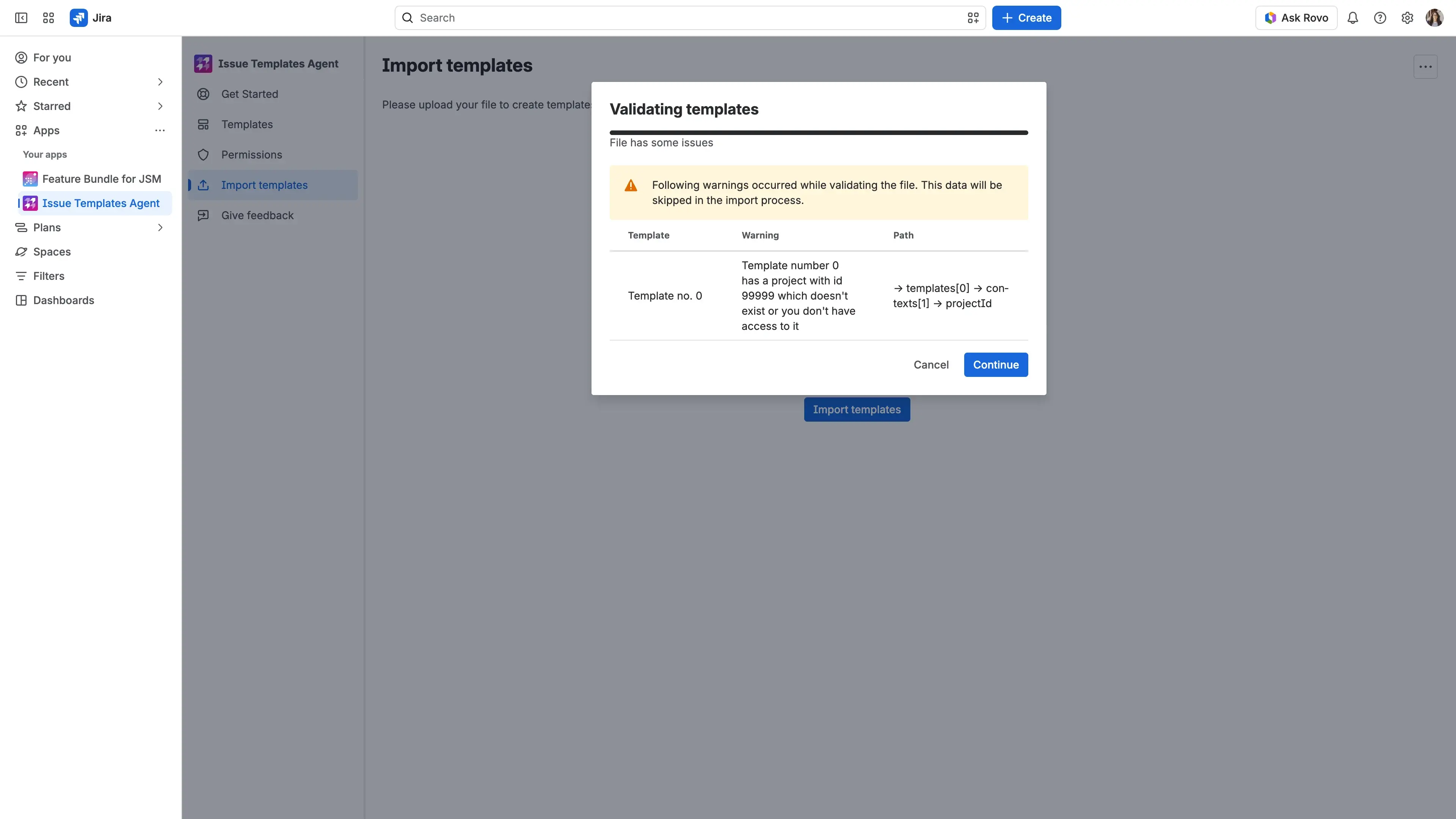
Read the result of the validation. The app lists the problems in two tables, grouped by template. It numbers the templates from 0 in the order of the file.
- Errors block the import. Fix the file and upload it again. The errors are:
- A template without any valid space and work type.
- A template whose name clashes with another template in the same space.
- A template with a structure that mixes a team-managed space with other spaces.
- A field that doesn’t exist in Jira, isn’t supported by the app, or has an invalid value.
- Warnings don’t block the import. The app leaves out the data that a warning names:
- It removes a space or work type that doesn’t exist, or that you can’t access, from the scope of the template.
- It removes a child template with an invalid scope together with its own children.
If the file has no errors, select Continue. When the file has no issues at all, the dialog says File validated successfully!
- Errors block the import. Fix the file and upload it again. The errors are:
Optional: select Create template if given templateID doesn’t exist. to create templates whose ID doesn’t exist on your site. The app skips these templates when the checkbox is clear.
Select Import templates and wait until the import ends. The Import templates dialog then shows the summary. Select Close.


Result
The summary lists the templates that the app created, for example 1 templates created and Template no. 0 - Code review checklist, and below it the number of templates that the app updated, for example 0 templates updated. Each template appears with its number in the file and its name. An imported template appears in the Audit log as created or updated by you.
Rules for the import
- A template without an ID becomes a new template with a new ID.
- A template whose ID matches an existing template replaces that template with the content of the file.
- A template whose ID matches no existing template is skipped, or created with the ID of the file if you selected the checkbox.
- The app imports the owner, the last editor, and the restrictions of each template as the file says. It doesn’t check them against the importing user or the site.
- A failure of one template doesn’t stop the others.
- The app can import files from the current export format only. It doesn’t convert older files.
- Templates for work items and templates for customer portal can be in the same file.
Move templates to another Jira site
The IDs of spaces, work types, and custom fields differ between Jira sites. The app checks them on the site where you import. Before you import, update them in the file:
- Export the templates on the source site.
- In the file, change the IDs of the spaces, work types, and custom fields to the IDs of the target site. Don’t change the template IDs.
- Import the file on the target site.
If a space or work type doesn’t exist on the target site, the import shows a warning and leaves it out. If a field doesn’t exist, the import shows an error and stops. A template with a structure can list only one team-managed space. See Company-managed and team-managed spaces.