Audit log
The Audit log records what happens in Issue Templates Agent: changes to templates, API tokens, and app permissions, and every attempt to apply a template to a work item, with its outcome.
Advanced edition
You can open the Audit log only in the Advanced edition. The app records entries in both editions, so entries from the time you used Standard appear after you upgrade to Advanced. See App Editions.
What the log records
Each entry shows the date and time, a level (INFO, WARNING, or ERROR), a type, the template, the work item, and the user.
- Templates: when someone creates a template, including by duplicating or importing it, when someone updates it, and when someone deletes it. Updating covers every way of saving a change: the template form, the Enabled switch, a new owner, new restrictions, bulk edit, and import. The details of an update list the fields that changed.
- API tokens: when someone creates or revokes a token, and who did it.
- App permissions: when someone changes permissions, with the users and groups assigned or removed.
- Applying templates: every attempt to apply a template on the Create work item dialog, on an existing work item, or through the REST API or Jira Automation, with its outcome. The log records the REST API and Jira Automation separately, so you can tell them apart from the Create dialog.
For a template with a structure, one entry covers the whole application, including all levels. The level of the entry shows the outcome:
- INFO: the app created everything.
- WARNING: some child work items failed. The details list the work items that failed, with the field and the error.
- ERROR: the creation failed altogether.
The log also records these problems:
- The template that a user chose can’t be found for the space and work type.
- Jira rejects a value that a template filled in.
- The REST API or Jira Automation uses a template for customer portal.
- The REST API or Jira Automation applies a template to an existing work item, and some fields of the template can’t be edited there. The app applies the other fields and records the skipped ones as a warning.
Before you start
- You are a Jira administrator. You need the Jira Administer Jira permission. The Issue Templates Agent - Administer App permission doesn’t give access to the log.
- You have the Advanced edition and an active license.
Steps
Select Settings > Marketplace apps. In the sidebar, select Apps > Issue Templates Agent > Logs.
The page shows the entries of the last hour (Last 1 hour), newest first. To change the period, select Last 12 hours, Last 24 hours, or Custom range in the drop-down. For Custom range, enter a start and an end date and time in the Select custom range dialog, and select Apply. The dates are in UTC.
Read the table. The columns are Level, Date/Time, Type, Template ID, User, and Details. Select Show more in a row to see the details of the entry. Work item keys in the entries are links to the work items.
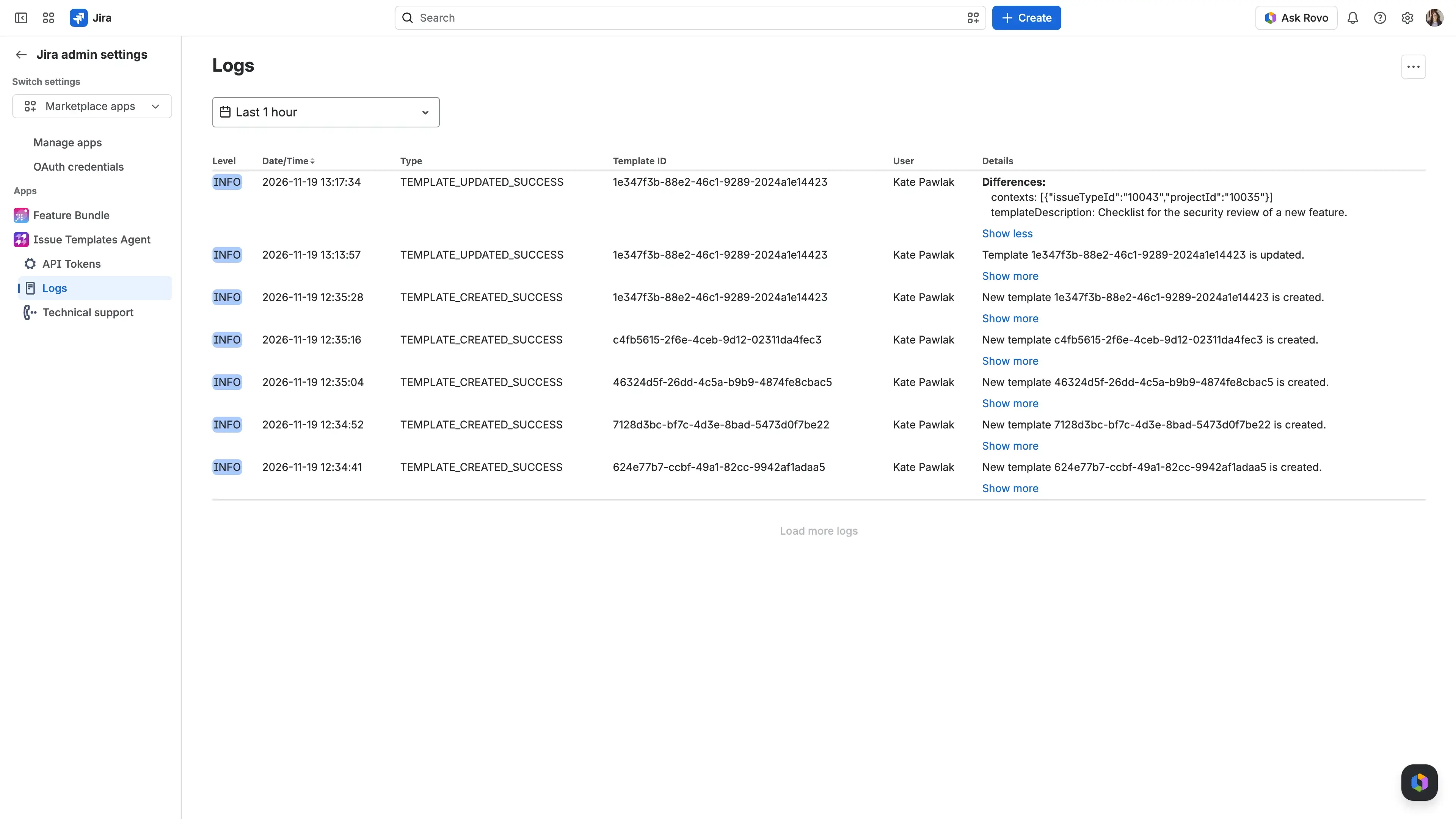
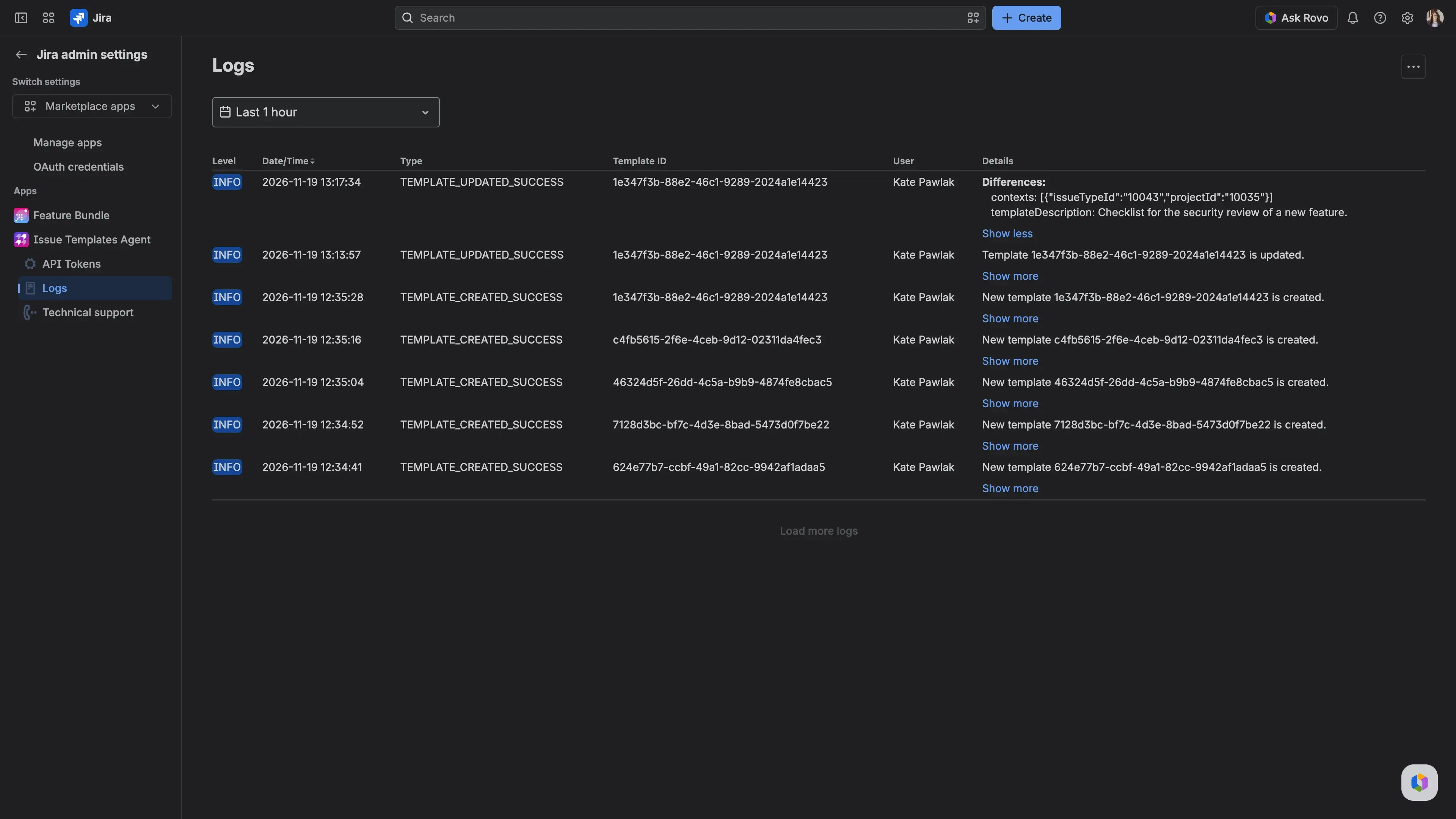
To see older entries in the same period, select Load more logs.


You can’t filter the log by template, work item, user, level, or type. The Date/Time header reorders the entries that are already loaded.
Result
The page lists the entries of the period you chose.
How long the log keeps entries
The app keeps entries for 180 days and then removes them automatically and permanently. The removal runs every hour, so an entry can stay visible for a short time after it is older than 180 days. You can’t change the period, delete entries by hand, or protect an entry from removal.