Jira data in HubSpot
The add-on allows the users to view data from Jira in the HubSpot object. The data is visible in the right-side panel of a selected object. The visible data is based on the value in HubSpot custom field in Jira.
User can see following Jira information:
- Work item name
- Work key
- Summary
- Status
- Priority
How to enable Jira Cards in HubSpot
To view Jira tickets within HubSpot, users must manually add the Jira cards to the sidebar of each object type (Contacts, Companies, Deals, etc.).
- Navigate to the object you wish to edit (e.g., open any Contact record).
- Click the Customize button in the top-right corner.
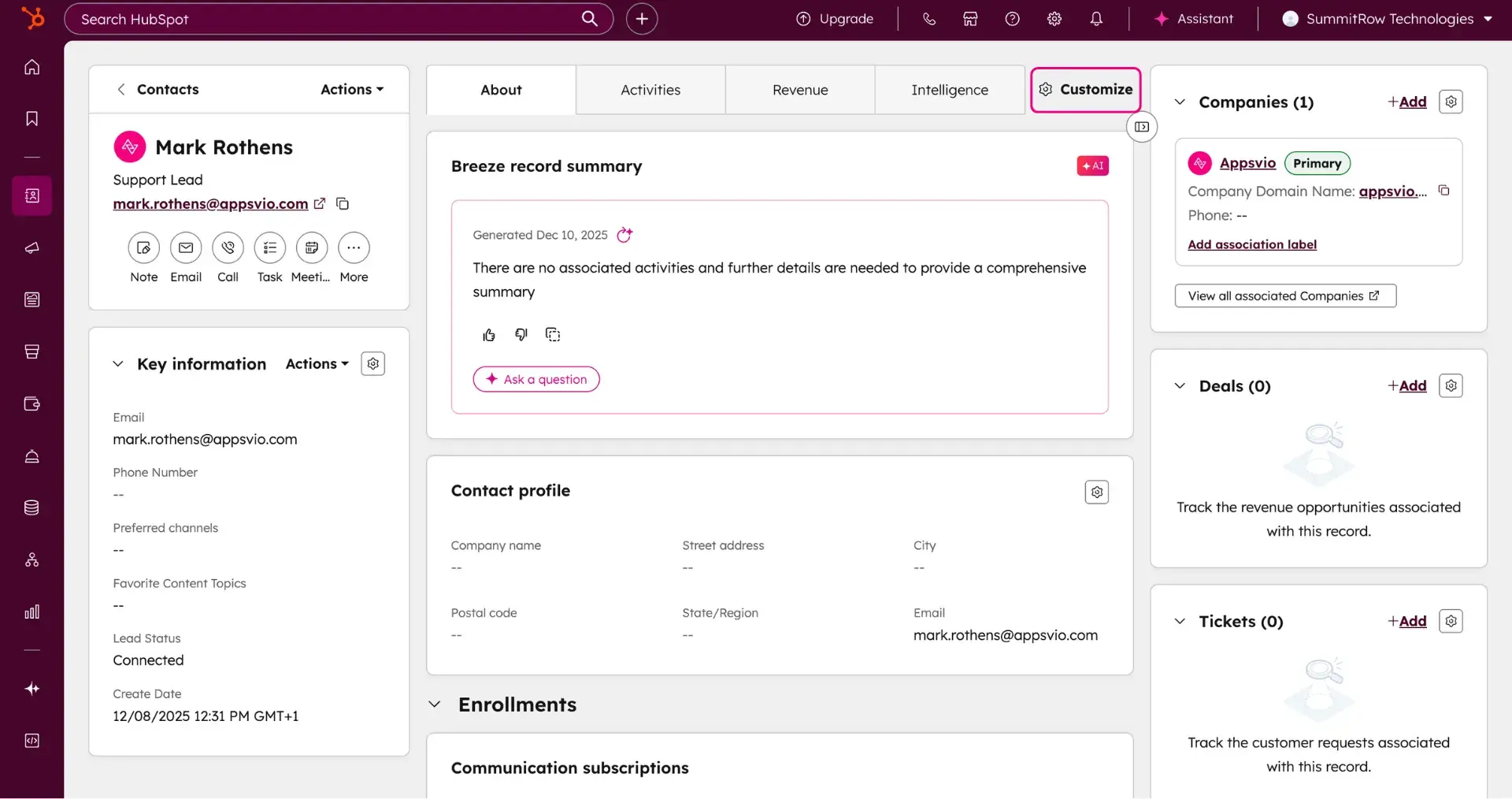
- Select Default view (or the specific team view you wish to modify).

- In the right column editor, click the Add card button.

- In the Card library tab, select Jira Work Item and Jira Work Item Reporters from the list.

- Click Save to apply your changes.
Keep in mind
Users must repeat this process for every object type where Jira data should appear.

Filter work items in Jira cards
The Jira Work Items card lists the work items linked to the HubSpot record through the HubSpot custom field in Jira. The Jira Work Items Reporter card lists the work items reported by the Jira user whose email matches the email of the HubSpot contact. To find the right work item on a record with many of them, use the filters of the card.
Both cards have four filters:
- Service project - Jira Service Management projects, shown with their key, for example Support (SUP)
- Status
- Priority
- Labels
Each filter accepts more than one value. All filters are empty by default, so the card shows all work items.
To filter the list:
- Open a record that has the Jira Work Items or Jira Work Items Reporter card.
- In the card, open a filter and select one or more values.
The list shows only the matching work items, the newest first. To empty all filters at once, click Clear filters.
How the filters combine
A work item must match every filter that has values. Inside one filter, it must match any of the selected values. For example, Service project = Support (SUP) and Status = Open, In Progress shows work items from the Support project that are open or in progress.
If no work item matches, the card shows No work items match the selected filters and a way to clear the filters.
Saved filters
The app saves your selection for your HubSpot user. The card applies it on every record, after you refresh the page and after you sign in again. Other users of the same HubSpot account have their own filters.
Values that no longer exist in Jira are ignored. When you disconnect HubSpot from Jira, the saved filters of that HubSpot account are deleted.
Load more work items
Each card shows the 20 newest work items. Click Load more to show the next 20. The button disappears when there is nothing more to load. When you change or clear a filter, the list returns to the first 20 work items. If loading fails, the card keeps the work items it already shows, and you can try again.
The filters and Load more work the same way in the Jira Work Items and the Jira Work Items Reporter cards.
Manage Jira cards
Jira cards in HubSpot can also be managed through the Connected apps settings. In one space, users can decide for which HubSpot objects, where do the cards appear. To manage the cards, take following steps:
- Go into Settings (cog icon) > Integrations > Connected apps.
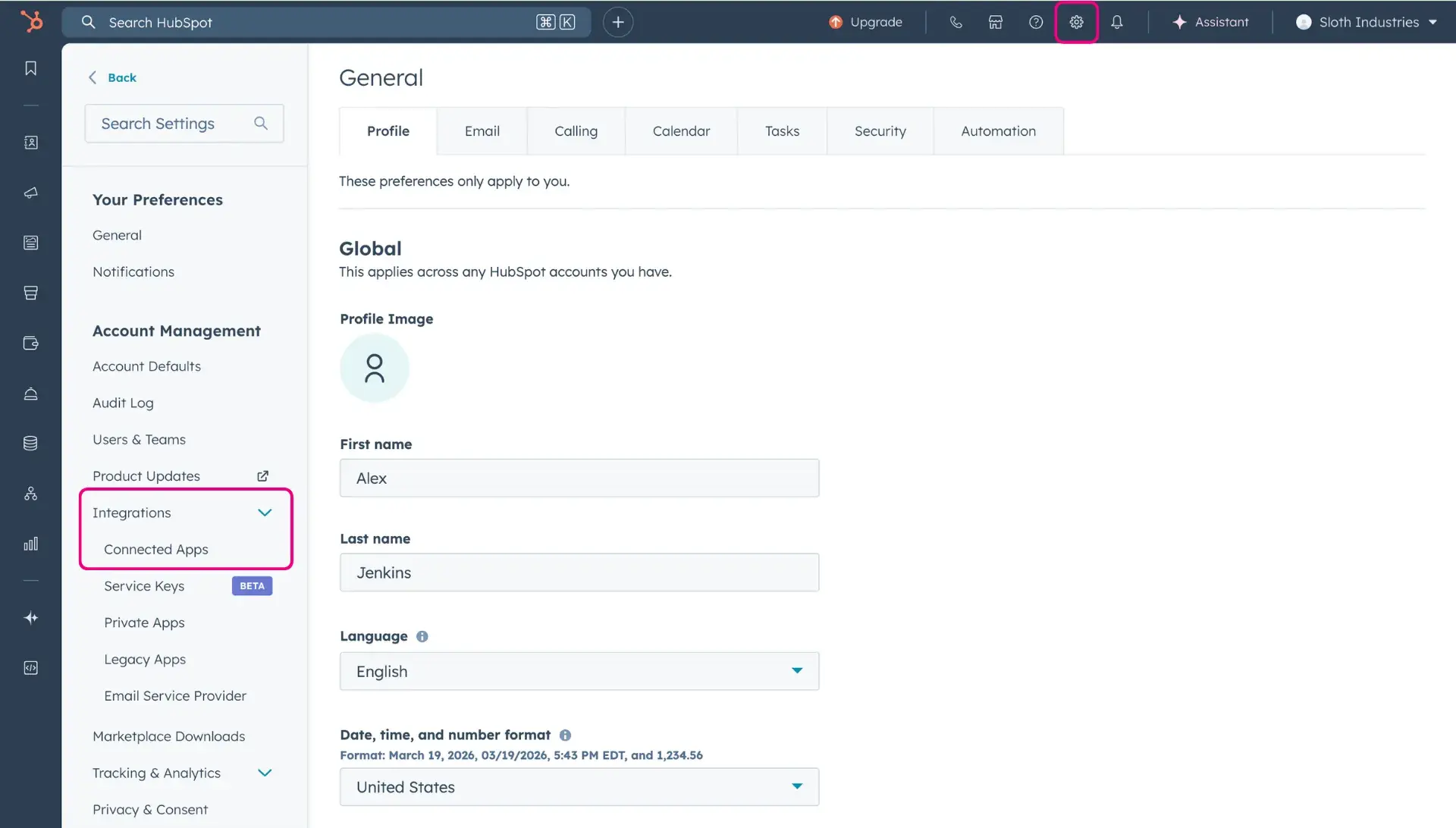
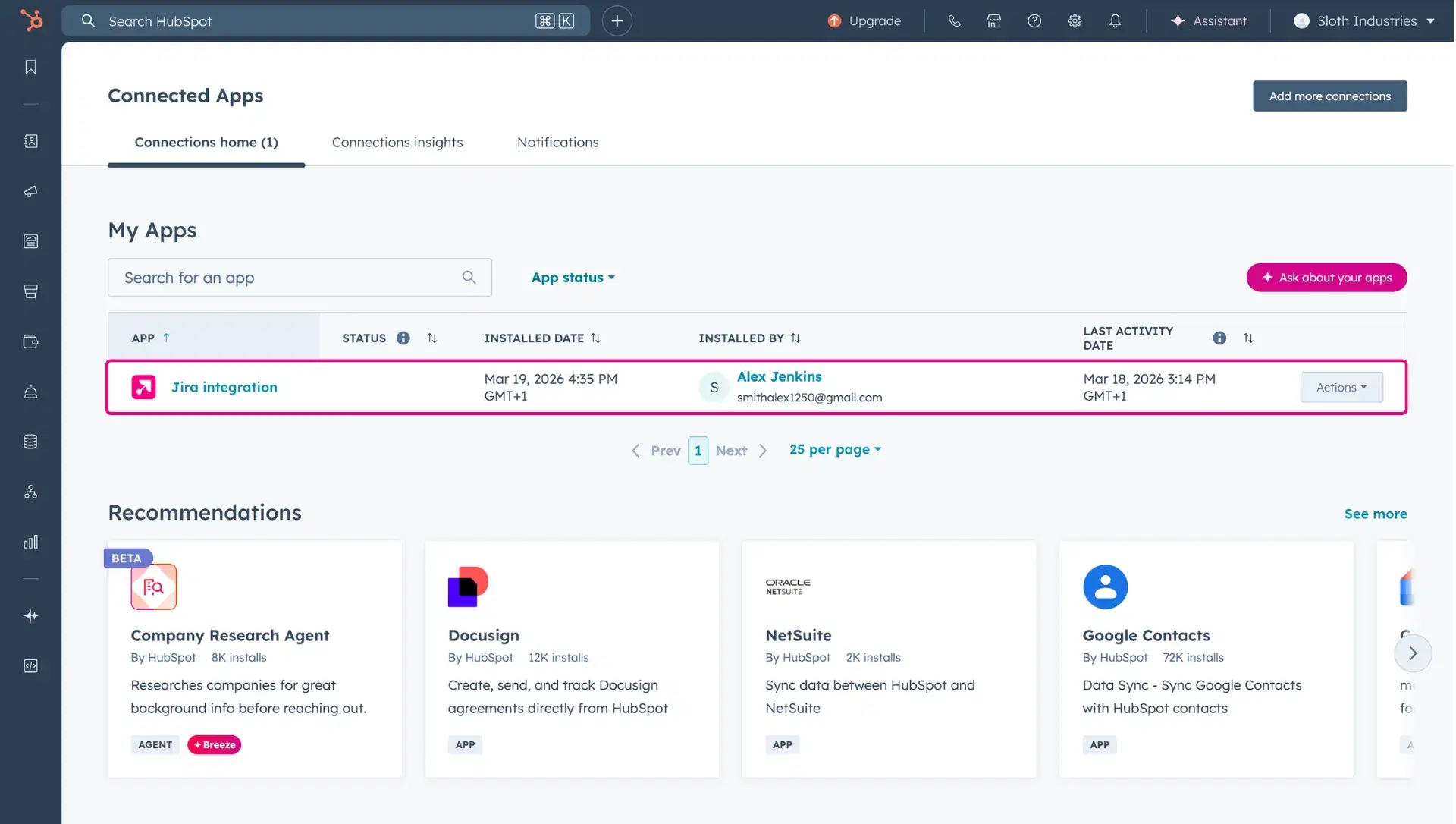
- There, find the HubSpot-Jira integration on the list and click on it.
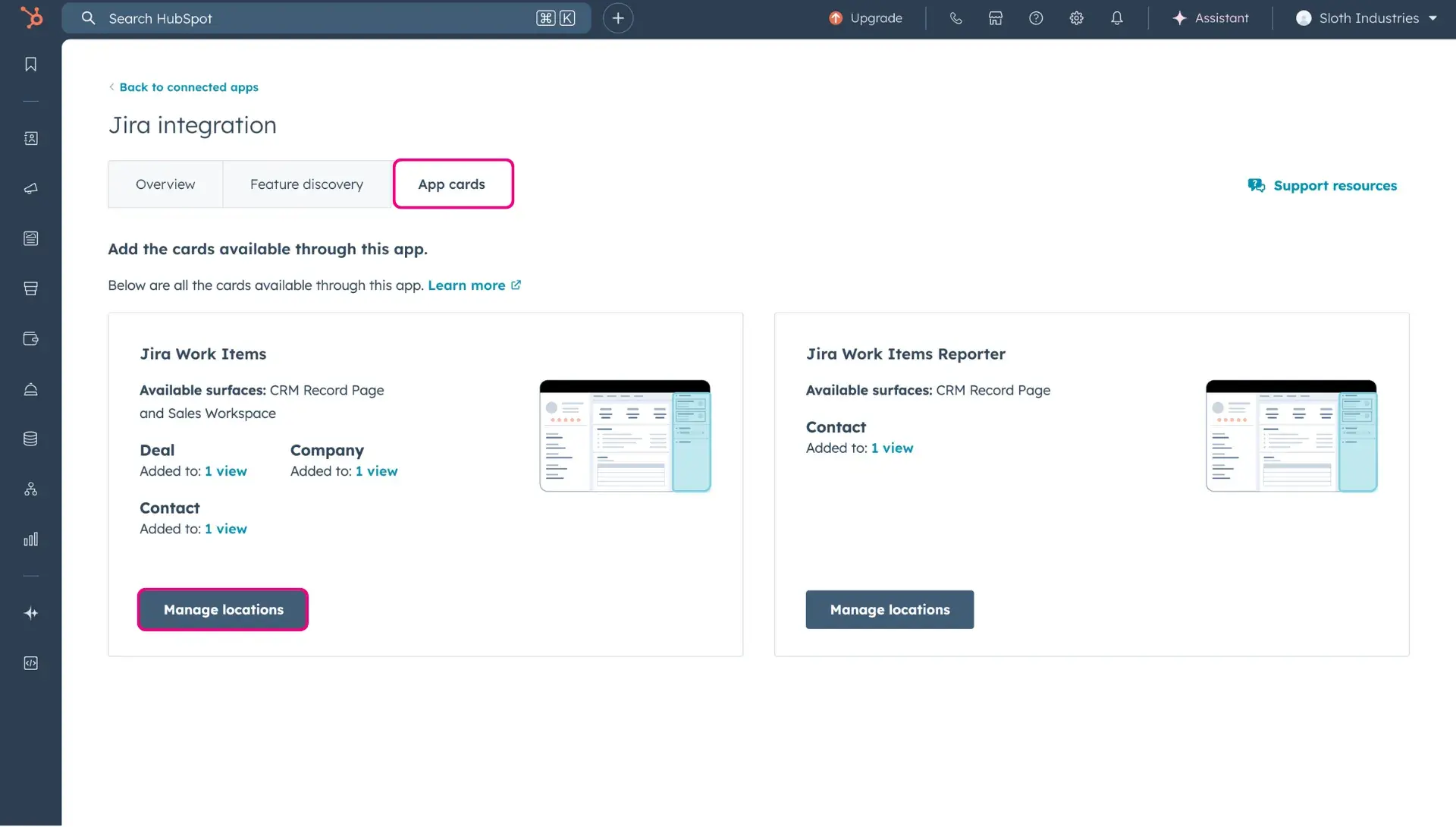
- In the App cards tab, configure the Jira cards by clicking the Manage locations button, available for both cards provided by the HubSpot-Jira integration app.
- In the right-side panel, switch between the tabs and freely manage the locations of Jira cards.
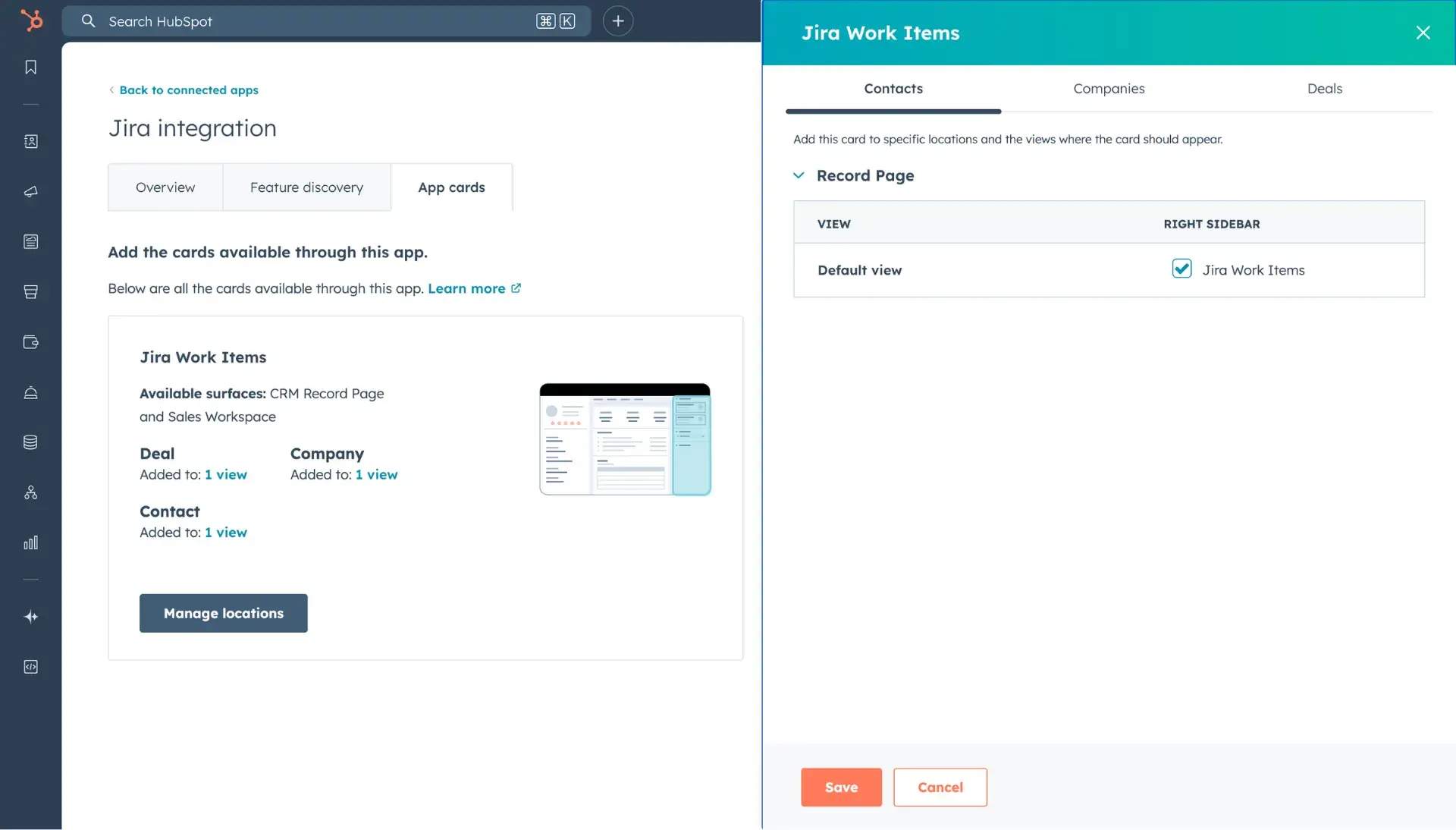
- Once finished, click the Save button.