Set step colors
You can match the colors of Ticket Journey to the look of your customer portal. The colors apply to every request type of the space and to both the Vertical and the Horizontal journey.
Before you start
- You are both an administrator of the service space and a service desk agent in it.
- Feature Bundle is installed. See Install Feature Bundle.
Steps
Go to Space settings > Apps > Feature Bundle > Ticket Journey.
Select Settings > Configure colors. The Configure colors dialog opens.
Set the four colors. Enter each as a hex value, such as
#0052CCor#05C, or pick it with the color swatch:- Title color: the color of the title panel.
- Previous step: the color of the name and the description of the steps the request has passed.
- Active step: the color of the name and the description of the active step.
- Next step: the color of the name and the description of the steps still ahead.
A value that isn’t a valid hex color shows “Invalid hex color” and you can’t save it.
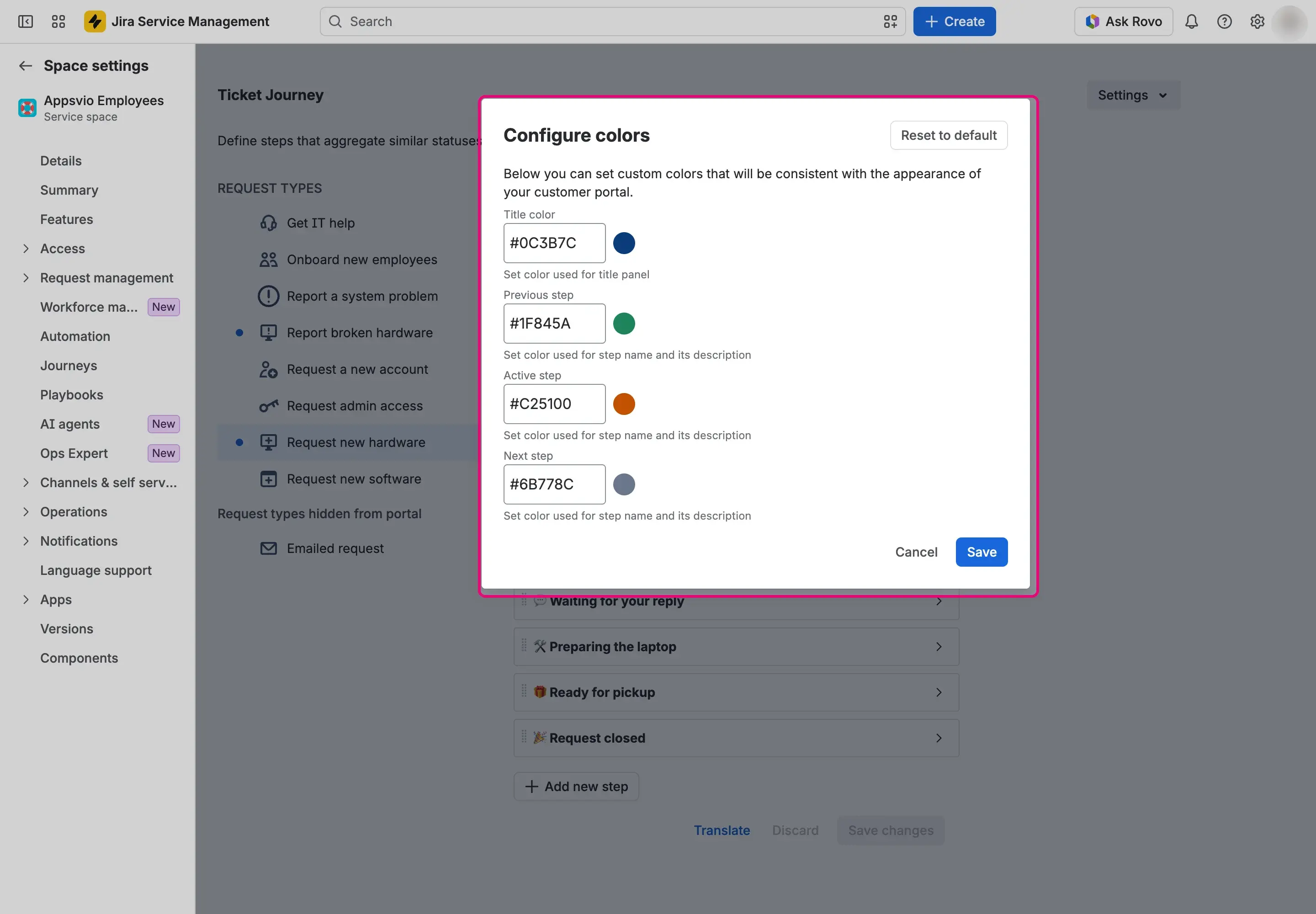
To go back to the defaults, select Reset to default. The defaults are
#172B4Dfor the title,#5E6C84for the previous step,#0052CCfor the active step, and#172B4Dfor the next step.Select Save. A message confirms that the colors have been saved. To leave without saving, select Cancel.

Result
Customers see the journey in the colors you set, on every request type of the space. A color you didn’t set uses its default.
