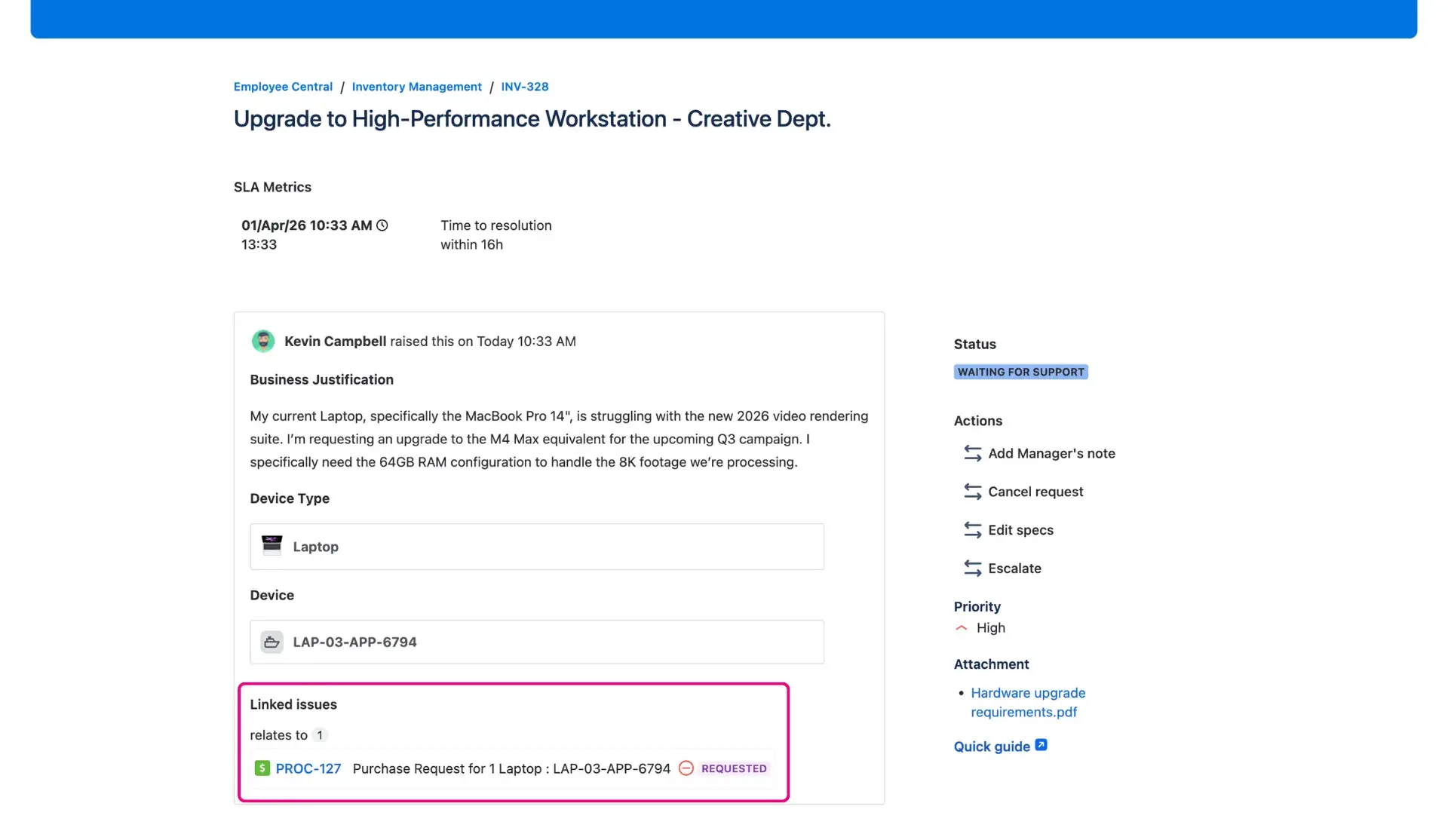
Linked issues on portal
Transparency is the key to a great customer self service portal. Often, a single request is part of a larger chain of tasks. By displaying linked issues (such as related bugs or similar issues), you show the customer that their request is being handled within the bigger picture. This level of honesty builds massive trust and significantly reduces the volume of status inquiries.
Why it’s a win-win
For customers: It provides context. If a user sees their ticket is linked to a “System-wide Outage” task that is already “In Progress,” they feel reassured that the team is already on it.
For agents: It creates “silent updates.” When the status of a linked dev task changes, the customer sees it automatically. This prevents the need for manual “we’re still working on the linked bug” updates.
How to configure it
Users can customize exactly how much information to reveal:
Navigate to the Additional Fields section in your project settings.
Add a new panel and select Linked issues from the field list. Following work item details will be displayed on customer portal:
- Work-key
- Summary
- Status
- Priority.
Choose to show issues bound by specific link types (e.g., “is blocked by”). If left undefined, all linked issues will be visible.
Placement tips
We recommend placing this in the center, directly underneath the submitted request form, where it has plenty of room to display the column data.
Why it works in practice
Imagine a “New Hire Onboarding” request. The new employee can see the linked issues for “IT Equipment,” “ID Badge,” and “Access Rights.” They can track which parts are done and which are pending, making the Jira customer portal feel like a true project management tool for the user.