Custom links on portal
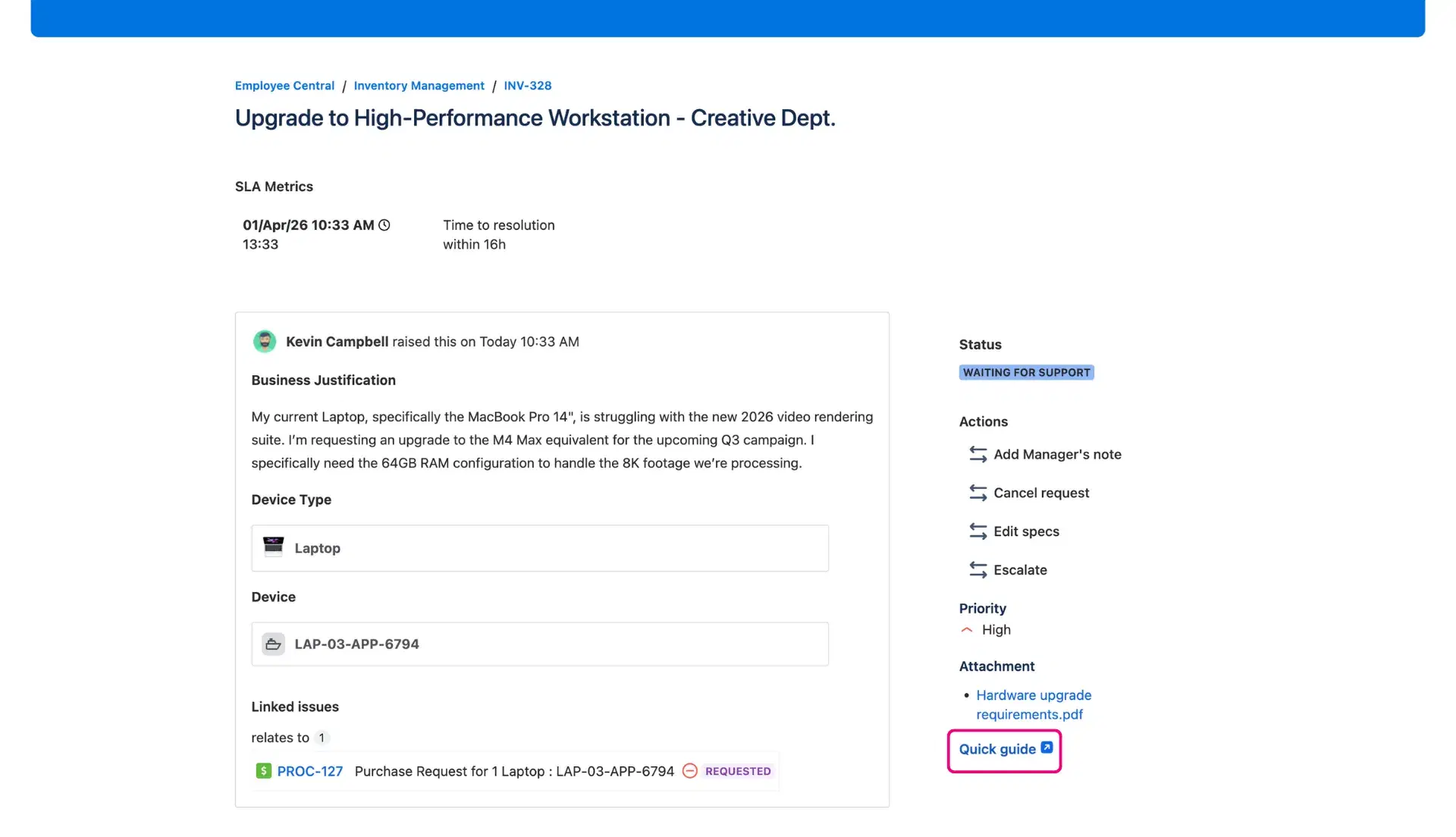
Sometimes the information a user needs isn’t stored within the ticket itself, but in an external resource like a Confluence knowledge base, a Loom video walkthrough, or an internal tool. By adding custom links to the customer portal, you provide direct access to these resources from the request details view. This keeps the user focused on the solution without requiring them to search through separate tabs.
Why it is beneficial
For customers: It places helpful resources exactly where they are needed. Instead of reading long text instructions, a user can click a link to a Loom video for a visual guide or a Confluence page for a detailed policy.
For agents: It prevents repetitive manual work. Agents no longer need to copy and paste the same documentation links into comments for every ticket; the resources are already a permanent part of the portal interface.
Configuration
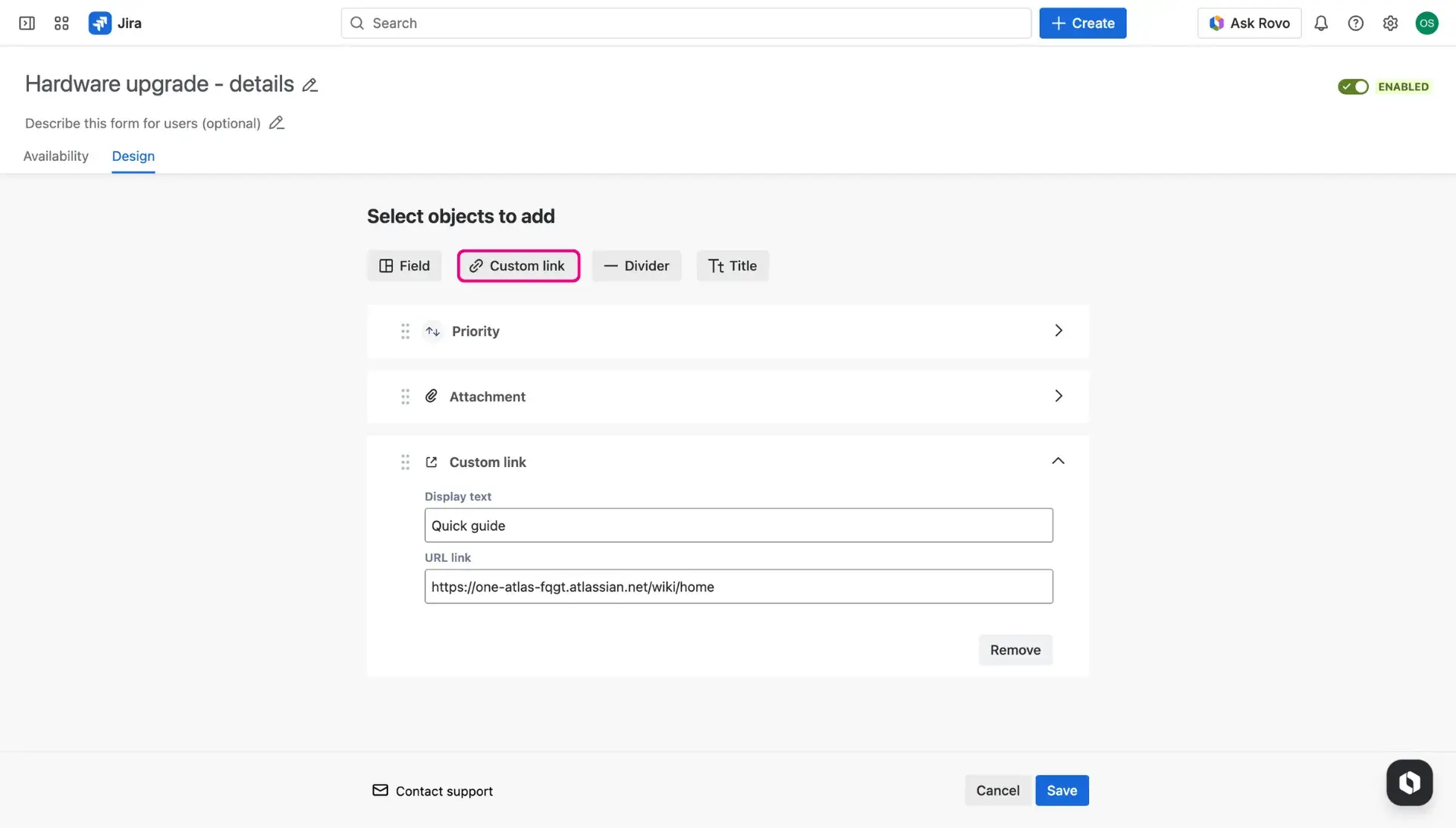
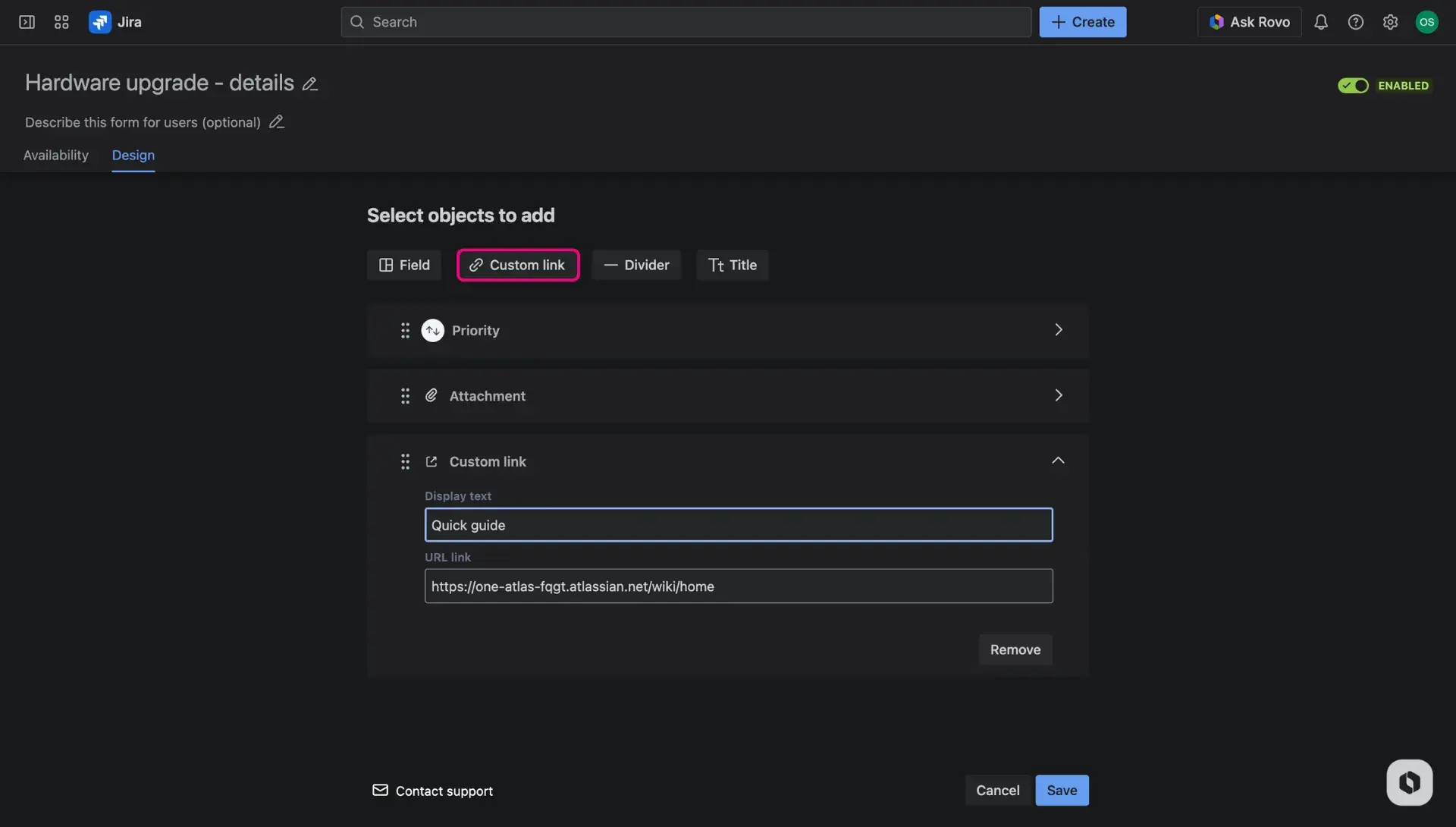
Adding a custom link is done while configuring Additional fields, in the Design tab:
Navigate to the Design tab within the app configuration.
Click the Custom links button to add a new element to your panel.
Paste the destination URL and enter the Display text (the label the user will see, e.g., “Watch Setup Video” or “View User Manual”).
Placement tips
Custom links are effective in the side panel as a “Helpful Resources” section or at the top of the request for critical external alerts.
How it works in practice
With this option, a “Hardware Request” can include a custom link to a Confluence page outlining the company’s equipment policy. For incident management in Jira, a link to a Loom video showing a temporary workaround can be pinned to the portal. By providing these resources directly on the self service customer portal, you enable users to find answers and resolve issues independently.