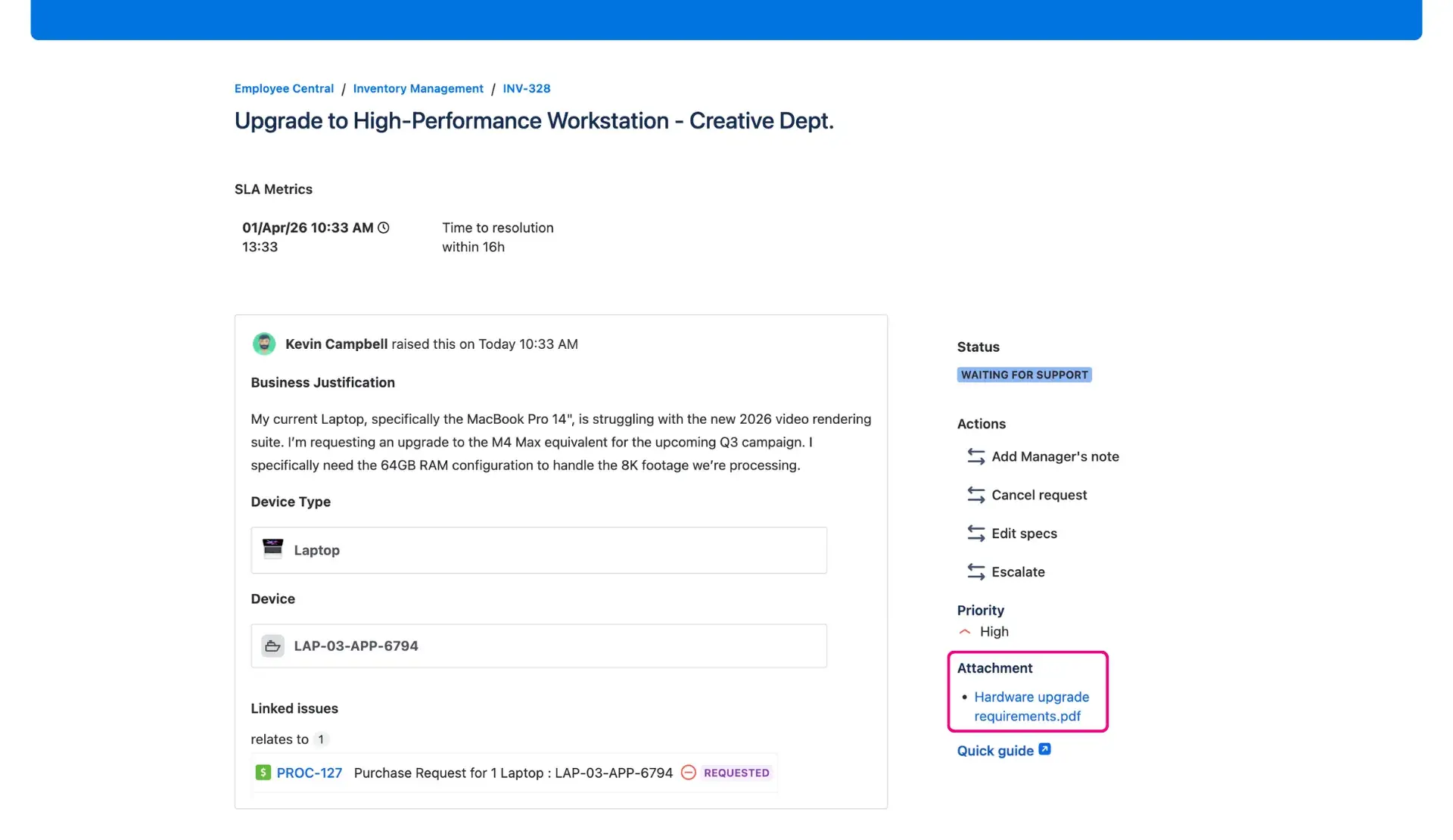
Attachments on portal
Documentation shouldn’t be buried. Whether it’s a technical log, a screenshot of an error, or a signed contract, the most important files should be front and center. By surfacing attachments directly in the request view, the Jira portal transforms from a simple ticket tracker into a collaborative workspace.
Why it’s a win-win
For customers: No more digital archaeology. Users can see every file linked to their request in one clean list. A simple click on the file name starts the download, removing the need to scroll through weeks of conversation.
For agents: It cuts down on “can you resend that file?” requests. When a file is surfaced clearly, the customer has everything they need, letting the agent focus on actual resolution.
Configuration & Best Practices
Navigate to the Additional Fields section in your project settings.
Add a new panel and select Attachments from the field list.
The system automatically generates a direct link within the file name, making the transition from viewing to downloading seamless for the user.
Placement tips
The side panel is perfect for a compact, “at-a-glance” list. If the workflow involves heavy documentation (like legal reviews), the center view offers more breathing room.
Why it works in practice
In practice, this turns the request view into a “living folder.” For high-stakes incident management in Jira, an agent might upload a “Resolution Summary” PDF. Instead of the customer missing the notification or losing the file in their inbox, it remains pinned to the portal—always available, always professional.