Manage forms
Use the form list of a space to open, disable, delete, or check its Customer Actions forms.
The form list
The list shows each form as a card with its name, its description, the conditions, the location, and the status. The conditions show All request types for a form available on all request types without a JQL condition, and Conditions applied for a form with selected request types, a JQL condition, or a workflow transition. Forms are listed alphabetically.

Before you start
- You are both an administrator of the service space and a service desk agent in it.
Steps
Edit a form
- Go to Space settings > Apps > Feature Bundle > Customer Actions.
- Select the card of the form. The form page opens.
- Change the settings, then select Save form. For the settings, see Create a form.
Enable or disable a form
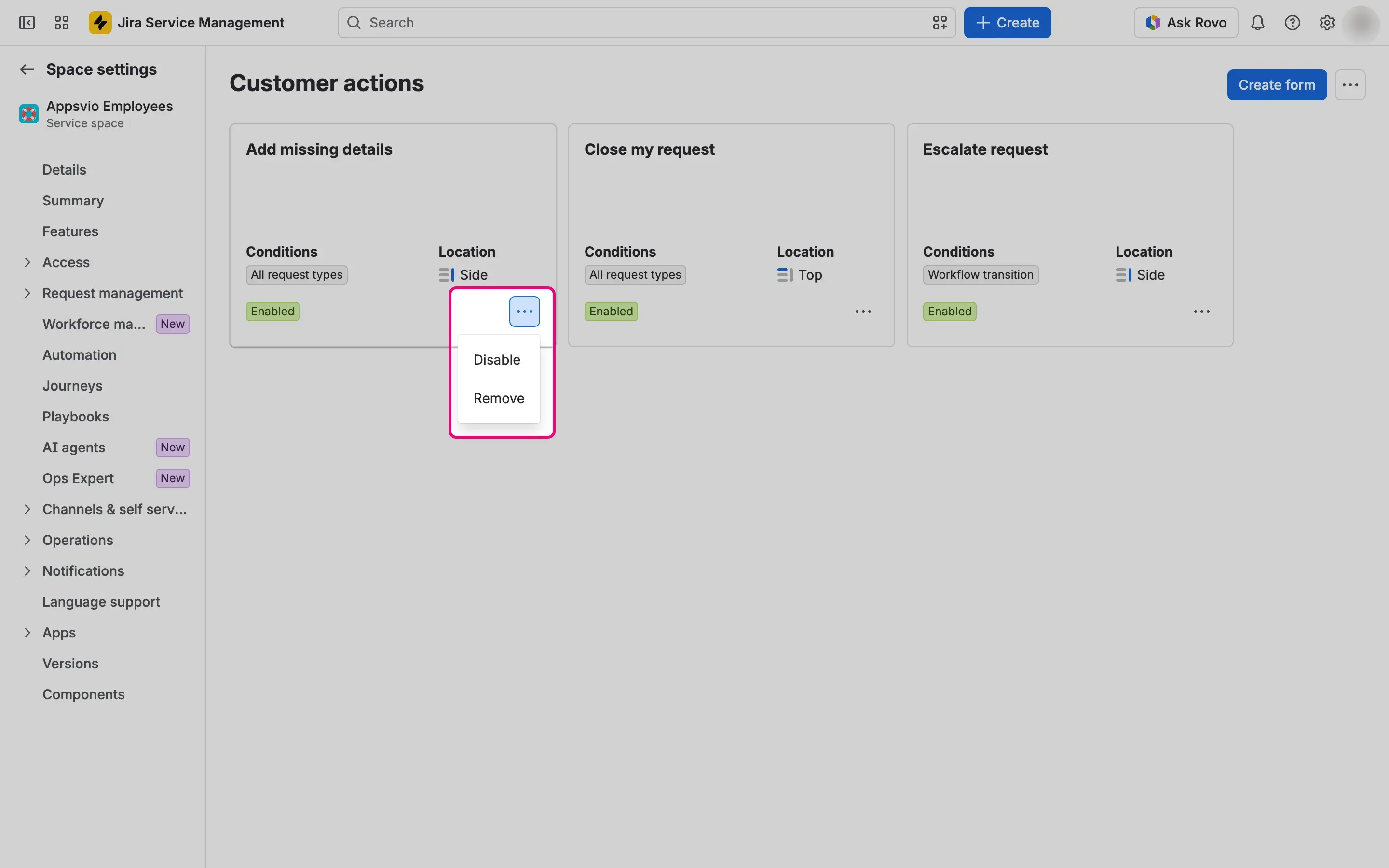
On the card, select More actions > Disable or More actions > Enable.

Delete a form
- On the card, select More actions > Remove.
- In the Delete form dialog, select Delete.
Deleting can't be undone
Delete removes the form and all of its configuration. If you’re not sure, disable the form instead.
Check that a form can work
A form can’t work for a request type when one of its fields is missing on the edit screen of that request type.
- On the card, select the warning Click here to check configuration. The Field screen check dialog opens.
- Read the result. If everything is fine, the dialog says “Customer Actions configuration is valid”. Otherwise it lists each screen with the fields that are missing and a link to the configuration of that screen, or of the request type in team-managed spaces.
- Add the missing fields to the screens listed, then select Refresh in the dialog to check again.
The check doesn’t cover the Status and Comment fields. A request type without its own edit screen is checked against the default screen.

Result
- Edit: Feature Bundle saves your changes and shows a message that the form has been updated.
- Enable or disable: a message confirms that the status has changed. A disabled form never shows to customers, whatever its other settings, and its configuration stays.
- Delete: the form and its configuration are gone, and a message confirms that the form has been removed.
- Check: the dialog confirms that the configuration is valid, or lists what to fix.