Let customers link work items
The Linked work items field lets customers link other work items to their request from the form on the customer portal. You can also let them see the existing links and remove them.
Before you start
- You are both an administrator of the service space and a service desk agent in it.
- You have a form. See Create a form.
Steps
Go to Space settings > Apps > Feature Bundle > Customer Actions and open the form.
Open the Design tab, select Select object to add, and then select Field.
In the Select field type dialog, select Linked work items and select Add field.
Expand the card of the field and set:
- JQL and Description: as for other fields. See Create a form.
- Add links: on by default. Customers can link work items.
- Link types: the link types and directions that customers can use. Leave it empty to offer all link types.
- Required: available only with Add links. The customer has to add at least one new link when they save. If you turn Add links off, Feature Bundle clears Required.
- Show all linked work items: off by default. The dialog lists the existing links of the request.
- Allow to remove links: available only with Show all linked work items. Customers can remove links.
At least one of Add links and Show all linked work items has to be on. Otherwise the form shows the message “At least one of Add links or Show all linked work items must be enabled”.
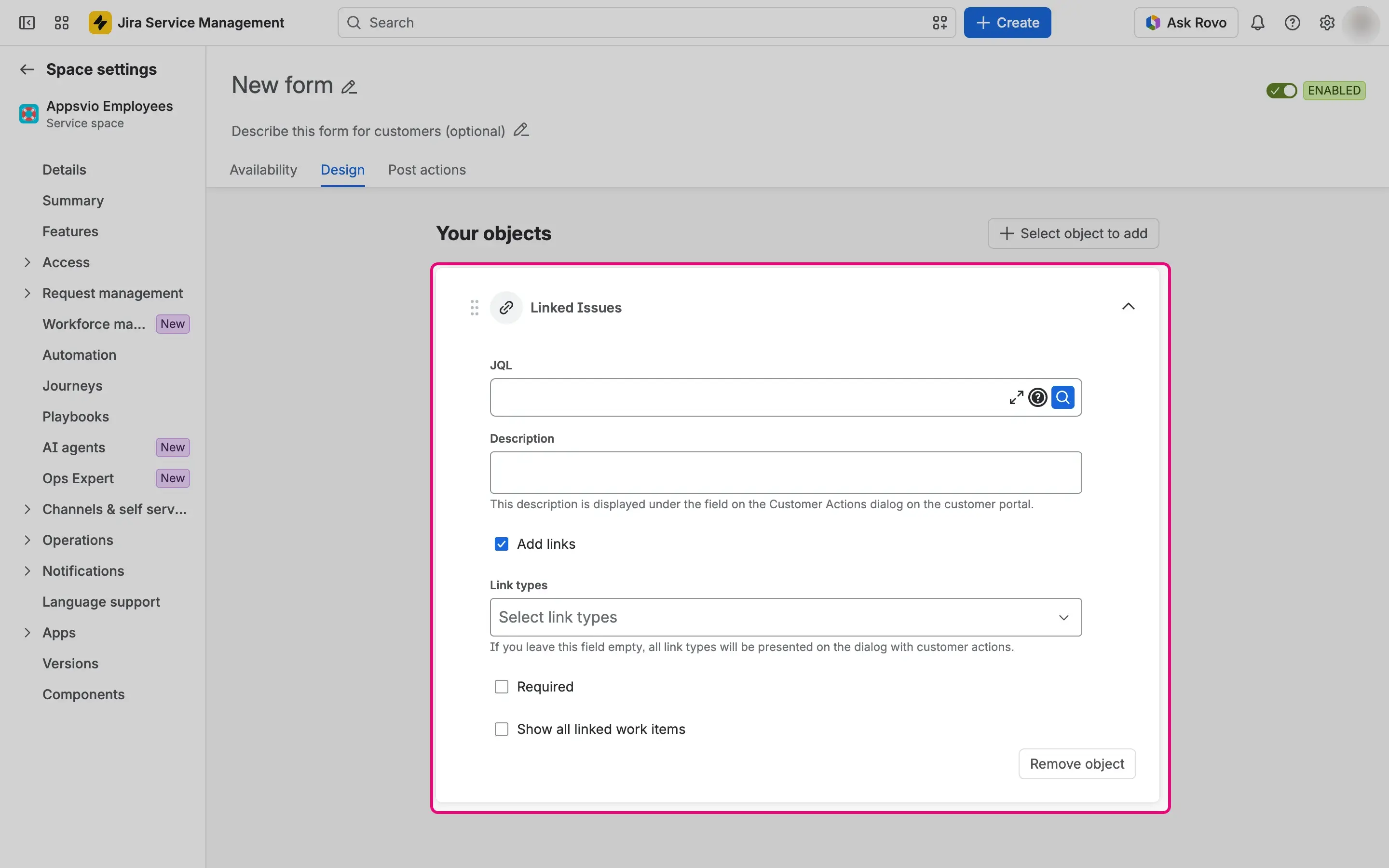
Select Save form.

Result
In the dialog of the form, customers see the field with the parts you turned on:
- Add links: the list Select link type, which offers only the link types and directions you set, and the search box Search and add work items…. When there is only one option, the list preselects it. The search finds work items by summary and by work item key, and customers can find only work items they have the Browse space permission for. Work items that customers add are marked Pending until they save.
- Show all linked work items: the list Existing links with the work item key, the summary, and the link type of each work item, or “No work items to display.” when there are none.
- Allow to remove links: a remove icon on each existing link. It opens the Unlink work item dialog with the question “Are you sure you want to remove the link to KEY?”, where the customer selects Remove or Cancel.

Visibility and permissions
The list of existing links shows every linked work item, including work items that the customer can’t open in Jira. Feature Bundle creates and removes links in the name of the customer, so the Jira permissions of the customer apply to these actions.