Configure global settings
The Configuration page holds the Feature Bundle settings that apply to every space. Only Jira administrators can open it.
Before you start
- You are a Jira administrator.
- Feature Bundle is installed. See Install Feature Bundle.
Steps
Select the cog icon, then go to Apps. In the left menu, under Feature Bundle, select Configuration.
To set the comment that forms add after a customer saves, go to the section Comment after saving a form, enter the comment text and choose the Comment mode. Every form that uses the global configuration adds the comment with this text and mode the next time a customer saves it. See Create a form.
- Use up to 500 characters in the text. With more, you can’t save. An empty text uses the default text:
{editAuthor} edited this request on {editDate}. The following fields have been changed: {editFields}. - Use these variables:
{editFields}for the names of the edited fields,{editAuthor}for the display name of the customer, and{editDate}for the date and time in UTC. - Comment mode: Internal hides the comment from customers and adds it in the name of the app. Public adds it in the name of the customer. With no saved settings, the mode is Public.
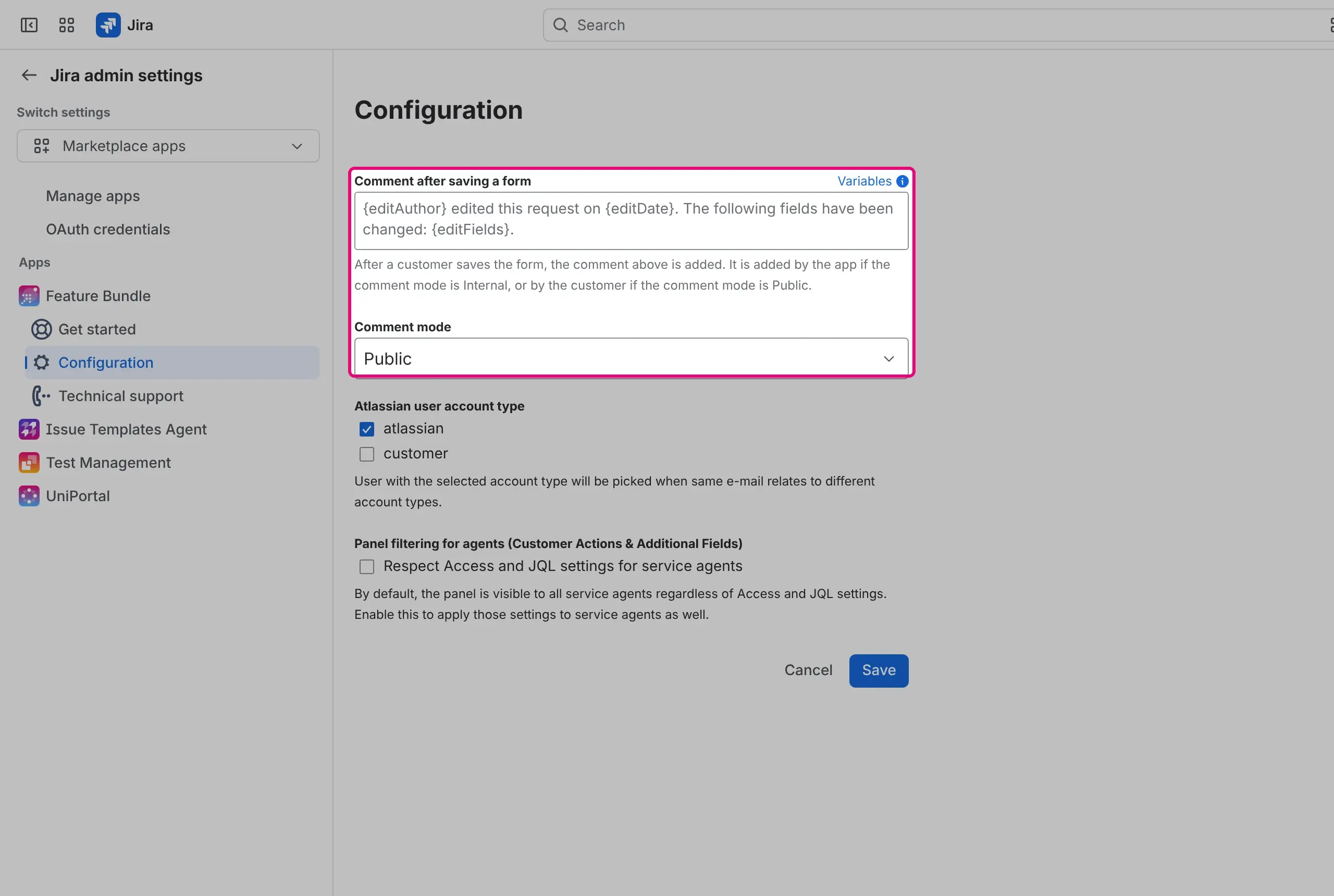
- Use up to 500 characters in the text. With more, you can’t save. An empty text uses the default text:
To make service agents follow the access settings of panels and forms, select Respect Access and JQL settings for service agents under Panel filtering for agents (Customer Actions & Additional Fields).
- By default, service agents see every enabled panel and form regardless of the access roles and the JQL condition.
- With the setting on, agents also have to meet them, in all spaces and for both Additional Fields and Customer Actions.
- The other conditions for agents don’t change: the panel or form has to be enabled and match the request type and the zone.
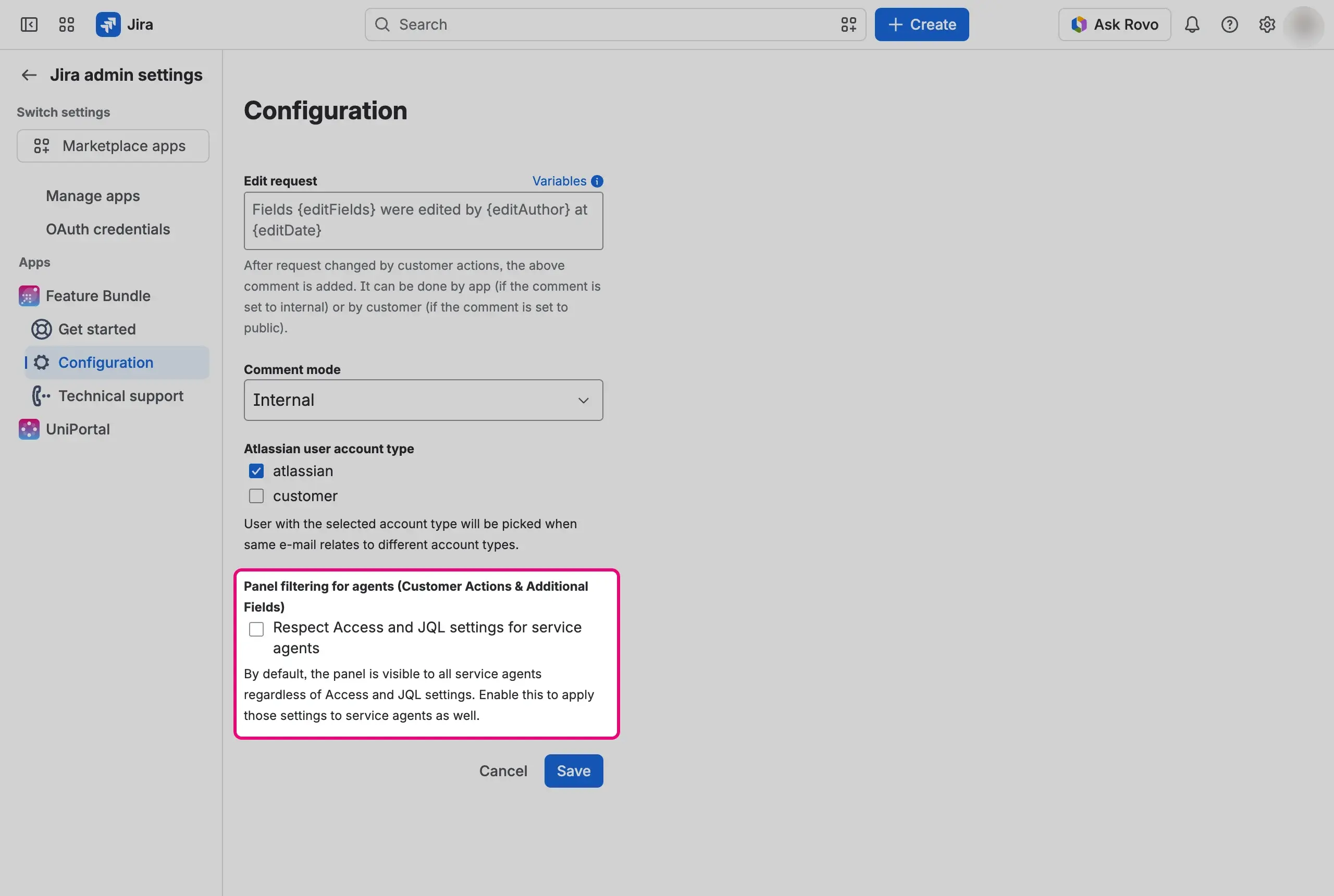
Select Save. To go back to the last saved values, select Cancel.


Result
Feature Bundle saves all settings together and shows the message “Configuration saved!”.
Technical support page
The Technical support page is the third page under Feature Bundle. It is for troubleshooting only. It has a link to the Appsvio support portal, where you can ask Appsvio support to enable the storage browser on your instance. The storage browser appears on this page only after support enables it.