Show work items
The Work items object shows work items that belong to a request: its parent, its children, its subtasks, its linked work items, or work items found with a JQL query. Customers see them on the request view, and you can add a progress bar.
Before you start
- You are both an administrator of the service space and a service desk agent in it.
- You have a panel. See Create a panel.
Steps
Go to Space settings > Apps > Feature Bundle > Additional Fields and open the panel.
Open the Design tab, select Select object to add, and then select Work items. The Select work items dialog opens with Related already chosen.
Open the list, choose the kind, and select Add field:
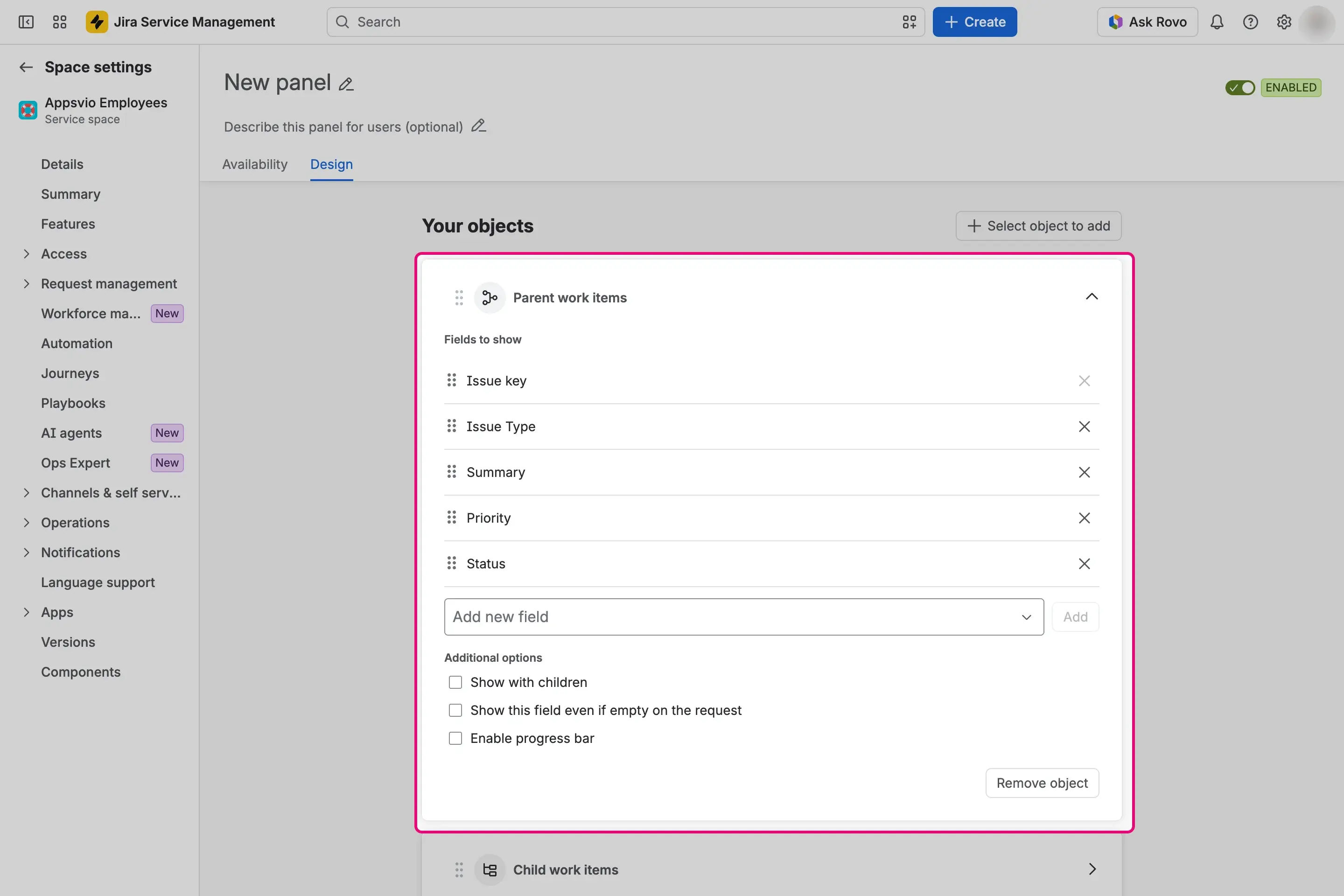
- Parent: the parent of the request. With Show with children, it also shows the other children of that parent, one level down.
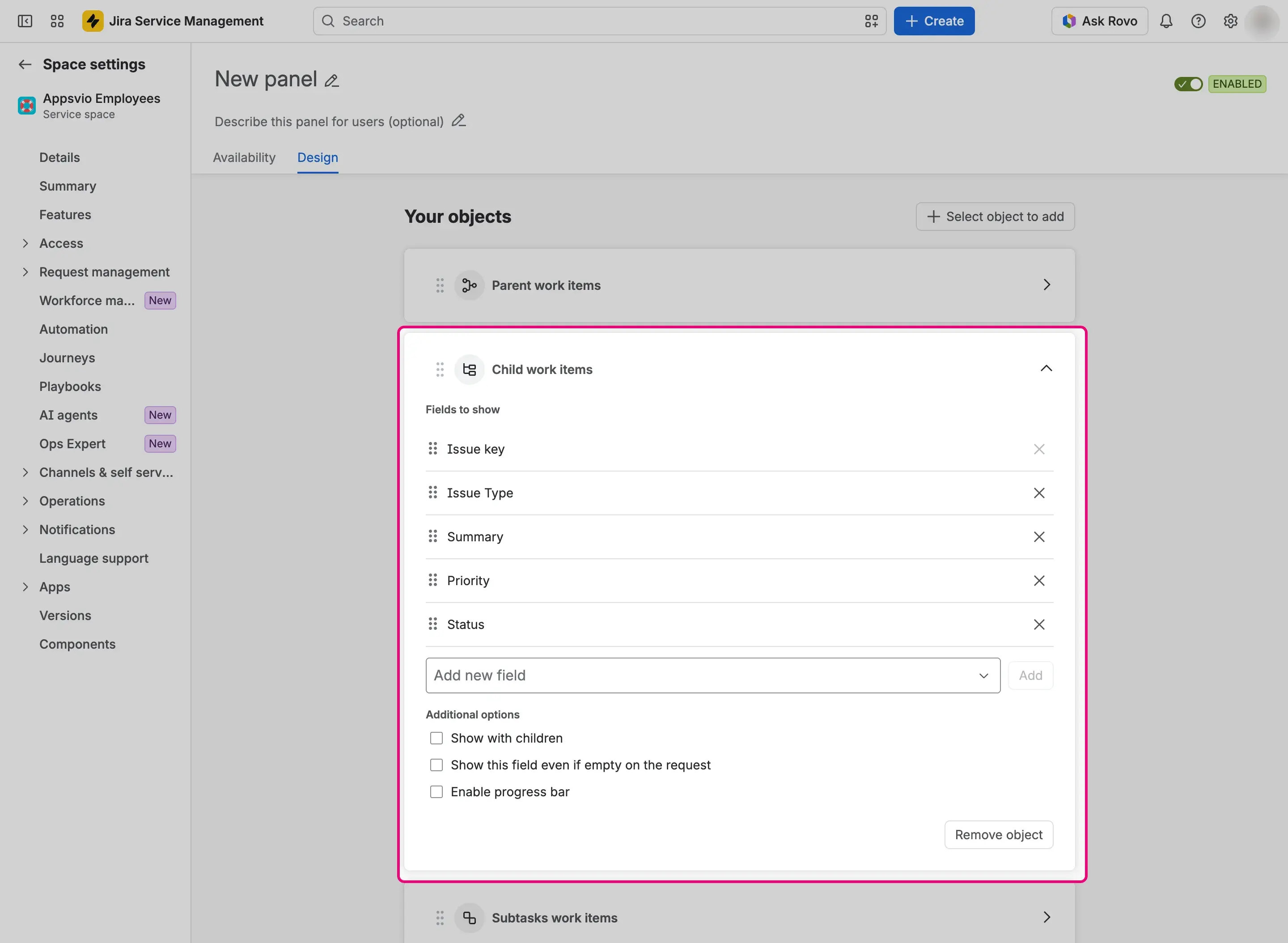
- Child: the work items whose parent is the request. With Show with children, each child is followed by its subtasks.
- Related: the work items found with a JQL query.
- Linked: the work item links of the request, grouped under the link type with a count.
- Subtasks: the subtasks of the request.
You can add Parent, Child, and Subtasks once per panel. You can add Linked and Related several times.
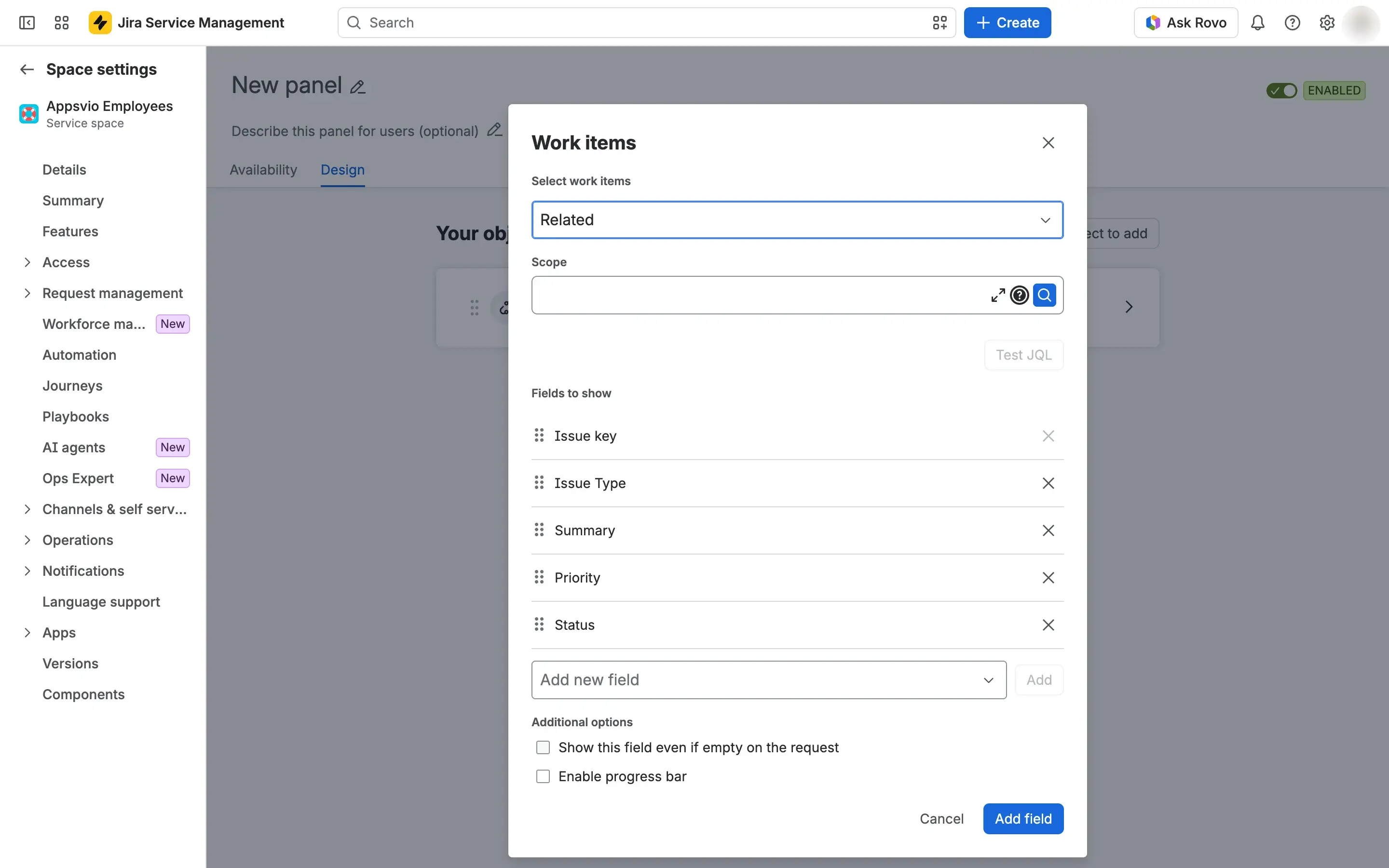
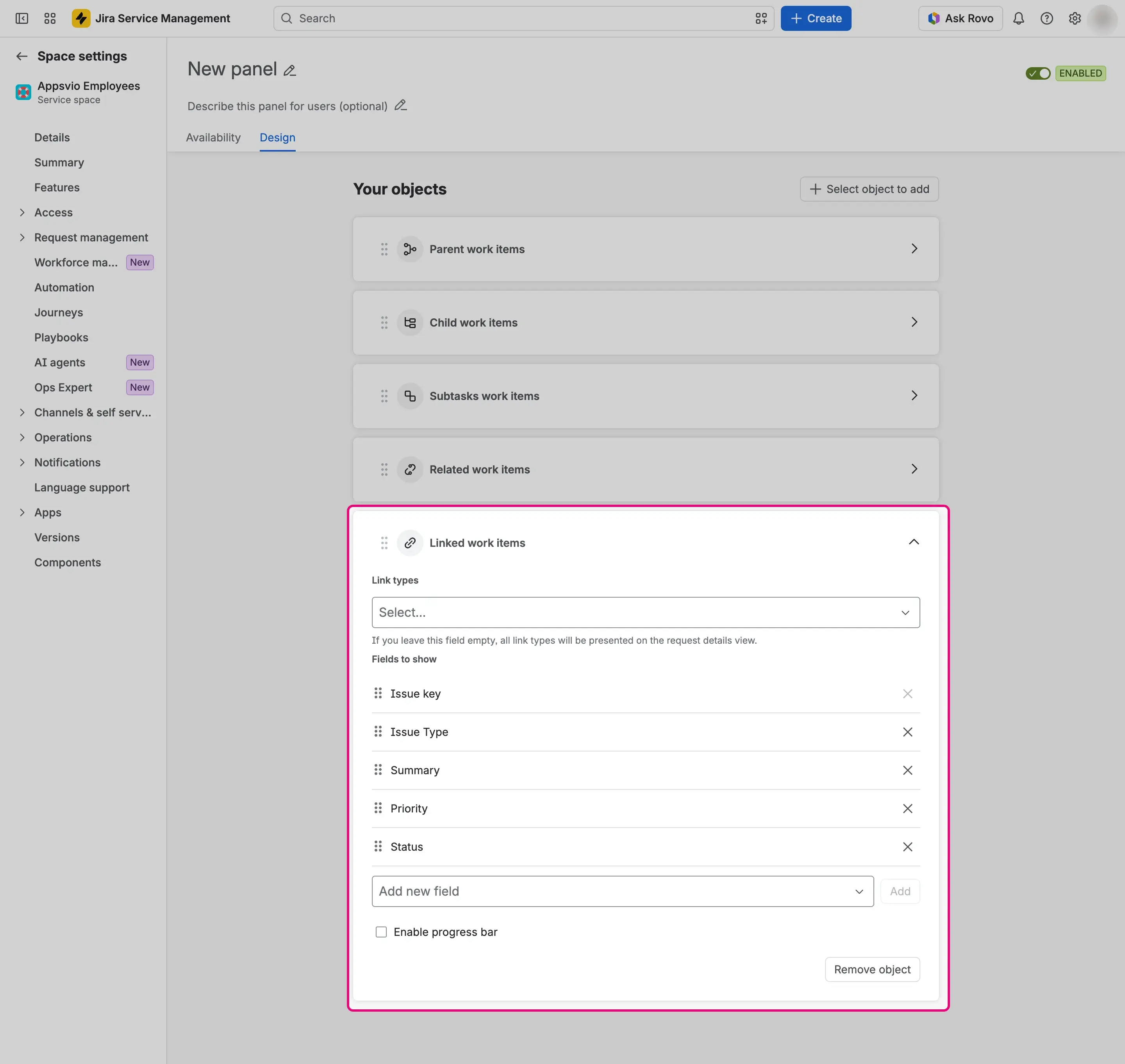
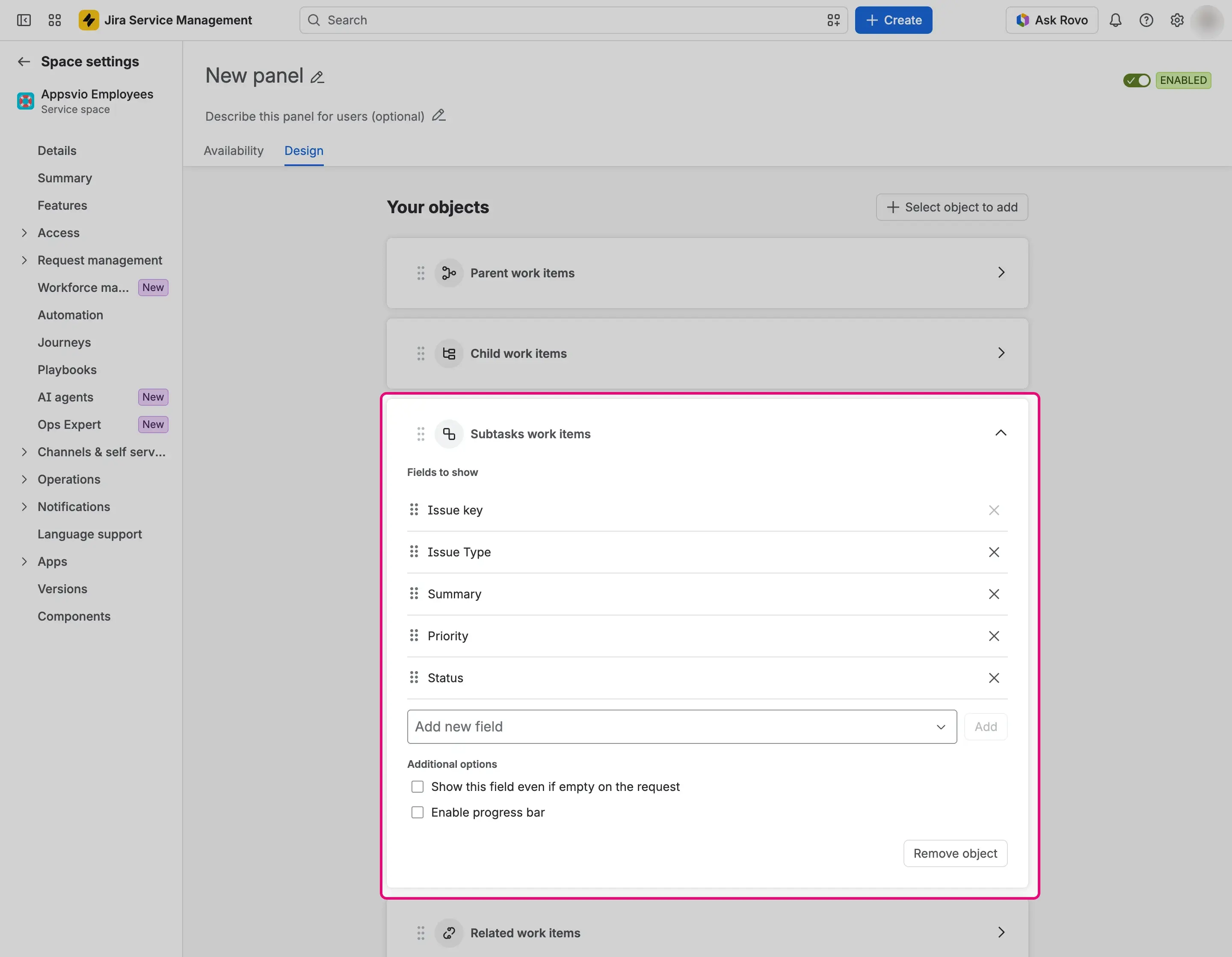
Expand the card of the object. Under Fields to show, choose the columns of the table:
- Issue key is always the first column and you can’t remove it. A table has at most 10 columns, including this one. At the limit, the selector shows “Maximum of 10 fields reached”.
- To add a column, select it in Add new field and select Add. To reorder the columns, drag them. To remove a column, select the X. The last remaining column can’t be removed.
- A new panel starts with Work type, Summary, Priority, and Status.
- You can choose these columns:
- Standard fields: Fix versions, Assignee, Reporter, Summary, Priority, Work type, Status, Created, Updated, Resolved, and Due date.
- Custom fields of these types: single-line text, single select, multiple select, radio buttons, checkboxes, Assets, single user picker, multiple user picker, date picker, and date-time picker.
Set the options of the kind you added:
Parent: Show with children, Show this field even if empty on the request, and Enable progress bar.
Child: Show with children, Show this field even if empty on the request, and Enable progress bar.
Related: Show this field even if empty on the request and Enable progress bar. In Scope, enter a JQL query, which is required, and select Test JQL to check it. Feature Bundle answers “JQL query is valid.” or “JQL query is invalid.” In the query,
currentUser()stands for the customer who views the request. The query is the same for every request, so it can’t refer to the request itself, for example to its key or its fields.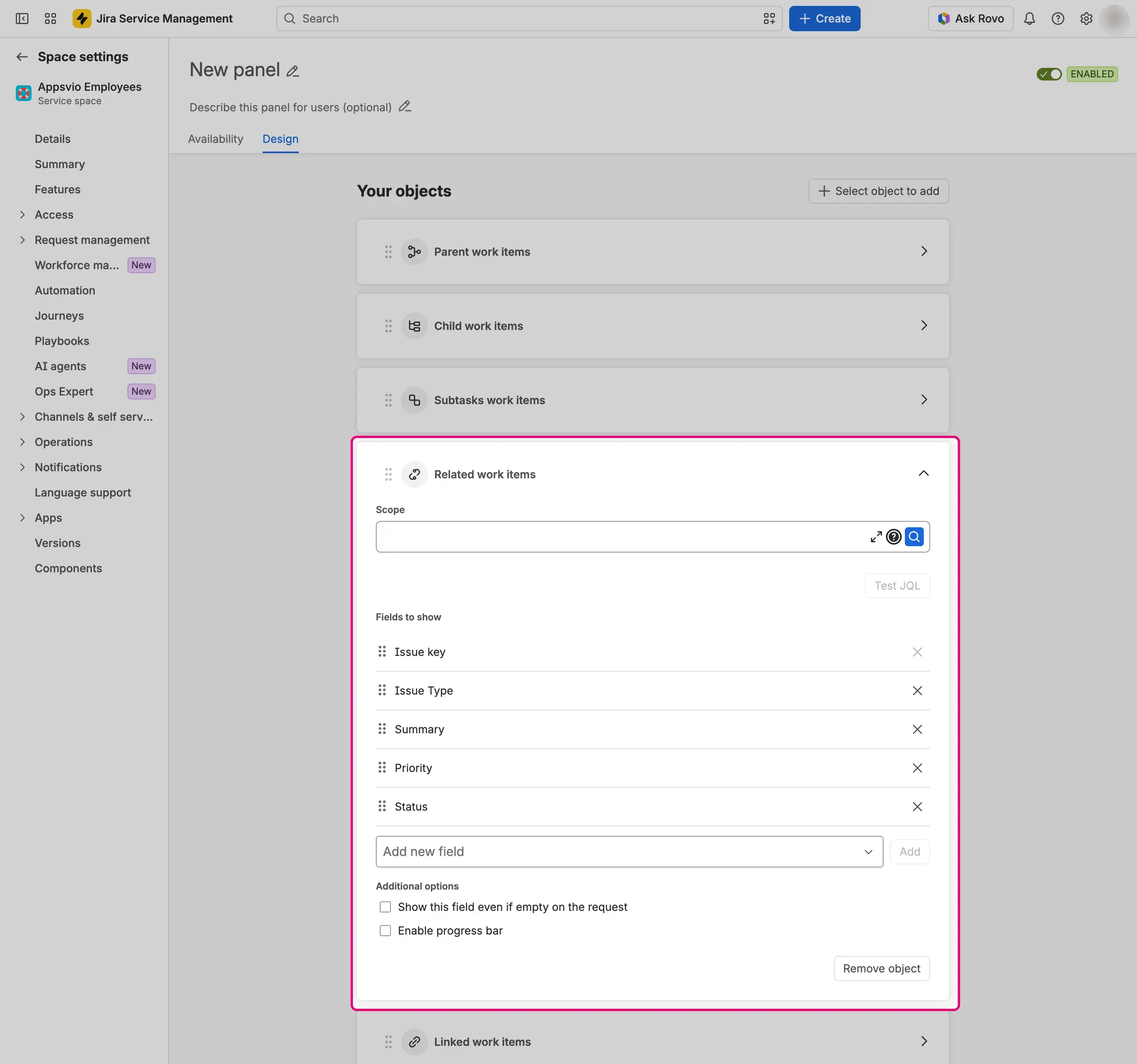
Linked: Enable progress bar, and Link types. The list offers each Jira link type once per direction, for example “is blocked by” and “blocks”. Leave it empty to show all link types.
Subtasks: Show this field even if empty on the request and Enable progress bar.
Select Save.


Result
On a matching request, the panel shows the work items in the layout of the zone you chose for the panel. You can’t choose the layout.
- Side zone: each work item is a card with the type icon, the key, the summary, and the status. The other columns are in a collapsed area.
- Top and Center zones: the work items form a table with a header row, which scrolls sideways when the columns don’t fit. The icon of the work type is in the first column, next to the key. For Parent and Child, a work item of a different level is indented, so children and subtasks appear under their parent.
The key links to the portal request when the work item is a request in a service space, and to the work item in Jira in other cases. Work items appear in the order Jira returns them, without a limit.
Date columns use the date and date-time formats of your Jira site. A date-time value shows in the time zone of the person who views the request. A date-only value, such as Due date or a date picker, doesn’t change with the time zone. See Supported fields.
With Enable progress bar, the object shows Progress with the percentage of work items in the Done status category. A bar has one segment per status, colored by category and ordered To Do, In Progress, and Done. In the Top and Center zones, each status is listed with its count. A work item linked through two link types appears in both groups and counts twice.
An object with no work items is hidden. If you selected Show this field even if empty on the request, it shows its title and “None”. A Linked object with no links is always hidden.

Visibility
Feature Bundle loads the work items with its own permissions, so customers see the listed fields of work items even if they can’t browse them in Jira. When a customer selects a key, Jira applies its own permissions and opens the work item only if the customer is allowed to see it.