Show a customer's assets
The My assets object shows the Jira Assets objects that belong to the customer who views the request, for example their laptop, the mobile phones assigned to them, or their licenses for tools. You find the assets with an AQL query and choose which attributes customers see.
Before you start
- You are both an administrator of the service space and a service desk agent in it.
- You have a panel. See Create a panel.
- Your Jira site has Jira Assets with an object schema that holds the assets of your customers.
Advanced edition
The My assets object is available only in the Advanced edition. On Standard, it is marked ADVANCED PLAN and you can’t add it. See App Editions.
Steps
Go to Space settings > Apps > Feature Bundle > Additional Fields and open the panel.
Open the Design tab, select Select object to add, and then select My assets. A card titled My Assets appears.
Expand the card. In Object schema, select the object schema that holds the assets.
Select Add new attribute and then Add for each attribute you want to show. To reorder the attributes, drag them. To remove one, select its X. If you change the schema later, Feature Bundle clears the attributes.
In AQL query, enter a query that finds the assets of the customer. For example,
Holder = currentUser(), orOwner.user = currentUser()for assets that reference an Owner object.currentUser()stands for the customer who views the request. The query searches only the schema you chose.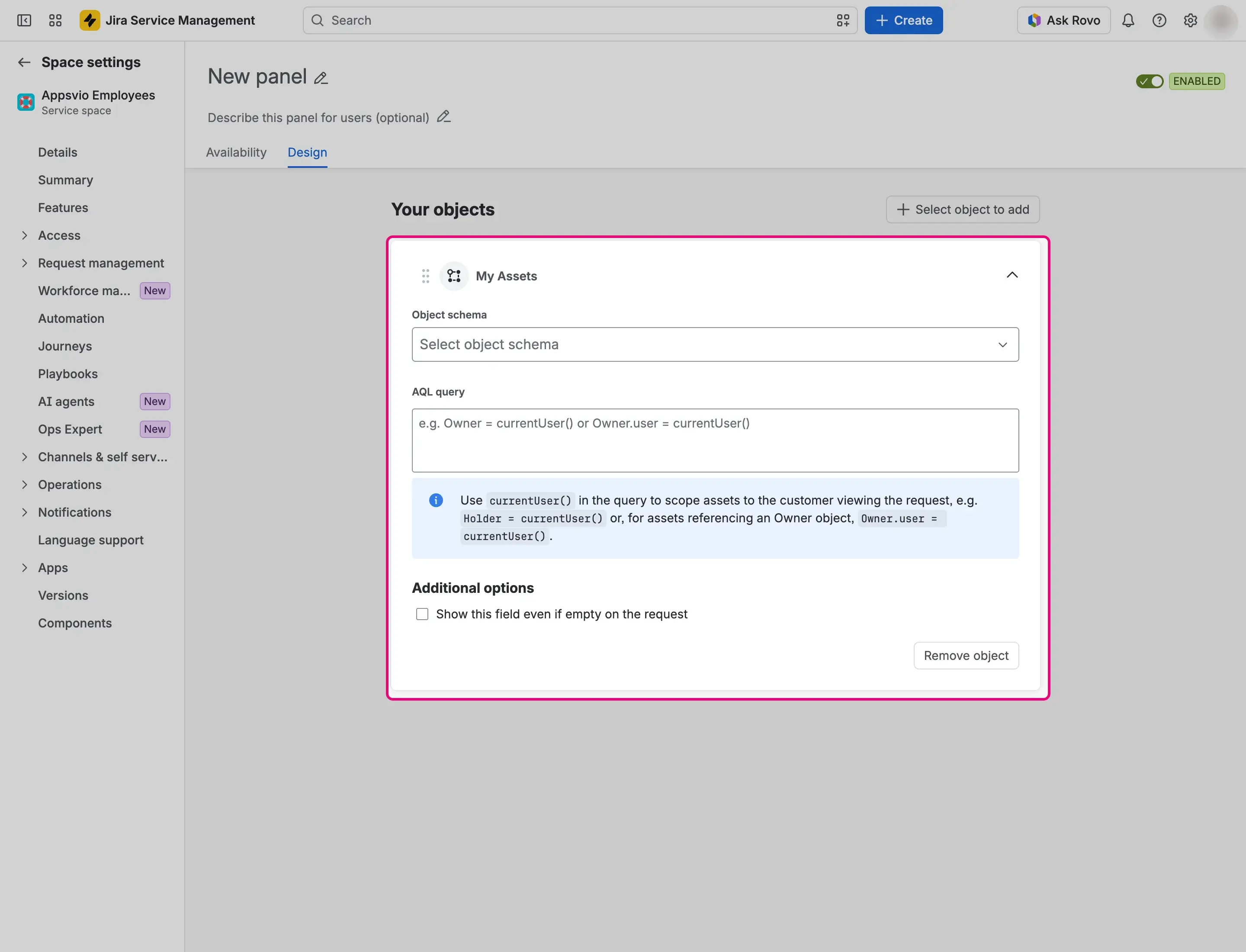
Optionally, select Show this field even if empty on the request.
Select Save. Saving needs a schema, an AQL query, and at least one attribute.

You can add several My assets objects to one panel. Each has its own schema, query, and attributes.
Result
On a matching request, the panel shows an object titled My Assets with one collapsed card for each asset that matches the query. The card shows the name of the asset. When the customer expands it, it lists the attributes you chose, in your order, with the attribute name in bold and its value, or “None” when the value is empty.
When no asset matches, the object is hidden. With Show this field even if empty on the request, it shows “None” under its title. If the search fails, the object appears empty. Only people who can see the panel see the object.

Visibility
Feature Bundle searches Jira Assets with its own permissions. Customers see the attributes of the assets that match your query, whatever their own access to Jira Assets. Write the query so that it matches only the assets of the customer who views the request.