Show customer and organization attributes
The Attributes object shows details of the customer and of the organizations of the request, such as an email address or a phone number. Customers see them on the request view of the customer portal.
Before you start
- You are both an administrator of the service space and a service desk agent in it.
- You have a panel. See Create a panel.
Steps
Go to Space settings > Apps > Feature Bundle > Additional Fields and open the panel.
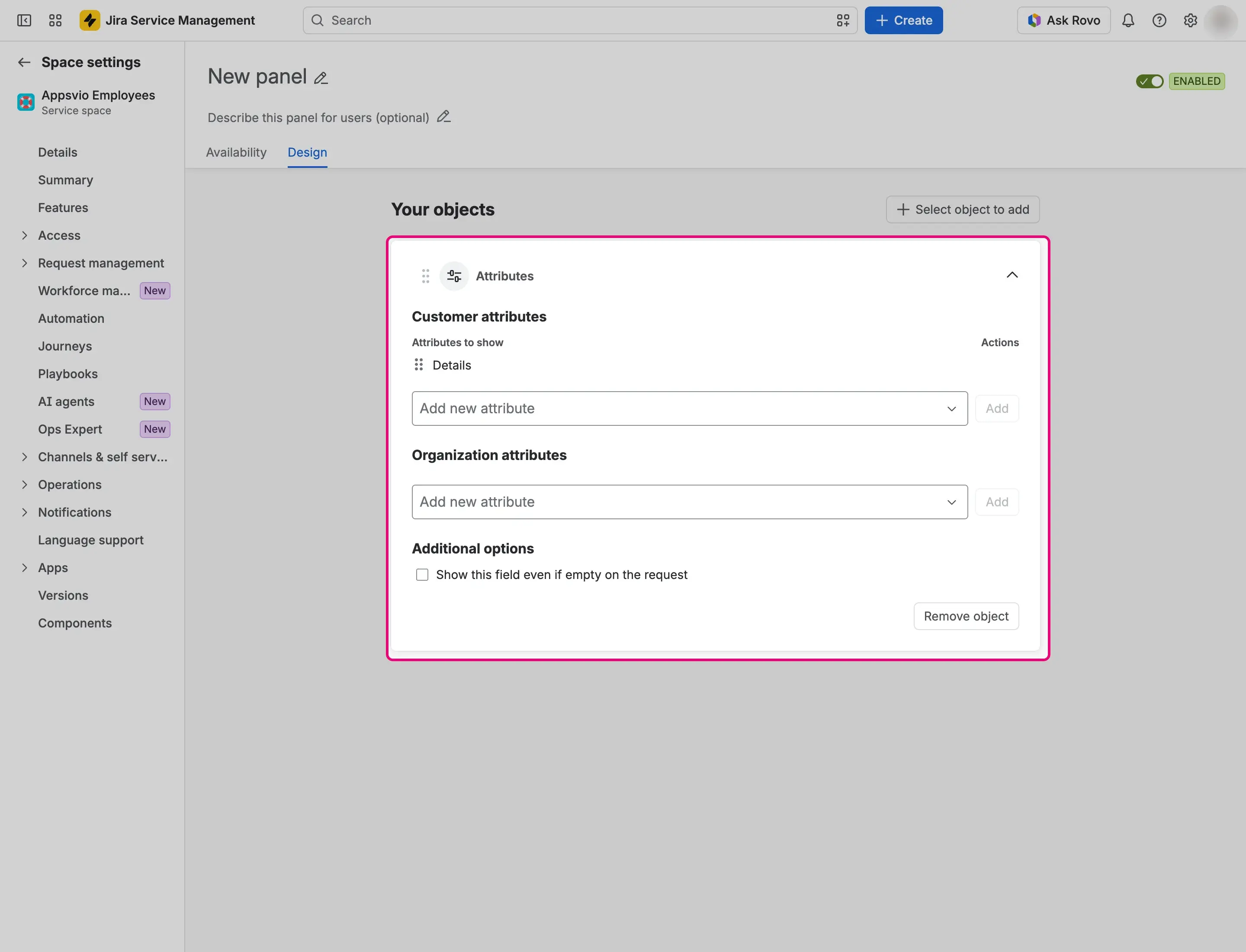
Open the Design tab, select Select object to add, and then select Attributes.
Expand the card. In Customer attributes, select Add new attribute, choose an attribute, and select Add. You can choose Email and the customer detail fields defined for your site. The attribute Details, which shows the avatar and the name, is always included and you can’t remove it.
In Organization attributes, add attributes in the same way. You can choose the organization detail fields of your site.
To reorder the attributes in a section, drag them. To remove one, select its X.
Optionally, select Show this field even if empty on the request.
Select Save.

Result
On a matching request, the panel shows an object titled Attributes with two collapsed cards:
- Customer details: the attributes of the reporter of the request. When the email of the customer isn’t available, it shows as “hidden”.
- Organization details: one section for each organization of the request. The first row is Organization name.
Rows without a value are hidden. With Show this field even if empty on the request, they appear with a blank value.
