Show attachments on the portal
The Attachment field lists the files attached to a request on the customer portal. Customers download one file or all files at once, without scrolling through the comments to find them.
Before you start
- You are both an administrator of the service space and a service desk agent in it.
- You have a panel. See Create a panel.
Steps
Go to Space settings > Apps > Feature Bundle > Additional Fields and open the panel.
Open the Design tab, select Select object to add, and then select Field.
In the Select field type dialog, select Attachment (in the Other group) and select Add field.
Optionally, expand the card of the field and select Show this field even if empty on the request. Without it, the field is hidden when the request has no attachments.
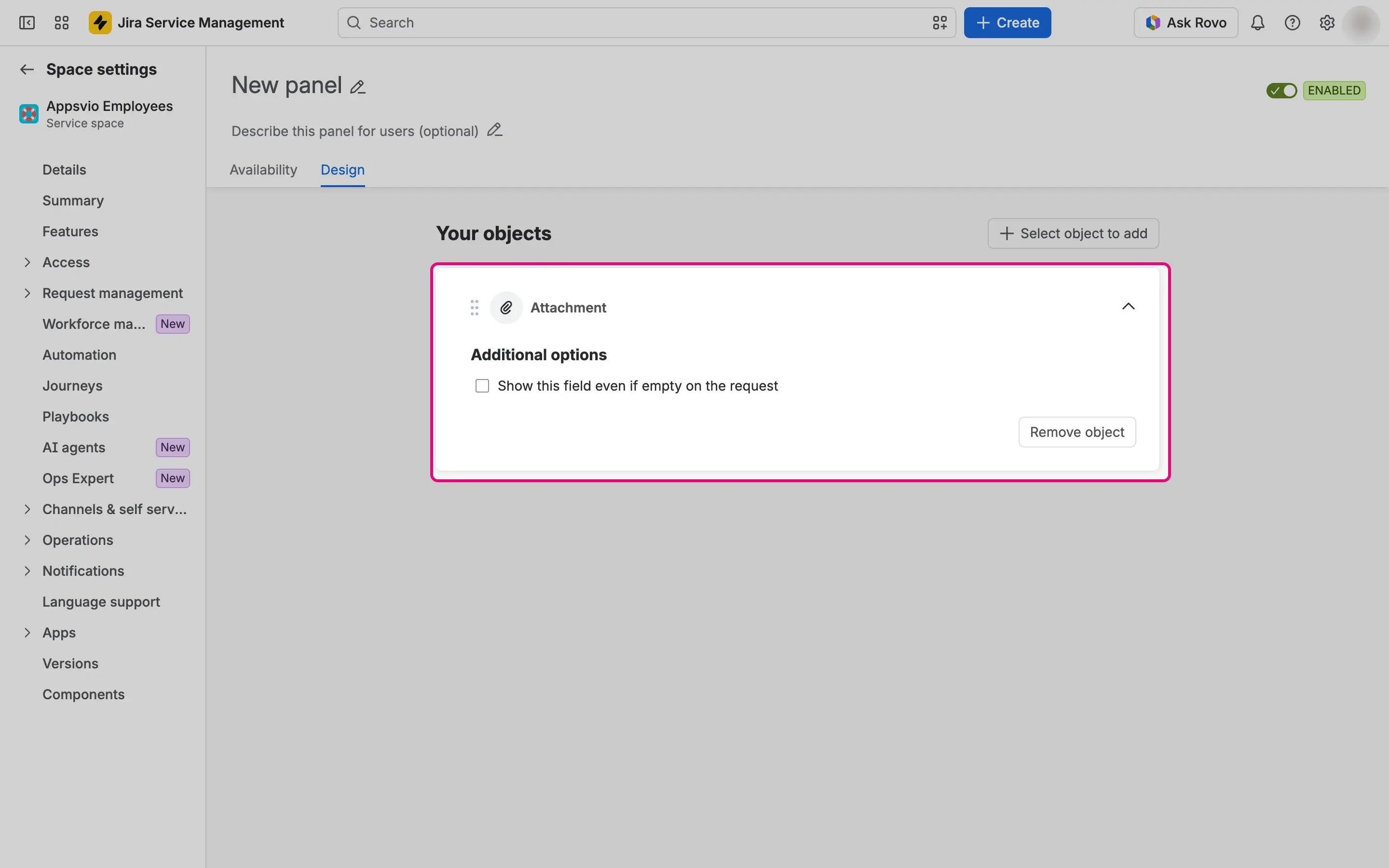
Select Save.

Placement
The Side zone shows a compact list. For requests with many files, use the Center zone, which gives each file more room.
Result
On a matching request, the panel lists the attachments of the request, the newest first. Each row shows a thumbnail (a grey file icon when the file has none), the file name, the date and time of the upload, the size, and a download icon. Customers see the attachments that Jira makes available to them on that request.
When the request has at least one attachment, Download All appears next to the field. It downloads all files as a zip file named after the request key, for example ABC-123-attachments.zip. When the request has no attachments and you selected the empty-value option, the field shows “No Attachments”.
