Test Steps
You write test steps in the Test Case tab of the Test Management panel on the Test Case page. By default, each step has three columns: Action, Data, and Expected Result. Each field is formatted text.
Step fields
The set of fields depends on the Test steps configuration. You can turn off any of the three fields there, but at least one field must stay on. For example, when the Data field is turned off, a new step has only Action and Expected Result.
A field that is turned off is hidden, but the data already entered in it stays. See Test Case Columns.

Add a step
Open the Test Case and go to the Test Case tab. On a new Test Case, click Add step under “Create your first step”. On a Test Case with steps, click Add step in the bar above the steps.
Enter text in the fields of the new step.
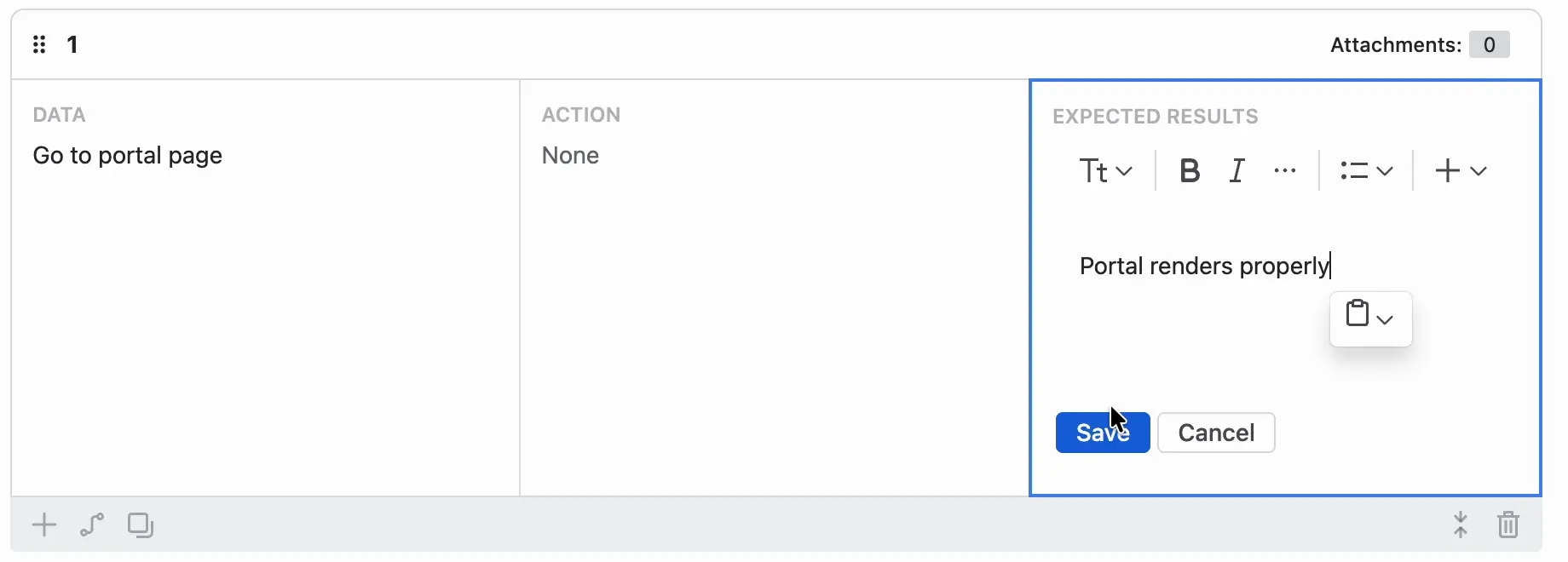

The message “You’ve added a new test step.” confirms the new step.
After the first step, ATM Test Type changes to Manual. The Version field in the bar above the steps shows the version of the steps, for example V1 with the Default label. See Steps Versioning.

Attach, duplicate, move, or delete a step
- Add attachments to a step. The Attachments counter shows how many files the step has. Testers see the attachments in the execution window and can download them.
- Duplicate a step. The copy has all the data of the original step, attachments included.
- Move a step. Drag it by its handle to a new position.
- Delete a step with the trash icon (Delete step). The message “You’ve deleted a test step.” confirms it.
Change how steps are shown
Show steps as list puts the fields of a step next to each other.
Show steps as grid puts the fields one under another.
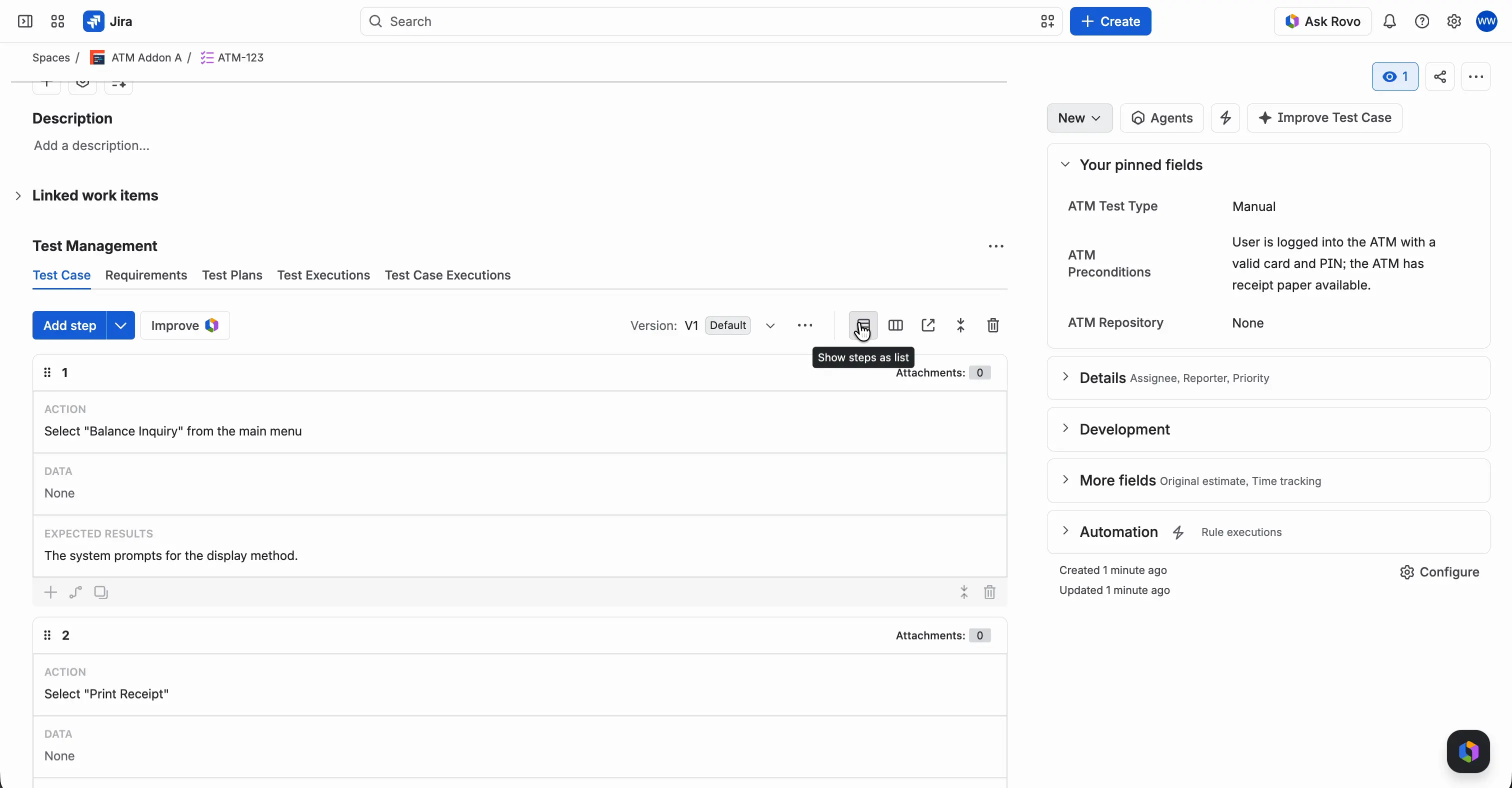
Collapse all folds all steps.
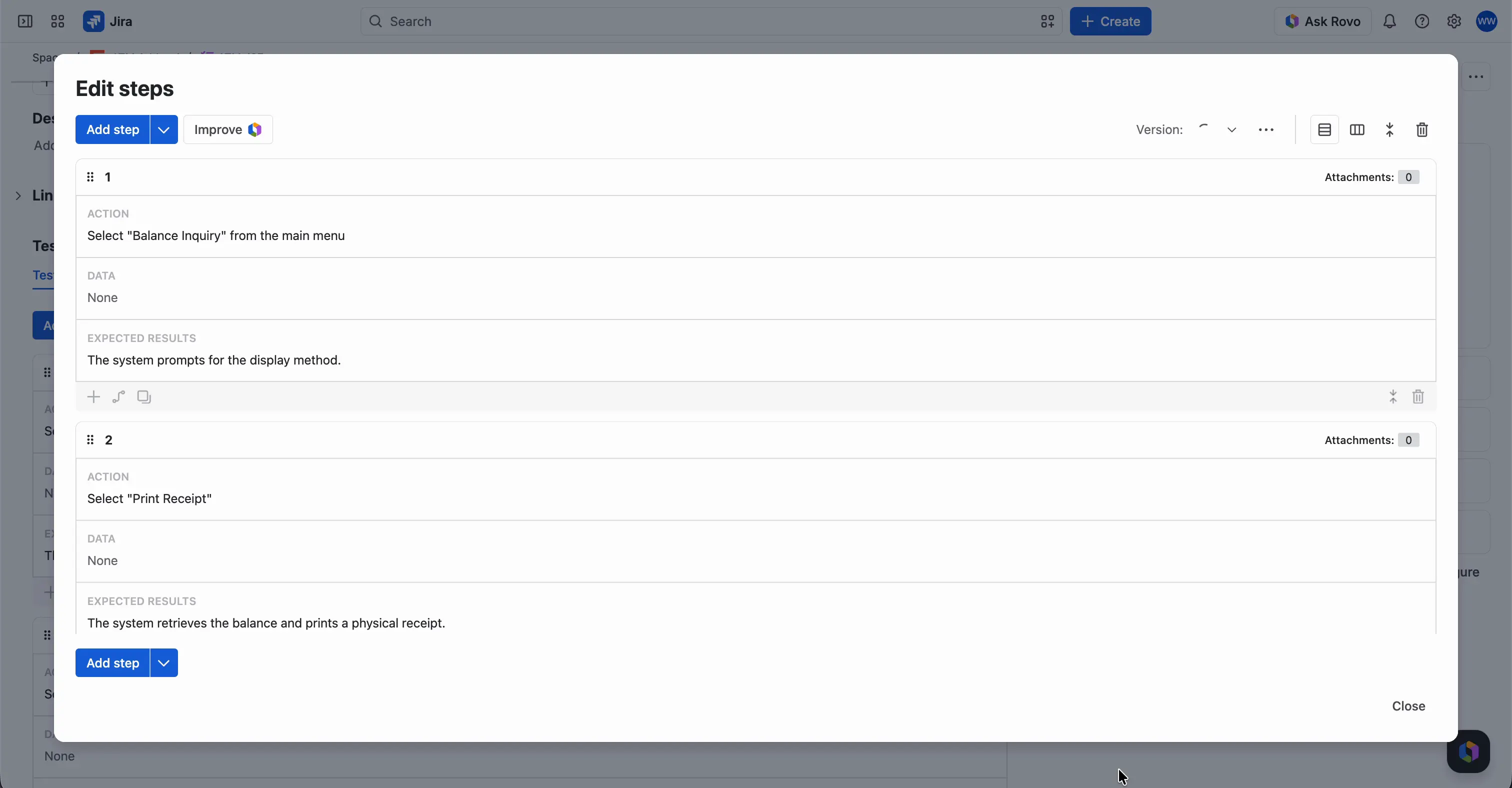
Expand mode opens the steps in a larger window. To go back, click Close.


Call another Test Case
A called test is a step that calls another Test Case.
Click the arrow next to Add step and select Call test. On a Test Case without steps, click the Call test button.
In the Select Test Case window, find the Test Case. Use Basic search, enter a query in Advanced JQL, or browse the folders in Repository.
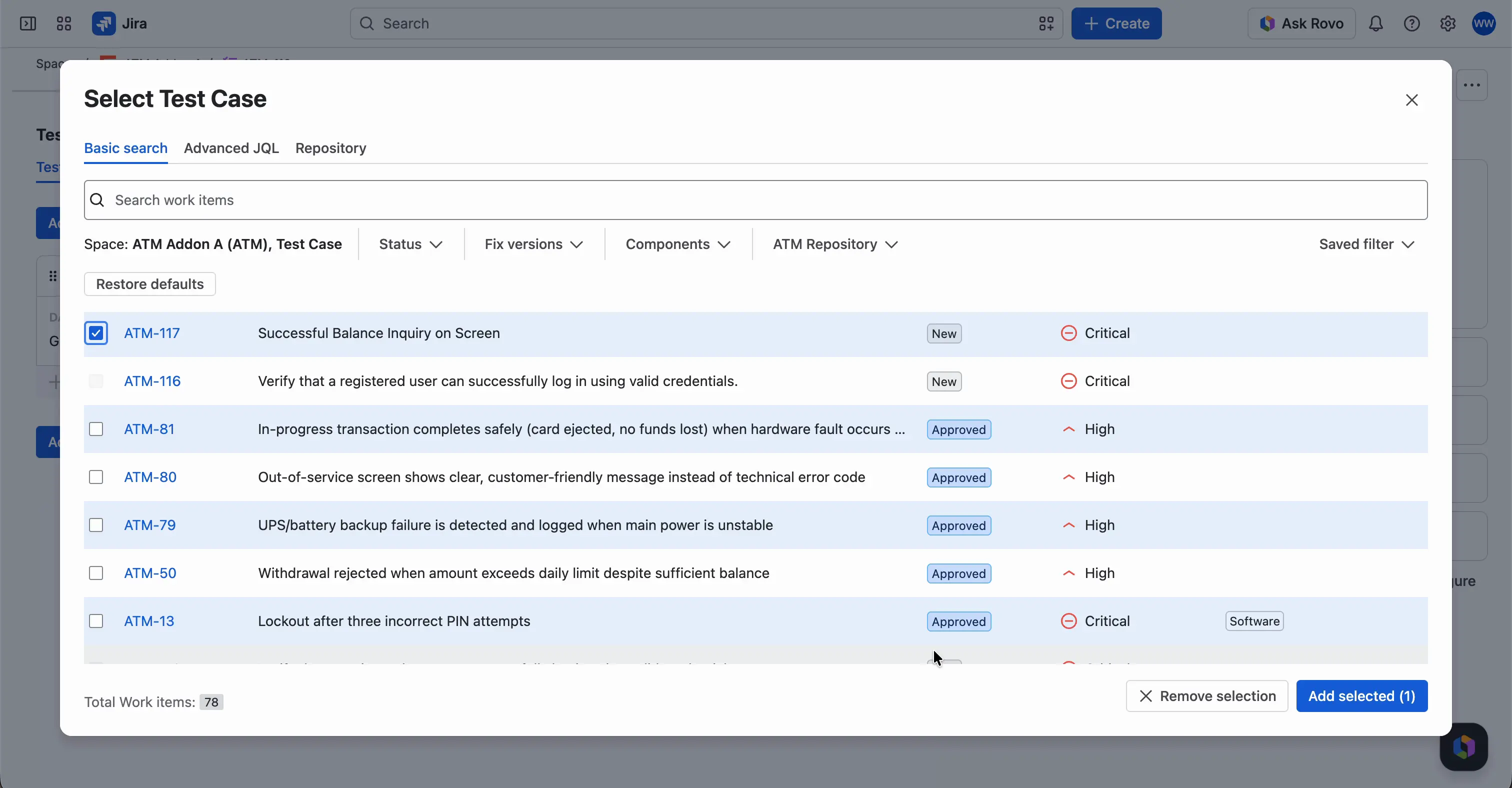
Tick the Test Case and click Add selected. The button shows the number of selected Test Cases.

The called Test Case appears as a separate step with the CALLED TEST label, its key, and its summary. Above the steps, “Includes called 1 tests:” shows how many tests are called and lists their keys.

During a test run, the steps of the called Test Case appear in place of the call step. A Test Case that calls another Test Case can’t be called itself.
Steps during a test run
A Test Case Execution is a copy of the Test Case, steps included. If you change the steps later, existing Test Case Executions don’t change. ATM works this way so that a change doesn’t alter tests that were already run. See Run Test Execution and Steps Versioning.