Steps Versioning
A Test Case can have several versions of its test steps. Versioning applies to the test steps only. New Test Executions use the default version of the steps.
Where versions are
Open the Test Case and go to the Test Case tab of the Test Management panel. The bar above the steps has the Version field, for example V1 with the Default label. To see the steps of another version, select it in this field.
The … menu next to the field has three items: New version, Edit current version, and Manage versions. Use Manage versions to manage the versions of the steps.

Create a new version
In the bar above the steps, click … and select New version.
In the Create new test version window, enter a Version name, for example V2, and an optional Description.
To start from the steps of an existing version, select Make a copy of and choose the version.
To make this the default version, select Set as default.
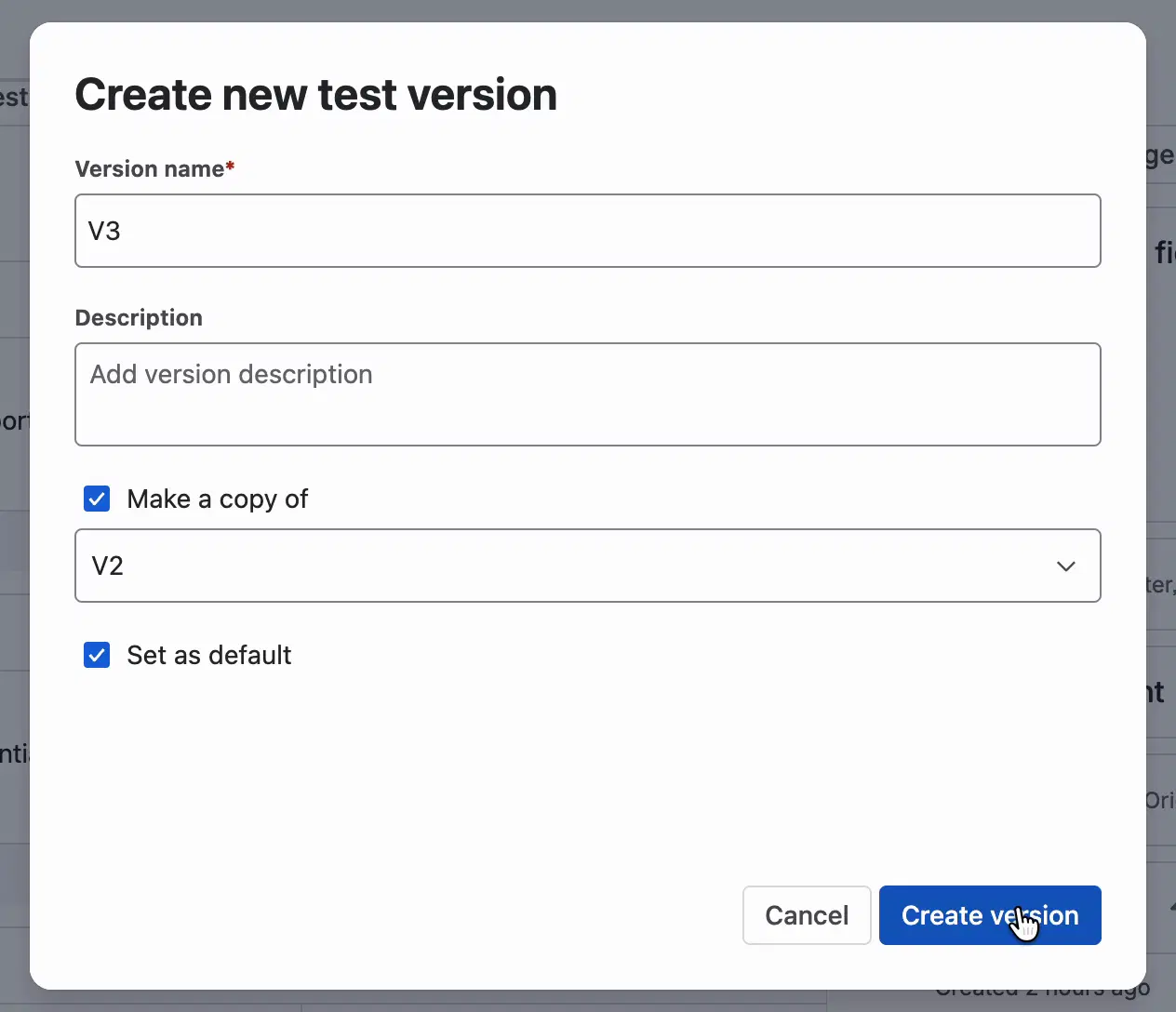
Click Create version.

The message “You’ve added a new version.” confirms it.
Edit steps in a version
Select the version in the Version field and edit the steps. Changes in a new version don’t change the previous versions.
You can’t delete a version.
When you clone a Test Case in Jira, the new Test Case gets the steps of the default version. See Create Test Case.
Versions in Test Executions
A new Test Execution uses the default version of each Test Case. Its Test Case Executions contain copies of the Test Case steps, so they are not updated when you edit those steps later.
You see the version in the TC Ver. column on the Test Execution and in the execution window. The All iterations tab of the execution window also shows the Test Case version of each iteration. See Retests.