Create Test Case
A Test Case is a regular Jira work item. You create it like any other work item, with the Test Case work type. This page shows how to create one Test Case and what you find on its page. To create many Test Cases from a file, see Import.
Create a Test Case
Click Create in the Jira top bar.
Select the space of your Testing Project and the Test Case work type.
Enter a summary and fill in the other fields you need.
Optionally, fill in the ATM Preconditions and ATM Repository fields. Both fields can be hidden under More fields or turned off in Configure fields. If they aren’t on the Jira screen, a Jira admin can add them. See ATM in Jira.
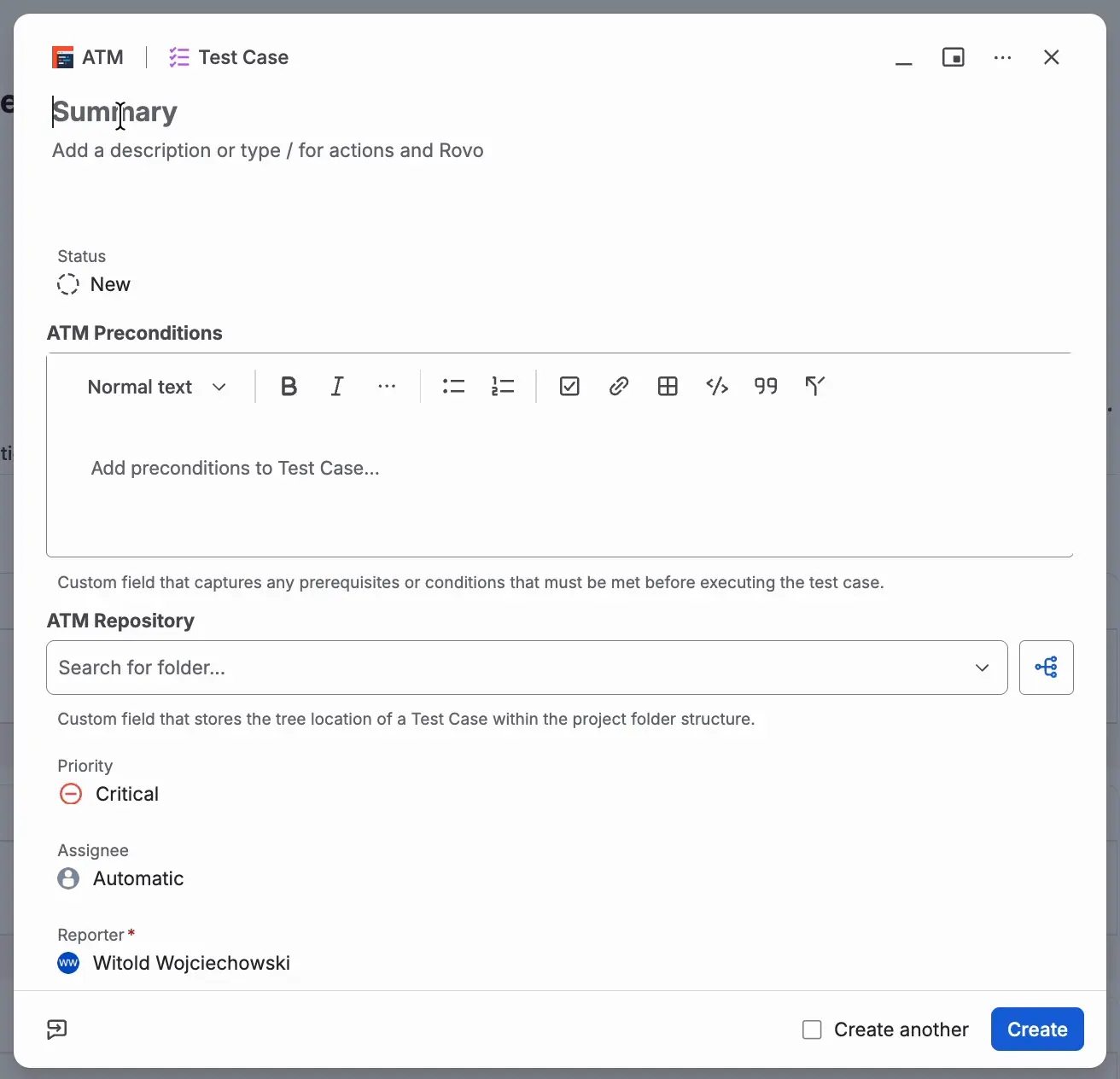
Click Create.

Other ways to create a Test Case
- On a requirement, click Create a new Test Case in the Test Management panel. The summary is filled in as “Test Case from <requirement key>”. See Coverage with Test Case.
- On a requirement, click Create with Rovo Agent. The agent proposes Test Cases and creates the ones you choose. See Create Test Cases with the Rovo Agent.
- In the Test Repository, select a folder and click Create Test Case above the table. The ATM Repository field is set to that folder, and the summary is “Test Case from Folder <folder name>”.
- To copy an existing Test Case, use the Jira Clone action. ATM copies the steps of the default version to the new Test Case.
The Test Case page
The Test Management panel holds the Steps, Requirements, Test Plans, Test Executions, and Test Case Executions of the Test Case. It has five tabs:
- Test Case: the test steps. See Test Steps.
- Requirements: the requirements of this Test Case. See Coverage with Test Case.
- Test Plans: the Test Plans that include this Test Case. See Test Plans.
- Test Executions: the Test Executions of this Test Case, with the Execute in a new Test Execution and Execute in existing Test Execution buttons. See Create Test Execution.
- Test Case Executions: the executions of this Test Case. See Run Test Execution.
On a new Test Case, the Test Case tab shows “Create your first step”. Below it are the Add step and Call test buttons and a Learn how link.

Add test steps
Click Add step and fill in the step fields, for example Action, Data, and Expected Result. After you add the first step, the ATM Test Type field changes to Manual automatically. This will change when ATM gets more test types.
See Test Steps. To keep several sets of steps for one Test Case, see Steps Versioning.
Put the Test Case in a folder
Folders live in the Test Repository. They are optional, and a Test Case can be in one folder only. To choose the folder, use the ATM Repository field on the Create screen or on the Test Case.
Click the field and pick a folder from the “Search for folder…” list. Subfolders appear as paths, for example
Testing Folder / UI.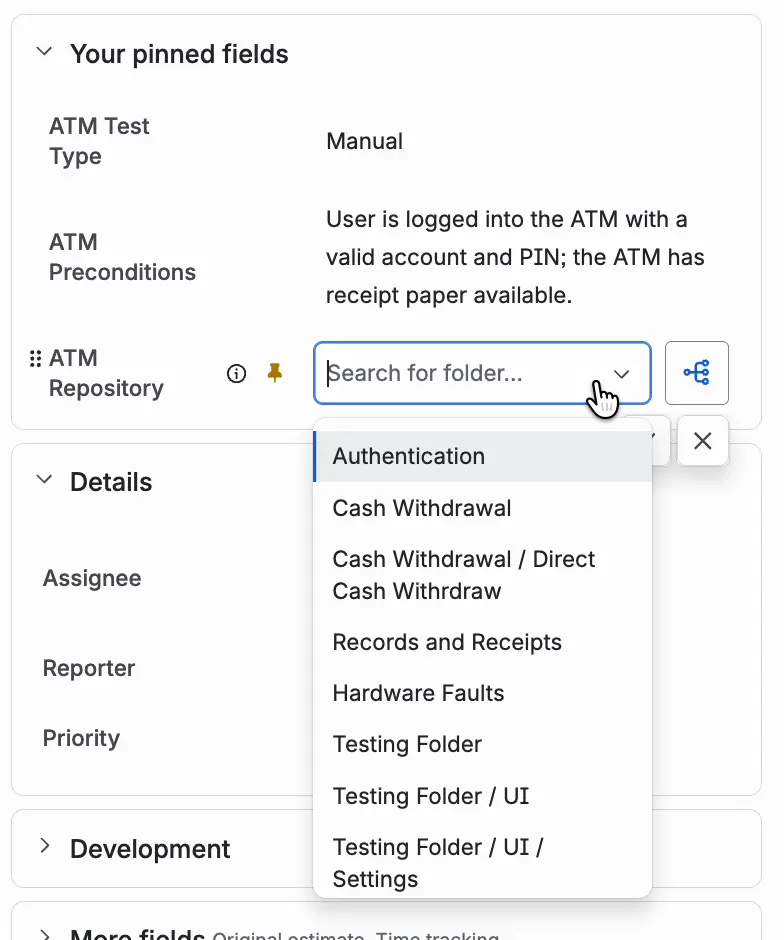
Or click the tree icon next to the field. In the Select tree location window, select a folder and click Confirm selection. To close the window without a change, click Cancel.
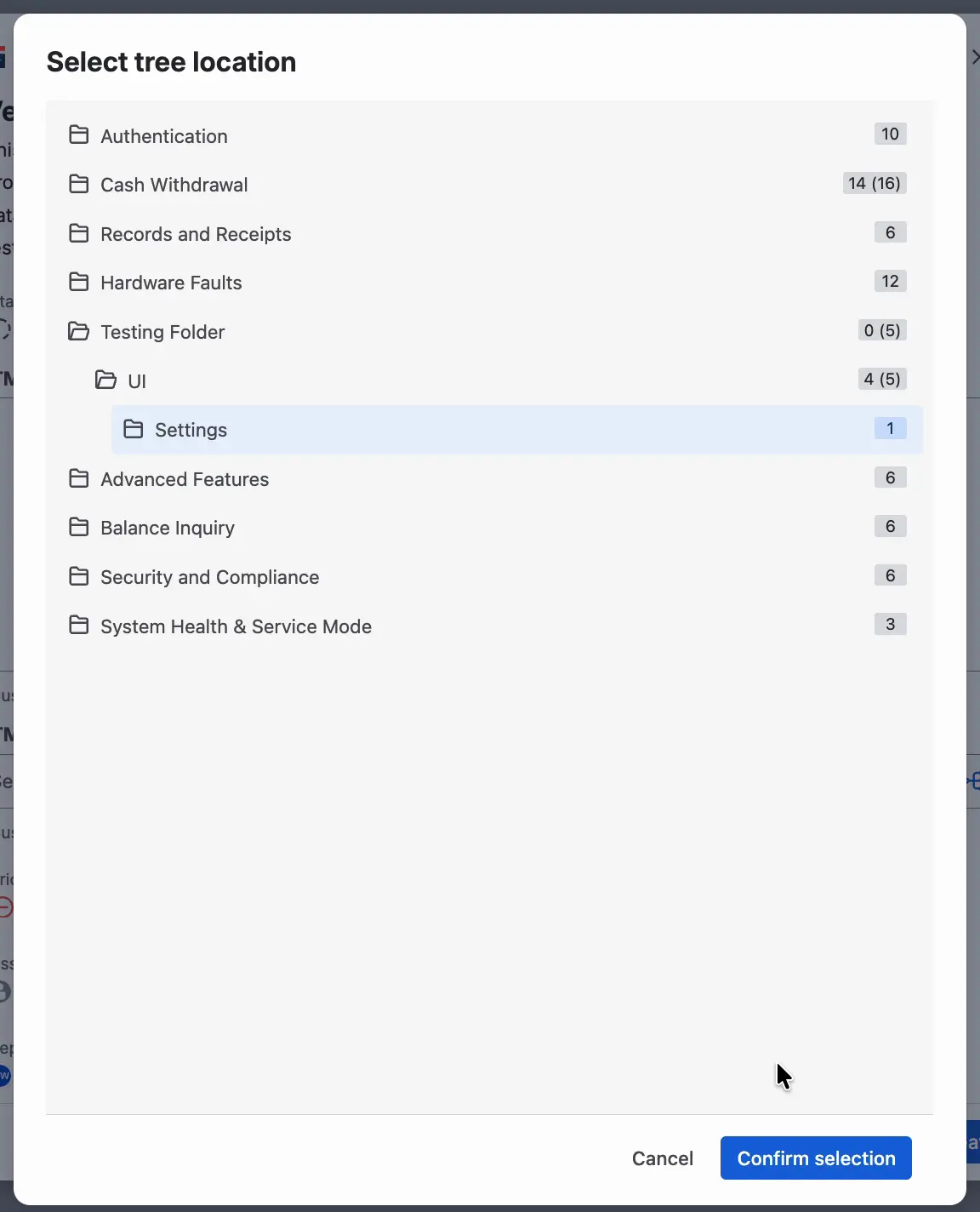


See Test Repository.
Add preconditions
Enter preconditions in the ATM Preconditions field, in the Create window or later on the Test Case. See Preconditions.
Link the Test Case to requirements
Open the Requirements tab and click Create a new Requirement or Link an existing Requirement. See Coverage with Test Case.
Create many Test Cases at once
Import an Excel file (.xlsx or .xls) in Apps › Test Management › Import. See Import.