Environments
Testing environments provide a controlled and isolated space for software testing, allowing you to simulate real-world scenarios and perform a variety of tests. This helps identify and fix bugs, ultimately improving product quality and the user experience.
Typically, there are at least three standard environments: testing, staging, and production. The same test cases are often executed across all three to ensure stability at every stage.
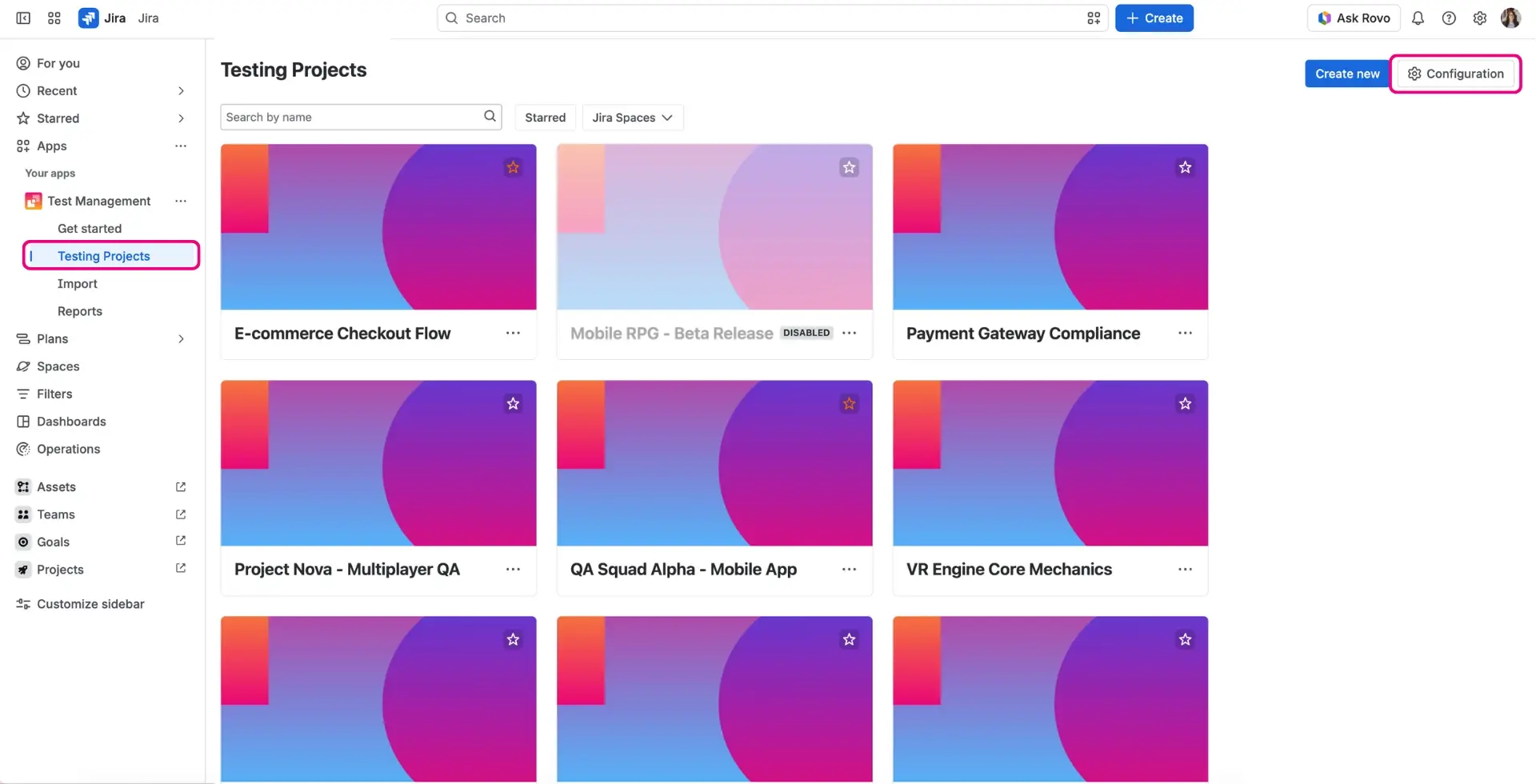
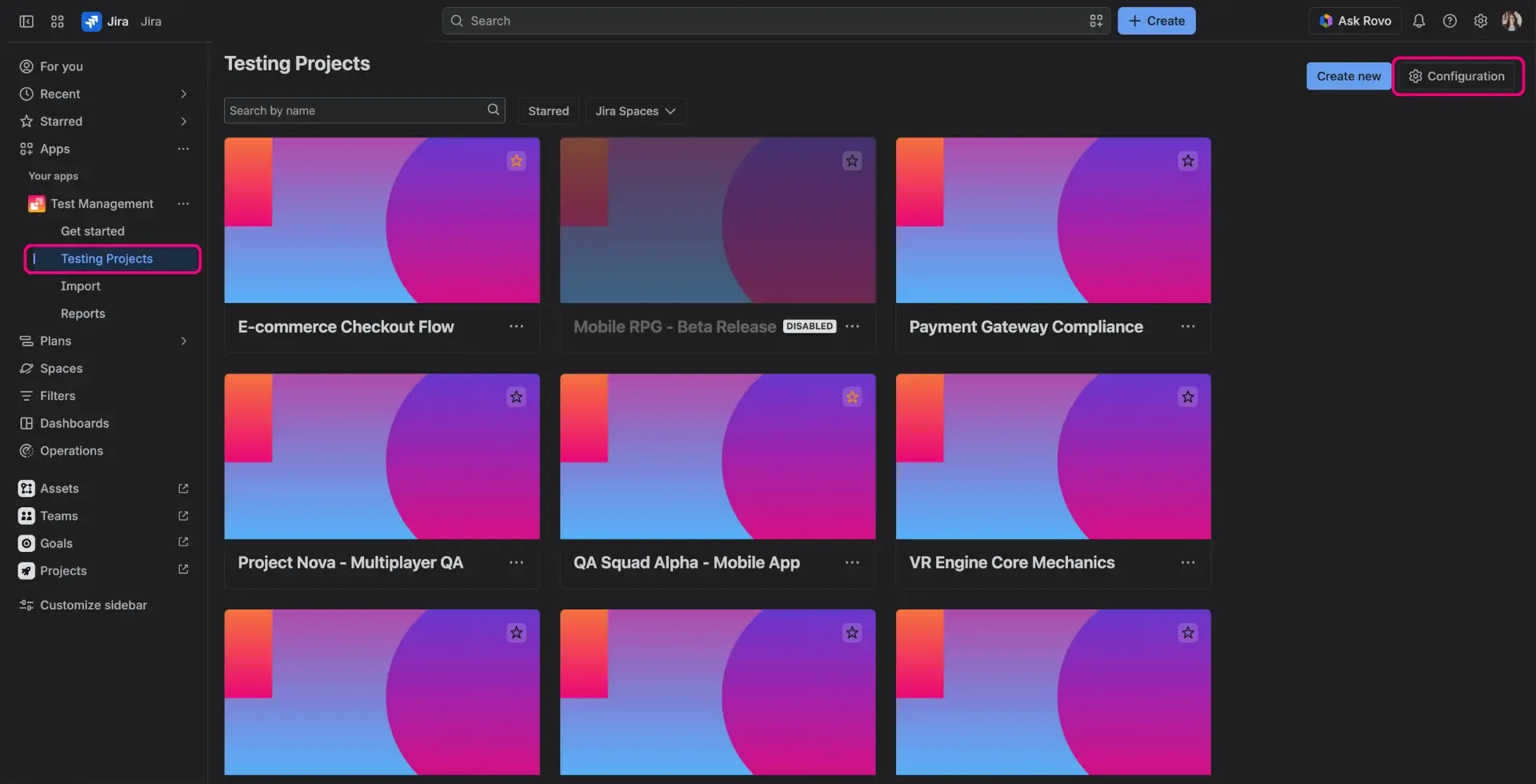
In ATM, administrators can easily add and configure testing environments. To do this, navigate to the Test Management, select Testing Projects, and click the Configuration button on the right top.
Caution
Currently, Environments are shared across all Testing Projects created in ATM.
Adding a new environment
- Click the Create Environment button.


- In the modal window, enter a name, description, and URL (optional).
- Click Add.

Once added, the new environment will appear in the list. You can edit its details directly from this view.
The Status column indicates whether the environment is currently active. It is enabled by default, but you can disable it by clicking the More options menu (three dots). When an environment is disabled, it will no longer be available for selection in custom field dropdowns. However, existing work items that already use this environment will retain their assigned value.

ATM Environment
Configured environments are available in the multi-select ATM Environment custom field. You can set these values on the Test Execution work type. Once set, the environment will be copied as a read-only field to the corresponding Test Case Executions within that Test Execution.
You can use this custom field in JQL queries to filter testing elements. For example, to find only the items assigned to the ‘Production’ environment:
"ATM Environments" = productionTip
You can add this custom field to the Card layout on your project board to quickly see environment information for each test execution. Additionally, using it in Quick filters allows you to easily categorize work items by environment and get a clearer picture of your workload.