Reports
Appsvio Test Management (ATM) has two reports: the Coverage report and the Traceability report. Both are built on the requirements of a Testing Project.
Reports are a global page of the app. In the Jira sidebar, go to Apps › Test Management › Reports.

Available reports
- Coverage Report: shows which requirements are covered by Test Cases and which aren’t, and the status of the Test Case Executions.
- Traceability Report: shows each requirement with its Test Cases, their Test Case Executions, and the defects.
What the reports need
Both reports need requirements. You define which work items are requirements in the Testing Project. Without that definition, you can’t use the Coverage and Traceability reports. See About Requirement and Testing Elements.
Create a report
You create both reports the same way. Each report covers one Testing Project.
Go to Apps › Test Management › Reports. The Create new report page opens.
Select Traceability report or Coverage report. The Create new Traceability report or Create new Coverage report window opens.
In Testing Project, select the Testing Project.
Optional: to narrow the requirements, enter a JQL query in Requirements scope.
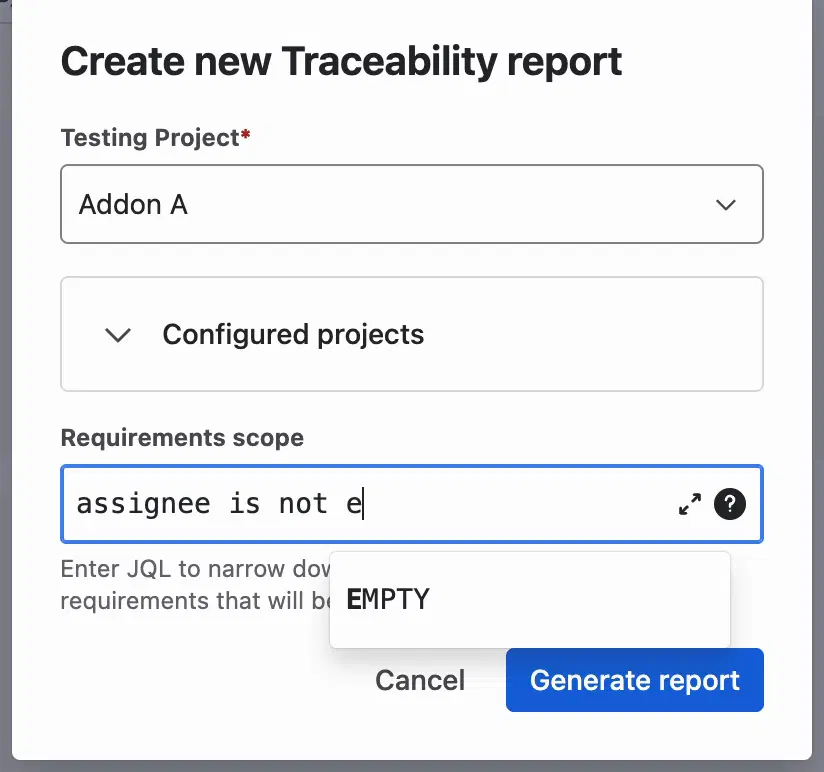
Click Generate report.


If a report has nothing to show, you see the message No work items to display.