Test Plans
A Test Plan defines the scope of testing: the Test Cases you want to run. You can run the same Test Plan many times. Each run is a separate Test Execution.
A Test Plan is a Jira work item. If your process needs Test Plan approval, you can build it with a Jira workflow. See ATM in Jira.
How Test Plans and Test Executions work together
The Test Plan holds the scope. Each Test Execution holds the results of one run of the Test Plan. For example, you run a Test Plan three times, each time on a different environment.

You can also run a Test Plan many times on the same environment. To track several Test Plans together, add them to a Test Campaign.

Create a Test Plan
You can create a Test Plan in three ways.
With the Jira Create button
In Jira, click Create and select the work type your Testing Project uses for Test Plans.
Enter a summary.
Add Test Cases in the ATM Test Cases field. To browse, click Open Test Case Picker.
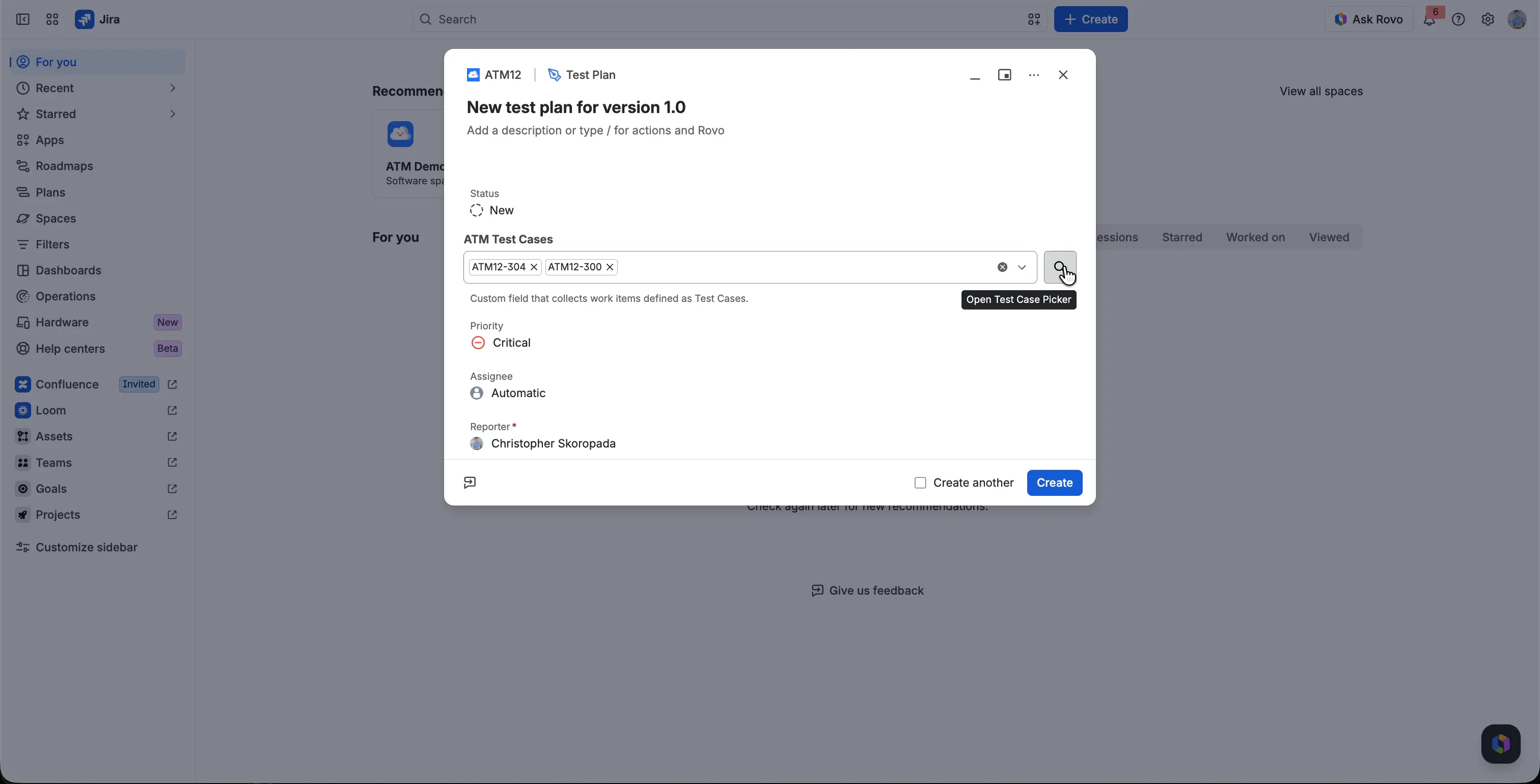
Click Create. In the confirmation, click View Test Plan to open the new Test Plan.

The Select Test Cases picker has three tabs: Basic search, Advanced JQL, and Repository. The Repository tab shows the folders of your Test Repository. Select the Test Cases and click Add selected.

From the ATM Repository
Open the ATM Repository tab in your space and select a folder.
Select the Test Cases with the checkboxes.
In the bar at the bottom of the screen, click Create Test Plan.
The Create dialog opens with your selected Test Cases. If they come from one folder, the summary is “Test Plan from FOLDER_PATH”, for example “Test Plan from Folder A / Folder B”. If they come from several folders, the summary is “Test Plan from Repository”.
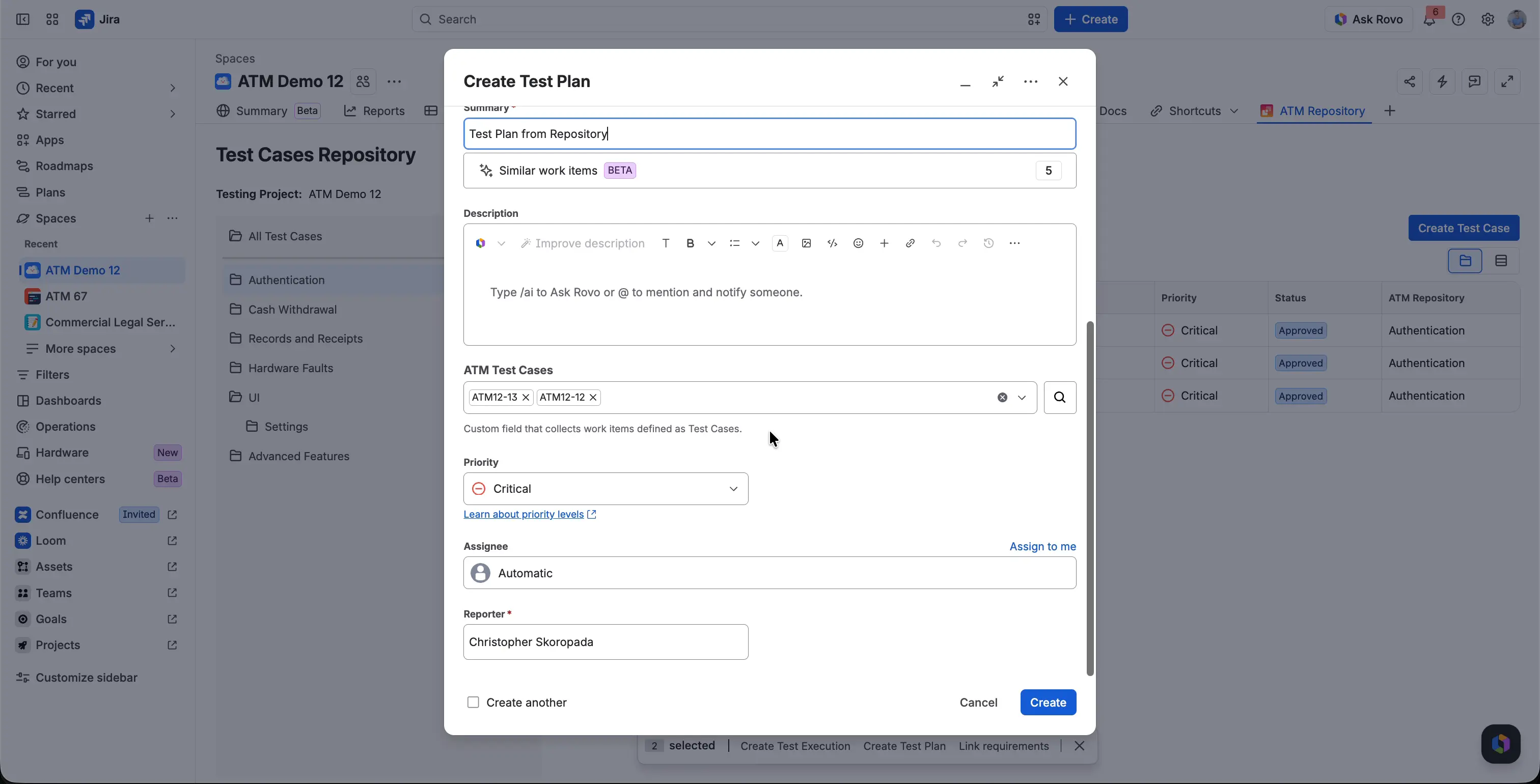
Fill in the other fields and click Create.

From a Test Case
Open a Test Case and go to the Test Plans tab in its Test Management panel.
- Add to a new Test Plan creates a new Test Plan from the Test Case.
- Add to an existing Test Plan adds the Test Case to a Test Plan you already have. It opens the Select Test Plan window. Select the Test Plans and click Add. The button shows how many Test Plans you selected, for example Add (2).
The tab lists the Test Plans that include the Test Case, with Work key, Summary, # of tests, and Status. Test Plans in total shows how many there are.

Add and remove Test Cases
Open the Test Plan and go to the Test Cases tab of the Test Management panel. The tab has the Create a new Test Case and Add an existing Test Case buttons. Test Cases in total shows how many Test Cases the Test Plan has.
To remove a Test Case from the Test Plan, click the unlink icon in its row and confirm in the Unlink test case? window.

To change the order of Test Cases, drag a row to a new position. New Test Executions created from the Test Plan list the Test Cases in the same order.
Run a Test Plan
Each run of a Test Plan is a Test Execution. Start it from the Test Executions tab of the Test Plan.
Open the Test Plan and go to the Test Executions tab.
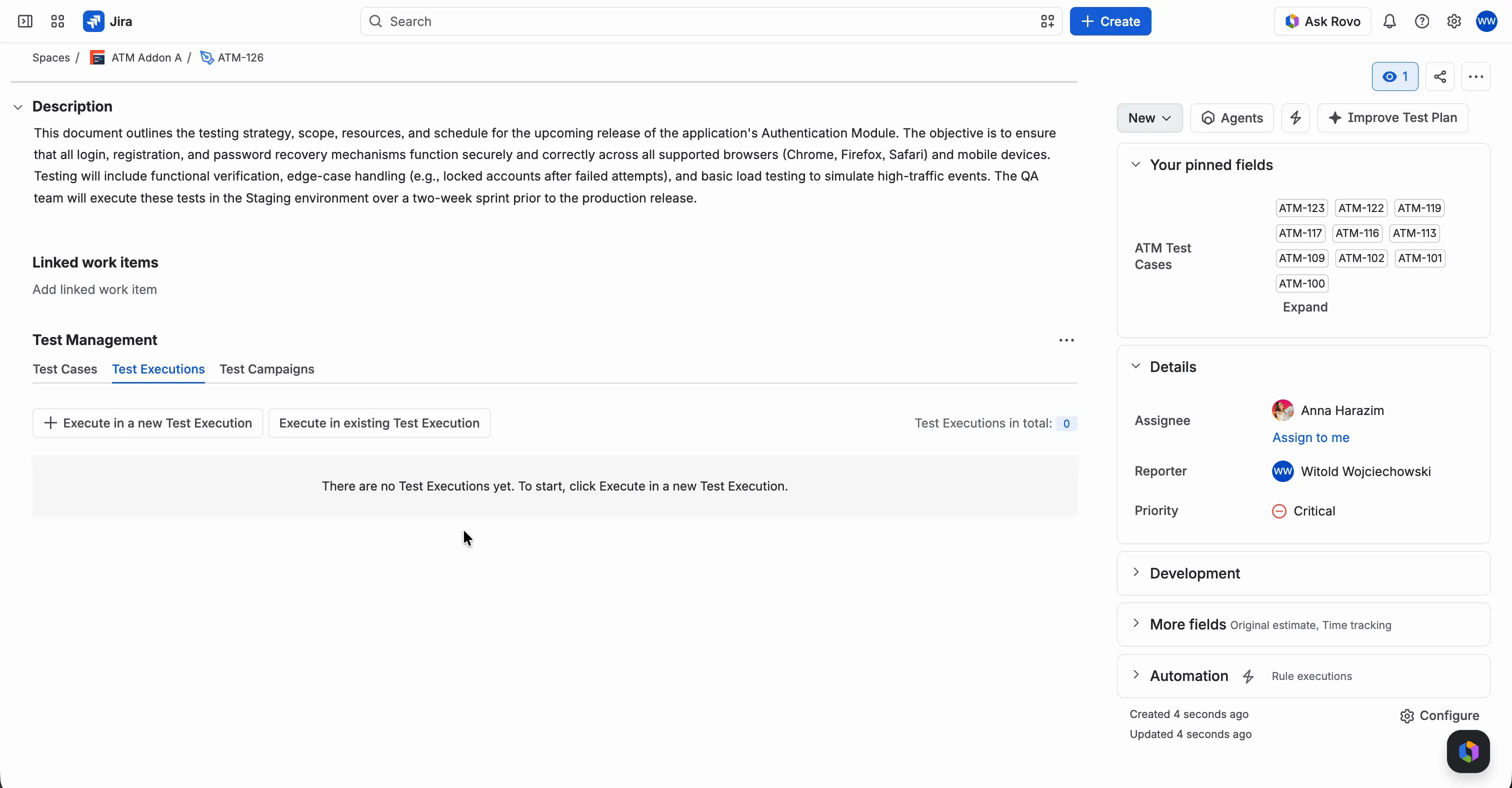
Click Execute in a new Test Execution.
The Create Test Execution dialog opens with ATM Test Plans set to this Test Plan. Select the environment in ATM Environments.
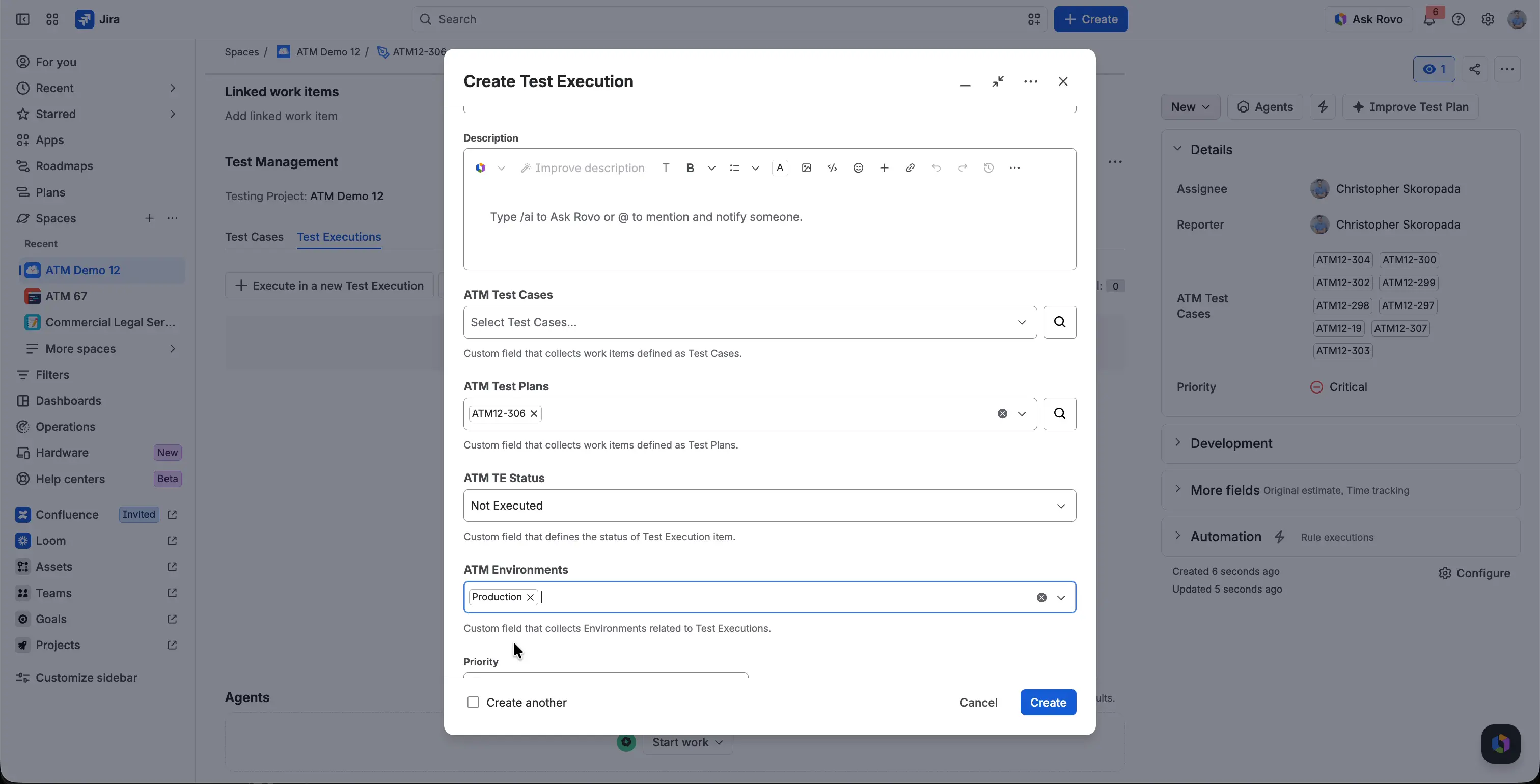
Click Create.


The new Test Execution has a Test Case Execution for every Test Case of the Test Plan that has steps in its default version. A Test Case without steps in the default version gets no Test Case Execution. On the Test Plan, such a Test Case has a warning icon. That’s why a Test Execution can have fewer Test Case Executions than the Test Plan has Test Cases.
For each Test Execution, the Test Executions tab shows the environment, TE Status, TE Progress, the number of defects, and the status.

For details, see Create Test Execution.
Add an existing Test Execution
To add a Test Execution that already exists to the Test Plan, click Execute in existing Test Execution on the Test Executions tab. This doesn’t change the scope of the Test Execution: no new Test Case Executions are added to it.
A warning banner appears in two cases:
- You create a new Test Execution from the Test Plan, and it contains Test Cases that aren’t in the Test Plan.
- You use Execute in existing Test Execution, and the Test Execution contains Test Cases that aren’t in the Test Plan.
The banner shows how many Test Cases are missing from the Test Plan. Its text uses the singular form for one Test Case and the plural form for several.
The banner offers two actions:
- Add the missing Test Cases to the Test Plan.
- Click Do not modify test plan to dismiss the proposal. This button was earlier named Keep the plan as is.
After you add the Test Cases, a confirmation appears in the bottom-left corner of the screen. It does not disappear on its own after 5 seconds, like the green banner.
Add to a Test Campaign
To add the Test Plan to a Test Campaign, use its Test Campaigns tab. It has the Create a new Test Campaign and Add an existing Test Campaign buttons. Until you add one, the tab shows “There are no Test Campaigns yet. Click Create or Add Test Campaign to start.” See Test Campaign.
Track progress
The ATM TP Progress bar shows the combined progress of the Test Cases in all Test Executions connected to the Test Plan. Only the latest Test Case Execution (the last iteration) of each Test Case counts. The legend shows how many Test Cases are Passed, Failed, In progress, Blocked, and Not Executed.
For example, a Test Plan has 9 Test Cases. 3 passed, 1 failed, and the rest weren’t executed. Passed and Failed count as executed, so the bar shows 44%.
For the full rule, see How progress is calculated.