Test Campaign
A Test Campaign groups one or more Test Plans and shows their combined progress. The business uses it to follow how testing is going.
Test Campaigns are optional. You can plan and run tests without them.
A Test Campaign is a regular Jira work item. Usually it’s a work item that the business tracks. You can also treat it as the business’s request for testing.
A Test Campaign connects one or more Test Plans, and one Test Plan can be in several Test Campaigns.

Your Testing Project maps Test Campaigns to one space and work type. This part of the Testing Project setup is optional. See Testing Elements.
What a Test Campaign shows
Above the tabs of the Test Management panel, the Campaign progress bar shows the progress as a percentage. Its legend shows how many Test Cases are Passed, Failed, In progress, Blocked, and Not Executed.
The panel has two tabs:
- Test Plans lists the connected plans, with the Add Test Plan button and the Test Plans in total counter. The table has the Work Key, Summary, Status, Test Cases #, and TP Progress columns. TP Progress shows the progress bar of each plan with its legend.
- Defects lists the defects from the Test Executions of those plans.

How progress is calculated
The Campaign progress bar combines the progress of all connected Test Plans. It follows these rules:
- The bar counts every Test Case in every Test Plan of the campaign.
- A Test Case that is in two Test Plans counts twice, once per plan.
- For each pair of a Test Plan and a Test Case, ATM takes the newest Test Case Execution from the Test Executions of that plan. Only the latest iteration counts.
- A Test Case with no execution counts as not executed and stays in the total.
- Progress is the number of Test Cases in a final status, divided by all Test Cases. Which statuses are final depends on the ATM status configuration.
- A Test Plan without any Test Execution shows 0%, but its Test Cases count toward the total.
Example: a campaign has two Test Plans, and TC-A is in both.
| Test Plan | Test Case | Latest result | Counts as |
|---|---|---|---|
| TP-1 | TC-A | Passed | done |
| TP-1 | TC-B | Failed | done |
| TP-1 | TC-C | no execution | not done |
| TP-2 | TC-A | In progress | not done |
| TP-2 | TC-D | Passed | done |
Three of five are done, so the campaign shows 60%.
Different people can see different numbers
Progress includes only the Test Plans and Test Executions you can see in Jira. Two people with different permissions may see different progress on the same campaign. See Permissions.
Create a Test Campaign and add Test Plans
- In Jira, click Create and select the Test Campaign work type. The ATM Test Plans field must be on the screen for this work type. You can select Test Plans now or add them later in step 2.
Click the search icon next to the ATM Test Plans field. The Select Test Plans window opens with the Basic search and Advanced JQL tabs. You can also pick plans from the dropdown of the field.
Select one or more Test Plans, then click Add selected. The plans appear as tags in the field.
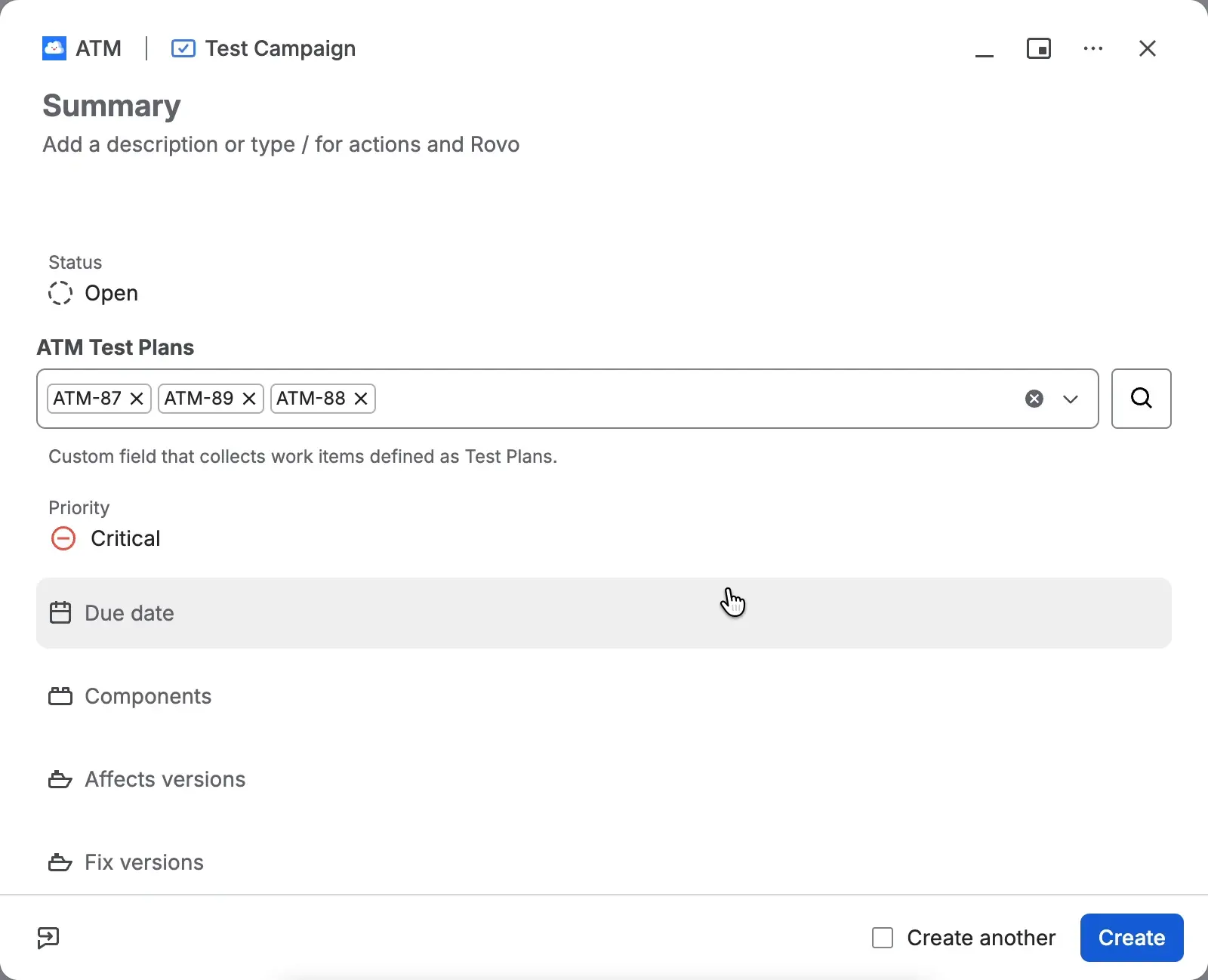
Click Create.
- Open the Test Campaign. On the Test Plans tab, click Add Test Plan to connect Test Plans.

You can also start from a Test Plan. Its Test Campaigns tab has the Create a new Test Campaign and Add an existing Test Campaign buttons.
Follow defects across all Test Plans
The Defects tab lists all defects created in the Test Executions of the connected Test Plans. Defects in total shows how many there are. The defect count is a link. Click it to open a Jira search with those defects in a new tab. When there are no defects, nothing happens.
The table has the Work Key, Summary, Test Plan, Test Execution, Priority, and Status columns.

To report or link defects during a test run, see Defects.