Import
Importing Test Cases
The Import feature in the Test Management allows for the swift migration of Test Cases from external tools like Xray into Appsvio Test Management. Beyond simple data transfer, it bridges the gap between legacy tools and a native Jira environment, allowing you to keep your established processes while gaining better performance and Forge-level security. Move your data in minutes and continue testing exactly where you left off.
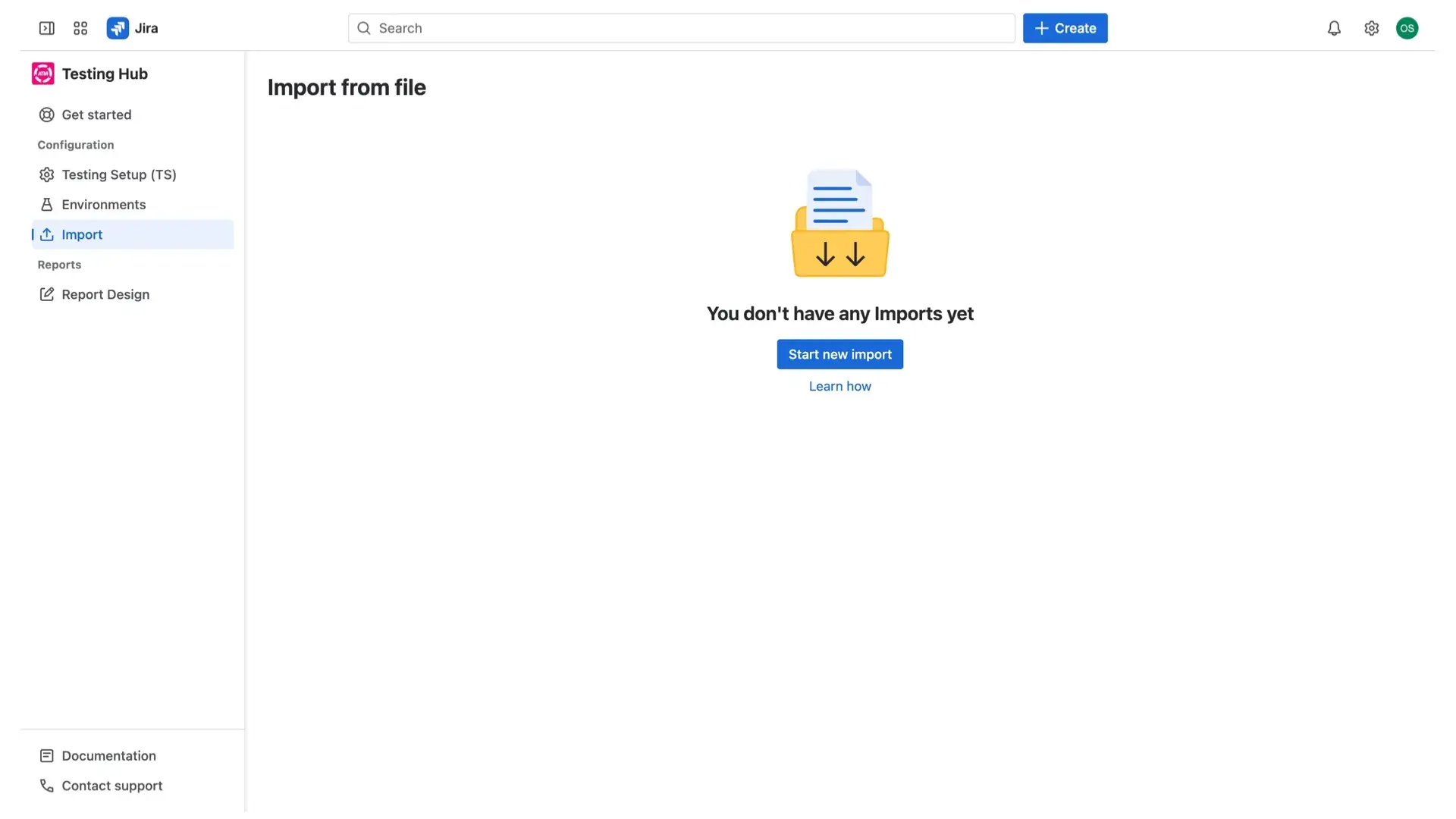
To access the Import section:
- Navigate to the Test Management in Apps on the left navigation in Jira.
- Select Import from the menu.
Caution
If the Import section is not visible, you likely do not have the required global permissions.
Required global permissions
The Import section is visible and accessible only to users who have both of the following Jira global permissions:
- Global administrator
- Make bulk changes
Project permissions for the target Testing Project
In addition to global permissions, you also need specific project permissions in the target project where your Test Cases will be created or updated (the Jira project linked to your selected Testing Project).
To successfully import data, you must have both of the following permissions:
- Create work item
- Edit work item
ATM verifies these permissions when you select a Testing Project in the Import Wizard. If you lack the required project permissions, the corresponding option (e.g., Test Cases) will be disabled, and you will not be able to proceed with the import for that specific project.
Import history
When you navigate to Apps > Testing Hub > Import, the first thing you see is the history of all past imports.

Each import is displayed in a table containing the following information:
- Testing Project – The Testing Project configuration where the data was imported.
- Imported elements – The type of elements imported. Currently, only Test Cases are supported.
- Imported by – The user who started the import.
- Import date – The exact date and time when the import started.
- Status – The current or final status of the import. The statuses are:
- Success – All rows from the file were processed, and the issues were created or updated correctly.
- Warning – The import finished, but at least one row could not be created or updated due to data validation errors (e.g., an invalid work-key, or a missing Summary when creating a new item).
- Failed – A critical error prevented the import from completing (e.g., a server error or connectivity problem).
- In Progress – The import is currently running in the background.
- Work items created – The number of new items created. Clicking the provided link opens the Jira issue navigator to show the newly created items from this specific import.
- Work items updated – The number of existing items updated. Clicking the provided link opens the Jira issue navigator to show the updated items from this specific import.