Import
Import creates or updates many Test Cases at once from an Excel file. Use it to move test cases from Xray or another tool to Appsvio Test Management (ATM).
One import brings in Test Cases with their test steps, preconditions, and folders in the Test Repository. A row can also update an existing Test Case instead of creating a new one.
ATM imports only Test Cases. You can’t import Test Plans, Test Executions, or Test Case Executions yet. We’re working on a full migration that includes them.
You start an import in Apps › Test Management › Import. The same page shows the history of all imports.

Before you start
- The Test Cases go to a Testing Project. You choose it in the first step of the import. See Testing Elements.
- Any user can run an import. If you aren’t a Jira administrator, the wizard shows the warning You are not an admin. Your import can’t create new custom field options, components, or fix versions. See Permissions.
- An import in progress blocks other imports. Until it ends, Start new import is disabled. See Import statuses.
Prepare the import file
Every import file follows the same rules, whatever tool it comes from.
File
- Save the file as .xlsx or .xls. ATM doesn’t support other formats, such as .csv or .ods.
- Put the data on the first tab. ATM reads only the first tab and skips the other tabs.
- Keep the file size at 5 MB or less.
- One import can bring in up to 1,000 work items. Split a larger file into several imports.
- Give each column a unique header. ATM rejects duplicate headers.
Rows
- Put each test step in its own row. In the second and later rows of a Test Case, fill in only Action, Data, and Expected Result.
- Leave one empty row between two Test Cases.
- The step columns are optional. ATM creates a step from every row that has a value in Action, Data, or Expected Result.
Required values
- Test Type: enter Manual. ATM skips a Test Case with any other value and doesn’t show an error.
- Summary: required for new Test Cases, up to 255 characters. ATM skips a new Test Case without a valid summary.
- Key: leave it empty to create a new Test Case. Enter the key of an existing work item to update that work item.
Use the Repository Path column to choose the folder for each Test Case. Separate folder names with a slash. Folders that don’t exist yet are created automatically.
This layout shows two new Test Cases. The first one has two steps, and an empty row separates it from the second one.
| Key | Summary | Precondition | Repository Path | Test Type | Action | Data | Expected Result |
|---|---|---|---|---|---|---|---|
| Test Case 1 | Precondition of Test Case 1 | Folder/Subfolder | Manual | Step 1 action | Step 1 data | Step 1 expected result | |
| Step 2 action | Step 2 data | Step 2 expected result | |||||
| Test Case 2 | Precondition of Test Case 2 | Folder | Manual | Step 1 action | Step 1 data | Step 1 expected result |
For the other columns and the format of each value, see How columns are imported.
Export from Xray
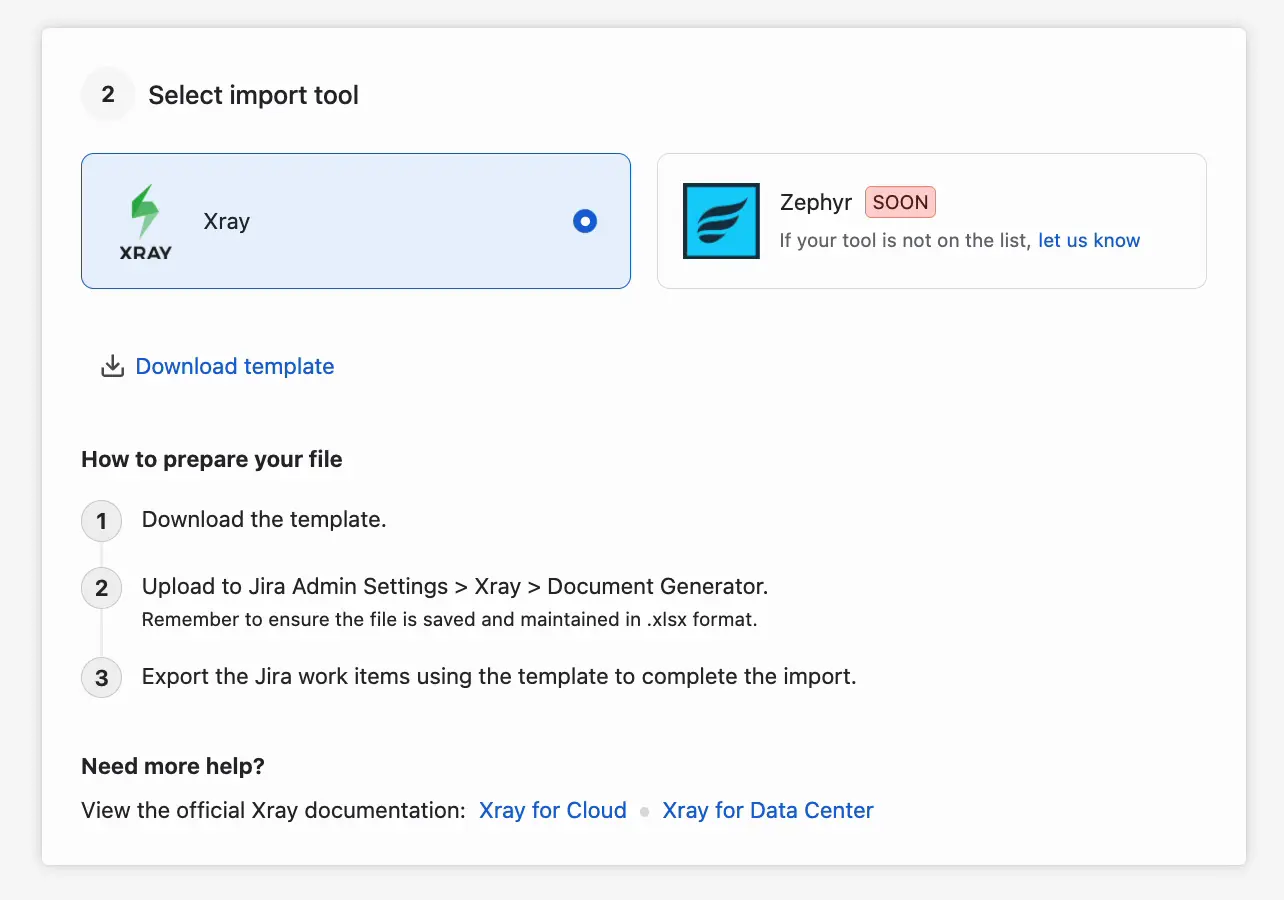
To make the migration from Xray easier, ATM provides a template for the Xray Document Generator. Step 2 of the import wizard has the Download template link and a short guide, How to prepare your file:
- Download the template.
- Upload it to Jira Admin Settings › Xray › Document Generator. Keep the file in the .xlsx format.
- Export the Jira work items with the template.
Below the guide are links to the Xray documentation: Xray for Cloud and Xray for Data Center.
To export the tests from Xray Data Center:
- In the Xray Test Repository, right-click the folder you want to export and select Document Generator.
- Set Template to ATM Import (NEW).
- Set Output Format to XLSX.
- To include the tests from all subfolders, select Include tests from sub-folders.
- Click Export.
Upload the exported file without changes. For what moves with the migration, see Migration from Xray.
Export from other tools
You can also import test cases from other tools. Export them to a spreadsheet and arrange the file by the rules above.
Name the other columns after the Jira fields they should fill. ATM maps each column to the field with the same name, including custom fields. You can correct the mapping during the import.
Import the file
The import wizard has five steps. You move between them with Next and Previous.
Go to Apps › Test Management › Import and click Start new import.
Select testing project: choose the Testing Project for the Test Cases.
Select import tool: the step has the Xray and Zephyr tiles. Zephyr is marked SOON. If your tool isn’t on the list, use the let us know link. For Xray, the step also has the template link and guide from Export from Xray.
Upload file: upload your .xlsx or .xls file.
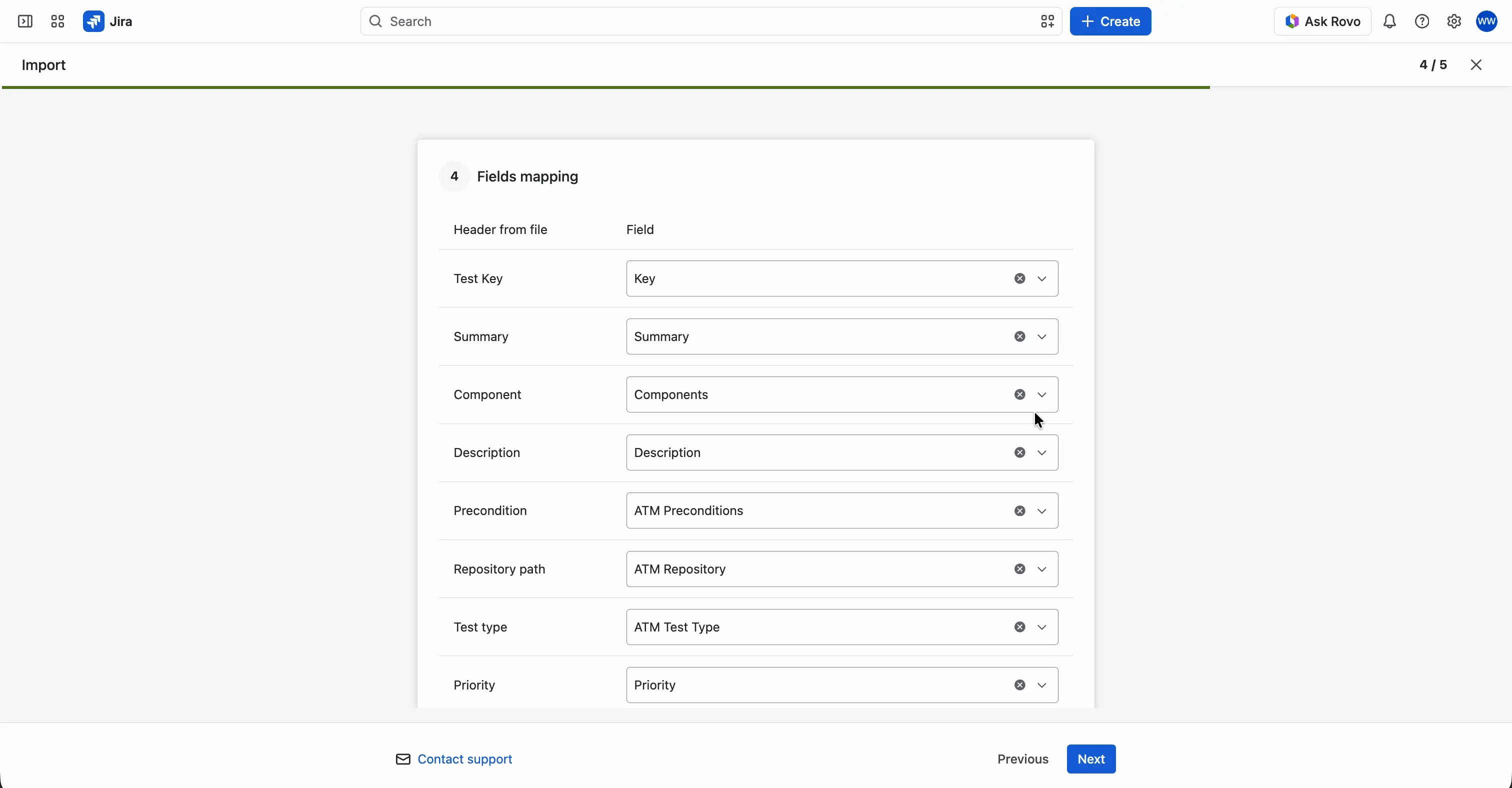
Fields mapping: check how ATM mapped the columns to fields, and correct a mapping by hand if needed. You can’t continue until a column is mapped to ATM Test Type. Two columns can’t map to the same field.
Summary: review the numbers of New Test Cases to Create and Existing Test Cases to Update, and confirm the import.


While the import runs, its status is IN PROGRESS. The import history shows the final status when it ends.
How columns are imported
The Fields mapping step maps the columns automatically. Most columns go to the field with the same name. ATM also recognizes common header synonyms. These columns work differently.
| Column in the file | Field in ATM | How it works |
|---|---|---|
| Key (also Test Key or work item key) | Work item key | Empty: the row creates a new Test Case. Filled in: the row updates the existing work item with that key. To create new Test Cases even when the file has keys, choose Do not import for this column. |
| Summary (also Title or Name) | Summary | Required for new Test Cases, up to 255 characters. |
| Test Type (also Type) | ATM Test Type | Must be mapped. The value must be Manual. |
| Precondition | ATM Preconditions | Read as plain text. An empty cell clears the field. See Preconditions. |
| Repository Path (also Folder or Path) | ATM Repository | The folder in the Test Repository, with folder names separated by a slash. Missing folders are created automatically. |
| Action, Data, Expected Result | Test steps | Optional. One row per test step. |
| Any other column | The Jira field with the same name | This includes custom fields of the supported types. |
The folders from the Repository Path column appear in the ATM Repository tab of your space. See Test Repository.
Supported fields
- Jira system fields: Work item key, Summary, Description, Priority, Assignee, Reporter, Labels, Due date, Original Estimate, Remaining Estimate, Components, Affects Version/s, and Fix Version/s.
- ATM fields: ATM Test Type, ATM Preconditions, ATM Repository, and the test steps (Action, Data, Expected Result).
- Custom fields of these types: Select List (single choice), Radio Buttons, Checkboxes, Select List (multiple choices), Text Field (single line), Text Field (multi-line), and Number.
The Fields mapping step doesn’t offer custom fields of other types, such as user picker, custom date, URL, or cascading select fields.
Field value formats
Enter the values in the formats below. The last column says what happens when ATM can’t use a value.
| Field | Format in the file | If the value can’t be used |
|---|---|---|
| Description, Text Field (multi-line) | Jira wiki markup. ATM converts it to ADF (Atlassian Document Format) . | – |
| ATM Preconditions | Plain text. ATM converts it to ADF. | An empty cell clears the field. |
| Assignee, Reporter | The user’s accountId, not the name or email. | An unknown user leaves the field empty. |
| Labels | A list separated by a comma and a space, for example a, b. | – |
| Due date | A date. ATM converts it to the YYYY-MM-DD format. | – |
| Original Estimate, Remaining Estimate | The Jira time format, for example 2h 30m, 1w, or 3d, or a plain number. | A wrong format leaves the field empty. |
| Components, Affects Version/s, Fix Version/s | A comma-separated list, matched by name. | If any value can’t be matched or created, the field stays empty. |
| Priority | The priority name, matched without regard to case in the priority scheme of the project. | Only a Jira administrator’s import creates a missing priority. It also adds the priority to the priority scheme of the project. |
| Select List (single choice), Radio Buttons, Checkboxes, Select List (multiple choices) | Option values separated by a comma. | Values that aren’t on the option list are skipped. Only a Jira administrator’s import creates missing options automatically. |
| Text Field (single line) | Text. | Text over 255 characters is cut to 255. |
| Number | A number. A decimal comma is changed to a dot. | A value that isn’t a number leaves the field empty. |
Import statuses
The import history in Apps › Test Management › Import lists all imports. For each import, it shows the Testing Project, the scope, the file name, who ran it, the status, the date, and the duration. It also shows how many work items were created and updated. Click the number in Work Items Created to open the new Test Cases.
| Status | What it means |
|---|---|
| IN PROGRESS | The import is running. It blocks other imports, and Start new import is disabled until it ends. |
| Success | All the expected Test Cases were created and updated. |
| Warning | The import finished, but the number of created or updated Test Cases doesn’t match the expected number. Something needs a check. |
| Failed | The import ended with an error. Some work items may have been imported before the error. A failed import doesn’t block new imports. |
| Cancelled | Someone cancelled the import by hand. |
Cancel an import
To cancel an import in progress, open the … menu in the Actions column of that import in the import history. Select Cancel import. After that, you can start a new import.
The work items imported before you cancelled stay in Jira. You can’t undo the cancellation.