Quick Start
A sample project is the easiest and fastest way to evaluate Appsvio Test Management (ATM). We recommend that you create one with test data right after you install the app.
The sample project is a fully working testing process with all testing objects. Its work types, custom fields, and workflows are already configured, and it contains test data. You can use its configuration as a reference when you set up your own testing.
To set up ATM for your own spaces instead, a Jira administrator creates a Testing Project with Create new on the Testing Projects page. See Testing Elements.
Create the sample project
Only Jira administrators can create the sample project. See Permissions.
In the Jira sidebar, go to Apps › Test Management › Get started.
Find the Create a sample project tile. It has the Create sample project and Open project buttons. Click Create sample project.
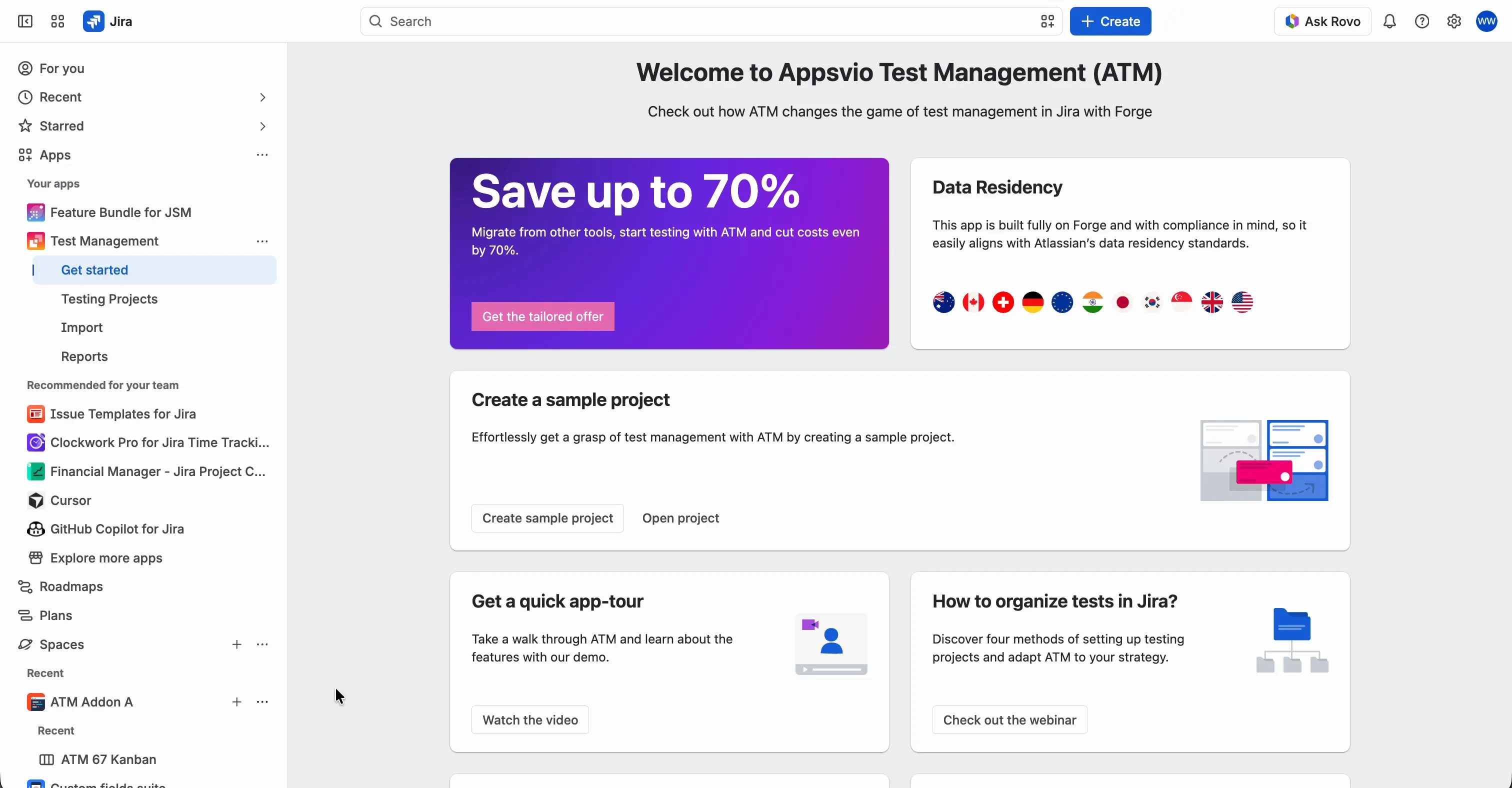
Wait until ATM creates the project. This takes 1 to 2 minutes.

If there are no Testing Projects yet, you can also start from Apps › Test Management › Testing Projects. The page shows “No testing project found” with the Create testing project and Create sample project buttons.
What ATM creates
- A new company-managed space with the key ATM. If a space with this key already exists, the new key is ATM1.
- Work types for the testing objects: Test Case, Test Plan, Test Campaign, and Test Execution. ATM adds each one only if a work type with that name doesn’t exist yet. Test Case Executions are ATM objects, not Jira work items.
- Custom fields, added to the screens of each testing object type.
- Workflows and test data, for example requirements and Test Cases.
ATM adds its testing objects to Jira when it creates the sample project. That’s why we recommend that you create the sample project first when you start evaluating ATM. If you configure a project manually, you need to confirm all these settings yourself. See ATM in Jira.
All testing objects of the sample project are in this one space, which makes onboarding easier. To compare a dedicated space for Test Cases with one space for all testing objects, see Jira Space.

Explore a Test Case
- In the sample space, open the ATM Repository tab. Select All Test Cases and open one of the Test Cases.
- In the Test Management panel, look at the test steps in the Test Case tab. Each step has the Action, Data, and Expected Result fields.
- Open the Requirements tab to see the requirements linked to the Test Case.
- Open the Test Plans tab. It lists the Test Plans that include this Test Case.
Explore a Test Plan
Open a Test Plan, for example from the Test Plans tab of the Test Case.
In the Test Management panel, the Test Cases tab lists the Test Cases in the plan.
The ATM TP Progress bar shows the progress of the plan: Passed, Failed, In progress, Blocked, and Not Executed.
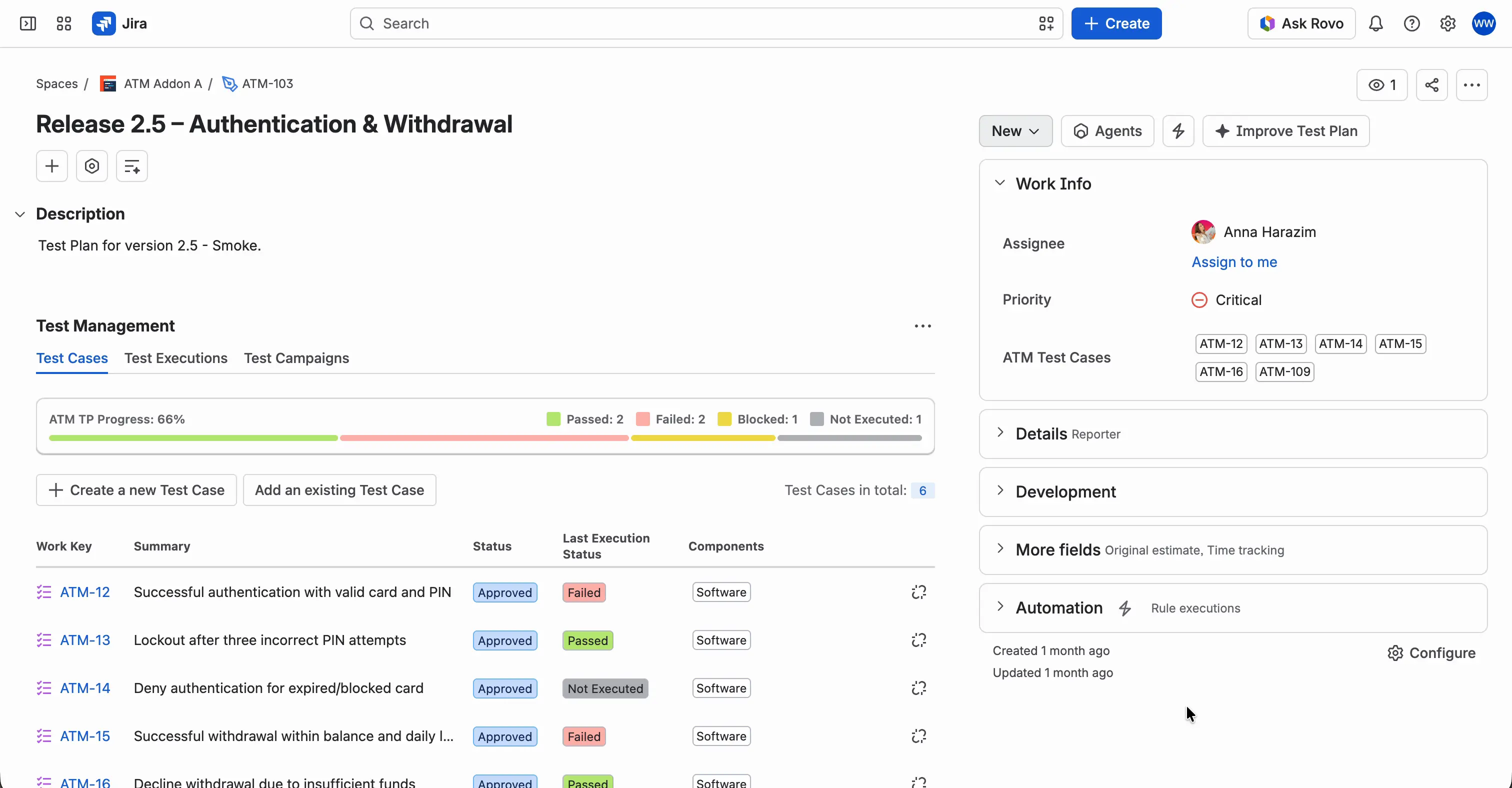
Open the Test Executions tab. It lists the runs of the plan with their environment, status, progress, and number of defects.
