Test Steps Execution
You run a Test Case Execution in the execution window. There you perform its steps, record the results, and set a status for each step. ATM uses the step statuses to set the status of the Test Case Execution.
Open the execution window
On the Test Execution, in the Test Case Executions table, click ▶ in the row of the Test Case Execution. See Run Test Execution.

The top of the window
- A breadcrumb with keys, for example ATM-13 / ATM-104 / ATM-104-8, and the summary of the Test Case.
- Prev and Next, which switch to the previous or next Test Case without closing the window.
- A counter with your position in the Test Execution, for example 1/11.
- The × button, which closes the window.
- The status of the Test Case Execution, in the top-right corner. You can change it yourself.
- The TCE Progress bar, with the percentage of execution and the number of steps in each status. In the screenshot above, the progress is 0% and all five steps are Not Executed.
Fields and preconditions
- Assignee: you can assign the Test Case Execution to a tester.
- Executed By: changes to the person who runs the test when any step leaves the Not Executed status.
- TC Ver., ATM Test Type, and ATM Environments: read-only.
Preconditions are copied from the Test Case and shown above the tabs. See Preconditions.
Below are four tabs: Test Steps, TCE Details, Defects (n), and All iterations.
Run the steps
The Test Steps tab lists the steps copied from the Test Case. Each step has its own status.
Read the step. It shows Action, Data, and Expected Result from the Test Case. Attachments of the step on the Test Case are visible here, and you can preview and download them.
Execute the step. Write your notes from the test in Actual Result.
Add screenshots in Evidences. The counter shows the number of files.
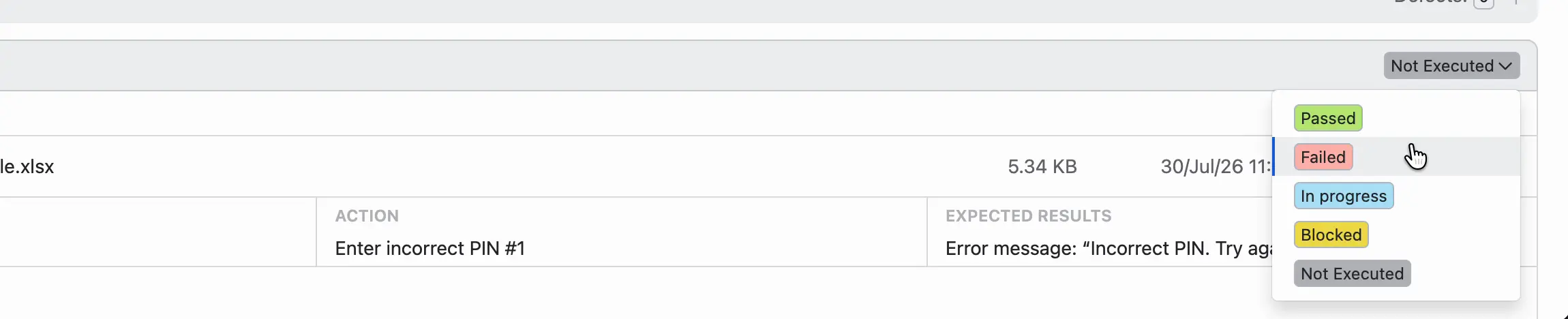
Click the status of the step, for example Not Executed, and select a new status from the list. In the screenshot, the list has Passed, Failed, In progress, Blocked, and Not Executed.
Go on with the next step.
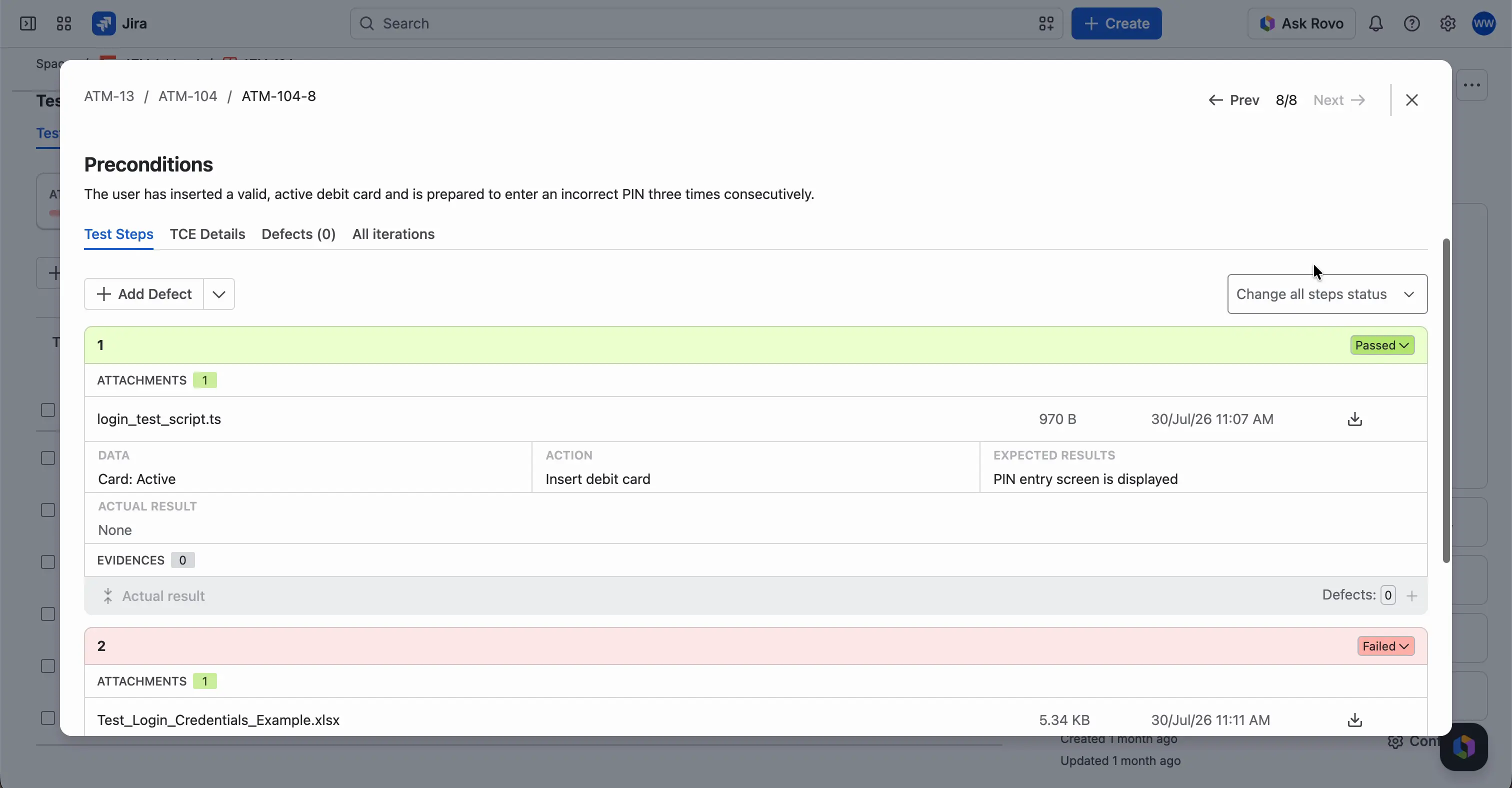
When you finish the Test Case, check its status in the top-right corner. ATM sets it from the step statuses: a Failed step makes the whole Test Case Execution Failed, and when all steps are Passed, it’s Passed. You can also change the status manually. Then click Next to go to the next one.


To set all steps to the same status at once, click Change all steps status. Setting the status of the whole Test Case Execution to Passed has the same effect on the steps.
A Test Case can call another Test Case with a Call test step. During the run, the steps of the called Test Case appear in place of that step. See Test Steps.
Status of the Test Case Execution
ATM sets the status of the Test Case Execution automatically. The rules are:
- After the first step is Passed, the status changes to In progress.
- When a step is Failed, the status changes to Failed.
- When all steps are Passed, the status changes to Passed.

You can also change the status yourself in the top-right corner of the execution window. When you set the status of the whole Test Case Execution to Passed there, ATM also sets every step to Passed. The steps refresh in the window immediately, so you don’t need to open another Test Case Execution or reload the page.
Add defects
Each step has a Defects counter with a + button. Click + and select Add Defect or Link Defect. To report a defect that applies to the entire Test Case Execution, use Add Defect on the Test Steps tab, above the steps. The arrow next to it opens Link Defect. See Defects.
We recommend a screenshot in Evidences and a linked defect for every step with the Failed status.
Run a Test Case again
To run a Test Case again, create a new iteration. The All iterations tab lists all iterations. See Retests.
ATM doesn’t support the execution of Gherkin tests yet.